Why Is My Google Nest Audio Dropping Wi-Fi Connection Randomly?
The Google Nest Audio relies on a stable 2.4 GHz or 5 GHz Wi-Fi network for core functionality such as music streaming, voice commands, and multi-room audio. Random disconnections often stem from router interference, outdated firmware, or channel congestion. Start by rebooting both the speaker and your primary router. Unplug the Nest Audio for 30 seconds, power cycle the router, and reconnect the speaker through the Google Home app. If the issue persists, navigate to device settings and forget the current Wi-Fi network before re-adding it. This clear reauthentication often resolves transient IP conflicts.
How Do I Fix a “No Network” Error on the Nest Audio’s LED Ring?
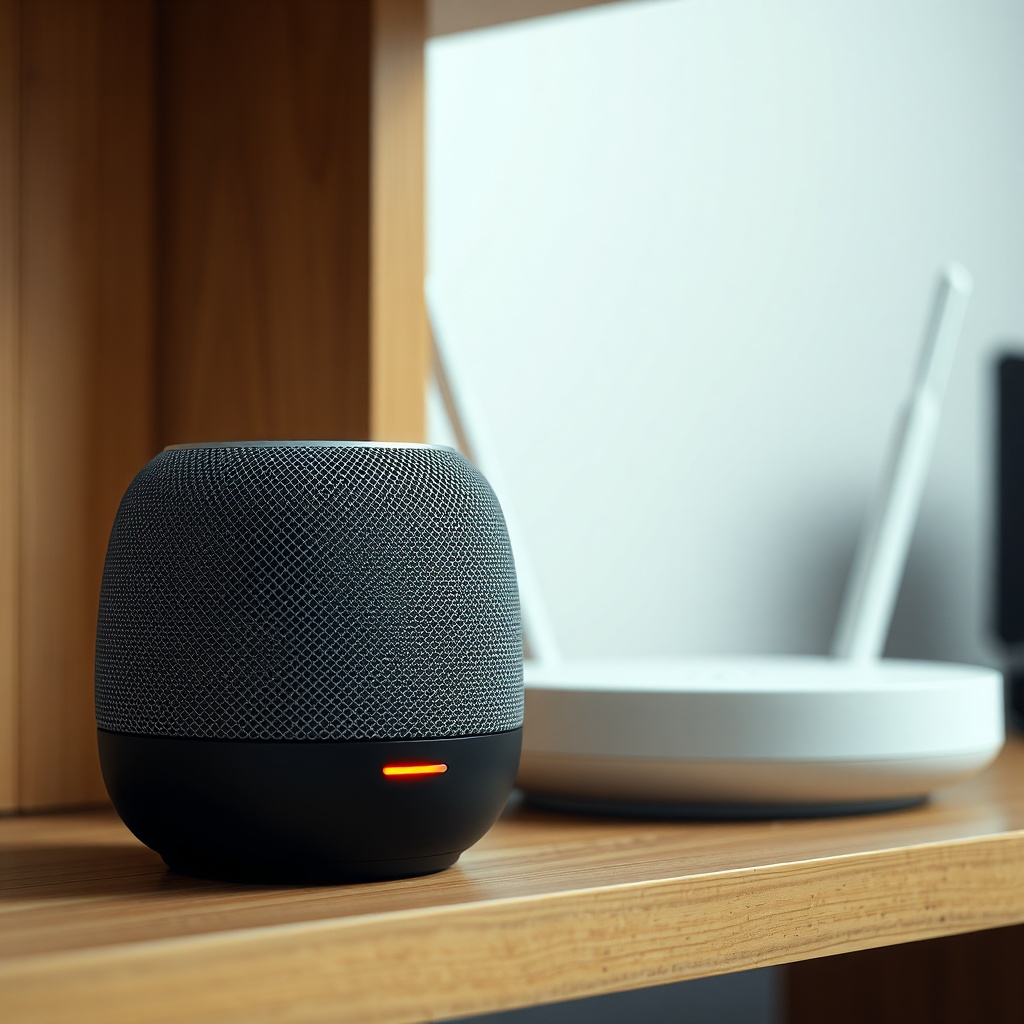
A solid or pulsing orange LED ring indicates network authentication failure. First, verify that the speaker is within 15–20 feet of the router and that no large metal objects block the signal. Open the Google Home app, tap your Nest Audio, and select Settings → Wi‑Fi → Forget this Network. Then, go to your router’s admin panel and ensure that MAC filtering is disabled or that the speaker’s MAC address is whitelisted. Re-add the device to the network using the app. Many users find that switching from automatic DNS to Google DNS (8.8.8.8) resolves intermittent connectivity errors, particularly on mesh systems.
Can Weak Signal Cause Nest Audio to Pause Playback Mid‑Song?
Yes, a weak Wi‑Fi signal is a primary cause of playback stuttering and abrupt pauses. The Nest Audio requires at least 3 Mbps downstream for high‑resolution audio streaming, but buffering issues may appear below 5 Mbps. Use the Google Home app’s “Network Check” tool to measure signal strength. If the result is “Weak” or “Poor,” move the speaker closer to the router or install a Wi‑Fi extender. Alternatively, consider enabling the 5 GHz band on a dual‑band router for less interference from household appliances like microwaves and Bluetooth speakers.
| Signal Strength (RSSI) | Expected Playback Quality | Recommended Action |
|---|---|---|
| -30 to -50 dBm | Flawless, no buffering | None needed |
| -51 to -65 dBm | Occasional delays at start of track | Move speaker closer or add mesh node |
| -66 to -75 dBm | Frequent pauses, stuttering audio | Immediately reposition device |
| Below -75 dBm | Constant disconnections | Use Wi‑Fi extender or Ethernet bridge |
Is the Nest Audio’s Thread Network Interfering with My Main Wi‑Fi?
The Google Nest Audio includes a Thread border router feature that enables smart home devices to communicate on a dedicated low‑power mesh. While Thread operates on the 2.4 GHz band alongside Wi‑Fi, it uses a separate radio and a different protocol (IEEE 802.15.4) that should not cause direct interference. However, if your Thread network is inconsistent, it can manifest as Wi‑Fi connectivity issues because the speaker may prioritise Thread fallback. To diagnose, disable Thread in the device settings via the Google Home app (Settings → Nest Audio → Thread → Disable). Then, monitor Wi‑Fi stability for 24 hours. Many owners report improved reliability after this adjustment. For a deeper dive, see Google Nest Audio Thread Network Issues: DIY Fixes for a Stable Connection and Google Nest Audio Thread Network Issues: DIY Fixes for a Stable Connection.
Why Won’t My Nest Audio Connect After a Firmware Update?
Firmware updates occasionally fail to install or corrupt network credentials. If the speaker exhibits a blinking white LED after an update, factory reset it by pressing and holding the centre of the speaker for about 15 seconds until the light turns solid orange. Re‑pair it as a new device in the Google Home app. For unresolved cases, the update file may have been interrupted due to a weak connection during download. Retry the process when the speaker is within 2 metres of the router. Full step‑by‑step guidance is available at Google Nest Audio Firmware Update Not Installing? Step‑by‑Step Fixes.
What Do Owners Say About Persistent Nest Audio Wi‑Fi Problems?
Community forums across the UK, US, and Australia reveal that connectivity issues are among the top three complaints for the Nest Audio. Many users report that the speaker “forgets” the network after a power outage, requiring re‑setup. Others note that using a non‑Google router—especially older models from brands like TP‑Link or Netgear—sometimes leads to intermittent drops, while Google’s own Nest Wi‑Fi works seamlessly. A common DIY fix involves changing the router’s Wi‑Fi channel to 1, 6, or 11 on the 2.4 GHz band to reduce co‑channel interference. Additionally, pairing the speaker with the Google Home app’s “Preferred Device” setting on a dedicated 5 GHz SSID yields more stable multi‑room performance.
One owner on Reddit described that after three months of stuttering playback, disabling “Band Steering” on the router finally solved the issue. Another noted that reverting from IPv6 to IPv4 on the router’s LAN settings resolved a “permanent offline” error. For latency problems, check the dedicated guide Google Nest Audio Multi‑Room Audio Latency: Causes and Solutions. TV audio sync issues are also addressed in Google Nest Audio Audio Sync Issues with TV: Causes and Solutions.
Frequently Asked Questions
Q1: How can I check the exact Wi‑Fi signal strength of my Nest Audio?
A: Open the Google Home app, select your Nest Audio, tap Settings → Device Information → Network. The RSSI value in dBm appears there. Anything above -67 dBm is excellent; below -80 dBm indicates very poor signal.
Q2: Will a powerline adapter fix my Nest Audio connection?
A: Powerline adapters can help if you place a secondary access point near the speaker. However, they introduce latency. A dedicated Wi‑Fi mesh system is usually more effective for consistent audio streaming.
Q3: Does the Nest Audio support WPA3 security?
A: Yes, the Nest Audio works with WPA2 and WPA3. Some routers with WPA3‑only mode may cause connectivity glitches. If you experience issues, set your router to WPA2/WPA3 mixed mode.
Q4: Could a temperature sensor failure affect Wi‑Fi?
A: Not directly. The temperature and humidity sensor is separate from the radio module. However, if the device is overheating (above 40°C), internal throttling may cause Wi‑Fi instability. See Google Nest Audio Temperature and Humidity Sensor Not Working? Troubleshooting Guide.
Q5: How often should I reboot my Nest Audio for network health?
A: Monthly reboots help clear cache and refresh network leases. If you experience frequent drops, a weekly reboot may stabilise things.
Q6: Does Thread network interference require a different fix?
A: Yes. If your speaker is part of a Thread mesh with many devices, disable Thread temporarily via the app. For persistent issues, consult the dedicated guide: Google Nest Audio Thread Network Issues: DIY Fixes for a Stable Connection.