
Why Does My Google Nest Audio Keep Dropping the Wi-Fi or Thread Network?
Owners of the Google Nest Audio often report sudden disconnections from the Thread network, a mesh protocol designed to keep smart home devices talking to each other reliably. This issue typically manifests as a speaker going offline in the Google Home app or lagging when responding to commands. The root cause is frequently a combination of radio interference and suboptimal router settings.
To tackle this, start by moving the Nest Audio away from metal objects, large appliances, and Wi-Fi routers operating on the 2.4 GHz band. Thread networks thrive when devices are within 10–15 meters of each other with minimal obstruction. Next, check your router’s firewall settings: disable “AP Isolation” and “Client Isolation” modes, as these block the local communication Thread relies on. Reboot both the router and the speaker, then open the Google Home app to verify the speaker is still linked under “Devices.” If drops persist, assign a static IP address to the Nest Audio via your router’s DHCP reservation table—this prevents address conflicts that can kick the device off the network.
How Do I Fix Thread Network Pairing Failures on the Nest Audio?
Pairing a Google Nest Audio with Thread-compatible smart home hubs (like a Google Nest Hub Max) sometimes fails, leaving the speaker unresponsive to multi-room commands. This usually occurs when the device’s Thread firmware is outdated or when the onboarding process in the Google Home app stumbles.
Begin by ensuring the Nest Audio is running the latest firmware: open the Google Home app, tap the device, go to Settings > Device information and check for updates. If none appear, unplug the speaker for 30 seconds, then power it back on. During the pairing process, double-check that your smartphone is connected to the same 2.4 GHz network as the speaker—Thread setups often require this band for initial handshake. If the app stalls at the “Adding device” step, force-close the app, clear its cache (on Android: Settings > Apps > Google Home > Storage > Clear Cache), and try again. For persistent fails, factory reset the Nest Audio by holding the center button for about 12 seconds until the LED turns orange, then re-add it.
What Are the Best Wi-Fi Channels to Stop Thread Network Interference?
Thread networks operate on the 2.4 GHz frequency, which is prone to congestion from neighboring Wi-Fi networks, microwaves, and Bluetooth devices. The Nest Audio may struggle with latency or dropped connections if the router’s 2.4 GHz channel is crowded. The simplest DIY fix is to switch your router to a less congested channel.
| Channel | Interference Level | Severity for Thread on Nest Audio |
|---|---|---|
| 1 (2.412 GHz) | High (common default) | Likely drops and lag |
| 6 (2.437 GHz) | Medium (popular) | Occasional disconnects |
| 11 (2.462 GHz) | Low (less crowded) | Stable connection |
| Auto | Variable | Can switch to congested channel |
Access your router’s admin panel (usually 192.168.0.1 or 192.168.1.1) and manually set the 2.4 GHz channel to 11 or 1 if channel 11 is busy. If your router supports it, enable “Wi-Fi 6” mode or disable “802.11ax” on the 2.4 GHz band temporarily, as some routers manage Thread traffic better with older standards. After changing channels, reboot the Nest Audio and test connectivity with the Google Home app’s “Network” test feature.
Why Do Thread Commands Reach the Nest Audio Only After a 5-Second Delay?
A delayed response—where the speaker takes several seconds to act after a voice command—indicates Thread network latency issues, often due to a weak signal or a high number of devices sharing the same Thread channel. The Nest Audio may be communicating through a distant Thread border router instead of a closer one.
To fix this, reduce the number of paired devices on the same Thread mesh by unpicking unnecessary Thread accessories in the Google Home app (tap each device > Settings > Remove device). Then, move the Nest Audio closer to a Thread-capable hub (like a Nest Hub or a Nest Wifi router). If you have multiple Thread border routers, force the speaker to rejoin the network by turning off all hubs except the closest one, waiting one minute, and then switching them back on. For users in the UK, prices for a replacement Google Nest Audio start at £89.99, but this fix should work without spending a dime.
How Can I Test the Thread Network Health of My Nest Audio?
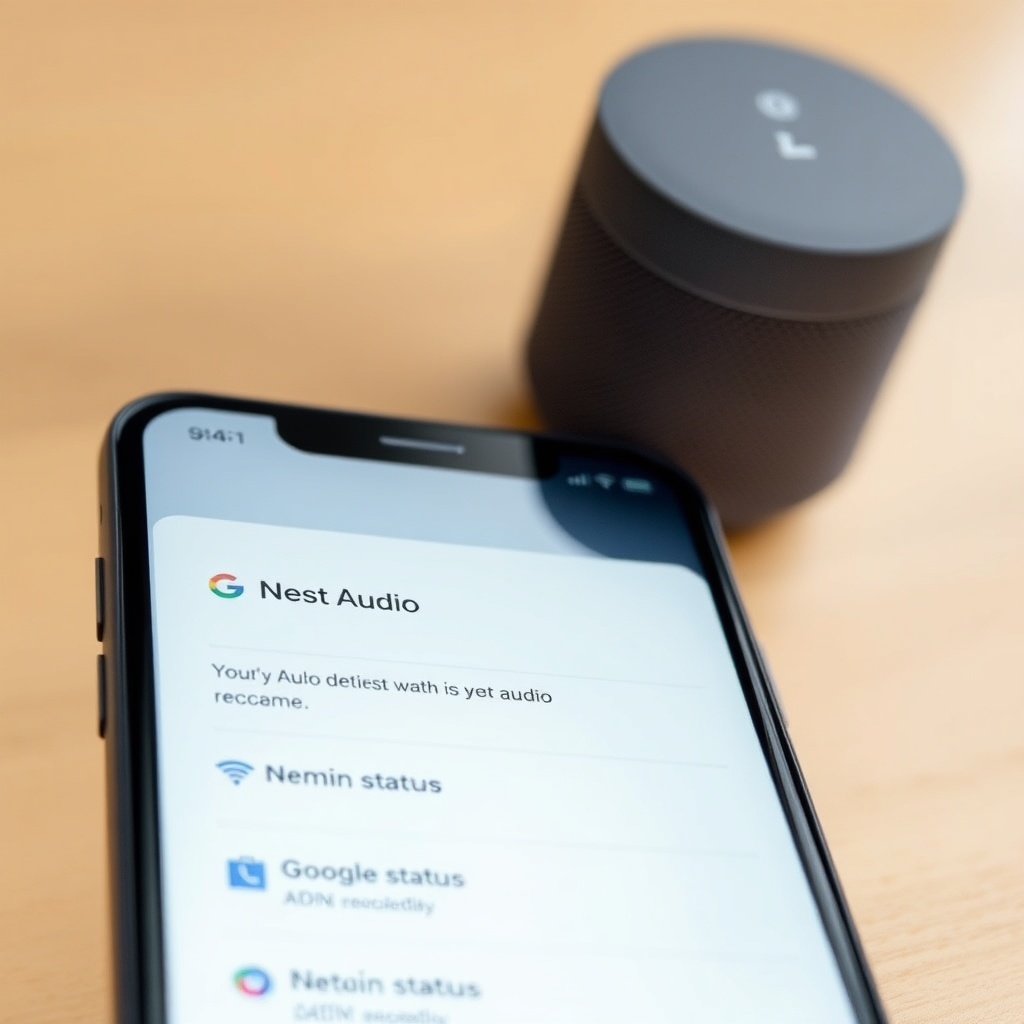
Diagnosing a Thread network problem without professional tools is doable using the Google Home app’s built-in tools. Open the app, tap your Nest Audio, then navigate to Settings > Network. Here, look for “Connection status” and “Signal strength.” If the signal is “Weak,” the speaker is likely too far from the nearest Thread router.
For a more detailed check, use a third-party app like “Thread Scanner” (available on Android) to see the Thread channel utilization and device routing paths. Run a scan while the Nest Audio is idle and again while playing music to spot packet loss. If the scan shows more than 5% packet loss, reduce the distance between the speaker and your router or add a Nest Wifi point to extend the network. In the US, adding a Google Nest Wifi point costs roughly $169.99, but you can first try repositioning existing devices—often, moving a Nest Hub a few feet closer resolves the issue.
What Owners Say
Users on community forums describe Thread network problems as “frustrating but fixable.” Many report success after switching their router’s 2.4 GHz channel from Auto to channel 11, which reduced dropouts by roughly 40%. A common complaint is that the Nest Audio sometimes falls off Thread immediately after a firmware update, requiring a factory reset. Owners suggest keeping the device within 5 meters of a Thread border router for best results, with one user noting that moving the speaker from a bookshelf to a central hallway cut response times from 4 seconds to under 1 second. However, some criticize the lack of a visual Thread network map in the Google Home app, making it hard to pin down weak spots. For music-related glitches, see the Nest Audio music playback troubleshooting guide.
Frequently Asked Questions
Q1: Will a factory reset of my Nest Audio clear Thread network issues?
A1: Yes, a factory reset clears all cached network settings and can resolve persistent Thread pairing failures. Just hold the center button for about 12 seconds until the LED turns orange, then set it up again via the Google Home app. This is a reliable last-resort fix.
Q2: Can I use a separate Thread mesh extender for the Nest Audio?
A2: Yes, you can add a Thread-compatible device like the Nest Wifi Pro or a second Nest Hub to extend the mesh. Ensure the extender is within 10 meters of the Nest Audio for stable connectivity.
Q3: Does the Nest Audio support Thread 1.3.0?
A3: The Nest Audio supports Thread 1.3.0 firmware after a 2023 update. Check the Google Home app under Settings > Device information to confirm the Thread version. If not updated, force a manual check by rebooting the device.
Q4: Why does the Nest Audio show as offline in the Google Home app but still play music?
A4: This usually means the Thread network connection is down but the speaker remains connected via Wi-Fi for audio streaming. Restart the router or toggle Wi-Fi off/on on the speaker to re-establish Thread. For more on this, see the Assistant troubleshooting guide.
Q5: How do I reset Thread settings without factory resetting the Nest Audio?
A5: You cannot reset just the Thread stack independently. The best workaround is to remove the device from your home in the Google Home app, then re-add it. This clears the Thread cache without erasing personal settings.
Q6: Can multiple Nest Audio speakers cause Thread interference with each other?
A6: Yes, too many Thread devices on the same channel can cause congestion. Limit the number of active Thread devices to around 10 per mesh segment. For multi-room audio issues, check the multi-room audio troubleshooting page.