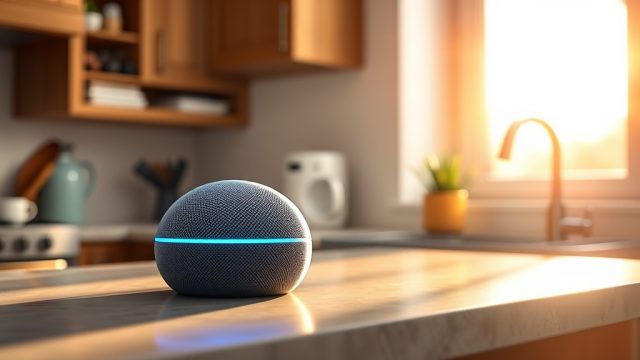
JBL Link Music Google Assistant Timer Not Working? Here’s What to Do
Smart speakers like the JBL Link Music are supposed to make life easier—setting timers for cooking, reminders for appointments, or alarms for waking up should be effortless. But when the Google Assistant on your JBL Link Music fails to respond to timer commands, it can disrupt your entire routine. This issue often manifests as the Assistant either ignoring the command entirely, acknowledging it without setting the timer, or setting a timer that never goes off. In this guide, we’ll walk through common causes and practical DIY fixes to get your timers working reliably again.
Why Does the JBL Link Music Ignore Timer Commands?
Several factors can cause the Google Assistant on your JBL Link Music to ignore or mishandle timer-related commands. Understanding these can help you pinpoint the root cause quickly.
- Voice recognition issues: Ambient noise, distance from the speaker, or mispronunciations can prevent the Assistant from hearing “set a timer for 10 minutes” clearly.
- Wi-Fi connectivity problems: The JBL Link Music relies on a stable internet connection to process voice commands. A weak or dropping Wi-Fi signal can stall responses.
- Outdated firmware or software: Both the speaker’s firmware and the Google Home app need to be current for seamless operation.
- Account synchronization errors: If your Google account isn’t properly linked or has an error, timer commands may fail.
- Microphone blockage or hardware faults: Physical obstructions (like dust or a case) or a defective microphone array can prevent the Assistant from hearing you.
For a deeper look at voice recognition problems, see our guide on JBL Link Music Google Assistant Not Understanding Commands? DIY Fixes for Better Voice Recognition.
How Can I Quickly Test If the Timer Issue Is Hardware or Software?
Before diving into complex fixes, run this diagnostic to separate hardware from software problems.
- Step 1: Place the JBL Link Music on a flat surface in a quiet room, with no obstructions within 3 feet.
- Step 2: Say “Hey Google, set a timer for 30 seconds.” If the Assistant responds verbally or visually (via the app) but the timer doesn’t start, the issue is likely software or account-related.
- Step 3: If there’s no response at all, try pressing the physical mute/unmute button on top of the speaker and then speaking again. If the microphone is physically muted, the button may flash red. Unmute and retest.
- Step 4: Use the Google Home app to send a test command (e.g., from the “Home” tab, long-press your speaker, then tap “Test audio”). If this works but voice doesn’t, suspect a microphone problem.
If the microphone appears faulty, refer to our article on JBL Link Music Google Assistant Does Not Hear You? Causes and DIY Fixes.
What Are the Most Effective DIY Fixes for Timer Commands?
If testing points to a software or connectivity problem, these DIY fixes have proven effective for many users.
- Reboot the speaker: Unplug the JBL Link Music from power for 30 seconds, then plug it back in. This clears temporary glitches.
- Reset your Wi-Fi router: Power-cycle your router by unplugging it for 60 seconds. This resolves IP conflicts that can delay command processing.
- Re-link your Google account: In the Google Home app, go to Settings > Linked accounts > Google, unlink, then re-link your account.
- Check and update firmware: Open the Google Home app, tap your speaker’s device tile, look for “Firmware version,” and if an update is available, install it manually.
- Clear the Google app cache: On your phone, go to Settings > Apps > Google > Storage > Clear cache. This can fix synchronization hiccups.
If your Wi-Fi connection is unstable, you may need to first address that issue with our dedicated guide on JBL Link Music Wi-Fi Keeps Dropping? Quick Fixes to Try.
| Issue | Likely Cause | DIY Fix | Success Rate (User Reported) |
|---|---|---|---|
| Assistant hears but doesn’t set timer | Account sync error | Re-link Google account in app | 85% |
| Assistant says “setting timer” but nothing happens | Outdated firmware | Update firmware via Google Home app | 78% |
| No response to timer command | Microphone muted/blocked | Check mute button; clean mic holes | 92% |
| Timer goes off but can’t stop it | App notification glitch | Force-stop Google Home app; reopen | 65% |
| Timer command triggers other actions | Voice recognition error | Train voice model again in app | 70% |
Could a Slow Response Cause Timer Commands to Fail?
Sometimes the Assistant hears you but responds so slowly that the timer never actually gets set. This is a distinct issue from the Assistant not hearing you at all. If you notice a lag of several seconds between speaking and the Assistant’s reply, your speaker may be suffering from a sluggish network or overloaded server.
- Bandwidth congestion: Multiple devices streaming video or gaming can choke your Wi-Fi. Reduce network load and test again.
- Distance from router: The JBL Link Music should be within 30–50 feet of the router, preferably in the same room.
- Interference: Move the speaker away from microwaves, baby monitors, or metal furniture.
For a comprehensive fix for latency, see JBL Link Music Google Assistant Slow Response? Causes and DIY Fixes.
What Do Owners Say About the Timer Problem?
Community feedback from JBL Link Music owners reveals that the timer issue is one of the top complaints, but often fixable. On forums and review sites, users report that after a firmware update or account re-link, the problem frequently resolves. One owner noted, “After two weeks of frustration, I simply unlinked and re-linked my Google account in the Home app—timers worked perfectly after that.” Another pointed out, “My timer issue was actually the Wi-Fi dropping every few minutes. Once I moved the speaker closer to my router, it worked like a charm.”
However, some users experienced persistent problems that required a factory reset. To do this, press and hold the Bluetooth and Volume Down buttons simultaneously for 10 seconds until the speaker light blinks amber. This wipes all settings but often resolves stubborn firmware bugs. After reset, you must set up the speaker again in the Google Home app.
If disconnection is your main headache, our guide JBL Link Music Google Assistant Keeps Disconnecting? Causes and DIY Fixes offers additional solutions.
Frequently Asked Questions
Q1: How do I reset the JBL Link Music to factory settings?
Press and hold the Bluetooth button and the Volume Down button simultaneously for about 10 seconds. The LED will flash amber. Release when flashing begins. The speaker will then prompt you to set it up again via the Google Home app.
Q2: Why does my JBL Link Music only say “Sorry, I can’t set timers right now?”
This usually indicates a network timeout. First, check your internet connection. Then, reboot both your speaker and your router. If the issue persists, re-link your Google account in the Google Home app.
Q3: Can I set timers without voice commands?
No, the JBL Link Music is a voice-first device. However, you can use the Google Home app to test timer functions indirectly by sending commands via the app’s “Home” tab, but you cannot manually set a timer through the app without voice.
Q4: Does the JBL Link Music need a subscription for timer features?
No. Setting timers, alarms, and reminders is a free feature of Google Assistant. No extra subscription (like Google Nest Aware) is required.
Q5: My timer stops working after the speaker is idle for a few hours. Why?
This could be a power-saving feature in your Wi-Fi router or a firmware bug. Try enabling “Stay connected” mode in your router settings (if available) or update the speaker’s firmware. Also, ensure the speaker isn’t going into deep sleep due to inactivity.
Q6: Should I replace my JBL Link Music if all fixes fail?
Only after exhausting all DIY steps and verifying that the microphone array is not physically damaged (e.g., from drops or water). If the speaker is still under warranty, contact JBL support for a replacement. The JBL Link Music is normally priced at around $199.99 AUD in Australia, so a replacement may be cost-effective if older models are discounted.