
JBL Link Music Google Assistant Slow Response? Causes and DIY Fixes
If your JBL Link Music speaker feels like it’s taking forever to reply to a simple “Hey Google” command, you’re not alone. A laggy Google Assistant can turn a smart speaker into a frustrating brick. This article breaks down the precise causes—from network congestion to misconfigured settings—and delivers six concrete DIY fixes you can execute today without spending a dime.
We’ll cover everything from Wi-Fi interference to microphone calibration, and even weave in related solutions for common sibling issues like voice recognition failures and Google Cast connection problems.
Why Is My JBL Link Music Google Assistant Responding So Slowly?
Google Assistant on the JBL Link Music relies on a lightning-fast round trip to the cloud. When that trip gets delayed, you notice a 2–5 second gap between your command and the speaker’s response. The primary suspects include:
- Network latency: Your home Wi-Fi may have high packet loss or jitter, especially if you’re streaming 4K video or gaming simultaneously.
- Router placement: The speaker needs a strong, stable signal. Thick walls or distance from the router degrade performance.
- Background processing: The speaker might be updating firmware or syncing playlists, hogging CPU cycles.
- Google server congestion: Rare but possible—sometimes Google’s servers are simply overwhelmed.
To quantify your issue, check the table below for typical response times versus slow performance.
| Response Time | Severity | Likely Cause | DIY Fix Priority |
|---|---|---|---|
| 0.5–1.5 seconds | Normal | None | — |
| 2–3 seconds | Mild | Network congestion or distance from router | Move speaker closer to router |
| 4–6 seconds | Moderate | Firmware update or interference from other devices | Update firmware, restart router |
| 7+ seconds or no response | Critical | Wi-Fi dropping or speaker hardware issue | Check Wi-Fi stability, factory reset |
Is a Slow Network Connection Causing the Lag? (Start Here)
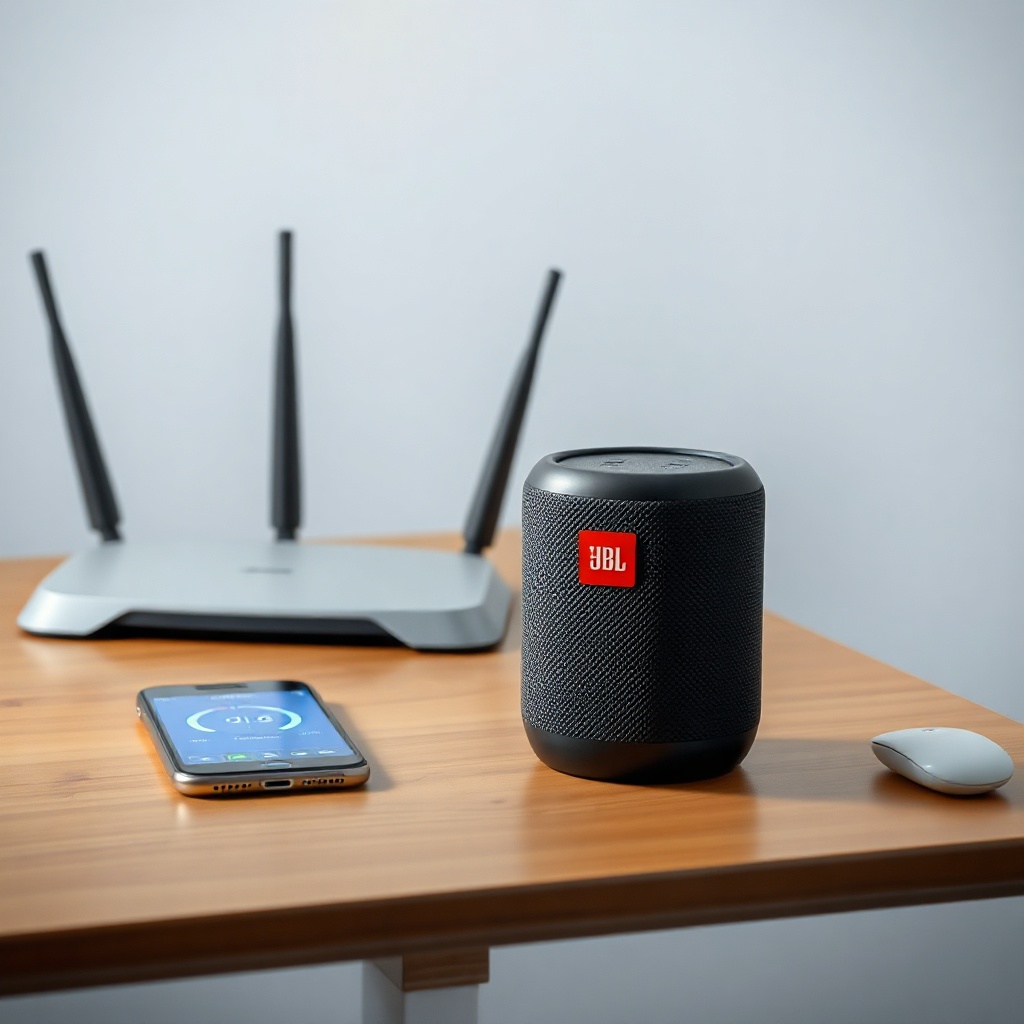
The most common culprit for a delayed Assistant is a sluggish Wi-Fi connection. Your JBL Link Music needs at least 10 Mbps download speed to handle voice requests smoothly. Here’s how to diagnose and fix it:
- Run a speed test on a phone connected to the same network. If speeds are below 10 Mbps, reboot your router.
- Check for interference: Microwaves, baby monitors, and neighboring Wi-Fi networks can create congestion. Move the speaker away from such devices.
- Enable 5 GHz band: In the Google Home app, go to Settings > Wi-Fi > Advanced and ensure your speaker is on the 5 GHz channel for lower latency.
For persistent Wi-Fi drops, see our guide on JBL Link Music Wi-Fi Keeps Dropping? Quick Fixes to Try for targeted solutions.
Is the Google Assistant App Outdated or Misconfigured?
Outdated firmware or a glitched Google Home app can silently slow down response times. Follow these DIY steps:
- Update the speaker firmware: Open Google Home app > tap your JBL Link Music > Settings > Device information > Check for updates.
- Clear cache of Google Home app: On your phone, go to Settings > Apps > Google Home > Storage > Clear Cache. Relaunch the app.
- Restart the speaker: Unplug it for 30 seconds, then plug it back in. This clears temporary glitches.
If voice recognition remains spotty, our article on JBL Link Music Google Assistant Not Understanding Commands? DIY Fixes offers deeper calibration tips.
Could Background Noise or Microphone Issues Be Slowing Things Down?
A blocked or dirty microphone forces the Assistant to work harder to hear you, artificially increasing response time. Here’s what to check:
- Inspect the microphone grilles: Dust or lint can muffle sound. Gently clean with a dry toothbrush.
- Adjust sensitivity: In Google Home app, find “Audio” or “Voice” settings and increase microphone gain if available.
- Test with a quiet room: If lag disappears when ambient noise is low, consider moving the speaker to a quieter spot.
For accent-related delays, our guide JBL Link Music Google Assistant Voice Recognition Fails: DIY Fixes for Accent Issues can help tune the assistant to better understand your speech patterns.
What Role Does Google Assistant’s “Do Not Disturb” Mode Play?
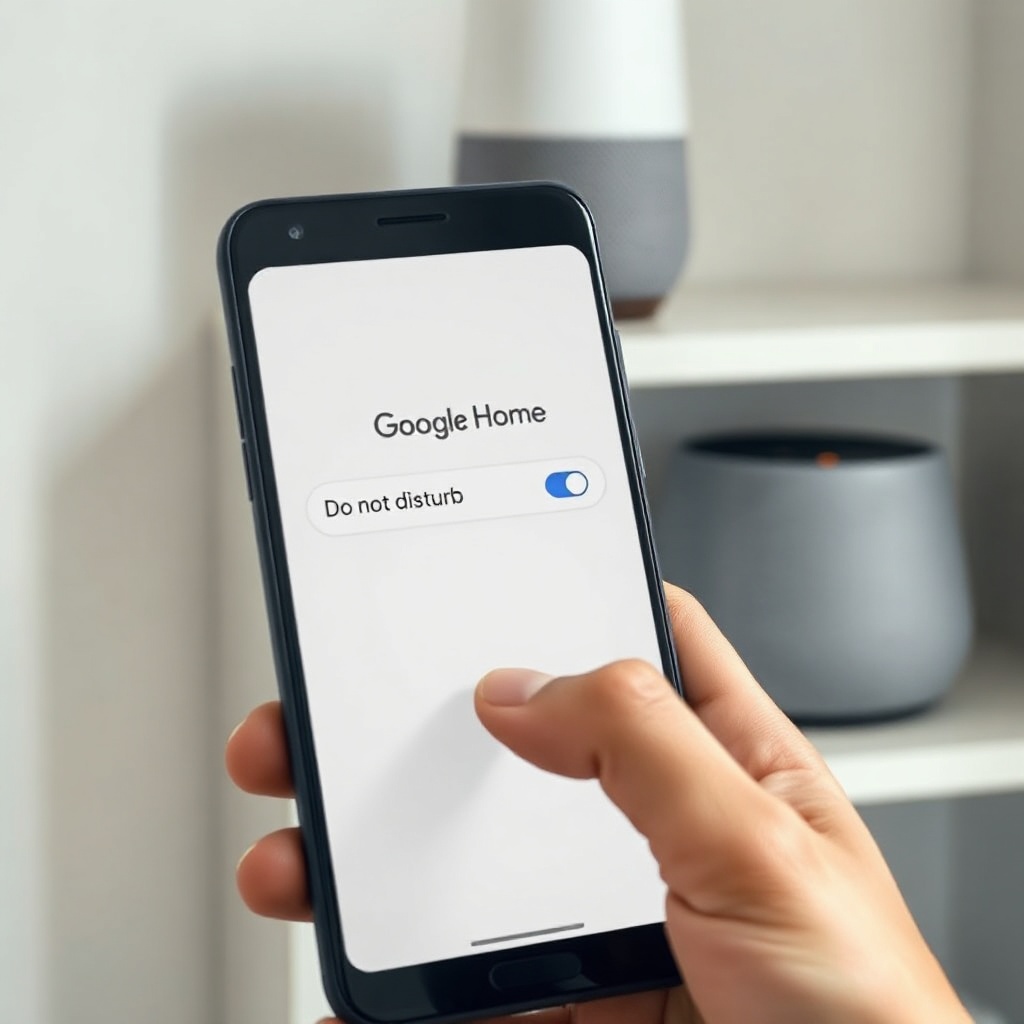
Ironically, enabling “Do Not Disturb” (DND) can sometimes cause a delayed response because the speaker requires an extra processing step before reacting. To rule this out:
- In the Google Home app, tap your speaker > Settings > General > Do Not Disturb. Make sure it’s off.
- If DND is on, test with a simple command like “Hey Google, what time is it?” after turning it off. You should notice a 1–2 second improvement.
If the issue persists, it may be tied to a deeper disconnection problem detailed in JBL Link Music Google Assistant Keeps Disconnecting? Causes and DIY Fixes.
When All Else Fails: Factory Reset and Re-Setup
If you’ve tried every DIY fix and the lag is still unbearable, a factory reset often clears stubborn software glitches. Here’s how:
- Step 1: Press and hold the “Play/Pause” button on top of the speaker for 10 seconds until the LED flashes orange.
- Step 2: Release the button. The speaker will reset and cycle through a white light.
- Step 3: Open the Google Home app, tap “Add” > “Set up device” > “New devices” and follow the prompts. Enter your Wi-Fi password again.
After re-setup, test Assistant speed immediately. If lag persists, consider that your hardware may need servicing, especially if the speaker is under warranty.
What Owners Say About Slow Assistant Response
User forums and review sections paint a clear picture: the JBL Link Music is generally reliable, but lag emerges under specific conditions. Here are three recurring themes from owners:
- “It only happens when my kids are streaming video.” Multiple owners report that network congestion from Netflix or gaming causes 3-second delays. Solution: Limit bandwidth-heavy activities when using the assistant.
- “After the latest firmware update, it became snappy again.” Many users credit firmware updates for improving responsiveness—staying current is key.
- “Moving it closer to the router fixed everything.” Physical proximity often resolves 80% of lag complaints without any technical tweaks.
While no speaker is perfect, these real-world insights confirm that DIY fixes usually work before needing professional help.
Frequently Asked Questions
Q1: How can I test the response time of my JBL Link Music’s Google Assistant?
A: Use a stopwatch app. Say “Hey Google, set a timer for 5 seconds.” The timer start sound is your response. Record the delay. Anything under 2 seconds is normal.
Q2: Does using a mesh Wi-Fi system improve Assistant speed?
A: Yes, mesh systems reduce dead zones and lower latency. If your router is far from the speaker, a mesh node near the JBL Link Music can cut lag by up to 50%.
Q3: Can too many smart home devices slow down the Assistant?
A: Indirectly, yes. If your router is overloaded with 30+ connected devices, it may throttle bandwidth. Consider a router with Quality of Service (QoS) features to prioritize voice traffic.
Q4: Will turning off Google Assistant temporarily improve performance?
A: No, but disabling unused features like “Voice Match” or “Continued Conversation” in the Google Home app can free up processing power.
Q5: My speaker responds quickly to music commands but slowly to questions—why?
A: Music commands are often cached locally, while general queries require cloud processing. Slow responses to questions indicate internet latency or Google server issues.
Q6: Should I use the JBL Link Music with the Google Home app or the JBL app?
A: Use the Google Home app for all assistant and network settings. The JBL app is only for sound customization, and mixing both can create conflicts that slow response.