
The Apple HomePod mini is a compact smart speaker that usually responds instantly to “Hey Siri” commands. When that responsiveness vanishes—whether the spinning light refuses to appear or Siri simply ignores you—the fault often lies in a few fixable areas. This guide walks through the most common DIY solutions to get your HomePod mini listening again, without requiring a trip to the Genius Bar.
Why Did My Apple HomePod mini Stop Responding to “Hey Siri”?
“Hey Siri” not working can be caused by a range of issues, from simple microphone obstruction to network-level interference. Before diving into deeper troubleshooting, confirm the obvious: check that the top of the HomePod mini is clean and free from dust or debris. The mesh fabric can trap particles over time, and even a thin layer can muffle the built-in far-field microphones. If you see visible dust, gently brush it off with a soft, dry toothbrush or a lint-free cloth. Also, ensure the HomePod mini is plugged into a working outlet—no power means no Siri.
If the physical checks pass, the next step involves software and network settings. The most common cause of sudden Siri silence is a stale network connection or a change in your Apple ID settings.
Is “Listen for Hey Siri” Enabled in the Home App?
A surprisingly common oversight is that the “Listen for Hey Siri” toggle gets accidentally disabled. Here’s how to verify it in the Home app on your iPhone or iPad:
- Open the Home app on your iOS device.
- Tap the Home tab, then tap the house icon (or the home name) in the top-left corner.
- Select Home Settings, then tap Siri & Dictation.
- Ensure Listen for “Hey Siri” is toggled on. If it’s off, toggle it on and back off to reset the voice model.
- Repeat this for each HomePod mini in your home. Also, confirm that the Press and Hold for Siri option is enabled, just in case.
If the toggle is already on, toggle it off, wait 10 seconds, and toggle it back on. This forces the device to re-calibrate its listening profile. After a restart, test a simple command like “Hey Siri, what’s the time?” from about three feet away.
Could a Weak or Dropped Wi-Fi Connection Be the Issue?
The HomePod mini relies on a stable 2.4GHz or 5GHz Wi-Fi network to process Siri requests. If your network is sluggish or the HomePod mini disconnects, Siri will appear unresponsive. Start by checking the connection status in the Home app: tap the HomePod mini tile, then scroll down to Wi-Fi Name. If it shows “Not Connected,” you’ve found the culprit. Restart your router and the HomePod mini (unplug it for 30 seconds, then plug it back in).
For persistent Wi-Fi issues, review our dedicated guide on Apple HomePod mini Thread Network Problems: Causes and Solutions if you suspect interference from Thread-based smart home devices. In many homes, simply moving the HomePod mini closer to the router or switching to the 5GHz band (if your router supports band steering) can resolve the problem.
| Severity Level | Typical Symptoms | Quick Action |
|---|---|---|
| Usually Not Urgent | Siri occasionally ignores commands but responds if you speak louder; Wi-Fi signal shows “Fair” or “Good” in the Home app. | Reboot the HomePod mini and router; verify “Hey Siri” toggle is enabled. Usually resolves within minutes. |
| Needs Attention Soon | Siri never responds; “Hey Siri” toggle won’t stay on; HomePod mini appears offline in the Home app; other devices have no issues. | Factory reset the HomePod mini, check Apple ID settings, and ensure iCloud Keychain and HomeKit Hub are configured correctly. |
Is Your Apple ID or iCloud Keychain Misconfigured?
Because Siri processes requests through your iCloud account, any authentication hiccup can block voice commands. The HomePod mini uses your Apple ID’s iCloud Keychain to sync personal data. Go to Settings > [Your Name] > iCloud on your paired iPhone, and confirm that iCloud Keychain is enabled. Also, verify that the HomePod mini is associated with the same Apple ID you use on your iPhone. In the Home app, tap the HomePod mini tile, then tap the gear icon; look under Account to see which Apple ID is linked.
If you recently changed your Apple ID password or security questions, the HomePod mini may need re-authentication. Remove it from the Home app (long-press the tile > Remove Accessory), then add it back following the steps in Apple HomePod mini HomeKit Setup: Tips for a Smooth Configuration. This clears any stale tokens that might block Siri.
Could a Software Bug or Corrupted Settings Be at Fault?
Software glitches sometimes cause the HomePod mini’s voice recognition engine to freeze. A soft reset often works: unplug the HomePod mini, wait 30 seconds, and plug it back in. For deeper issues, update to the latest software. In the Home app, tap the HomePod mini tile, scroll to Software Version, and if an update is available, install it. Apple frequently releases patches that fix Siri responsiveness bugs.
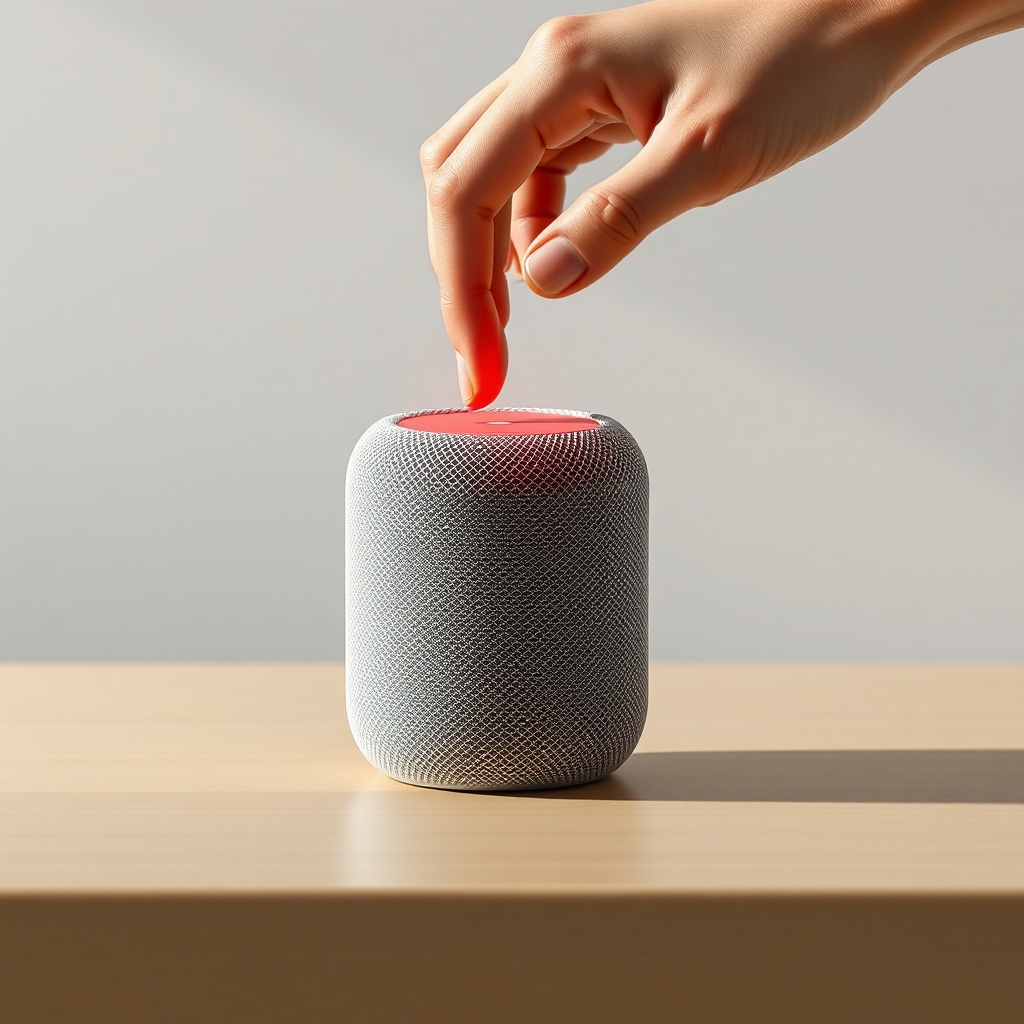
If the update fails or Siri remains unresponsive, a factory reset is the next step. Press and hold the top of the HomePod mini (the touch surface) until the spinning light turns red and Siri says it will reset. Alternatively, in the Home app, go to the accessory’s settings and select Reset HomePod > Remove & Reset. After the reset, set it up as new—do not restore from a backup. Test Siri immediately afterward.
What If Only Specific Users in My Home Can’t Access Siri?
If multiple people in your home use the HomePod mini, but only certain users can’t trigger Siri, the issue is likely tied to voice recognition and personal requests. Open the Home app, tap the house icon > Home Settings > Voice Recognition. Ensure each user has their own Apple ID and that the HomePod mini knows their voice. Tap each user’s name and check that Require Personal Requests is set appropriately. If a user’s voice profile hasn’t been trained, ask them to say “Hey Siri, who am I?”—this triggers the HomePod mini to learn their voice. For persistent issues, remove the user from the home and re-invite them.
Also confirm that Allow “Hey Siri” to be shared is enabled under the same settings. This ensures the HomePod mini doesn’t mistake one person’s voice for silence.
What Owners Say
Owners on forums often share two recurring patterns. A user from a busy household noted: “After we swapped our Wi-Fi password, none of our HomePod minis would listen to ‘Hey Siri.’ None of us thought it would be the network—once we updated the password in the Home app, they all started working again within five minutes.” Another owner reported: “I had to factory reset my HomePod mini twice in one year because Siri randomly stopped responding. The second time, I realized I hadn’t updated iOS in months. Updating my phone fixed it permanently.” These real-world accounts underscore that network and credential changes are the top two causes of sudden Siri silence.
For those experiencing Siri combined with intercom issues, we have a separate resource on Apple HomePod mini Intercom Not Working? Fix It Yourself which often overlaps with voice command problems.
Frequently Asked Questions
Why doesn’t “Hey Siri” work on my HomePod mini even after a reboot?
A reboot fixes temporary glitches, but if Siri fails afterward, check your Wi-Fi connection strength and verify the “Listen for Hey Siri” toggle is enabled in Home Settings. Also ensure that no other Apple device in the same room is intercepting the command. If the issue persists, a factory reset is recommended.
Can I use “Hey Siri” on HomePod mini without an internet connection?
No. Siri requires an active internet connection to process requests. The HomePod mini can handle basic on-device commands (like setting a timer) without the internet, but full Siri functionality needs a Wi-Fi link to Apple’s servers. If your network is down, Siri will not respond.
How do I reset my HomePod mini if it won’t respond to Siri or the Home app?
Perform a manual factory reset: unplug the HomePod mini, wait 30 seconds, plug it back in, then press and hold the top of the speaker. Keep holding until you see a red spinning light and Siri announces the reset. This works even if the Home app cannot locate the device.
Will a HomePod mini still listen for “Hey Siri” if it’s playing music?
Yes, but only if you say the command clearly at a normal volume. When music is playing, the HomePod mini automatically lowers its volume to hear the wake word. If you speak too softly or the music is very loud, it might miss the command. Try speaking directly toward the center of the mesh top.
Does the HomePod mini’s sound quality affect Siri responsiveness?
No. The Siri microphones are separate from the speaker drivers. However, physical obstruction (like a case or fabric covering the top) can block the microphones. Compare the speaker’s acoustic capabilities in our review: Apple HomePod mini Sound Quality and Specs: How It Compares to the Competition.
What should I do if the “Hey Siri” toggle is grayed out in the Home app?
A grayed-out toggle indicates the HomePod mini is not set up properly or is in an unresponsive state. First, ensure the HomePod mini is connected to the same Wi-Fi network and iCloud account. If the problem persists, remove the HomePod mini from the Home app and re-add it. You may need to factory reset the device if the toggle remains inaccessible.