Introduction
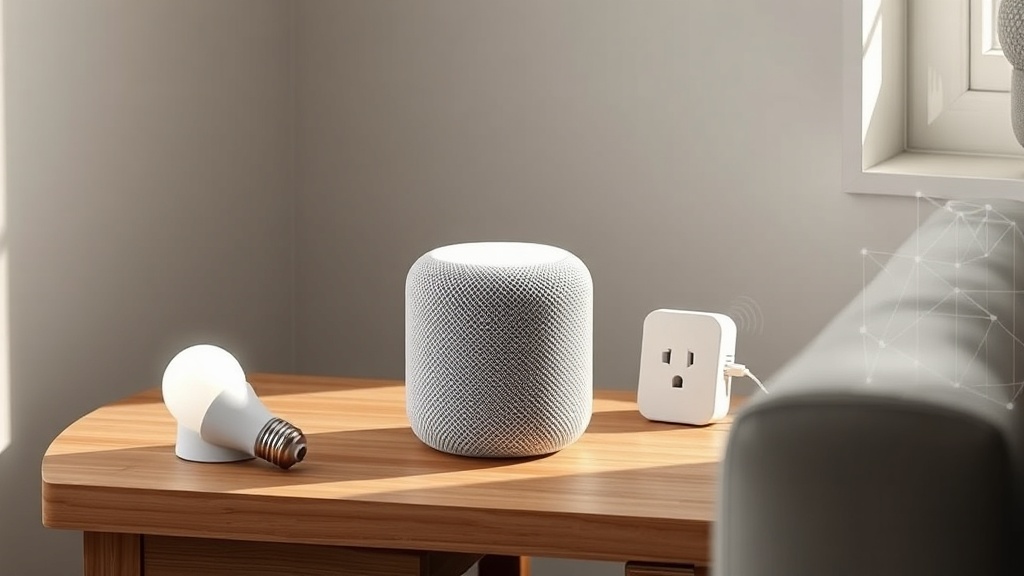
The Apple HomePod mini is a compact smart speaker that packs a surprising amount of intelligence, particularly when integrated into a smart home network. However, many users encounter frustrating connectivity hiccups, especially with its Thread network. This guide explores the root causes of Apple HomePod mini Thread network problems and provides practical, step-by-step solutions to restore stable smart home communication. Whether your Thread-enabled smart lights drop offline or your HomePod mini acts as a reluctant border router, we cover the most common fixes.
What Causes the Apple HomePod mini Thread Network to Drop Devices?
The Thread protocol is designed for reliability, but several factors can disrupt its mesh on the HomePod mini. One primary cause is interference from other 2.4 GHz Wi-Fi networks or Bluetooth devices, as Thread shares the same frequency band. Another frequent culprit is outdated HomePod software or firmware on connected Thread devices. If your HomePod mini is far from other Thread devices, the mesh signal weakens, leading to dropped connections. Additionally, a misconfigured Home Hub (often the HomePod mini itself) can cause routing issues.
To diagnose, check the Home app: navigate to Home Settings > Home Hubs & Bridges. Your HomePod mini should show as “Connected” with a clear status. If you see “Standby,” it might not be actively managing Thread traffic. Restarting the HomePod mini often refreshes its role.
- Interference: Move the HomePod mini away from cordless phones, microwaves, and Wi-Fi routers to reduce 2.4 GHz congestion.
- Device Range: Keep Thread-compatible smart lights and sensors within 30-40 feet of the HomePod mini for optimal mesh health.
- Software Updates: Ensure your HomePod mini is running the latest HomePod Software 17+ version. Check in the Home app under Settings > Software Update.
If devices still drop, consider adding a second HomePod mini or an Apple TV 4K (second-gen or later) to strengthen the Thread mesh. For a broader view of HomePod mini placement, see our Apple HomePod mini HomeKit Setup: Tips for a Smooth Configuration guide.
How Do I Fix the “No Response” Error on the Apple HomePod mini’s Thread Network?
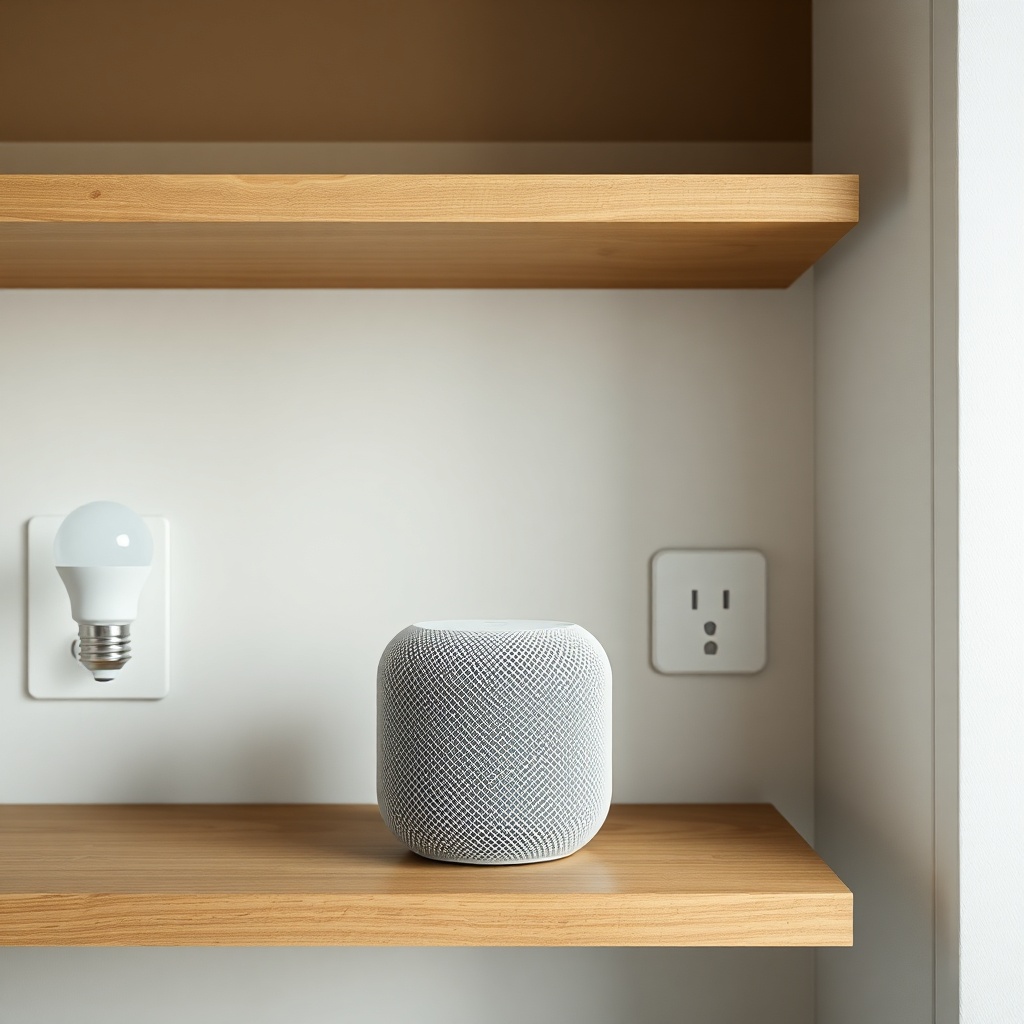
The dreaded “No Response” error in the Home app typically means your HomePod mini has lost communication with the Thread network. This often stems from a firmware glitch or a temporary network flap. The first step is a simple power cycle. Unplug the HomePod mini, wait 10 seconds, and plug it back in. This forces the Thread border router function to restart. If the issue persists, reset your Wi-Fi router momentarily to clear ARP tables and renew DHCP leases.
Another effective fix is to toggle Thread on and off within the Home app. Go to Home Settings > Thread Network > Disable, then re-enable after 30 seconds. This can force the HomePod mini to re-establish its Thread credentials. In rare cases, a factory reset may be necessary. Press and hold the top of the HomePod mini until the spinning white light turns red; then say, “Hey Siri, reset HomePod mini.” After resetting, set it up fresh using your iPhone.
- Power Cycle: Unplug the HomePod mini for 30 seconds, then reconnect.
- Router Reboot: Reboot your main Wi-Fi router to clear network congestion.
- Reset Thread: In Home app, toggle Thread off and on.
- Factory Reset: Hold the top until red light, then set up as new.
If none of these work, the problem might be with a specific Thread device rather than the HomePod mini. Remove the problematic device from HomeKit and re-add it. For more advanced diagnostics, our guide on Apple HomePod mini Not Responding to Siri? DIY Fixes offers network troubleshooting steps that overlap with Thread issues.
Why Is My Apple HomePod mini Not Recognizing Thread Devices After a Power Outage?
Power outages can leave the HomePod mini’s Thread network in a confused state. When power returns, the HomePod mini and your Thread devices (smart bulbs, sensors) may boot up at different speeds, causing them to miss the initial Thread commissioning window. This is especially common with battery-powered Thread devices like motion sensors, which may have completely drained.
Start by checking the power status of all Thread devices. For mains-powered devices (bulbs, plugs), cycle their power off and on at the switch or breaker. For battery devices, remove and reinsert the battery. Then, force a Thread network refresh on the HomePod mini by saying, “Hey Siri, reboot my Home.” This command restarts the Home Hub and forces it to rediscover Thread neighbors. Alternatively, manually restart the HomePod mini from the Home app (Home Settings > HomePod > Restart).
- Power Cycle Devices: Turn off/on all Thread devices at their source.
- Battery Devices: Remove and reinsert batteries.
- HomePod Reboot: Use Siri or Home app to restart.
- Re-pair if Needed: For persistent misses, remove the device from HomeKit and re-add it.
To prevent future issues, consider placing critical Thread devices on a UPS (uninterruptible power supply). For more on intercom glitches after outages, see Apple HomePod mini Intercom Not Working? Fix It Yourself.
How to Optimize the Apple HomePod mini Thread Network for Faster Response Times?
Response time issues with Thread devices often stem from a weak mesh or excessive hop counts. Ideally, your HomePod mini should be within direct range of at least two Thread devices to form a strong mesh backbone. If you have multiple Thread devices, spread them across the home rather than clustering them all near the HomePod mini. Avoid placing the HomePod mini inside a closed cabinet or behind a metal object, as this attenuates the Thread radio signal.
Use the free iOS app “Discovery” to view your Thread network topology. It shows which devices are routers and which are end devices. Ideally, mains-powered devices should be set as routers, but the HomePod mini automatically handles this. If you see a long chain of end devices (e.g., a sensor connected to a bulb connected to another sensor), consider adding a mains-powered Thread device (smart plug) to reduce hop count. Also, ensure the homePod mini is not overloaded as a border router—adding a second HomePod mini or Apple TV 4K can offload traffic.
For best performance, use a dedicated 2.4 GHz Wi-Fi network for HomeKit, separate from a 5 GHz guest network. This reduces interference. If your router supports it, enable “IoT Network” with WPA2 for Thread compatibility. Our Apple HomePod mini Sound Quality and Specs: How It Compares to the Competition article also notes that maintaining a clean 2.4 GHz environment helps audio streaming quality too.
| Severity Level | Description | Example Issue |
|---|---|---|
| Usually Not Urgent | Intermittent delays, devices respond within 5 seconds. Can be fixed by adjusting device placement or router channel. | Smart bulb takes 2-3 seconds to respond after a power outage |
| Needs Attention Soon | Devices show “No Response” frequently or Thread mesh is broken. Caused by firmware conflicts, interference, or outdated software. | Multiple Thread sensors unavailable for hours after a router reboot |
Review the table above to gauge your Thread network health. If you fall into the “Needs Attention Soon” category, prioritize updating all Thread device firmware and the HomePod mini software.
Can I Use Thread Devices Without an Apple HomePod mini as a Border Router?
Yes, but with limitations. The Apple HomePod mini is a capable Thread border router but not your only option. Apple TV 4K (second generation or later) and some supported iPads (running as a Home Hub) can also serve this role. However, the best Thread performance comes from a dedicated border router that is always on and powered. If you lose your HomePod mini as a border router, your Thread devices remain on the local mesh but lose internet connectivity and control via the Home app remotely. They will still work locally if you have another Home Hub like an Apple TV.
For users with a mixed environment (e.g., HomePod mini and Apple TV), ensure both are on the same iCloud account and have up-to-date software. The Home app automatically selects one as the active Home Hub. If the active one fails, a different device takes over within a few minutes. This failover is smooth but can cause a 1-2 minute interruption. To minimize downtime, keep your network stable and consider placing two border routers in different parts of the home for redundancy.
- Multiple Border Routers: Ideally have two Thread border routers for failover protection.
- Apple TV 4K: Second-gen or newer can replace HomePod mini.
- iPad Home Hub: Less reliable for Thread due to battery/power management.
If you plan to rely on non-Apple border routers (e.g., from Google or Amazon), note that they use different ecosystems. Only Apple and Matter-compatible border routers work with HomeKit Thread devices.
What Owners Say About Their Apple HomePod mini Thread Network
Real-world experiences from HomePod mini owners reveal common Thread network quirks. One owner from a forum noted, “I installed six Eve Energy smart plugs last month. Initially, they responded instantly. After a week, two started going offline randomly. I moved my HomePod mini closer to the center of the house and haven’t had issues since. Range is critical.” This highlights that physical placement often trumps software fixes.
Another owner shared, “My Thread motion sensors worked flawlessly until I added a Wi-Fi extender on the same channel. The HomePod mini’s Thread network became flaky, and my sensors reported false triggers. I manually set the extender to channel 1 and Thread channel 15 (default), and now everything is stable.” This emphasizes checking for Wi-Fi interference by using an analyzer like NetSpot to see channel overlap.
A third owner with a large home said, “I use two HomePod minis in mesh mode. One is in the living room, the other in the office. The Thread network is rock solid, but when I had only one, devices in the far bedroom would drop at least once a day. Adding the second solved it.” Their advice: for homes over 1,500 square feet, consider a second HomePod mini as a dedicated Thread border router.
These anecdotes align with our findings: Thread reliability heavily depends on device placement, network cleanliness, and redundancy. For more real-world feedback, check owner reviews in our Apple HomePod mini HomeKit Setup: Tips for a Smooth Configuration article.
Frequently Asked Questions
Q1: How do I know if my Apple HomePod mini is actively using Thread?
A1: Open the Home app, tap the Home icon, go to Home Settings > Home Hubs & Bridges. Your HomePod mini should show “Connected.” For Thread-specific status, use a third-party app like “Discovery” to view the Thread network topology. It will list the HomePod mini as a border router.
Q2: Can I connect Thread devices to HomePod mini without an Apple TV?
A2: Yes. The HomePod mini itself functions as a Thread border router, so you don’t need an Apple TV. However, an Apple TV 4K (second-gen or later) can also serve as a border router for redundancy.
Q3: What is the maximum number of Thread devices a HomePod mini can support?
A3: Apple hasn’t published an official limit, but based on Thread specification, a single Thread network can handle up to 32 active routers and many end devices. In practice, most homes with 10-20 Thread devices work reliably with one HomePod mini, but performance may degrade beyond 30 devices.
Q4: Does the HomePod mini’s firmware update affect Thread performance?
A4: Yes. Critical Thread bug fixes and improvements are included in firmware updates. Always keep your HomePod mini on the latest software. To update, go to Home app > Home Settings > Software Update.
Q5: Why do my Thread smart lights sometimes respond slowly after a network change?
A5: When your Wi-Fi network changes (new SSID, channel, or router), the HomePod mini’s Thread border router may need to re-negotiate routes. This takes a few minutes. To speed it up, restart the HomePod mini via the Home app.
Q6: Can I reset only the Thread network on my HomePod mini without a full factory reset?
A6: No, there’s no selective reset for the Thread network on HomePod mini. You can force a re-join by turning Thread off and on in Home Settings (Home Settings > Thread Network > toggle off/on). This resets the Thread credentials and forces a re-commissioning of devices.