JBL Link Music: A Smart Speaker That Pulls Its Weight—Until the Wi-Fi Stumbles
The JBL Link Music is a capable smart speaker that blends Google Assistant convenience with solid audio performance—until the Wi-Fi starts acting up. For a device that relies entirely on a stable network for streaming, voice commands, and multi-room audio, a dropping connection can turn a good experience into a frustrating one. This guide walks through the most common connectivity issues and practical fixes—without the fluff.
Why Does the JBL Link Music Wi-Fi Keep Dropping in the First Place?
Even with a strong router, the JBL Link Music can lose its Wi-Fi link due to a handful of repeatable causes. Understanding these helps narrow down the fix:
- Channel congestion: Neighbouring networks or household devices (microwaves, baby monitors) interfere on the same 2.4 GHz band.
- Router distance or obstacles: The speaker’s internal Wi-Fi chip is modest; thick walls or metal shelving can weaken its signal.
- Firmware or app cache glitches: Outdated speaker firmware or a corrupted Google Home app cache can cause intermittent drops.
- Router settings: Older routers with mixed-band steering (2.4/5 GHz) can confuse the speaker’s network handshake.
- Power supply instability: A loose or failing USB-C cable can cause intermittent power, leading to Wi-Fi dropouts.
Most users find the culprit is a combination of router settings and physical placement. Before anything else, restart both the speaker and your router (unplug for 30 seconds each). This clears temporary network tables and often resolves short-term drops.
How to Reset the JBL Link Music’s Network Connection (Without Losing Settings)
A full factory reset wipes all Wi-Fi data, but a network reset keeps your audio preferences and Google account linked. Here’s the proper method:
- On the speaker, press and hold the Mute button (microphone icon) and the Volume Down button simultaneously for about 10 seconds.
- The LED ring will flash orange—this indicates the speaker is clearing its Wi-Fi cache while preserving your Google account.
- Release both buttons. The speaker enters setup mode (white pulsing LED).
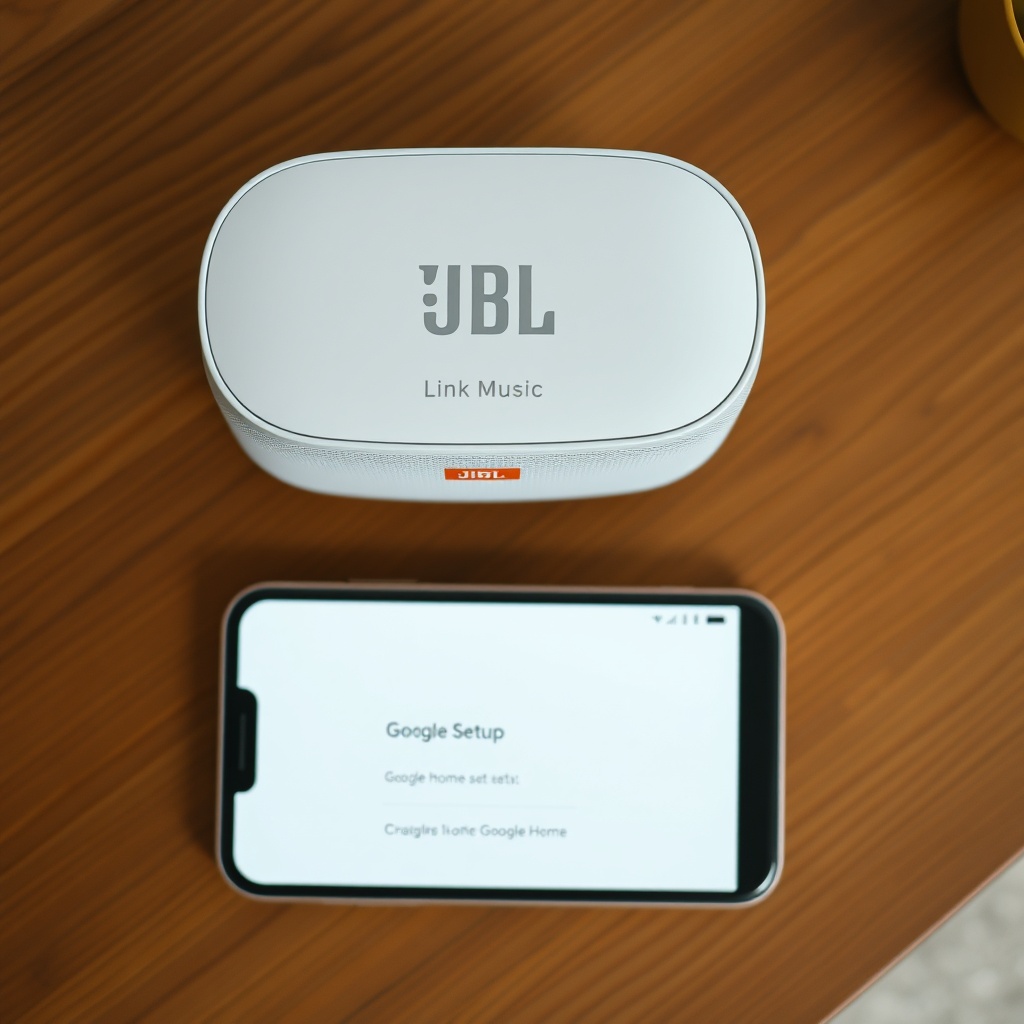
- Open the Google Home app, tap Add > Set up device > New device, and follow the prompts to reconnect to your Wi-Fi.
This “soft reset” avoids re-linking services like Spotify or your Google Home routines. If the dropouts persist after this, move to the next section.
If your JBL Link Music Google Assistant Microphone Not Working? DIY Fixes guide suggests the mic is fine but the speaker still can’t hear you, a network reset can also re-establish the voice stream path to Google’s servers.
Which Wi-Fi Band Should the JBL Link Music Use—2.4 GHz or 5 GHz?
The JBL Link Music supports dual-band Wi-Fi (802.11 b/g/n/ac), but it behaves very differently on each band. Here’s a breakdown:
| Band | Range | Interference Risk | Best For | Dropout Likelihood |
|---|---|---|---|---|
| 2.4 GHz | Up to 45 m indoors | High (neighbouring Wi‑Fi, microwaves, Bluetooth devices) | Long-range, single‑room use | Moderate–High |
| 5 GHz | Up to 15 m indoors | Low (fewer overlapping networks) | Short-range, higher‑bandwidth streaming (e.g., 24‑bit audio) | Low–Moderate |
The takeaway: If your JBL Link Music is more than 10–12 m from the router, stick with 2.4 GHz for range, but expect occasional interference. For stable performance, place the speaker closer to the router and force the speaker onto the 5 GHz band. To do that:
- In your router’s admin panel, give the 2.4 GHz and 5 GHz networks different names (e.g., “Home_2G” and “Home_5G”).
- In the Google Home app, forget the current Wi-Fi and reconnect to the 5 GHz SSID.
- If the speaker still refuses 5 GHz, check that your router’s 5 GHz channel width is set to 20/40/80 MHz (auto) and not locked to 160 MHz (which some older speakers can’t handle).
After switching, test for drops. If they continue, the problem may be router-specific—try disabling “Smart Connect” (band steering) in your router settings, as this often confuses the JBL Link Music’s firmware.
Is Your Router Overloaded? How to Prioritise the JBL Link Music
When many devices compete for bandwidth, the JBL Link Music—which needs a constant low-latency connection for Google Assistant commands—can get kicked off. Check your router’s attached device list. If you see 20+ devices (cameras, smart plugs, streaming sticks, phones), the router’s internal memory may be saturated.
Here’s a router-agnostic fix:
- Quality of Service (QoS): Enable QoS in your router settings and assign highest priority to the JBL Link Music’s MAC address (found on the bottom sticker of the speaker). This forces the router to keep a stable connection for the speaker even when other devices are downloading heavily.
- Reduce simultaneous connections: Temporarily disconnect idle devices (e.g., a spare tablet, a second laptop) to free up the router’s ARP table.
- Update router firmware: Many mid-range routers (TP‑Link, Asus, Netgear) receive updates that improve IoT device stability. Check the manufacturer’s site.
If the drops happen mostly during voice commands, revisit the JBL Link Music Google Assistant Keeps Disconnecting? Causes and DIY Fixes guide, which covers network-voice interaction issues in detail.
What Owners Say: Real User Experiences and Common Workarounds
Across forums and retailer reviews (Amazon UK, Reddit r/smarthome), owners of the JBL Link Music describe a split experience:
- Positive: Sound quality is praised—clear mids, punchy bass for its size. Many love the seamless Google Cast integration for multi-room audio.
- Negative: Wi-Fi dropouts are the #1 complaint, especially on 2.4 GHz networks with congested channels. A user on Reddit noted: “The speaker would lose Wi-Fi every 20 minutes until I changed the channel on my router from Auto to a fixed channel (channel 6).”
- Workaround: Frequent mention of using a dedicated IoT Wi-Fi network (separate from the main home network) improved reliability. Several owners also confirmed that a nightly router reboot (via a smart plug timer) reduced dropouts.
- Power supply issue: A handful of owners discovered that using a low‑quality USB‑C cable (non‑JBL) caused intermittent drops. Switching to the original cable or a high-quality 2.4 A charger stabilised the connection.
- Voice recognition sensitivity: Some found that JBL Link Music Google Assistant Voice Recognition Fails: DIY Fixes for Accent Issues actually solved a connectivity problem—retraining the voice model reduced network timeouts during command processing.
Overall, the consensus: the hardware is solid, but the Wi-Fi stack requires careful network tuning. Most owners who invest time in router configuration (fixed channel, QoS, dedicated SSID) report long‑term stability.
Frequently Asked Questions
1. How do I factory reset the JBL Link Music completely?
Press and hold the Mute and Volume Up buttons simultaneously for about 10 seconds until the LED ring flashes white and then orange. Release—the speaker will reboot and enter setup mode. This erases all Wi-Fi settings and Google account data. Re‑add it in the Google Home app.
2. Can the JBL Link Music work without Wi-Fi for Bluetooth?
Yes. When Wi-Fi is unavailable, the speaker functions as a standard Bluetooth speaker. Press the Bluetooth button on the top to pair with your phone. Note: Google Assistant features (voice commands, multi‑room, streaming services) require Wi‑Fi.
3. Why does my JBL Link Music disconnect from Wi-Fi when the TV is on?
Your TV’s internal Wi‑Fi or Bluetooth can cause radio interference, especially if the TV is within 1 m of the speaker. Move the speaker at least 2 m away from the TV, or switch your TV to a wired Ethernet connection if possible.
4. Does the JBL Link Music support WPA3 encryption?
No. The speaker supports WPA2, WPA, and open networks. If your router is set to WPA3‑only mode, the speaker will fail to connect. Change your router’s security to WPA2/WPA3 mixed mode or WPA2‑only for reliable connection.
5. How often does the JBL Link Music check for firmware updates?
The speaker checks automatically when idle and connected to Wi‑Fi, typically once every 24 hours. To force an update, reboot the speaker and wait 5 minutes—the Google Home app will notify you if a new firmware is available.
6. The speaker’s Wi-Fi drops only during Google Cast—what should I do?
This is a known interaction between the Google Cast protocol and the speaker’s Wi‑Fi power-saving mode. Try disabling “Wi‑Fi Power Save” if your router offers that setting (some Asus and Netgear models have it). Alternatively, JBL Link Music Google Cast Connection Issues: Causes and DIY Fixes provides a step‑by‑step fix for this specific scenario.