Amazon Echo Dot (5th Gen) Bluetooth Pairing Issues: Solutions
The Amazon Echo Dot (5th Gen) is a versatile smart speaker, but when Bluetooth pairing fails, it can be a frustrating experience. Whether you’re trying to connect a phone, tablet, or external speaker, the process should be straightforward. This guide covers the most common Bluetooth pairing issues and their practical solutions, so you can get your Echo Dot back to playing your favorite music or podcasts without delay.
Why Won’t My Echo Dot (5th Gen) Enter Pairing Mode?
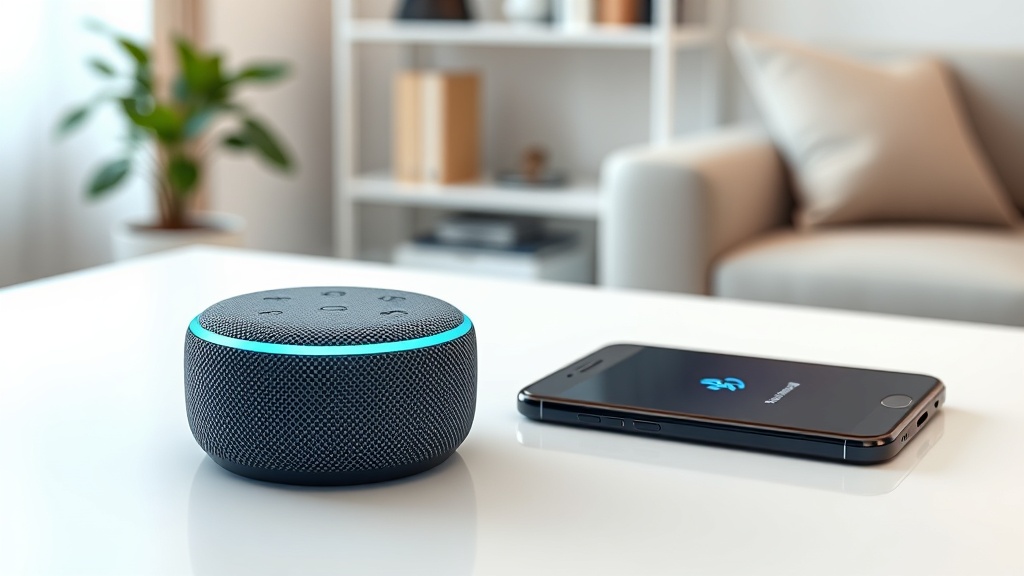
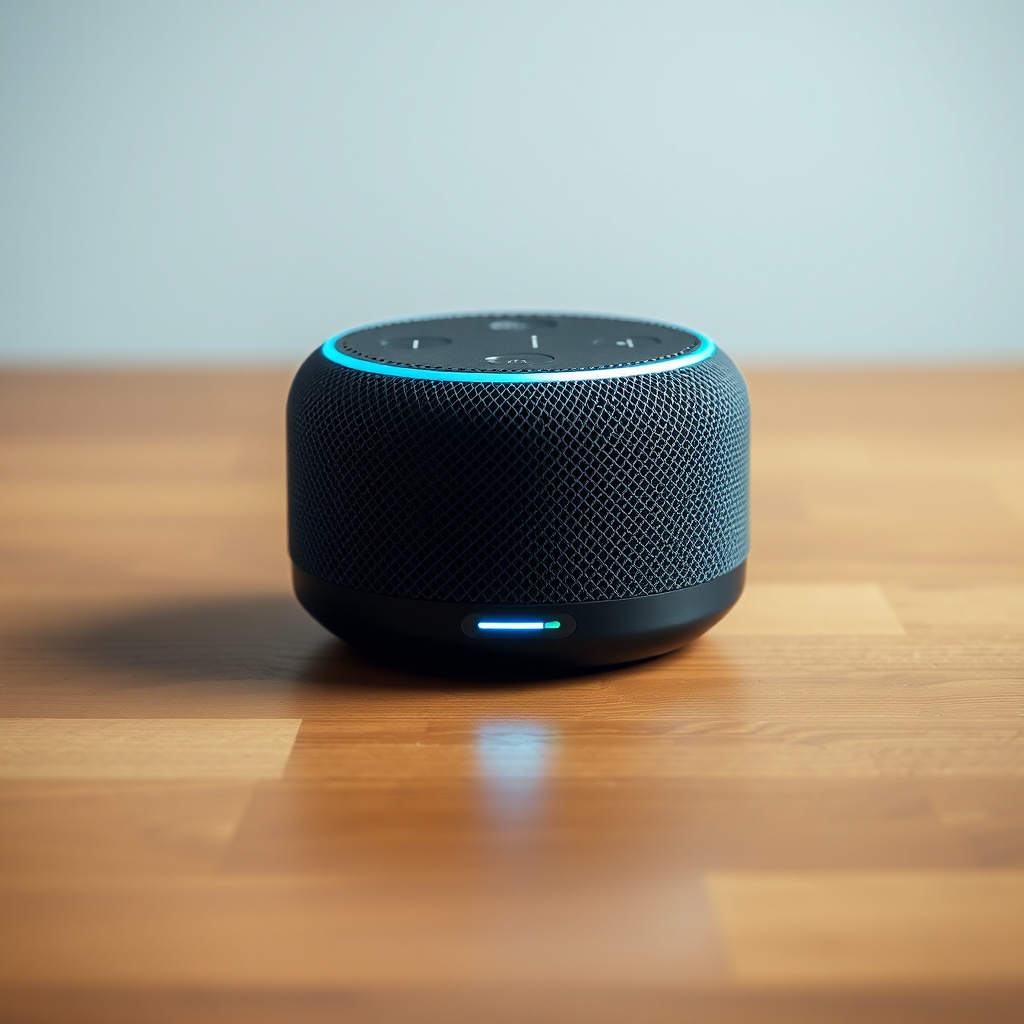
The first step to any Bluetooth connection is getting the Echo Dot into pairing mode. Many users report that pressing the Action button (the one with the dot) doesn’t trigger the blue light spinning, which indicates the device is discoverable. This typically happens because the Echo Dot is already connected to another device or because the Bluetooth system is glitched from a recent update.
First, ensure no other device is actively connected. Say, “Alexa, disconnect Bluetooth.” Then, wait 10 seconds and press and hold the Action button for about 5 seconds until the blue light appears. If the light doesn’t turn on, try a soft reset by unplugging the Echo Dot from power for 30 seconds and plugging it back in. This clears temporary cache that can interfere with the Bluetooth module. After reboot, retry the pairing process.
If you are still unable to see the blue spinning light, it might be that the Echo Dot is in Do Not Disturb mode or has been factory reset recently. For a fresh start, consider following the Amazon Echo Dot (5th Gen) Setup Guide: How to Get Started with Alexa to ensure the device is properly initialized before attempting Bluetooth pairing again.
Why Does My Phone Keep Saying “Pairing Failed” with the Echo Dot?
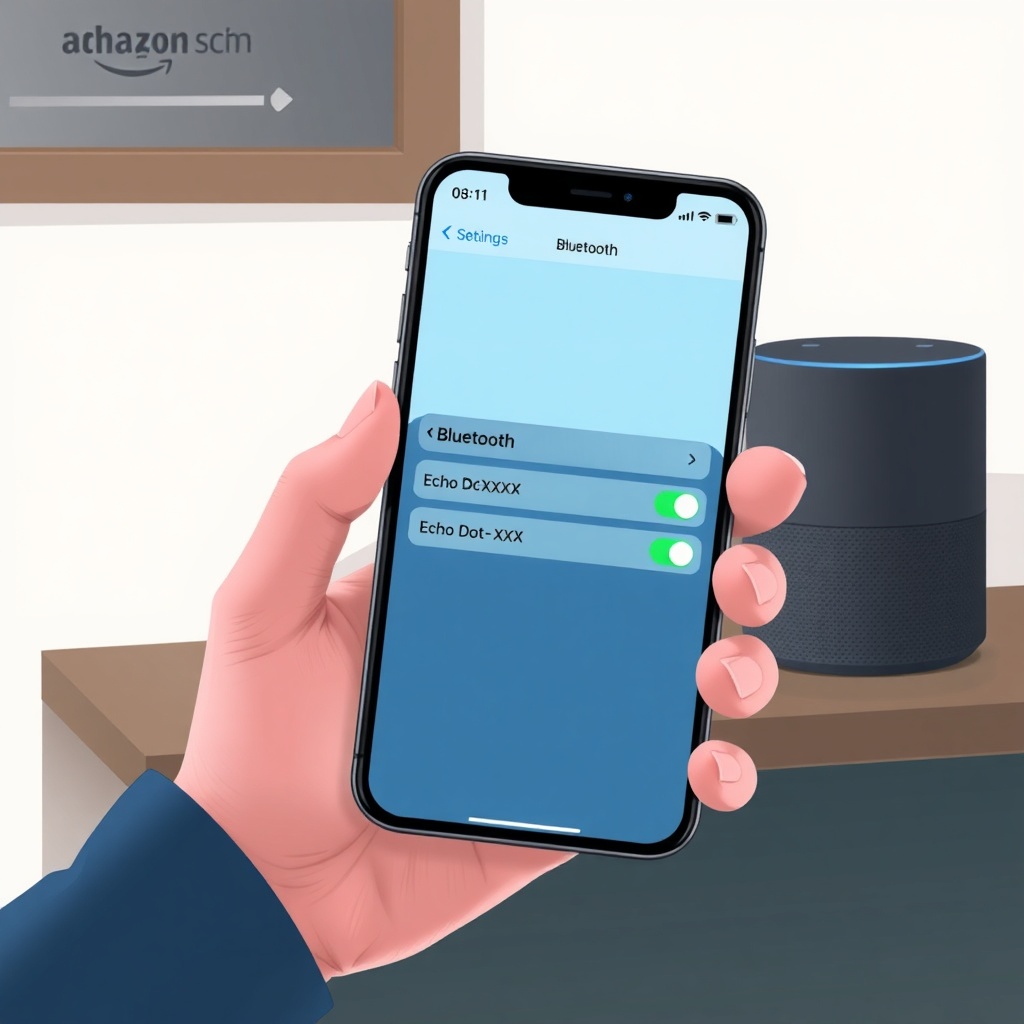
A “Pairing Failed” message on your phone or tablet is one of the most common complaints. This error often arises from incomplete Bluetooth cache on the phone or interference from other devices. To resolve this, start by forgetting the Echo Dot from your phone’s Bluetooth settings: go to Settings > Bluetooth, tap the info icon next to “Echo Dot” and select “Forget This Device.” Then, restart both your phone and the Echo Dot.
Next, ensure your phone is within 10 meters (30 feet) of the Echo Dot with no thick walls in between. If the issue persists, try moving your phone closer and ensuring no other Bluetooth peripherals (like headphones or smartwatches) are connected to the phone simultaneously. Bluetooth bandwidth is limited, and too many connections can cause pairing failures. After a fresh restart and a cleared phone BT list, the Echo Dot should appear as a new device.
Some users find that the Echo Dot sometimes fails to pair because it’s in the middle of a firmware update. Check the Alexa app for any pending updates. If your Echo Dot is otherwise unresponsive, you might need to review Amazon Echo Dot (5th Gen) Not Responding? Quick Fixes to Try to ensure the device is fully operational before retrying Bluetooth.
Why Does the Bluetooth Connection Drop Frequently?
Intermittent Bluetooth disconnections are a major frustration. The Echo Dot (5th Gen) uses Bluetooth 5.0, which offers decent range but can be sensitive to wireless interference. The most common culprit is Wi-Fi congestion on the 2.4 GHz band. Since Bluetooth also operates at 2.4 GHz, a busy Wi-Fi network can cause disruption. Try switching your phone or tablet to a 5 GHz Wi-Fi network if your router supports it, or move the Echo Dot away from other electronics like microwaves or cordless phones.
Another reason for drops is that the Echo Dot’s Bluetooth stack can get overwhelmed when it’s handling multiple commands at once. If you notice drops during music playback specifically, the source device might be sending an incompatible codec. The Echo Dot supports SBC and AAC, but not aptX or LDAC. Check your phone’s developer options to ensure the preferred Bluetooth codec is set to AAC for better stability. Restarting both devices and forgetting/re-pairing the connection can also stabilize it.
If the disconnections persist and are accompanied by Wi-Fi issues, it may be a sign of a deeper network problem. Check out Amazon Echo Dot (5th Gen) Keeps Disconnecting from Wi-Fi? Here’s the Fix for steps to stabilize both Bluetooth and Wi-Fi connectivity.
My Echo Dot Won’t Connect to a Bluetooth Speaker—What to Do?
While the Echo Dot can function as a Bluetooth transmitter to external speakers (like a portable speaker or soundbar), many users hit a wall when trying to pair. The Echo Dot (5th Gen) does not automatically become discoverable for other devices as a speaker—you must initiate pairing from the external speaker first. Put your external Bluetooth speaker into pairing mode (usually indicated by a flashing light), then say, “Alexa, pair Bluetooth.” Alternatively, go to the Alexa app > Devices > Echo & Alexa > select your device > Bluetooth Devices > Pair a New Device.
If your external speaker does not appear in the list, it might be too far or already connected to something else. Ensure the external speaker is within 1-2 meters and not connected to another phone. Also, note that some Bluetooth speakers have a limit on the number of remembered devices. If it’s full, clear its pair list (check the manual). Finally, if the Echo Dot connects but no audio comes out, check if the external speaker’s volume is up and that the Echo Dot’s audio is routed to it. Say, “Alexa, connect to [speaker name].”
For a comparison of how the Echo Dot stacks up against other speakers in terms of connectivity features, you might find our Amazon Echo Dot vs Google Nest Audio: Which Smart Speaker Should You Buy? guide helpful, especially if you’re considering a multi-room audio setup.
| Issue Severity | Typical Symptoms | When to Take Action |
|---|---|---|
| Low Severity (Usually Not Urgent) | Phone not discovering Echo Dot, intermittent drops every few hours, one-time pairing failure after an update. | Try soft reset, forget/re-pair, move closer. Usually resolves in a few minutes. |
| High Severity (Needs Attention Soon) | Persistent “Pairing Failed” after multiple resets, no Bluetooth audio output at all, constant disconnections every few minutes, or Echo Dot unable to scan any devices. | May indicate a hardware fault or deep software glitch. Try factory reset or contact Amazon support if the issue persists after all troubleshooting. |
Can I Pair Multiple Phones to One Echo Dot (5th Gen)?
This is a common question among households with multiple users. The Echo Dot (5th Gen) supports Bluetooth multipoint, meaning it can remember up to 8 paired devices, but it can only be actively connected to ONE device at a time for audio playback. If another phone tries to connect while the first is playing, the current connection will drop. This can be confusing if you’re expecting seamless switching like on some high-end headphones.
To manage multiple devices, you need to disconnect the current one before connecting another. Say, “Alexa, disconnect Bluetooth,” then from the second phone, go to its Bluetooth settings and tap “Echo Dot.” If the Echo Dot doesn’t appear, you may need to put it back into pairing mode by pressing the Action button. Alternatively, use the Alexa app to manually disconnect and connect different devices from the list of remembered Bluetooth devices. Keep in mind that active switching must be done manually; it is not automatic.
For more tips on managing smart home devices and their connections, including automation routines that involve Bluetooth speakers, check our guide on Amazon Echo Dot (5th Gen) Alexa Routines Not Working? How to Fix.
What Owners Say
Users on forums and review sites have shared mixed experiences with Bluetooth on the Echo Dot (5th Gen). A common observation is that the pairing process with iPhones is generally smoother than with some older Android phones, which sometimes require toggling developer options. One owner commented, “My Pixel 6 connects fine after the first try, but my wife’s Samsung S20 always gives ‘Pairing Failed’ unless we restart the phone first.”
Another frequent note is that using the Echo Dot as a Bluetooth transmitter to larger speakers often results in a slight audio delay (around 200–300 ms), making it unsuitable for watching videos without lip-sync issues. One reviewer noted, “It works great for music on my JBL Flip, but the lag is too much for TV shows.” Finally, several owners mention that after a power outage, the Echo Dot sometimes forgets paired Bluetooth devices entirely, requiring a fresh setup.
Frequently Asked Questions
1. How do I reset the Bluetooth module on my Echo Dot (5th Gen)?
There’s no dedicated Bluetooth reset button, but you can effectively reset the module by unplugging the Echo Dot from power for 30 seconds. This clears the Bluetooth cache. For a deeper reset, go to the Alexa app > Devices > Echo & Alexa > select your device > Bluetooth Devices > Forget All Devices, then restart the Echo Dot.
2. My Echo Dot is not showing up in my phone’s Bluetooth list. Why?
Ensure the Echo Dot is in pairing mode (blue spinning light). If not, press the Action button for 5 seconds. Also, check that your phone’s Bluetooth is on and scanning. Move the phone within 2 meters of the Echo Dot. If still hidden, restart both devices.
3. Can I use Bluetooth and Wi-Fi at the same time on the Echo Dot?
Yes, the Echo Dot can use both simultaneously. However, heavy Wi-Fi traffic on the 2.4 GHz band can interfere with Bluetooth stability. If you experience drops, try switching your Wi-Fi router to 5 GHz or use a wired connection if available for your router.
4. Does the Echo Dot (5th Gen) support Bluetooth 5.0? What does that mean?
Yes, it supports Bluetooth 5.0, which provides a theoretical range of up to 240 feet (73 meters) in open space, but realistically around 30–40 feet in a home with walls. It also offers lower power consumption and higher data bandwidth for audio.
5. Why is the audio quality poor over Bluetooth?
Poor audio quality can come from a weak Bluetooth signal (move closer), or from using a low-bitrate codec. The Echo Dot supports SBC (default) and AAC. If your phone defaults to SBC at a low bitrate, it may sound thin. Try forcing AAC in developer options on Android, or check the phone’s Bluetooth settings.
6. How do I disconnect a Bluetooth device from the Echo Dot?
Say, “Alexa, disconnect Bluetooth.” Alternatively, go to the Alexa app > Devices > Echo & Alexa > select the device > Bluetooth Devices > select the connected device > Disconnect. The device will remain remembered for future connections.
For further reading on sound quality and overall specs, take a look at Amazon Echo Dot (5th Gen) Sound Quality and Specs: What You Need to Know. And if you’re still deciding on which smart speaker to buy, our comparison between the Echo Dot and Apple’s offering at Amazon Echo Dot vs Apple HomePod mini: Which One Fits Your Smart Home? can help you decide.