Amazon Echo Dot (5th Gen) Keeps Disconnecting from Wi-Fi? Here’s the Fix
If your Amazon Echo Dot (5th Gen) repeatedly drops its Wi-Fi connection, you’re not alone. This common frustration usually stems from router settings, signal interference, or software quirks rather than a hardware defect. This guide walks through practical, step-by-step fixes to get your smart speaker back online and keep it there.
Why Does My Amazon Echo Dot (5th Gen) Keep Dropping the Wi-Fi?
Intermittent disconnections often happen because the Echo Dot (5th Gen) uses the 2.4 GHz band by default, which is more prone to interference from microwaves, cordless phones, and neighbouring networks. Another culprit is weak signal strength: if the Dot is more than 30 feet from the router, or separated by thick walls, the connection can become unstable. Finally, Amazon’s own software updates or a congested router can cause the device to lose its lease and disconnect.
Quick diagnostic steps:
- Move the Echo Dot closer to your router temporarily to rule out distance issues.
- Check if other devices on the same band are also dropping out.
- Restart both the Echo Dot (unplug for 30 seconds) and your router (power cycle for 1 minute).
If the problem persists, read on for targeted fixes.
How Do I Check My Wi-Fi Signal Strength on the Echo Dot (5th Gen)?
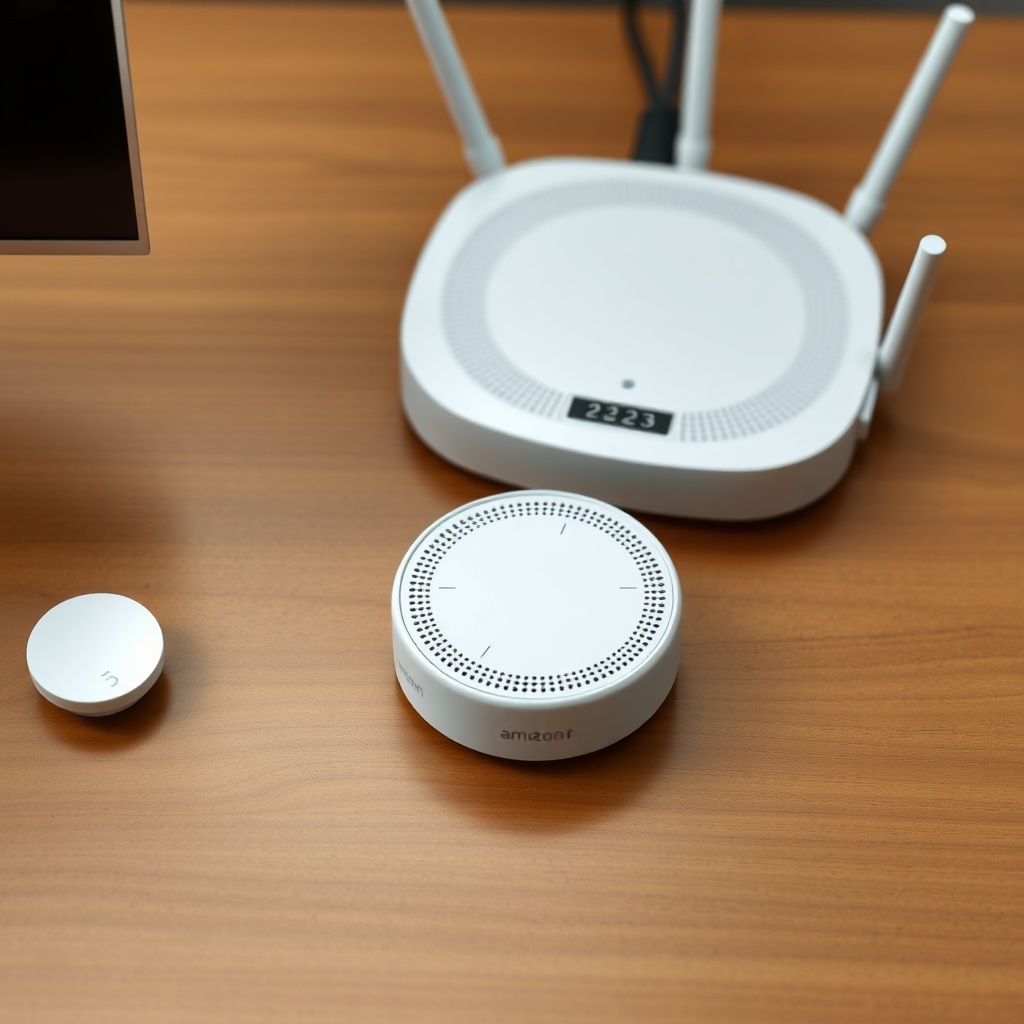
Before adjusting router settings, confirm that the Wi-Fi signal reaching your Dot is adequate. Open the Alexa app on your phone, tap Devices > Echo & Alexa, select your Dot (5th Gen), then tap the gear icon for Settings. Scroll to About and look for Wi-Fi Signal Strength. Values like “Very Good” (-50 dBm or stronger) indicate no issue. “Fair” (-60 to -70 dBm) suggests borderline reception, and “Poor” (-80 dBm or weaker) is almost certainly the cause of disconnections.
If the signal is weak, consider these options:
- Move the Dot closer to the router.
- Avoid placing it near large metal objects, fish tanks, or inside a cabinet.
- Use a Wi-Fi extender or mesh system if relocation isn’t practical.
For comparison, the Echo Dot (5th Gen) is more sensitive to signal degradation than, say, an Amazon Echo Dot vs Google Nest Audio when both are equidistant from a router, due to its smaller antenna design.
| Signal Strength | Typical dBm Range | Action Required |
|---|---|---|
| Very Good | -30 to -50 dBm | Usually not urgent |
| Good | -50 to -60 dBm | Usually not urgent |
| Fair | -60 to -70 dBm | Needs attention soon |
| Poor | -70 to -80 dBm or weaker | Needs attention soon |
Should I Use 2.4 GHz or 5 GHz for My Echo Dot (5th Gen)?
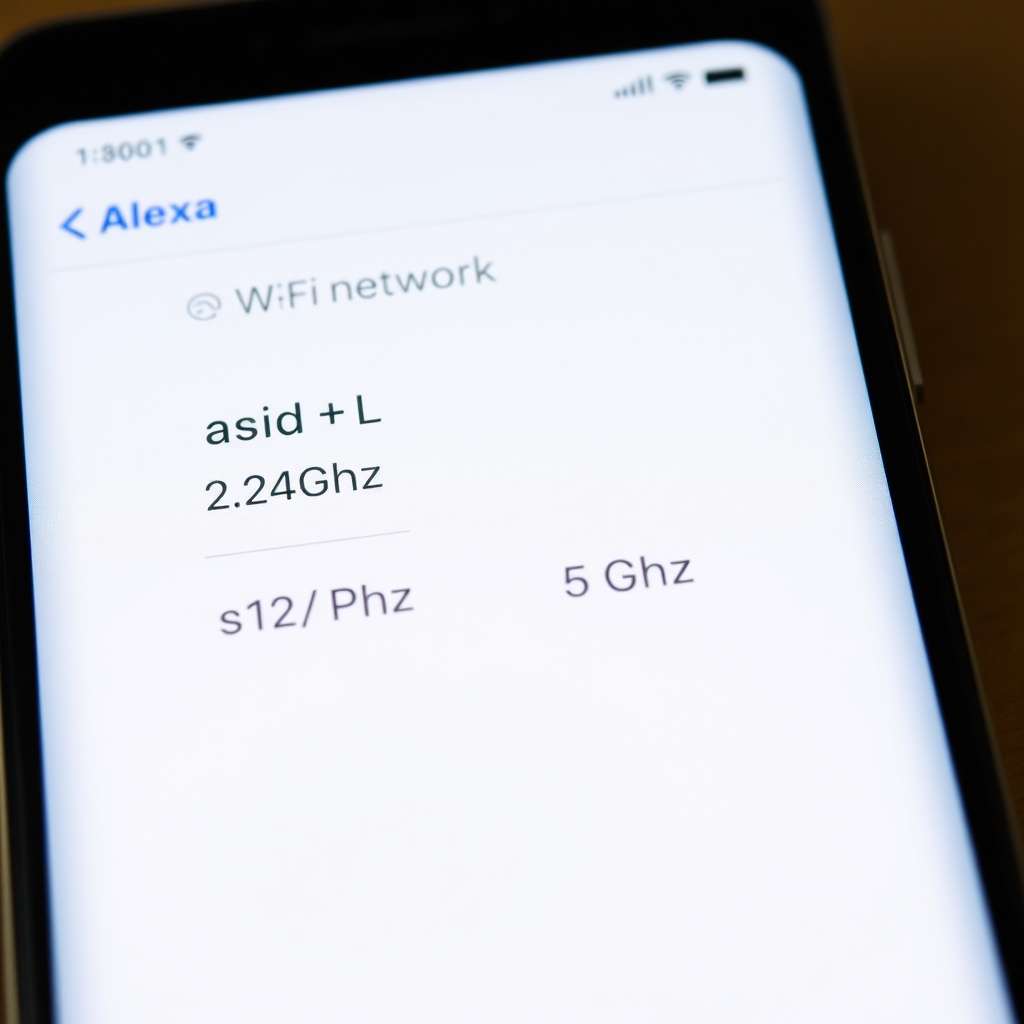
The Echo Dot (5th Gen) supports both 2.4 GHz and 5 GHz Wi-Fi bands, but it doesn’t let you manually choose—it connects to whichever band your router broadcasts under the same SSID. If your router uses “band steering” (smart switching), the Dot may get stuck on a congested band. To fix this, temporarily split your router’s bands into separate SSIDs (e.g., “MyWiFi-2.4” and “MyWiFi-5”) through your router’s admin panel. Then, in the Alexa app, go to Settings > Network and reconnect the Dot to the 2.4 GHz network, which offers better range and stability for most smart home devices.
Note: The Dot’s processor and memory are optimised for 2.4 GHz, so 5 GHz doesn’t improve performance—it just reduces range. If you must use 5 GHz, ensure the Dot is within 15 feet of the router with clear line of sight.
What If My Router’s DHCP Lease Expires Too Quickly?
Another common cause of intermittent disconnects is a short DHCP lease time on your router. By default, many routers set DHCP leases to 24 hours, but some aggressive power-saving models shorten it to 1 hour. When the Dot’s IP address lease expires and doesn’t renew properly, it drops off the network.
Log into your router’s settings (usually at 192.168.1.1 or 192.168.0.1), find the DHCP Reservation or DHCP Lease Time section, and set a static IP reservation for your Echo Dot (5th Gen) based on its MAC address (found in the Alexa app under About). Set the lease time to at least 24 hours, or better, 7 days. This ensures the Dot keeps the same IP and doesn’t need to renegotiate frequently.
If you’re also experiencing other glitches, our guide on Amazon Echo Dot (5th Gen) Not Responding? Quick Fixes to Try covers additional steps to stabilise the connection.
Could Network Congestion or Interference Be Causing Dropouts?
Yes. In dense housing or offices, overlapping Wi-Fi channels can cause the Echo Dot to “see” multiple networks on the same frequency, leading to packet loss. Use a Wi-Fi analyser app (like Wi-Fi Analyzer for Android or NetSpot for Windows) to check for channel congestion. If your router’s 2.4 GHz band is crowded (many networks on channels 1, 6, or 11), manually switch your router to a less busy channel. Aim for channel 1, 6, or 11—never use non-standard channels like 3 or 4, as they overlap and cause more interference.
Additionally, turn off any Bluetooth devices near the Echo Dot (5th Gen), as they can interfere with 2.4 GHz Wi-Fi. If you use a cordless phone, switch to a DECT 6.0 model that operates at 1.9 GHz. For detailed pairing help, see Amazon Echo Dot (5th Gen) Bluetooth Pairing Issues: Solutions.
For heavy smart home users, it’s also worth comparing with other speakers. For instance, Amazon Echo Dot vs Apple HomePod mini reveals that the HomePod mini has a slightly more robust Wi-Fi chip that handles interference better, but at a higher price point.
How Do I Reset Network Settings on My Echo Dot (5th Gen)?
If none of the above work, resetting the network stack on the Dot can clear cached credentials and IP conflicts. Do this in the Alexa app: Devices > select your Dot > Settings > Network > Forget (the Wi-Fi network). Then, go through the initial setup process again by putting the Dot into pairing mode (press and hold the Action button until the light ring turns orange) and reconnecting to your Wi-Fi.
Factory reset (more drastic): Press and hold the Action button for 25 seconds until the light ring turns orange, then blue. This resets all settings, not just network. After reset, you’ll need to re-configure the device from scratch, including linking your Amazon account. Only do this after exhausting other options. For a full setup walkthrough, refer to Amazon Echo Dot (5th Gen) Setup Guide: How to Get Started with Alexa.
What Owners Say
Users on Amazon forums and Reddit report that the most effective fix for Wi-Fi disconnects is splitting the 2.4 GHz and 5 GHz bands into separate SSIDs. One owner wrote: “After I renamed the 5 GHz network to something different, my Dot never dropped again. The router was trying to force it onto 5 GHz, but the Dot hated it.” Another noted that moving the Dot away from a USB hub eliminated interference: “It was sitting right next to a powered USB hub. Moved it 2 feet away, and no more issues for a month.”
A third owner highlighted the importance of firmware updates: “I had disconnects every 30 minutes until I updated the router’s firmware. The Dot then stayed connected for weeks.”
Frequently Asked Questions
1. Does the Echo Dot (5th Gen) support Wi-Fi 6?
No. The Echo Dot (5th Gen) uses Wi-Fi 5 (802.11ac) dual-band. It does not support Wi-Fi 6, but this doesn’t affect reliability—Wi-Fi 5 is sufficiently stable for audio streaming and smart home controls.
2. Can I use a wired Ethernet connection with the Echo Dot (5th Gen)?
Only with a separate Amazon Ethernet Adapter (sold separately for around £25 / $30). This adapter plugs into the micro-USB port and provides a stable wired connection, ideal for severe wireless interference.
3. Why does my Echo Dot disconnect after a power outage?
When power is restored, the Dot may try to reconnect before the router is fully booted. Allow the router to stabilise for 2–3 minutes, then unplug and replug the Dot. If this happens often, consider a UPS for your router.
4. Should I disable IPv6 on my router for the Echo Dot?
Yes, in some cases. A small number of users report that disabling IPv6 in the router settings resolves intermittent disconnects. The Echo Dot (5th Gen) works fine on IPv4, and most home networks don’t depend on IPv6.
5. Does using the Echo Dot close to a microwave cause disconnects?
Yes. Microwaves operate at 2.45 GHz, which directly overlaps with 2.4 GHz Wi-Fi. If your Dot is within 10 feet of an operating microwave, expect severe dropouts. Move the Dot at least 15 feet away from the kitchen.
6. Will a mesh Wi-Fi system fix my Echo Dot’s disconnection issues?
Usually, yes. Mesh systems provide a single, strong signal across your home, reducing dead zones. The Echo Dot (5th Gen) works well with popular mesh systems like eero or Google Nest Wi-Fi. For tips on configuring routines after the fix, see Amazon Echo Dot (5th Gen) Alexa Routines Not Working? How to Fix.
For more on the Dot’s hardware limitations, check our Amazon Echo Dot (5th Gen) Sound Quality and Specs: What You Need to Know.