Amazon Echo Dot (5th Gen) Setup Guide: How to Get Started with Alexa
Unboxing your new Amazon Echo Dot (5th Gen) is just the beginning. This guide covers the entire setup process, from physical placement to advanced configuration, so you can start using Alexa without hiccups. Whether you are adding a smart speaker to your primary living space or a bedroom, these steps will get you up and running in under 15 minutes.
What Do You Need Before Starting the Setup?
Before you plug in your Echo Dot, gather a few essentials. You will need the Amazon Alexa app installed on a compatible smartphone or tablet (iOS 14+ or Android 8+). A stable 2.4 GHz or 5 GHz Wi-Fi network is also required—the Echo Dot (5th Gen) supports dual-band but performs best on 5 GHz for music streaming and voice commands. Finally, have your Amazon account credentials ready. If you are a first-time Alexa user, the app will walk you through account creation.
Make sure the Echo Dot is placed on a flat surface at least 12 inches away from walls or other electronics to avoid audio reflection and interference. The device’s front LED ring will glow orange when it is ready for pairing. If you already own a previous Echo Dot, note that the 5th Gen uses the same power adapter (15W, USB-C), so you can reuse old cables in a pinch.
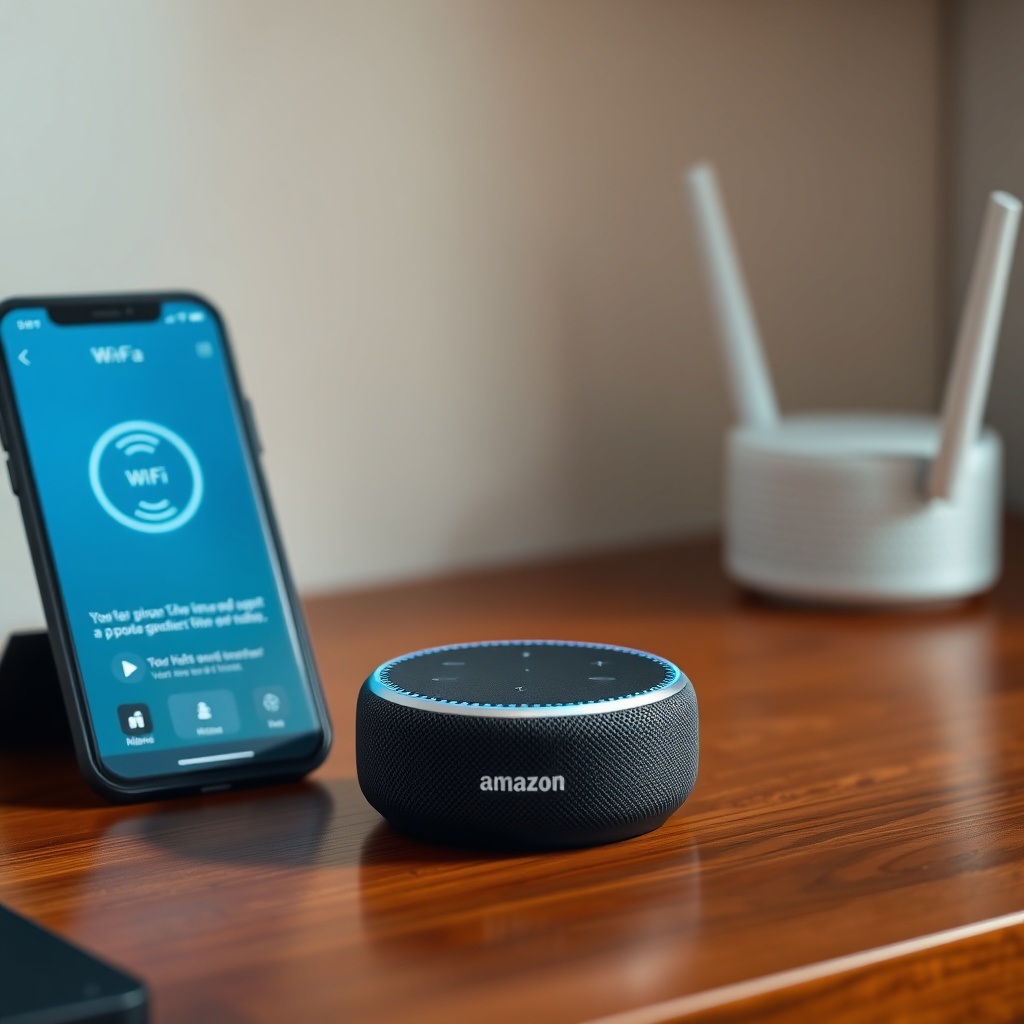
How to Connect the Echo Dot to Wi-Fi During Setup?
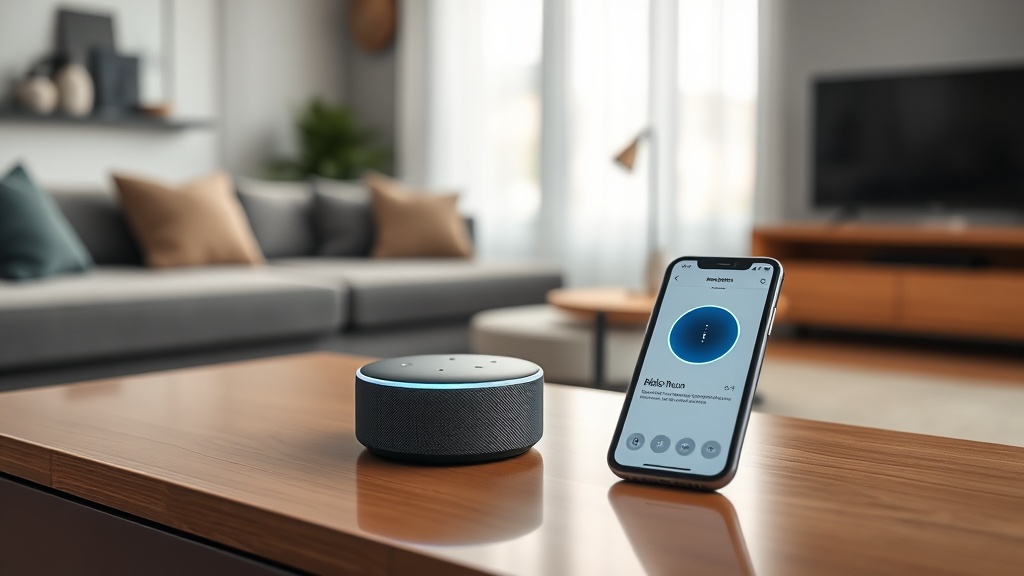
After plugging in the device, open the Alexa app and tap the Devices icon (bottom right), then the plus (+) sign and select “Add Device.” Choose “Amazon Echo” and then “Echo Dot (5th Gen).” The app will search for nearby devices. When the orange ring appears, confirm the device is detected, and the app will prompt you to connect to the Echo Dot’s temporary Bluetooth network. This is a direct connection that bypasses your home Wi-Fi—do not confuse it with your regular network.
Once paired via Bluetooth, the app will display a list of available Wi-Fi networks. Select your home network and enter the password. The Echo Dot will then disconnect from the temporary network and join your Wi-Fi. You will hear Alexa say, “Your device is ready.” This entire process typically takes three to five minutes. If you encounter issues, refer to our Amazon Echo Dot (5th Gen) Keeps Disconnecting from Wi-Fi? Here’s the Fix article for troubleshooting tips.
How to Set Up Alexa Voice Profiles and Multi-Room Audio?
Voice profiles allow Alexa to recognize different voices in your household and provide personalized responses—such as calendar events or music recommendations. To set this up, go to the Alexa app, tap Settings, then Account Settings, and select “Your Voice.” Follow the on-screen prompts to say a few phrases. It works best in a quiet environment. Each household member can create their own profile using their own Amazon account linked through the app’s Household feature.
For multi-room audio, you can group your Echo Dot with other Echo devices. In the app, go to Devices, tap the plus (+) icon, and select “Add Group.” Name the group (e.g., “Downstairs” or “Whole House”), and then choose which Echo devices to include. Once set, you can say, “Alexa, play music everywhere,” and audio will sync across all grouped speakers. Note that the Echo Dot (5th Gen) uses a single full-range driver, so for whole-home audio with better bass, consider pairing it with an Echo Sub or larger speakers. For a deeper comparison, check Amazon Echo Dot vs Google Nest Audio: Which Smart Speaker Should You Buy? to see how it stacks up against competitors.
How to Configure Basic Settings Like Time Zone and Alarm?
After Wi-Fi connection, the Alexa app automatically detects your time zone based on IP address, but you can manually adjust it. In the app, select Devices, choose your Echo Dot, then tap Device Settings. Scroll to Time Zone and select the correct one—essential for accurate alarms and routines. Next, set up your first alarm by saying, “Alexa, set an alarm for 7 AM” or doing it manually in the app under Routines & Alarms.
Other basic settings include adjusting the volume: physical buttons on top of the Echo Dot (volume up, down, and action button) or via voice command. The device’s LED ring brightness can be toggled (Settings > Device Settings > LED Light). If you are concerned about privacy, you can also enable or disable the microphone button (the action button) to physically disconnect the mic. For more detailed specifications, our Amazon Echo Dot (5th Gen) Sound Quality and Specs: What You Need to Know article covers all hardware details.
What Are the Troubleshooting Steps If Setup Fails?
Setup issues often stem from Wi-Fi problems or app glitches. If the Alexa app cannot find your Echo Dot, restart the device by unplugging it for 10 seconds. Ensure your smartphone’s Bluetooth is enabled, and temporarily disable any VPNs or ad-blockers on your phone. If the orange ring does not appear, try resetting the Echo Dot by pressing and holding the action button for 20 seconds until the ring turns orange again.
If the device connects to Wi-Fi but then goes offline, check your router settings: ensure it is not blocking new devices, and consider moving the Echo Dot closer to the router during setup. For persistent issues, see our dedicated guide on Amazon Echo Dot (5th Gen) Not Responding? Quick Fixes to Try. Common errors like “Device is unresponsive” usually resolve after a power cycle or router reboot.
| Symptom | Severity | Usual Action |
|---|---|---|
| Orange ring not appearing after plug-in | Needs attention soon | Perform factory reset (hold action button 20 seconds) |
| App cannot find device during setup | Usually not urgent | Restart phone, enable Bluetooth, move closer to Echo Dot |
| Connects to Wi-Fi but then disconnects | Needs attention soon | Check router interference, update firmware via app |
| Alexa does not respond to voice commands | Usually not urgent | Check microphone button (not pressed in), say “Alexa” clearly |
| Bluetooth pairing fails after setup | Needs attention soon | Forget device in phone Bluetooth settings, retry pairing |
How to Enable Advanced Alexa Features Like Routines and Skills?
Once the basics are done, unlock the Echo Dot’s full potential with routines and skills. Routines allow you to trigger multiple actions with a single command. For example, say “Alexa, good morning” to turn on lights, read the news, and set the coffee maker. To create one, go to the Alexa app > Routines > plus icon. Choose a trigger (voice, schedule, or device action), then add actions like smart home control or music playback.
Skills are third-party apps for Alexa. Browse the Skills section in the app and enable ones like Spotify, Philips Hue, or IFTTT. Some skills require account linking—the app will guide you through OAuth authentication. If you encounter issues with routines not executing correctly, our guide Amazon Echo Dot (5th Gen) Alexa Routines Not Working? How to Fix provides step-by-step fixes. Voice commands for skills are straightforward: “Alexa, ask [skill name] to [action].”
For smart home integration, the Echo Dot (5th Gen) supports Matter and Thread, which simplify connecting devices from different ecosystems. In the app, go to Devices > plus > Add Device and search for Matter-compatible devices. Pairing is seamless compared to older protocols. If Bluetooth pairing issues arise, see Amazon Echo Dot (5th Gen) Bluetooth Pairing Issues: Solutions for Bluetooth-specific solutions.
What Owners Say
Many owners appreciate the Echo Dot’s compact size and improved sound quality compared to the 4th Gen, especially for spoken word and podcasts. One user noted, “The 5th Gen is noticeably louder in my kitchen than the old one, and it picks up my voice even with the faucet running.” Another observed, “Setting up voice profiles was easier than I expected—my wife and kids each have their own playlists now.” However, a few users reported occasional Wi-Fi dropouts after firmware updates, which often required a power cycle. Overall, the setup process is considered straightforward for both new Alexa users and veterans upgrading from older models.
Frequently Asked Questions
1. Can I set up the Echo Dot without the Alexa app?
No, the Alexa app is mandatory for initial setup. It handles Wi-Fi configuration, account linking, and device management. However, after setup, you can use voice commands for most tasks without opening the app.
2. How long does the typical setup take?
From unboxing to first Alexa command, expect about 10 to 15 minutes. The Wi-Fi connection step takes the longest. If you have a slow connection or need to update firmware, it may take a few extra minutes.
3. Can I use the Echo Dot with a guest Wi-Fi network?
Yes, but guest networks often have device isolation enabled, which may prevent the Echo Dot from communicating with other smart home devices. For full functionality, connect it to your main private network.
4. What is the reset button on the Echo Dot (5th Gen)?
The action button (bottom of the device, circle shape) serves as the reset button. Press and hold it for 20 seconds to factory reset the Echo Dot, which clears all settings and returns it to setup mode.
5. Why does my Echo Dot show a blue spinning light instead of orange?
A blue spinning light indicates the device is already connected to Wi-Fi and is processing a command. If you see this during setup, it means the device was previously set up. You will need to factory reset it before re-configuring.
6. How do I change the language to British English or other regional variants?
In the Alexa app, go to Device Settings, select your Echo Dot, then Language. Choose from available options like English (United Kingdom), English (Canada), or English (Australia). This affects speech recognition and responses but not skill content.