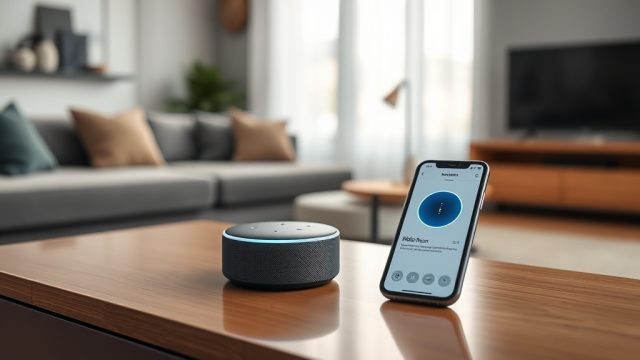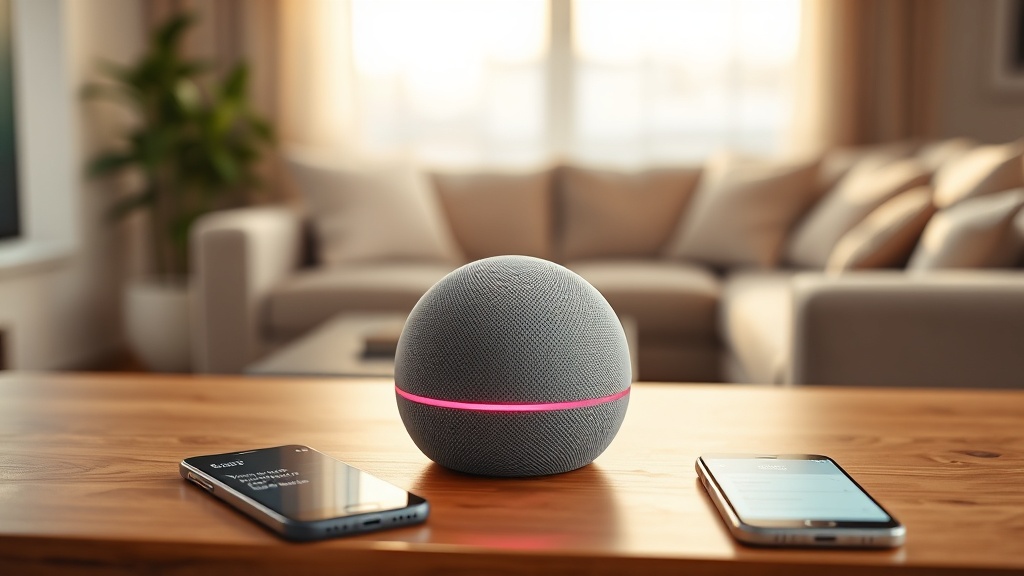
The Amazon Echo Dot (5th Gen) has become a staple in many homes, blending a compact spherical design with improved audio and a full suite of Alexa voice capabilities. While setting up smart speakers is often straightforward, understanding and configuring privacy settings is crucial for users who value data security. This guide walks through every step to lock down your device, from microphone muting to history management, ensuring you retain control over your personal information.
1. How Do I Disable the Microphone on the Echo Dot (5th Gen) for Maximum Privacy?
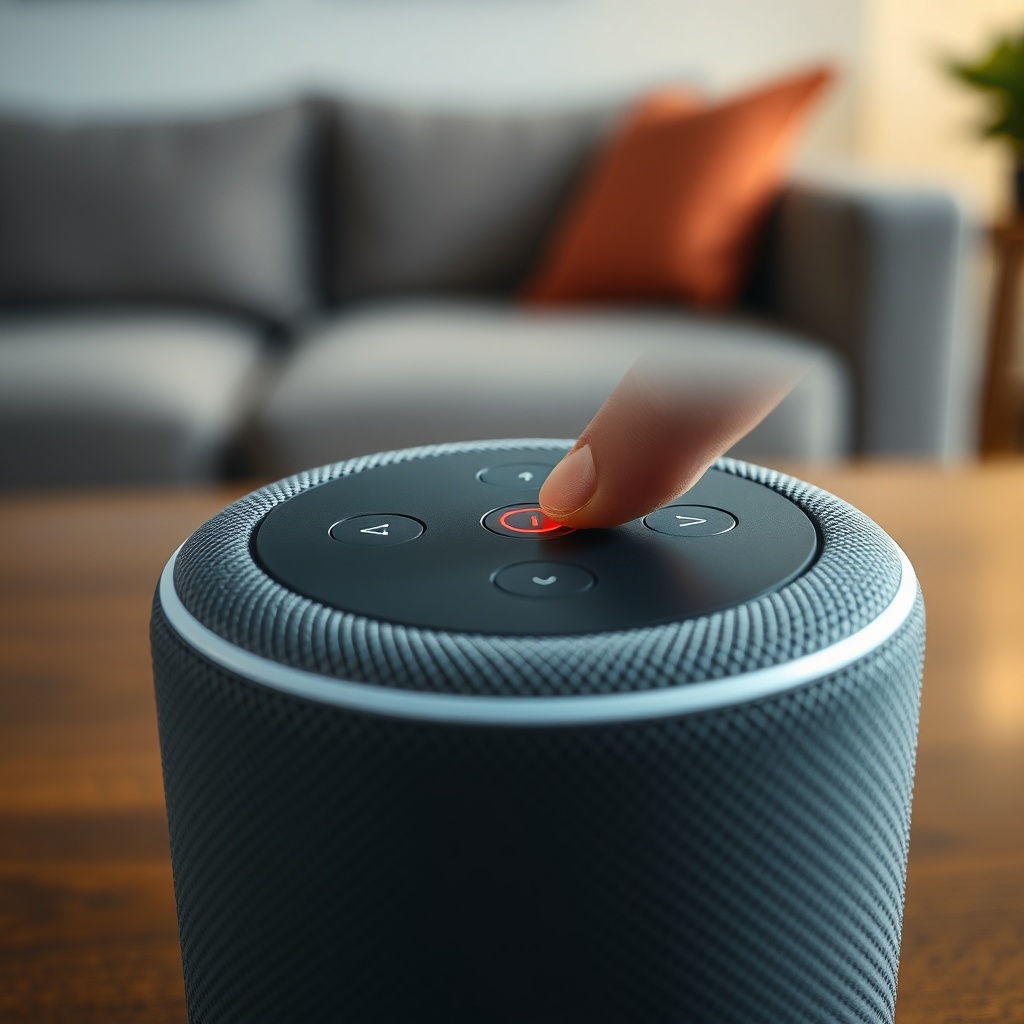
The most immediate privacy measure available is the physical mute button, located on the top of the Echo Dot (5th Gen) beside the volume controls. Pressing this button instantly cuts power to the microphones, causing a red ring to glow around the base. Alexa cannot listen, process requests, or wake until the button is pressed again. For daily use, this is an easy habit to adopt when privacy is paramount—during meetings, when kids are sleeping, or if you just want an uninterrupted conversation.
Accessing the mute function virtually is not possible, which is by design. The button is a physical hardware kill switch, not a software toggle. When the red ring is lit, no audio data is transmitted to Amazon servers. It is important to note that this does not disable the speaker or internet connectivity; only the microphones.
2. How to Review and Delete Your Alexa Voice Recordings on the Echo Dot (5th Gen)
Every request you make to Alexa is recorded and stored in your Amazon account. To review this history, open the Alexa app on your smartphone (iOS or Android) and tap the “More” icon (three horizontal lines) in the bottom right corner. Navigate to “Settings,” then “Alexa Privacy,” and finally “Review Voice History.” Here, you can see all voice recordings sorted by date and device. You can play each recording individually or delete it with a single tap.
For bulk deletion, use the “Delete All Recordings for Today” option or choose “All History” to erase everything. Amazon offers an auto-delete feature where you can set recordings to delete after 3 months, 18 months, or never. To enable this, go to “Settings” > “Alexa Privacy” > “Manage Your Alexa Data,” and select the desired retention period. Users concerned with long-term data storage should choose the 3-month option and also enable the “Help Improve Amazon Services” toggle to off, as this allows Amazon to transcribe recordings.
Another powerful tool is voice deletion. Simply say, “Alexa, delete everything I said today.” This command works immediately. For more granular control, say, “Alexa, delete what I just said,” which removes the last request. Note that these commands only affect the current day or last utterance. To clear earlier data, you must use the app or Amazon’s web portal at Alexa Privacy Settings.
| Privacy Control | Action | Impact on Data |
|---|---|---|
| Physical Mute Button | Press top button until red ring appears | Immediately stops all microphone audio capture |
| Voice Deletion | “Alexa, delete what I said” | Removes last request or all daily recordings |
| Auto-Delete Setting | Alexa app > Settings > Alexa Privacy > Manage Your Data | Recurring deletion after 3, 18 months, or never |
| Review Voice History | Alexa app > More > Settings > Alexa Privacy > Review Voice History | Manual playback and deletion per recording |
3. Can I Prevent Alexa from Listening for the Wake Word Entirely?
Yes, but only through the physical mute button. The Echo Dot (5th Gen) continuously listens for the wake word (e.g., “Alexa”) using on-device processing. When muted, this wake-word detection ceases entirely. If you prefer to keep the device unmuted but want to temporarily disable Alexa, you can also use the “Do Not Disturb” feature. Say, “Alexa, turn on Do Not Disturb,” or toggle it in the Alexa app under “Devices” > select your Echo Dot > “Do Not Disturb.”
In Do Not Disturb mode, the device still listens for the wake word and will respond to requests, but it suppresses all notification sounds, calls, and messages. It does not stop voice history from being stored. Therefore, for absolute privacy, the mute button remains the only method. If you are experiencing Amazon Echo Dot (5th Gen) Alexa Routines Not Working? How to Fix, ensure mute is not active, as routines will fail if microphones are disabled.
Another approach is to disable “Alexa Voice Services” entirely through device settings, but this essentially turns the Dot into a basic Bluetooth speaker. To do this, go to the Alexa app, select your Echo Dot device, then “Device Settings,” and toggle “Wake Word” to “Off.” This removes Alexa functionality but keeps the device online for software updates. Re-enabling it requires app interaction.
4. What Are the Best Privacy Settings in the Alexa App for the Echo Dot (5th Gen)?
Beyond voice history, the Alexa app contains several key privacy toggles. Navigate to “Settings” > “Alexa Privacy” to find a comprehensive dashboard. Under “Manage Your Alexa Data,” you should disable “Use Voice Recordings to Improve Amazon Services” if you do not want human reviewers listening to your clips. This is automatically enabled when you set up the device but is fully optional.
Another critical setting is “Skill Permissions.” Go to “Settings” > “Alexa Privacy” > “Manage Skill Permissions.” Here, you can review and revoke access for each third-party skill you have enabled. Skills can ask for personal information, such as your address, name, or device lists. Audit these regularly and disable any that seem unnecessary. For example, a weather skill might not need your address if you provide a general city name manually.
Also, enable “Alexa Privacy Hub” notifications, which alert you to new privacy features or security issues. The “Communication Permissions” section lets you control who can call or message your device. For maximum privacy, set “Require Permissions” to “Only People in My Contacts” or “Only People I Allow.” Finally, review “Home Address” and “Location” in “Device Settings” to ensure accurate data sharing.
5. How to Disable Drop-In and Communication Features on the Echo Dot (5th Gen)
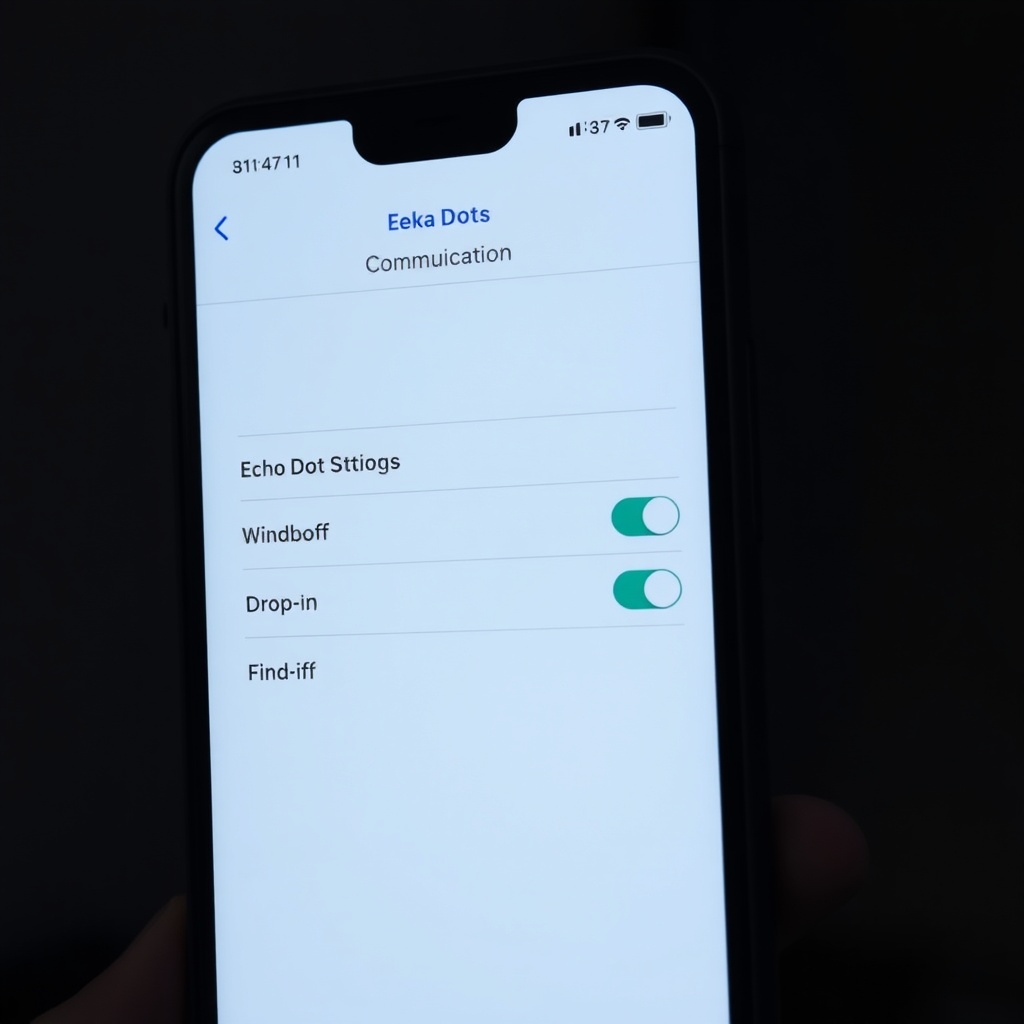
Drop-In is a feature that allows approved contacts to instantly connect to your Echo Dot as an intercom or camera mic. While useful for households, it can be a privacy risk if enabled inadvertently. To disable it, open the Alexa app, navigate to “Devices,” select your Echo Dot (5th Gen), then tap the gear icon for “Device Settings.” Scroll down to “Communication” and select “Drop-In.”
Set the option to “Off” or “Only My Household” (the latter restricts to other Echo devices registered under your own Amazon account). For communication features like calls and messaging, you can further restrict access under “Settings” > “Account Settings” > “Communication Permissions.” Here, toggle “Allow Calls” and “Allow Messages” for specific contacts or disable them entirely. When a Drop-In is active, a green light appears on your Echo Dot, signaling that audio is being streamed. If you see this light unexpectedly, immediately press the mute button and review your settings. For related issues, see Amazon Echo Dot (5th Gen) Microphone Muting Issues: Causes and Fixes.
6. What Owners Say About Privacy on the Echo Dot (5th Gen)
Real-world feedback from users often highlights the balance between convenience and control. Many appreciate the physical mute button, describing it as “a tactile reassurance” that their conversations are not being monitored. However, some owners express frustration that voice commands cannot be used when muted, requiring manual action to re-enable listening. Others note that the red ring is subtle enough to be missed in bright rooms, so they recommend enabling the “Alexa App Mute Status” widget for visual confirmation on their phones.
A recurring theme in reviews is the auto-deletion feature. Users who set recordings to delete after 3 months report feeling “relieved” to not manually purge history. However, tech-savvy owners recommend reviewing skill permissions monthly, as newly installed skills may silently access location data. Many also caution that using voice commands like “Alexa, stop listening” actually activates Do Not Disturb rather than muting, which caused confusion initially. Overall, owners rate the Echo Dot (5th Gen) as a secure device if privacy settings are configured properly, though they stress that default settings are not optimal for sensitive environments.
Frequently Asked Questions
Q: Will disabling the microphone affect my Echo Dot’s smart home routines?
A: Yes, if the microphone is muted, Alexa cannot hear wake words or commands, so routines that rely on voice triggers will not execute. However, routines scheduled by time or triggered by sensor input (e.g., Zigbee devices) will still run. For deeper insights, refer to Amazon Echo Dot (5th Gen) Zigbee Smart Home Hub Not Responding? Troubleshooting Guide.
Q: Does the Echo Dot (5th Gen) store my voice recordings on the device itself?
A: No, voice recordings are uploaded to Amazon’s cloud servers for processing. The device only stores a temporary buffer of the current request. All historical data is managed via your Amazon account’s cloud settings.
Q: Can I use the Echo Dot as a Bluetooth speaker without Alexa listening?
A: Yes, you can pair your phone via Bluetooth and then mute the Echo Dot’s microphones. Audio will stream from your phone, but Alexa will not respond to wake words. See Amazon Echo Dot (5th Gen) Bluetooth Pairing Issues: Solutions for help with connectivity.
Q: How do I know if someone is using Drop-In on my Echo Dot (5th Gen)?
A: A green LED ring appears around the base of the device when Drop-In is active. Additionally, Alexa says “Drop-In from [name]” at the start of the connection, unless this announcement is disabled in settings.
Q: Can I stop Amazon from saving any voice recordings at all?
A: You cannot completely disable recording, as each request must be processed, but you can set auto-delete to the shortest period (3 months) and manually delete recordings daily via voice command “Alexa, delete everything I said today.”
Q: What does the “Alexa Privacy Hub” do?
A: It is a central section in the Alexa app that summarizes your privacy controls, provides educational content, and notifies you of important changes to data handling. It also links directly to voice history review, skill permissions, and communication settings.