Google Nest Audio Setup: Using the Google Home App for the First Time
Setting up a Google Nest Audio speaker is usually straightforward, but the process hinges entirely on the Google Home app. Whether you are moving from an old speaker or starting fresh, the initial pairing can present a few unexpected hurdles. This guide walks through the complete first-time setup, covering app permissions, network requirements, and common pitfalls that can delay your smart speaker experience.
What Do You Need Before Opening the Google Home App?
Before plugging in the Nest Audio, confirm that your mobile device meets the minimum requirements. The Google Home app requires Android 6.0 or higher or iOS 14.0 or later. You need a Google account (Gmail works), and a 2.4 GHz Wi-Fi network is strongly recommended during setup, even though the speaker supports dual-band 5 GHz for normal use. The app needs location permissions enabled to scan for nearby devices via Bluetooth and Wi-Fi. Without location services turned on, the app may fail to discover the speaker entirely.
Check Your Network Settings
The Nest Audio does not support WPA3 enterprise networks or captive portals (hotels, dormitories). If your home Wi-Fi uses WPA3, consider temporarily switching to WPA2/WPA3 mixed mode. Also ensure your router’s 5 GHz band is not using DFS channels (52–144), as these can cause intermittent connectivity. The speaker’s Bluetooth radio is only active during setup, so keep your phone within 10 feet of the speaker for the first pairing.
How Do You Connect the Nest Audio to the Google Home App?
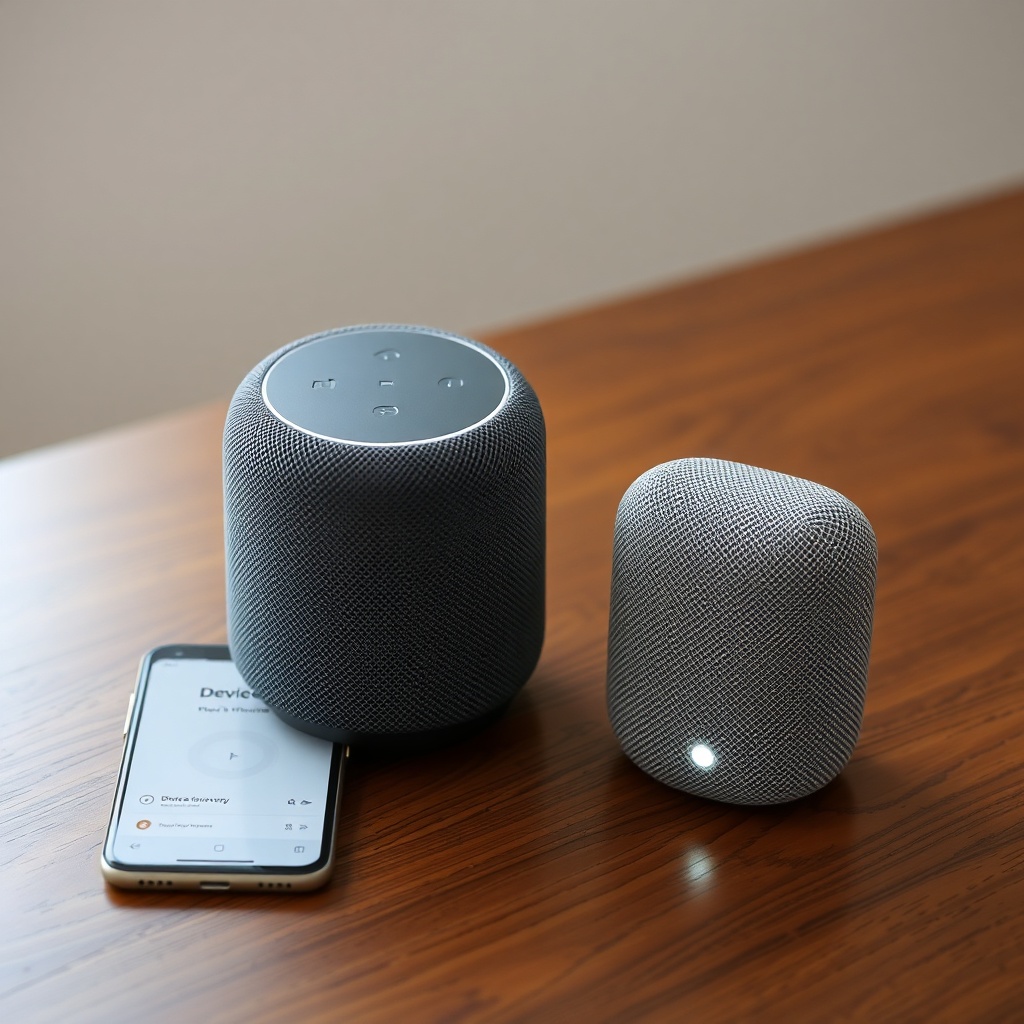
Start by downloading the Google Home app from the App Store or Play Store. Plug in the Nest Audio using the included 30W USB-C power adapter. Wait for the speaker to chime and for four white LED dots to appear on the front panel. Open the app, tap “Add” (the plus icon in the top-left corner), then select “Set up device” and “New device.” The app will search for nearby speakers. If no device appears after 30 seconds, press and hold the center of the Nest Audio’s top surface for about 12 seconds until you hear a confirmation tone and the LEDs flash orange. This factory resets any previous configuration.
Troubleshooting App Discovery Failures
If the app still cannot find the speaker, toggle Bluetooth off and on again on your phone. Also grant the Google Home app “nearby devices” permission (Android) or Bluetooth permission (iOS). Some users report that turning off mobile data temporarily helps the speaker connect faster. Once detected, the app will guide you through selecting your home, Wi-Fi network, and speaker location.
What Google Account Permissions Are Required During Setup?
After connecting to Wi-Fi, the Google Home app requests several permissions. It asks for access to your Google account’s personal information (name, email, profile picture) and to your contacts if you want to make hands-free calls. You can skip contact sharing. The app also requests access to your device’s location to automate routines like “Good morning.” Denying location access will break features like weather briefings and geofence-triggered actions. For Voice Match, which recognizes individual voices, the app temporarily uploads a voice sample to Google’s servers. This sample is encrypted, but it remains stored until you manually delete it within the Home app’s settings.
Setting Up Voice Match
Navigate to the Nest Audio’s device settings (gear icon) and select “Recognition & sharing.” Tap “Voice Match” and follow the prompts to say “Hey Google” and “OK Google” three times each. The accuracy improves after a few days of use, but ambient noise like a running dishwasher can cause temporary failures. If Voice Match does not work immediately, try retraining in a quieter room.
Why Does the Setup Get Stuck at “Checking for Updates”?
This is the most common frustration during first-time setup. The Nest Audio must download and install firmware updates before it can function. The process can take 5–15 minutes, and the app displays a spinning progress bar. If it stalls for longer than 20 minutes, the most likely cause is network congestion or a router that prioritizes other devices. Try disconnecting other heavy-bandwidth devices (streaming consoles, video calls) from the Wi-Fi temporarily. If the issue persists, reboot both the router and the speaker (unplug the speaker for 30 seconds). Do not close the app during this phase—doing so often corrupts the pairing state and forces a factory reset.
Network Speed Matters
Google recommends a minimum internet download speed of 5 Mbps for the Nest Audio. However, firmware updates can require 50–100 MB of data transfer. On a slow connection, the update may time out. If you live in a region with inconsistent broadband, consider completing the setup during off-peak hours (early morning or late evening). You can check your current network speed via a separate device while the Nest Audio sits idle. For more on speaker performance after updates, see Google Nest Audio Audio Performance and Specs: A Detailed Analysis.
How Do You Configure Audio and Assistant Settings After Setup?
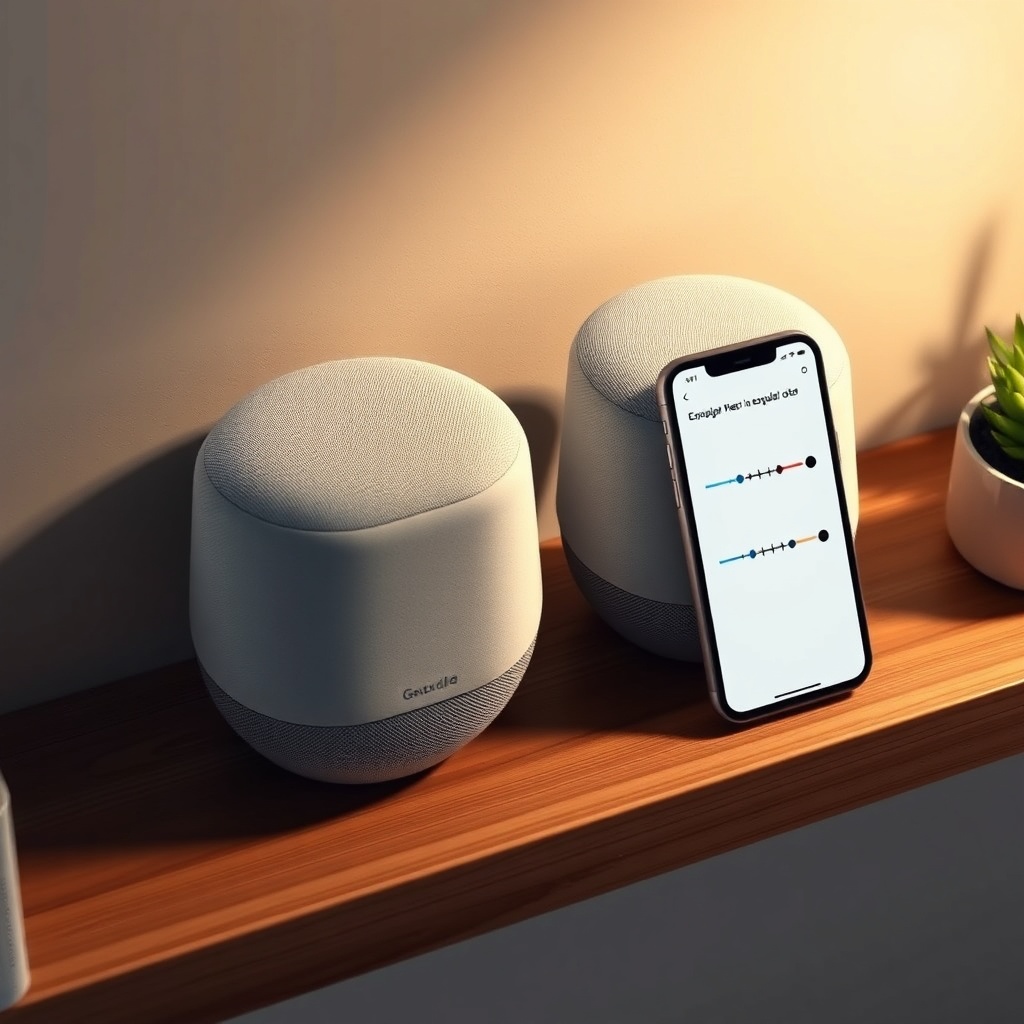
Once the speaker is online and updated, the Google Home app offers a range of audio adjustments. Under “Device settings,” you can enable or disable “Adaptive Sound,” which automatically adjusts the speaker’s EQ based on ambient noise. In quiet rooms, this feature can make speech sound slightly tinny, so some users prefer to turn it off. The equalizer offers three sliders: bass (100 Hz), mid (1 kHz), and treble (10 kHz). The default setting is neutral (0 dB). For a warmer sound, try adding +2 dB to bass and +1 dB to treble. The speaker also supports stereo pairing if you own two identical Nest Audio units, but this requires them to be on the same network and within 10 feet of each other.
Adjusting Assistant Sensitivity
Go to “Recognition & sharing” and select “Hey Google sensitivity.” The default is “Medium.” If the speaker frequently triggers on TV dialogue, set it to “Low.” Conversely, if you have to shout across a large room, try “High.” The sensitivity adjustment does not affect Voice Match accuracy—only the threshold for the hotword itself.
What Should You Do If the Google Assistant Doesn’t Respond After Setup?
If the voice assistant remains silent after completing setup, check that the speaker is not muted. The physical microphone switch is located on the back of the Nest Audio, near the power port. A bright orange dot above the LEDs indicates that the microphone is disabled. Also confirm that the Google Home app shows the speaker as “Online.” Navigate to the device card—if it shows “Offline,” tap the three-dot menu and select “Reboot.” For persistent issues, see Google Nest Audio Google Assistant Not Working? Troubleshooting Guide.
Factory Reset as Last Resort
Should Assistant remain unresponsive after verifying microphone status and network connectivity, a factory reset is warranted. Press and hold the center of the speaker’s top for 15 seconds until you hear a chime and the LEDs flash orange, then white. Repeat the setup from scratch. This typically resolves software glitches that block Assistant initialization.
Common Issues and Their Severity
| Issue | Severity |
|---|---|
| App fails to discover speaker during setup | Usually not urgent – typically fixed by enabling location permissions or restarting the app |
| Wi-Fi connection drops during update | Needs attention soon – can corrupt the firmware if repeated, requires factory reset |
| Voice Match not recognizing your voice | Usually not urgent – retrain in a quiet room; accuracy improves over time |
| Speaker shows orange light after setup | Needs attention soon – microphone is physically muted; toggle the switch on the back |
| Adaptive Sound causes distorted audio | Usually not urgent – disable the feature in device settings |
| Cannot pair two speakers for stereo | Needs attention soon – ensure both speakers are on same network and within 10 feet |
What Owners Say
Users frequently praise the Nest Audio’s clear mid-range for podcasts and news, though a common gripe is the lack of a 3.5 mm audio jack. One owner noted, “Setup took about 12 minutes, but the app kept asking for location permissions three times before it stuck.” Another reported, “I couldn’t get Spotify to play right away—had to re-link the account in the Home app.” On the positive side, several users appreciate the minimal LED design that avoids light pollution in bedrooms. However, some mention that Voice Match can be inconsistent in busy households, often confusing similar voice pitches. For Spotify-specific issues, see Google Nest Audio Spotify Connection Issues: Step-by-Step Troubleshooting. For multi-room audio challenges, refer to Google Nest Audio Multi-Room Audio Problems: How to Solve.
Frequently Asked Questions
How long does the Nest Audio initial setup take?
Typically, the entire process takes 10 to 20 minutes, including app installation, network connection, firmware update, and voice training. The firmware update is the longest step, especially on slower internet connections.
Can I set up the Nest Audio without a smartphone?
No. The Google Home app is required for initial configuration. There is no web browser interface for pairing. You need a compatible Android or iOS device with the app installed.
Why does my Nest Audio keep asking me to sign in to Google?
This usually indicates that the speaker’s connection to your Google account has expired. Open the Google Home app, tap the device card, and select “Remove device.” Then re-add it via “Add > Set up device.”
What does a solid orange LED mean on the Nest Audio?
A solid orange LED indicates that the microphone is muted. This is controlled by the physical switch on the back of the speaker. Slide the switch away from the orange dot to re-enable the microphone.
Can I use the Nest Audio without a Wi-Fi connection?
Only for basic Bluetooth playback from a connected phone. All smart features—Assistant, music streaming, routines—require an active Wi-Fi or Ethernet (via an optional USB-C adapter) internet connection.
Why does the Google Home app show my Nest Audio as offline?
This can happen due to Wi-Fi interference, a router change, or a recent power outage. Try rebooting the speaker by unplugging it for 10 seconds. If unresolved, factory reset the speaker and re-run setup. For music playback issues specifically, see Google Nest Audio Not Playing Music? Troubleshooting Steps.