
Common Reasons Your Google Nest Audio Isn’t Playing Music
When your Google Nest Audio suddenly stops playing music, it can be frustrating, but the issue is often something simple you can fix at home. This guide walks through practical checks for connectivity, app settings, and physical setup that usually resolve the problem. By following these steps systematically, you can get your smart speaker back to streaming your favorite playlists without needing to contact support.
Why Is My Google Nest Audio Silent After a Firmware Update?
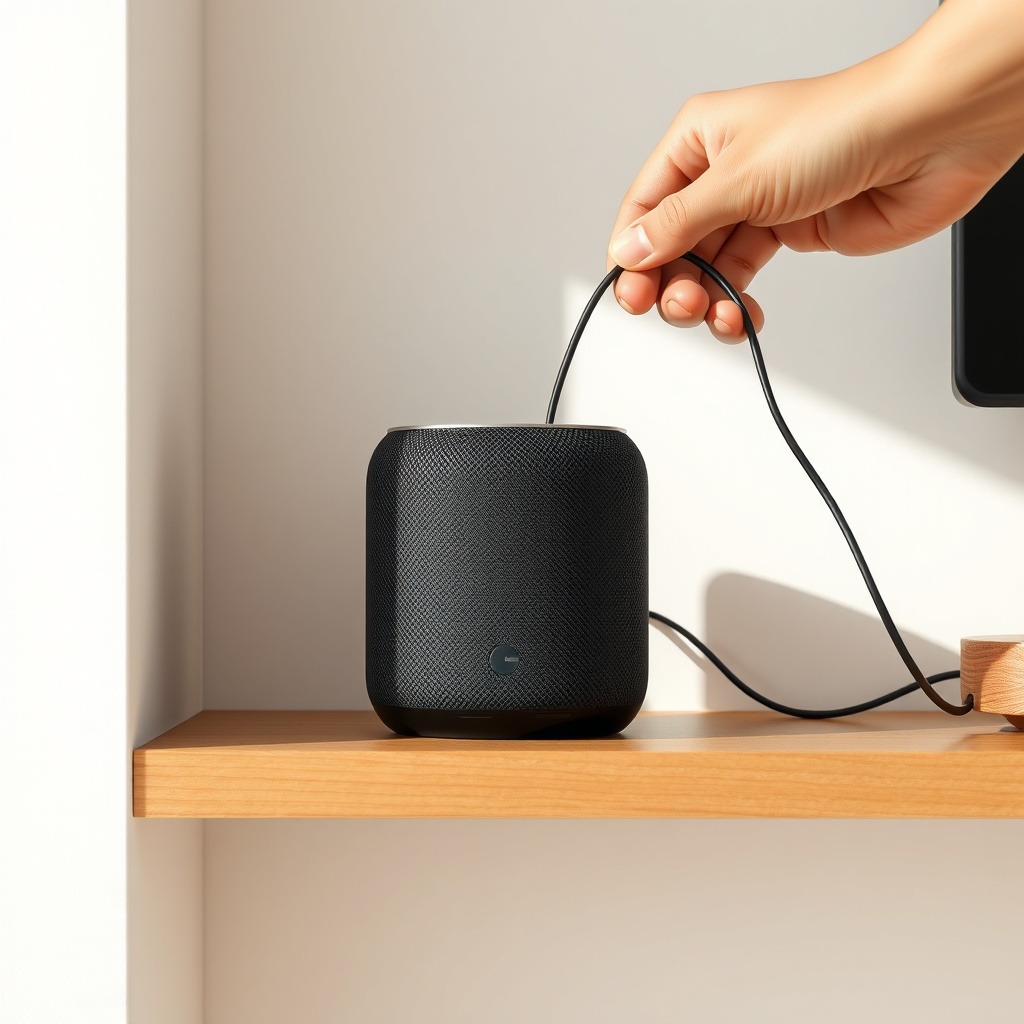
Firmware updates can sometimes reset audio output settings or introduce temporary glitches. The Nest Audio updates automatically when idle, but if it goes silent right after an update, start by rebooting the speaker. Unplug it from power for 30 seconds, then plug it back in and wait two minutes for it to fully restart. You can check the current firmware version in the Google Home app under Device settings > Device information; the latest stable version is typically 1.54.xxxxx or newer. If the speaker still won’t play, force a re-sync by saying “Hey Google, sync my devices” or tap the “Sync devices” button in the app under the device’s settings.
If rebooting doesn’t help, the update may have corrupted a network setting. Try removing the speaker from the Google Home app and re-adding it. Go to the device’s settings, tap the gear icon, scroll to the bottom, and select “Remove device.” Then complete the Google Nest Audio setup using the Google Home app for the first time again. This refreshes all Wi-Fi credentials and profile associations, which often restores playback.
What to Do When Music Streams but No Sound Comes Out?
This usually points to a volume or output routing issue rather than a hardware failure. First, physically press the volume up button on the front of the Nest Audio (the touch-sensitive area on the right side). Sometimes the volume gets inadvertently muted in a multi-room group or from a previous session. Next, open the Google Home app and check the volume slider for that specific speaker—it may be set to 0 or very low. Also confirm the speaker hasn’t been assigned to a different audio output in the app, such as a paired Bluetooth device or a TV via Chromecast. If you’ve paired it with another speaker, troubleshoot multi-room audio problems to ensure the group isn’t causing a mute state.
Another frequent cause is the speaker being “stuck” on a previously connected Bluetooth device. Say “Hey Google, disconnect Bluetooth” or “Hey Google, play on this speaker.” This forces the Nest Audio to revert to its internal speakers. If you’re using a music service like Spotify, verify the playback device in the Spotify app—sometimes the app casts to a different speaker in your home. For Spotify-specific hiccups, read our dedicated guide on Google Nest Audio Spotify connection issues: step-by-step troubleshooting.
How to Fix Wi-Fi or Network Problems Stopping Music Playback
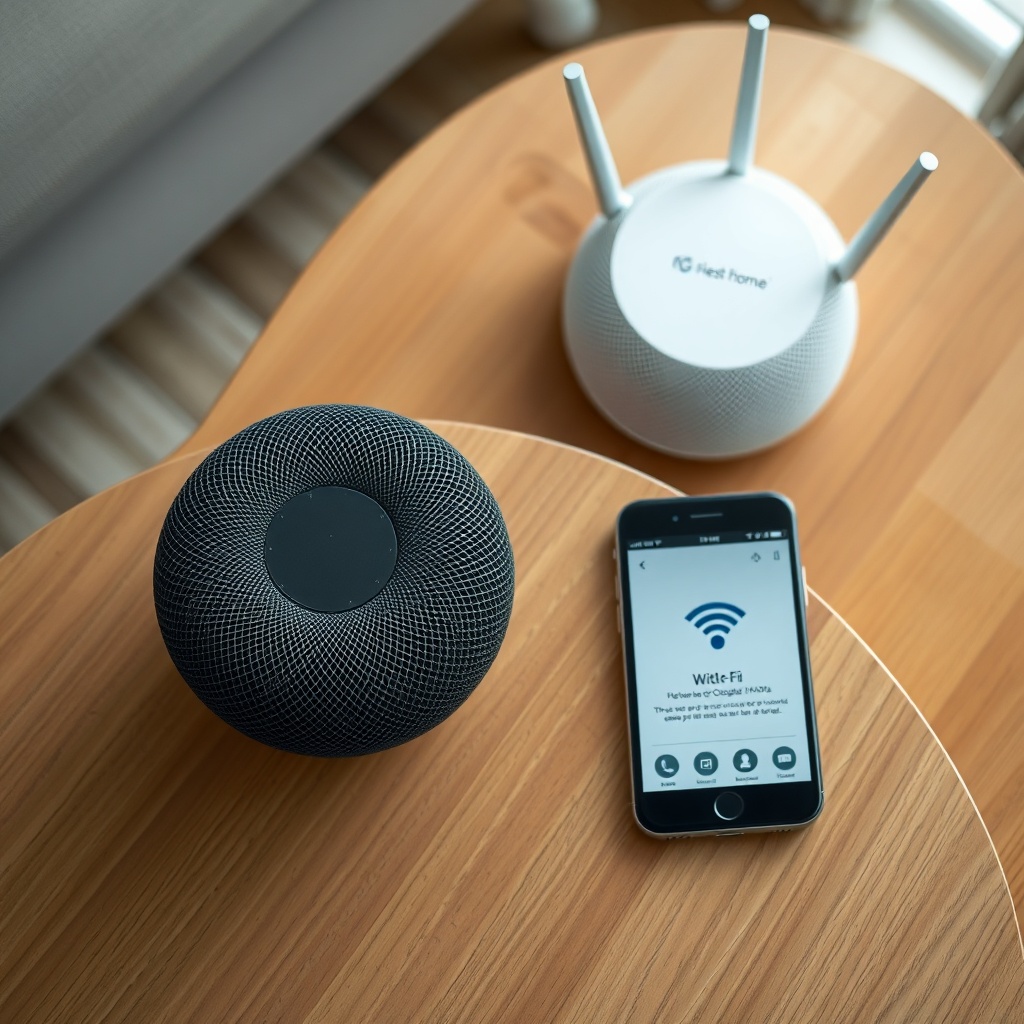
The Nest Audio relies on a stable 2.4 GHz or 5 GHz Wi-Fi connection for streaming. If music pauses, buffers, or fails to start, run a network check. In the Google Home app, tap your Wi-Fi network name under the device’s settings and look for a “Signal strength” indicator. If it shows “Weak” or “Very weak,” the speaker is too far from the router. Move it closer temporarily to test—ideally within 15–20 feet of the router with a clear line of sight. Common household obstacles like thick walls, metal appliances, or multiple floors can degrade the signal.
If the signal is strong but music still won’t play, try restarting your router and modem. Unplug both for 60 seconds, then plug them back in and wait for the internet connection to restore. After the network is back up, restart the Nest Audio by unplugging it for 10 seconds. Also ensure that your Wi-Fi network is using WPA2 (AES) security, as the Nest Audio may not reliably connect to WPA3-only networks or those with captive portals. If you recently changed your network name or password, you’ll need to re-run the setup in the Google Home app to update the credentials.
| Issue Severity | Description |
|---|---|
| Usually not urgent | Volume muted, speaker in wrong group, temporary network glitch, outdated app cache. Fixable in under 5 minutes with a reboot or volume check. |
| Needs attention soon | Wi-Fi signal consistently weak, unable to reconnect after network change, recurring firmware update failures, or hardware defect like distorted audio. May require router repositioning, factory reset, or hardware replacement. |
My Google Assistant Responds but Won’t Play Music—Why?
If the Assistant hears you and lights up but doesn’t start playback, the issue is likely with your music service account or permissions. Open the Google Home app, tap your profile icon, then “Google Assistant settings” > “Music” and confirm your default music provider (e.g., Spotify, YouTube Music, Apple Music) is correctly linked. Sometimes the auth token expires and you need to unlink and relink the service. For example, tap “Spotify” and then “Unlink account,” then re-link by logging in through the browser prompt. After re-linking, test by saying “Hey Google, play some jazz.”
Another possibility is that the Assistant is on the wrong account. If you have multiple Google accounts (e.g., personal and work), the Nest Audio might be linked to an account without an active music subscription. Verify that the speaker’s assigned Home and account match the one with the paid music plan. You can switch accounts in the app by tapping the device, then the settings gear, and looking at “Account.” For persistent Assistant command issues, see our full guide on Google Nest Audio Google Assistant not working? troubleshooting guide.
What to Check if the Speaker Was Dropped or Splashed
Physical damage can cause the speaker to appear functional (lights up, Wi-Fi connects) but not play audio. If the Nest Audio was dropped, inspect the speaker grille for dents or tears that could block the woofer or tweeter. Gently shake the speaker—if you hear rattling, internal components may be loose. For liquid damage, the Nest Audio has no official IP rating, so even a small splash can affect the electronics. Place the speaker in a warm, dry area for 48 hours with the grille facing down to allow moisture to drain. Do not use a hair dryer or rice, as those can push moisture deeper or introduce dust.
In cases of physical impact, a hard reset might help if the drop caused a software glitch, but it won’t fix broken hardware. Perform a factory reset by pressing and holding the center of the microphone mute switch (the small switch on the back) for about 15 seconds until the LED ring flashes orange, then turns white. After reset, set it up again through the app. If music still doesn’t play, the speaker likely has a hardware issue and needs replacement, especially if it’s still under the standard one-year limited warranty. For a deeper dive into its build quality and sound components, read our Google Nest Audio audio performance and specs: a detailed analysis.
What Owners Say
Long-time users report that music playback failures often follow firmware updates, especially when the speaker is part of a multi-room group. One owner noted, “After the October update, my Nest Audio would show as playing but was completely silent. A full re-add to the Home app fixed it, but it took me two hours to figure out.” Another common observation involves the speaker switching to Bluetooth output after a phone call: “I used it as a speakerphone, and then Spotify wouldn’t play through it the next day. I had to tell Google to disconnect Bluetooth to get music back.” Several owners also mention that the issue resolves temporarily with a power cycle but returns until the Wi-Fi router is rebooted, suggesting a deep network compatibility issue.
Frequently Asked Questions
Why does my Google Nest Audio show “Something went wrong” when I ask it to play music?
This error usually means the speaker can’t communicate with the music service. Check your internet connection and ensure the service (like Spotify or YouTube Music) is properly linked in the Google Home app. If the issue persists, unlink and relink the service, then reboot the speaker.
Can I play music from a Bluetooth device when Wi-Fi is down?
Yes. The Nest Audio supports Bluetooth 5.0. If your Wi-Fi is offline, you can pair your phone directly via Bluetooth. Say “Hey Google, pair Bluetooth” or use the Google Home app to enter pairing mode. Note that voice commands for music won’t work over Bluetooth; you’ll need to control playback from your phone.
Why does music stop playing after a few seconds?
This often indicates buffering due to a weak Wi-Fi signal. Move the speaker closer to your router or reduce interference. Also check if you have a data cap or if your internet plan throttles streaming during peak hours. Restarting both the router and speaker usually helps.
How do I reset my Google Nest Audio if it won’t play anything?
To factory reset, press and hold the microphone mute switch on the back for about 15 seconds. The LED will flash orange, then turn white when the reset is complete. After reset, set up the speaker again in the Google Home app. This clears all settings and linked accounts.
Is there a difference in music playback quality between Spotify and YouTube Music on Nest Audio?
Audio quality is generally similar, but the Nest Audio prioritizes seamless streaming with YouTube Music due to Google’s integration. Spotify may occasionally experience gaps or loading delays, especially after updates. For best results, use YouTube Music Premium (which supports 256 kbps AAC) as your default service.
Can the Google Nest Audio play music from a USB drive?
No, the Nest Audio has no USB port for local playback. It relies on streaming services or Bluetooth connections. To play local files, you can stream them from a DLNA server or use a Bluetooth transmitter connected to your computer, though this bypasses voice assistant controls.