
Apple HomePod mini Intercom Not Working? Fix It Yourself
The Apple HomePod mini’s Intercom feature is meant to be a seamless way to broadcast messages around the house, but when it goes silent or fails to deliver, it can be frustrating. Network hiccups, misconfigured Home settings, or even a simple software bug are often the culprits. This article walks through the most common causes and the exact steps to get your HomePod mini Intercom working again, without needing to call support.
1. Why Is the Intercom Feature Not Showing Up at All?
If the Intercom toggle is grayed out or missing entirely in the Home app, the issue is usually tied to your Apple ID and iCloud sync. The Intercom feature requires all participants to be on the same iCloud account with two-factor authentication enabled. Open the Home app on your iPhone or iPad, tap the house icon, then go to Home Settings > Intercom. If the option is absent, sign out of iCloud on all devices, restart them, and sign back in. Also ensure that your HomePod mini is updated to the latest audioOS. You can check this in the Home app by long-pressing the HomePod mini tile, scrolling to the gear icon, and selecting Software Update. A missing Intercom feature often points to an outdated HomePod mini or a split iCloud session between devices.
Another less obvious cause is the presence of a child account or a family member without a full iCloud account. Intercom only works with accounts that have iCloud Drive enabled and push notifications active. Verify in Settings > [Your Name] > Family Sharing that all household members are correctly configured.
2. Intercom Messages Are Sent but Not Received on Other HomePods
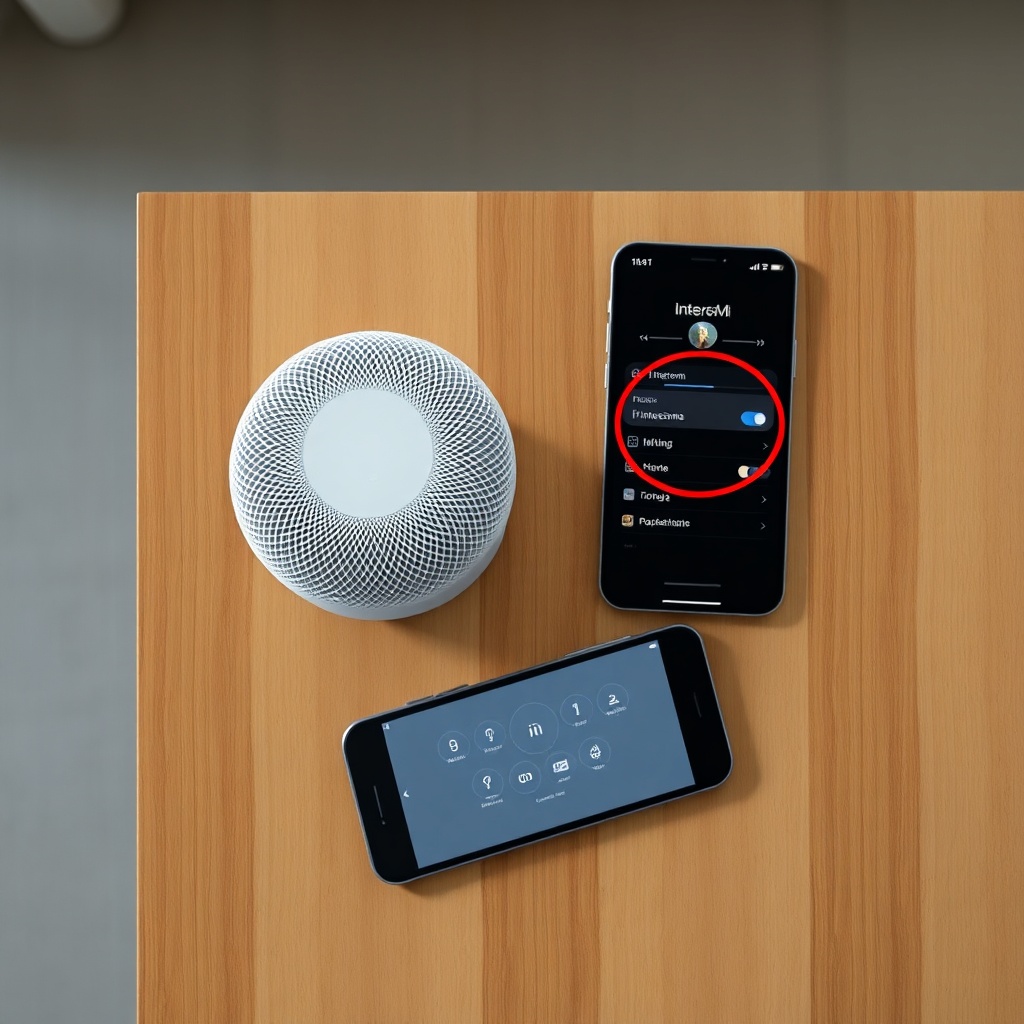
This is one of the most common complaints. You speak an Intercom message to the living room HomePod mini, but the bedroom HomePod mini never plays it. The root cause is almost always network-related, specifically multicast traffic being blocked. Intercom uses a local multicast protocol that requires all HomePod units and the home hub (Apple TV, HomePod, or iPad) to be on the same VLAN and subnet. If you have a mesh Wi-Fi system with client isolation enabled, or a router that blocks multicast/broadcast packets, Intercom will fail silently.
To diagnose, open the Home app, tap the house icon, then Home Settings > Wi-Fi Network & Routers. If you see any HomePod listed as “Restrict to Home,” change that to “No Restriction.” Also, ensure your home hub device (usually a HomePod or Apple TV) is online and active. You can confirm the hub status in the Home app under Home Settings > Home Hubs & Bridges. If the hub shows “Standby,” try rebooting it by unplugging for 10 seconds. For persistent issues, consider disabling and re-enabling AirPlay Receiver for the problematic HomePod mini via the Home app (long-press the HomePod tile, go to Settings, toggle AirPlay Receiver off and on).
3. Intercom Works Only One Way—From iPhone to HomePod, but Not Vice Versa
When you can send an Intercom message from your iPhone to a HomePod mini but the HomePod mini cannot send messages back to your iPhone, the problem is usually notification permissions. The Home app needs to be allowed to send critical alerts. On your iPhone, go to Settings > Notifications > Home. Ensure that Allow Notifications is on and that Time Sensitive Notifications is enabled. Without that, the Intercom message from the HomePod will arrive at the Home hub but never make a sound on your iPhone.
Also check that Do Not Disturb or Focus modes are not blocking notifications. Go to Settings > Focus and add the Home app to the allowed apps list. Another subtle point: Intercom messages from a HomePod mini to an iPhone only play if the iPhone is unlocked or the screen is active. If your phone is locked and face down, the message may be logged in the notification center but not spoken aloud.
4. Intercom Stops Working After a Software Update
Updates to either audioOS or iOS sometimes reset specific network or privacy settings that Intercom relies on. The most reliable fix is to restart all your HomePod units simultaneously by unplugging each one for 30 seconds, then plugging them back in. After they reboot, go to the Home app and check that your home hub is active. If the hub shows “Disconnected,” you may need to force restart the hub device (Apple TV or iPad).
If the problem persists, try removing the HomePod mini from the Home app and re-adding it. Long-press the HomePod tile, scroll to the bottom, tap Remove Accessory. Then scan the setup code on the bottom of the HomePod mini or use the Home app’s “Add Accessory” feature. This rebuilds the HomeKit configuration from scratch and often clears any corrupted session data. According to Apple’s support documentation, a full network reset of the HomePod (hold your finger on the top and wait for the spinning light to turn red) should be a last resort, as it erases all settings including paired alarms and automations.
5. Intercom Messages Have Poor Audio Quality or Are Cutting Off
Distorted, garbled, or truncated Intercom recordings usually indicate insufficient bandwidth or packet loss on your Wi-Fi network. The HomePod mini’s microphone array is very sensitive, and the Intercom feature compresses audio in real time. If the network upstream to the home hub is slow or congested, the audio gets mangled. Run a speed test from the same room where the HomePod mini is located—you need at least 2 Mbps upload and under 50 ms latency for clean Intercom transmission.
If speed is fine, check for interference. Move the HomePod mini away from walls that contain metal, large appliances, or other electronics. Another common culprit is a weak Thread network. The HomePod mini uses Thread for low-latency communication with other smart home devices, but Intercom itself relies on Wi-Fi. A flaky Thread mesh can cause the HomePod to drop Wi-Fi connections as it prioritizes Thread data. Disabling Thread for the HomePod in the Home app (not possible directly) might not help; instead, ensure your Thread border router (if you have an Apple TV 4K or another HomePod) is within 10 meters. If you’re experiencing broader Thread issues, our guide on Apple HomePod mini Thread Network Problems: Causes and Solutions goes deeper into diagnosing and fixing these radio conflicts.
| Severity Level | Indicators | Usual Fix |
|---|---|---|
| Usually Not Urgent | Intercom works but occasionally misses a message or delays by a few seconds. Notifications appear in the Home app but don’t play audibly. | Restart HomePod mini, verify notification settings, and ensure phone is not in Do Not Disturb. Usually resolved in minutes. |
| Needs Attention Soon | Intercom consistently fails to send or receive across all devices. Toggle grayed out. Messages cut off completely after 2-3 seconds. | Check home hub status, update audioOS, inspect router multicast settings, or re-add the HomePod to the Home app. May require router configuration changes. |
6. Intercom Won’t Work When Family Members Are Away
Intercom is designed to work over both local and remote connections if you have a home hub. When a family member is away from home, the Intercom message routes through iCloud rather than the local network. If remote Intercom fails, your home hub may not be reachable. Open the Home app on a device that is off the home Wi-Fi (use cellular data) and see if the HomePod mini shows as “No Response.” If it does, check your router’s port forwarding—although HomeKit uses Secure Remote Access through iCloud, some firewalls or VPN configurations on the remote device can block it. Disable any VPN on the remote iPhone and try again.
Also, confirm that the person away is signed into the same iCloud account with Family Sharing enabled. Go to Settings > Family and ensure the Home is shared. If you just added a new family member, it can take up to 15 minutes for iCloud to propagate the HomeKit permissions. Once everything is set, the Intercom feature should work from anywhere, though a slight delay of 2-5 seconds is normal over cellular.
What Owners Say
Many HomePod mini owners report that the Intercom feature is one of the most convenient aspects of the smart speaker, especially in larger households. One user in a home with four HomePod minis noted that “Intercom worked flawlessly for the first month, then suddenly went silent on one unit. Rebooting the entire system fixed it, but it happened again after the next update.” Another owner mentioned that “the feature works great from an Apple Watch, but the HomePod mini sometimes misses a message if I’m in the kitchen near the microwave.”
Several owners on forums have pointed out that placing the HomePod mini too close to a metal-backed TV or near a Wi-Fi router can cause intermittent Intercom failures. One practical observation: “I moved my living room HomePod mini from a bookshelf to an open counter, and the Intercom started working perfectly. It seems line-of-sight to the router matters more than I thought.” For those considering HomeKit integration, the Apple HomePod mini HomeKit Setup: Tips for a Smooth Configuration guide provides additional steps to ensure all connected accessories are properly recognized.
If you’re experiencing broader Siri issues alongside Intercom problems, check our dedicated troubleshooting article for Apple HomePod mini Not Responding to Siri? DIY Fixes as the two features often share the same network path.
Frequently Asked Questions
Can I use Intercom with non-Apple devices?
No. Intercom is exclusive to Apple ecosystem devices, including HomePod, HomePod mini, iPhone, iPad, Apple Watch, and CarPlay. You cannot send Intercom messages to Android phones or third-party speakers.
Why does Intercom sometimes show “Not Available” on my HomePod mini?
This usually indicates that your HomePod mini is not set as a designated Intercom receiver. In the Home app, go to Home Settings > Intercom and ensure your HomePod mini is listed under “Allow Intercom On.” Also, check that your home hub (Apple TV or HomePod) is active and connected to the internet.
How do I stop Intercom messages from playing on a specific HomePod mini?
Open the Home app, long-press the HomePod mini tile, tap the gear icon, then go to Intercom. Toggle off “Receive Intercom Messages” for that specific speaker. This silences incoming messages but still allows you to send Intercom messages from that unit.
Does Intercom work if the HomePod mini is playing music?
Yes. When you send an Intercom message, the HomePod mini automatically lowers the volume of the currently playing audio, plays the Intercom chime and message, then restores the original volume. This is seamless but can be interrupted if the volume was very high—then it may take an extra second to resume playback.
Will Intercom work if my iPhone is on airplane mode?
No. Intercom requires an active internet connection for the remote routing when away from home, and at least a local Wi-Fi or Bluetooth connection when at home. Airplane mode disables all wireless radios, including Wi-Fi and Bluetooth.
Can I use Intercom between two HomePod minis in different houses?
Only if both homes are part of the same Apple Home and the same iCloud account, and you have a home hub in each location. Even then, the experience can be unreliable due to latency and iCloud sync delays. Apple recommends keeping Intercom within the same household for best performance.