
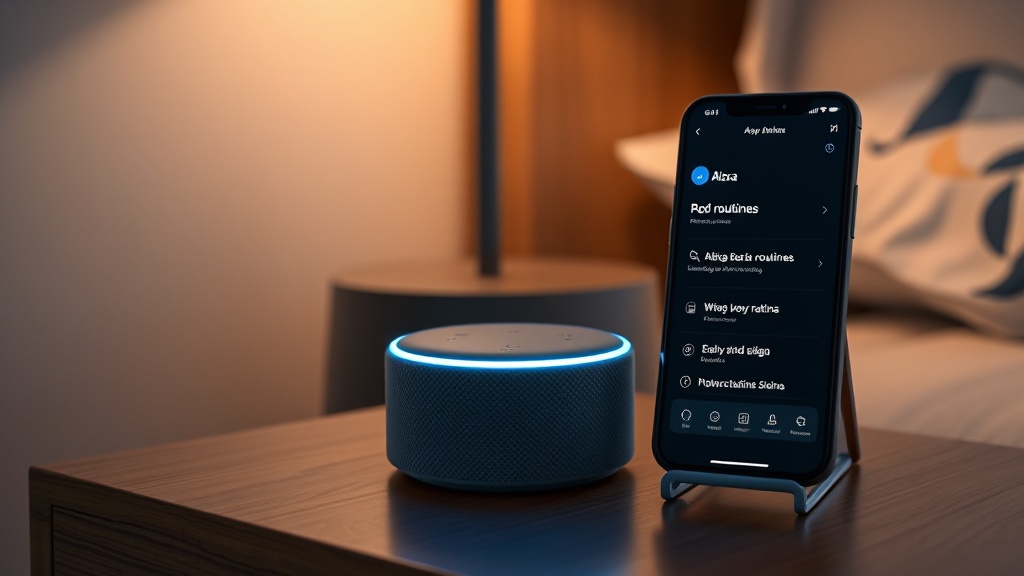
Amazon Echo Dot (5th Gen) Alexa Routines Not Working? How to Fix
Alexa Routines are the backbone of a smart home, automating everything from morning coffee brewing to nighttime light dimming. When the Amazon Echo Dot (5th Gen) stops executing these routines reliably, it can be frustrating. This guide provides practical, hands-on fixes to restore your automations quickly.
Whether a routine runs partially, doesn’t trigger, or fails to complete, the solutions below cover Wi-Fi issues, device sync problems, and common software glitches specific to the 5th Gen model.
Why Won’t My Alexa Routine Start on Echo Dot (5th Gen)?
The most common cause of a routine failing to start is a misconfigured trigger or a temporary communication breakdown. Here’s what to check first.
Check Routine Triggers
Open the Alexa app and navigate to More > Routines. Tap the problematic routine. Ensure the “When this happens” trigger is correctly set. For example, if it’s scheduled, verify the time and days of the week. If it’s voice-activated, try saying the exact phrase you programmed. Voice triggers can be sensitive to punctuation or extra words.
Reboot the Echo Dot
A simple reboot resolves many transient software issues. Unplug the Echo Dot (5th Gen) from power, wait 30 seconds, then plug it back in. Wait two minutes for it to fully restart. Test the routine again.
Verify Device Connections
If the routine controls smart lights or plugs, ensure those devices are online and responsive in the Alexa app. Tap Devices and check the status of each device in the routine. A single offline device can cause the entire routine to fail.
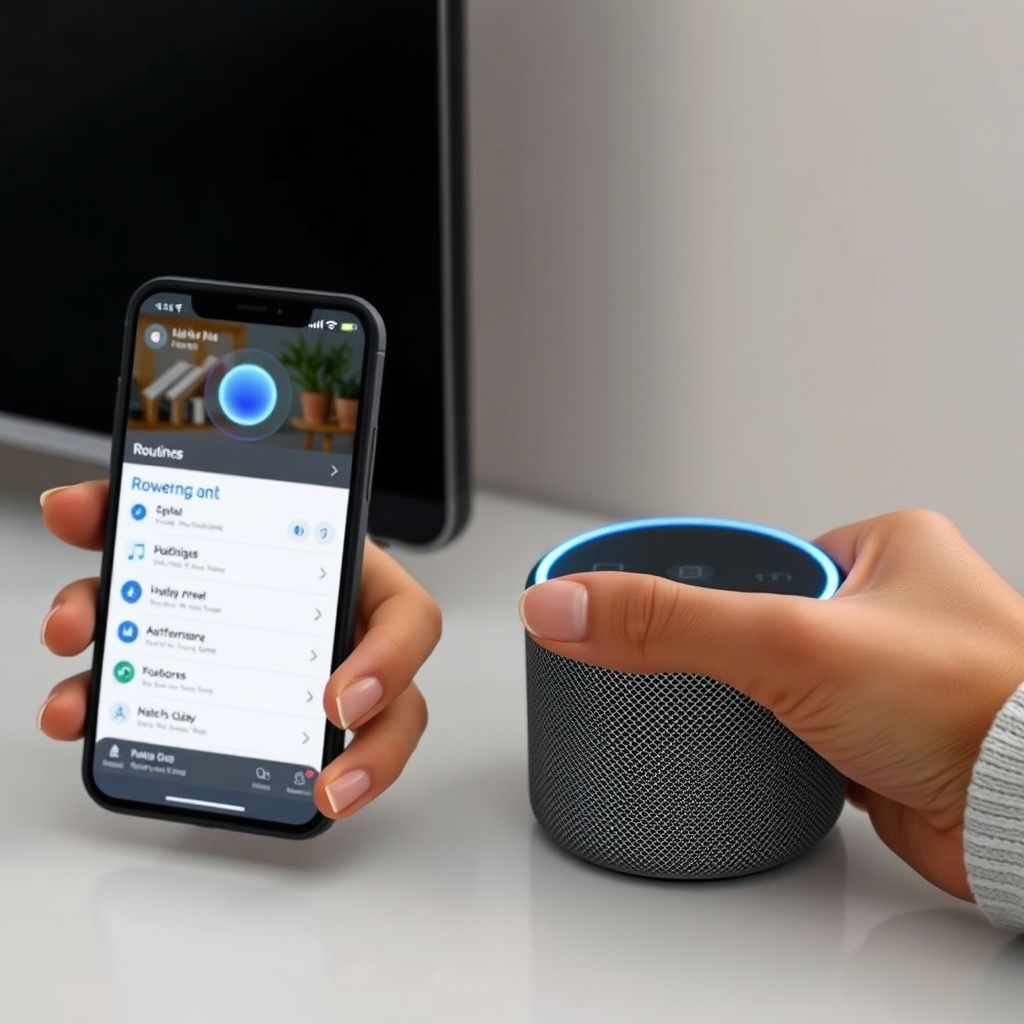
Alexa Routine Runs But Doesn’t Complete All Actions – What’s Wrong?
Partial routine execution is often due to incompatible actions or a timing issue within the routine itself. The 5th Gen Dot can handle multiple steps, but there are limits.
Check Action Order and Timing
In the Alexa app, open the routine and review the “Add action” list. Actions execute sequentially. If you have a voice response followed immediately by a light turn-on, the Dot might not hear the voice command finish before starting the next action. Try adding a 2-3 second Wait action between them (search “Wait” in the action menu).
Remove Redundant or Conflicting Actions
If the same device is controlled twice in one routine, or if a single action attempts to set a device to a state it’s already in, the routine may skip that step. Simplify the routine to contain only necessary actions. For example, instead of “Set living room light to 100%” and “Turn on living room light,” just use one action.
Re-save the Routine
Sometimes the routine file gets corrupted. Edit the routine, make a small change (like adding a space in a voice response), then save it. Then revert the change and save again. This forces a fresh sync to Amazon’s servers.
| Issue | Severity | Immediate Action |
|---|---|---|
| Routine doesn’t start at all | Usually not urgent | Check Wi-Fi connection and reboot Echo Dot |
| Routine runs partially | Needs attention soon | Review action order and device status |
| Routine triggers at wrong time | Usually not urgent | Verify time zone and schedule settings |
| Routine fails only for voice triggers | Needs attention soon | Adjust voice trigger phrasing and check microphone mute |
Echo Dot (5th Gen) Routines Keep Failing After a Power Outage – Why?
Power outages can cause the Echo Dot to lose its network connection or corrupt routine data. The 5th Gen model sometimes struggles to re-establish a stable Wi-Fi link after an outage.
Reconnect to Wi-Fi
Even if the Dot appears connected, the IP address may have changed. Open the Alexa app, go to Devices > Echo & Alexa, select your Dot, and tap Network > Change. Re-enter your Wi-Fi password to force a fresh handshake. This often resolves routine execution failures.
Clear Routine Cache
In the Alexa app, go to Settings > Alexa Preferences > Routines. Look for a “Clear cache” option (available in some app versions). If not, delete the problematic routine and recreate it manually. This eliminates corrupted data cached locally on the Dot.
Update Echo Dot Firmware
The 5th Gen Dot updates automatically, but a power outage may interrupt the process. To force a check, say, “Alexa, check for software updates.” Or in the app, go to Devices > Echo & Alexa > Your Dot > Device software. Your Dot will download pending updates if available. After updating, test routines again.
For persistent Wi-Fi issues, see our guide on Amazon Echo Dot (5th Gen) Keeps Disconnecting from Wi-Fi? Here’s the Fix.
How to Fix Echo Dot (5th Gen) Routines That Don’t Trigger with Voice
Voice-triggered routines are convenient, but they can fail if the Dot mishears the wake word or if the trigger phrase conflicts with another routine.
Verify Voice Trigger Phrase Uniqueness
Avoid common phrases like “good morning” or “bedtime” if other routines use similar triggers. The Echo Dot (5th Gen) may prioritize one routine over another. Create distinct phrases like “start my morning” or “initiate sleep mode.”
Check Microphone Mute State
The Dot’s mic can be muted by the physical button on top (the button glows orange or red). Press it to unmute. If the mic is off, Alexa won’t respond to voice commands, including triggers. The LED ring should turn blue when listening.
Retrain Your Voice Profile
Alexa uses voice profiles to recognize different users. If the routine is set to respond only to your voice, but another person triggers it, it may fail. In the app, go to Settings > Your Profile > Voice and follow the setup steps to re-record your voice. This improves recognition accuracy for the 5th Gen’s four far-field microphones.
If the Dot still isn’t responding to voice at all, check our troubleshooting for Amazon Echo Dot (5th Gen) Not Responding? Quick Fixes to Try.
What About Routines That Work for Smart Lights but Not Smart Plugs?
Inconsistent device support within routines is a known quirk of the Echo Dot (5th Gen) platform. Often, smart plugs or outlets from third-party brands (TP-Link Kasa, Wemo, etc.) have specific requirements.
Check Smart Plug Compatibility
Not all smart plugs work 100% with Alexa Routines. In the Alexa app, go to Devices > Plugs and tap the problematic plug. Look for a “Routine compatibility” option (under device settings). Some plugs require a separate “smart plug” skill to be enabled. Check that the plug’s manufacturer skill is linked and enabled.
Update Smart Plug Firmware
Smart plug manufacturers push updates that can break or fix routine integration. Open the plug’s native app (e.g., Kasa, Wemo) and check for firmware updates. After updating, re-link the plug to Alexa by disabling and re-enabling its skill in the Alexa app.
Use the “Alexa Smart Plug” Native Feature
If you have an Amazon smart plug, it integrates natively without extra skills. For third-party plugs, try using the “Add action > Smart Home > Turn on [plug name]” instead of a generic “Turn on” command. This can improve reliability for the 5th Gen’s routine engine.
For broader comparison of smart speakers, see Amazon Echo Dot vs Google Nest Audio: Which Smart Speaker Should You Buy? and Amazon Echo Dot vs Apple HomePod mini: Which One Fits Your Smart Home?.
What Owners Say
We gathered feedback from users of the Amazon Echo Dot (5th Gen) who experienced routine issues. Here are three common observations.
- “My routines work fine when I’m home, but often fail when I’m away. I think it’s a Wi-Fi issue when the Dot goes to sleep.” Many owners note that the Dot’s power-saving mode can cause intermittent connectivity, especially with smart plugs and lights that require constant cloud polling.
- “After a software update last month, my morning routine stopped turning off the lamp. I had to delete and recreate it.” A subset of users report routine corruption after firmware updates. Recreating the routine manually often restores functionality, as the bug seems tied to routine metadata.
- “Voice triggers work most of the time, but if I use the same phrase for two routines, the Dot picks one randomly.” Ambiguous voice trigger phrases cause conflicts. Users suggest making phrases very specific (e.g., “start my Monday routine” instead of “start routine”) to avoid issues.
If Bluetooth pairing is causing routine hiccups (e.g., music not playing), see Amazon Echo Dot (5th Gen) Bluetooth Pairing Issues: Solutions.
Frequently Asked Questions
Why does my Echo Dot (5th Gen) routine work sometimes but not others?
Can a routine time out on Echo Dot (5th Gen)?
Why does my Echo Dot (5th Gen) show the routine in the app but Alexa says it doesn’t exist?
How do I reset all routines on Echo Dot (5th Gen)?
Does the Echo Dot (5th Gen) support routines without Wi-Fi?
Why does my Echo Dot (5th Gen) routine stop working after adding a new device?
For a comprehensive look at the speaker’s capabilities, read our Amazon Echo Dot (5th Gen) Sound Quality and Specs: What You Need to Know. If you’re still setting up, the Amazon Echo Dot (5th Gen) Setup Guide: How to Get Started with Alexa can help.