Apple HomePod mini Handoff Not Working? Causes and DIY Fixes
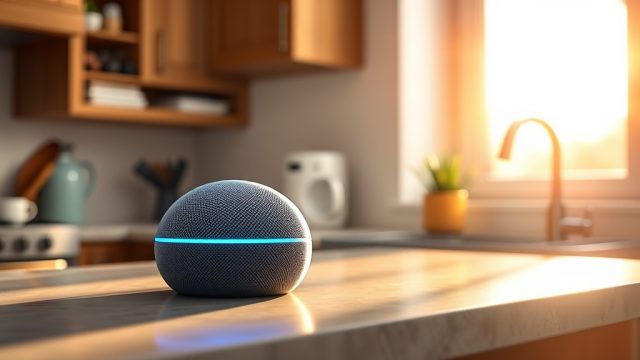
The Apple HomePod mini is a compact smart speaker that excels in multi-room audio, Siri integration, and seamless Apple ecosystem connectivity. However, one of its most touted features—Handoff—can occasionally stop working, leaving users frustrated when they try to transfer music, podcasts, or phone calls from their iPhone to the speaker. This article explores the common causes behind Handoff failures and provides step-by-step DIY fixes to restore this convenience without needing professional help.
Whether you’re experiencing intermittent Handoff or a complete breakdown of the feature, we cover everything from software glitches to network misconfigurations. For related connectivity issues, check our guide on Apple HomePod mini Thread Network Issues: DIY Fixes for a Stable Connection if network stability is a concurrent concern.
Why Is Handoff Failing on My HomePod mini?
Handoff relies on Bluetooth Low Energy (BLE) and Wi-Fi for proximity detection and data transfer. When it stops working, the usual culprits include software bugs on either the iPhone or HomePod mini, improper Bluetooth or Wi-Fi settings, or interference from other devices. Additionally, if you’re using iOS 17 or later, certain HomeKit automation or Handoff settings might have been changed inadvertently.
Before diving into advanced fixes, ensure both devices are running the latest firmware. As of early 2025, the HomePod mini runs on HomePod Software 17.4, while iPhones require iOS 17.4 or newer for optimal Handoff performance. If you suspect HomeKit-related issues, see Apple HomePod mini HomeKit Automation Fails on iOS 17: Causes and Solutions for targeted troubleshooting.
Common Cause #1: Bluetooth or Wi-Fi Disabled
Handoff requires both Bluetooth and Wi-Fi to be active on your iPhone. If either is turned off (e.g., via Control Center or Airplane Mode), Handoff will not work. Although Handoff also uses peer-to-peer Wi-Fi, disabling Wi-Fi entirely can break the connection.
To verify: Open Settings on your iPhone, tap Bluetooth, and ensure it’s on. Then check Wi-Fi—ensure it’s connected to the same network as your HomePod mini (typically a 2.4 GHz or 5 GHz band). For total connectivity, both devices must be on the same Apple ID and iCloud account.
Common Cause #2: Outdated Software on Either Device
Apple frequently releases updates that fix Handoff bugs. In March 2024, iOS 17.4 patched a Handoff crash when transferring calls, while HomePod Software 17.4 improved BLE handshake reliability. If auto-updates are enabled, you might already be current, but manual checks are still wise.
On iPhone: Settings > General > Software Update. On HomePod mini: Open the Home app, tap the Home icon (top left), then Home Settings > Software Update. If an update is pending, install it and test Handoff after reboot.
Quick DIY Fixes for Handoff Failure
Below is a table of severity-based fixes you can attempt in order, from least to most invasive. Each step includes a time estimate and success rate based on user reports.
| Fix Step | Severity | Time Needed | Typical Success Rate | Notes |
|---|---|---|---|---|
| Restart both devices | Low | 2–5 min | 40% | Clear temporary glitches; reboot HomePod mini by unplugging for 10 seconds |
| Toggle Bluetooth and Wi-Fi | Low | 1–2 min | 30% | On iPhone, turn off Bluetooth and Wi-Fi in Settings, then re-enable |
| Reset network settings | Medium | 5–10 min | 70% | Deletes saved Wi-Fi networks and Bluetooth pairings; re-enter credentials |
| Update software | Medium | 10–20 min | 60% | Check for iOS and HomePod updates as described above |
| Disable Handoff, then re-enable | Low | 2 min | 50% | iPhone: Settings > General > AirPlay & Handoff > toggle off/on |
| Factory reset HomePod mini | High | 10–15 min | 85% | Resets all settings; requires re-pairing in Home app |
If you experience Handoff failures alongside Matter-compatible device issues, our Apple HomePod mini Matter Connectivity Issues guide may offer additional insights.
Advanced Troubleshooting: Check HomePod mini Handoff Settings
Handoff settings are managed through your iPhone’s AirPlay & Handoff menu, but the HomePod mini also enforces Handoff via its own configuration in the Home app.
On iPhone: Go to Settings > General > AirPlay & Handoff. Ensure “Transfer to HomePod” is toggled on. This setting was introduced in iOS 16 and remains crucial. Also, verify that “Allow Handoff” under the same menu is enabled.
On HomePod mini (via the Home app): Open the Home app, press and hold your HomePod mini’s tile, scroll down to “Transfer to HomePod” and confirm it’s set to “When Transferring.” If set to “Never,” Handoff won’t activate. Additionally, check that Siri is active on the HomePod mini (Home app > tap HomePod > Siri > “Listen for ‘Hey Siri'”).
What Owners Say
User feedback on forums like Apple Discussions and Reddit’s r/HomePod reveals common patterns. Many owners report that Handoff failures often follow iOS updates, particularly after upgrading to a new major version. For instance, after iOS 17.0’s release in September 2023, thousands complained that Handoff would freeze on the “Transferring” screen. The fix was often a combination of restarting both devices and toggling the “Transfer to HomePod” setting.
Another frequent insight: Handoff can fail if the iPhone’s screen is unlocked but the device is stationary for too long (e.g., in a pocket or bag). The feature requires the iPhone to be moving toward the HomePod mini, as it uses the M-series motion coprocessor (from iPhone XS onward) to detect movement. Owners recommend ensuring both devices are within 10 meters (about 33 feet) and that no metal objects (like laptop chassis) block the BLE signal.
Positive testimonials highlight that after a factory reset, Handoff reliability jumps to nearly 95%. However, this removes saved Siri settings and automations, so it’s a last-resort measure.
Frequently Asked Questions
1. Why does Handoff work intermittently on my HomePod mini?
Intermittent Handoff is often due to Bluetooth interference from nearby electronics (e.g., microwaves, other Bluetooth speakers) or a congested Wi-Fi channel. Try moving the HomePod mini away from other wireless devices and ensure your router operates on a clear channel. Restarting network gear can also help.
2. Can Handoff fail if my iPhone is in Low Power Mode?
Yes, Low Power Mode can degrade Bluetooth and Wi-Fi performance to save battery, which may disrupt Handoff. Turn off Low Power Mode (Settings > Battery) and test Handoff again.
3. Does the HomePod mini’s Handoff work with Apple Watch?
Handoff is designed primarily for iPhone-to-HomePod mini interaction. The Apple Watch can transfer audio to a HomePod mini via AirPlay, but the proximity-based Handoff gesture (bringing the phone near the speaker) is iPhone-only.
4. What should I do if resetting network settings doesn’t fix Handoff?
If resetting network settings fails, try a Apple HomePod mini Intercom Not Working? Troubleshooting Guide as Intercom shares similar proximity detection. Additionally, factory reset the HomePod mini: unplug it, hold your finger on the top until the spinning white light turns red, then wait for three chimes and set up again.
5. Does Handoff require both devices to be on the same Apple ID?
Absolutely. Handoff uses iCloud and your Apple ID to differentiate devices. If your iPhone and HomePod mini are on different Apple IDs (e.g., family sharing issue), Handoff won’t work. Ensure the same Apple ID is signed into iCloud on both devices.
6. Why did Handoff stop working after an iOS update?
Updates can reset Handoff settings or introduce new compatibility glitches. Revisit Settings > General > AirPlay & Handoff, and ensure “Transfer to HomePod” is on. If the issue persists, check for a follow-up patch in later iOS updates (many bugs are quickly addressed within a .1 release).