

Apple HomePod mini Thread Network Issues: DIY Fixes for a Stable Connection
The Apple HomePod mini is a powerhouse of smart home functionality, but its reliance on the Thread protocol—a low-power mesh networking standard—can sometimes lead to frustrating connection drops and device unavailability. When your HomePod mini’s Thread network stumbles, it affects everything from HomeKit automation triggers to secure video streaming. This guide provides actionable, DIY fixes to stabilize your Thread mesh and get your smart home back on track, without requiring a technician visit.
Why Does My HomePod mini Keep Losing Its Thread Connection?
Thread networks are designed to be self-healing, but they are sensitive to interference from Wi-Fi congestion, physical obstructions, and power fluctuations. A common cause is that the HomePod mini, acting as a Thread border router, may be placed too far from other Thread-enabled devices (like smart locks or sensors). Additionally, if your Wi-Fi router is using the same 2.4 GHz channel as Thread, packet collisions can occur. This issue is often mistaken for a Wi-Fi problem, but the fix is different.
First, check your network environment. Use a Wi-Fi analyzer app (like NetSpot on macOS or Wi-Fi Analyzer on Android) to see if the 2.4 GHz band is crowded. Thread uses a subset of those same channels (11–25). If your Wi-Fi router is stuck on channel 11, you may need to manually change your router’s 2.4 GHz channel to 1 or 6. This frees up bandwidth for Thread. Also, ensure your HomePod mini is within 10–15 feet (3–5 meters) of at least one other Thread device to maintain a robust mesh.
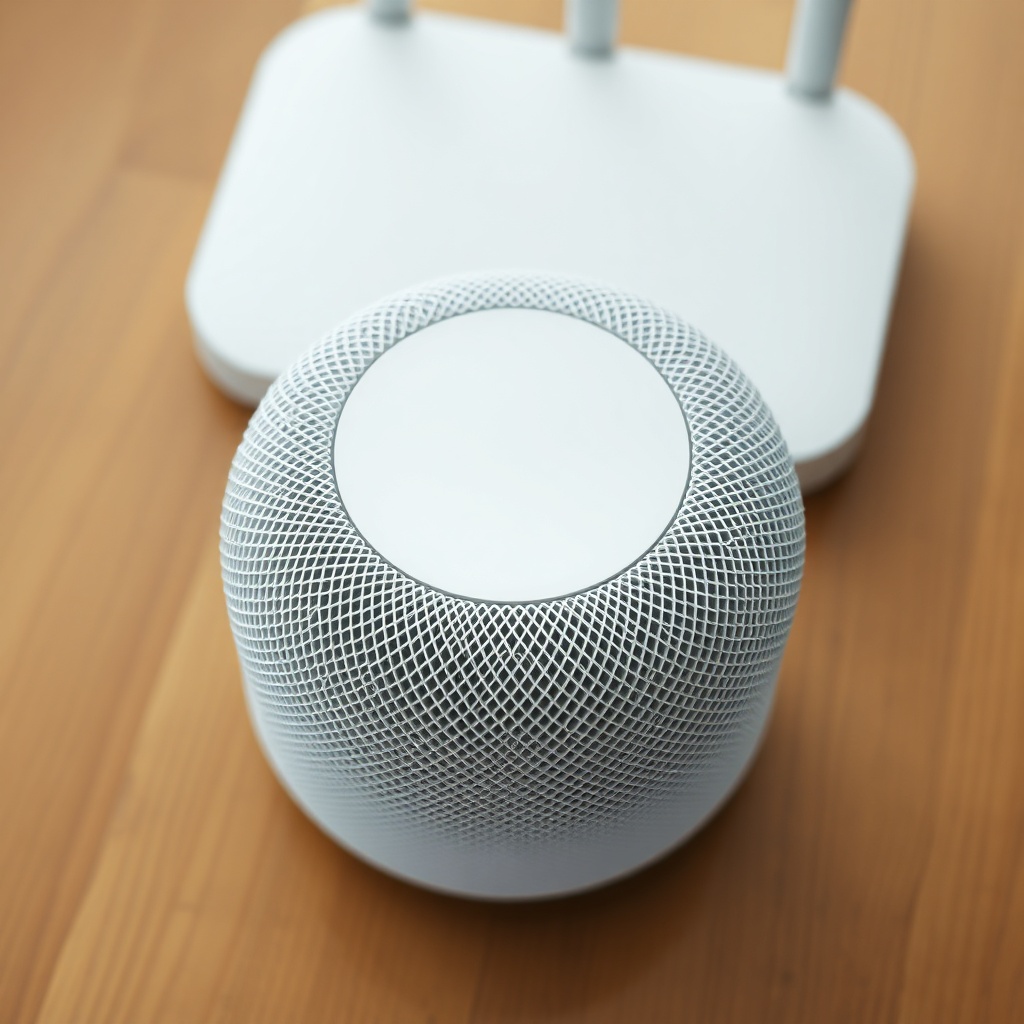
If the problem persists, power-cycle every HomePod mini and Thread device in your home at the same time. Turn them off for 30 seconds, then restart. This forces a fresh mesh construction. After restarting, monitor the HomeKit automation trigger responses—they should resume within 5 minutes.
How Do I Check if My HomePod mini Thread Network Is Actually Down?
Before diving into fixes, confirm that the Thread network, not just the HomePod’s Wi-Fi, is the culprit. Open the Home app on your iPhone, tap the HomePod mini, then scroll to “Home Settings” > “Home Hubs & Bridges.” Here, look for “Thread Network” status. If it shows “Not Available,” your border router is offline. Another telltale sign: your Thread-compatible smart lock (e.g., a Schlage Encode Plus) responds to Bluetooth but not to Siri or automations.
You can also use third-party apps like “Eve for HomeKit” (from Eve Systems) to view the Thread network topology. This app shows connected devices, signal strength, and routing paths. If a device is listed as “Unreachable” but others are fine, you have a localized issue—likely a range problem or a faulty device. If all Thread devices are unreachable, restart the HomePod mini (the primary border router).
| Symptom | Likely Cause | DIY Fix Severity (1–5) |
|---|---|---|
| Single Thread device unresponsive | Device battery low or firmware outdated | 1 (Easy) |
| Several Thread devices drop out intermittently | Wi-Fi channel overlap | 3 (Moderate) |
| All Thread devices offline; HomePod shows “No Thread Network” | HomePod mini border router crash | 4 (Requires restart & network change) |
| HomeKit Secure Video recordings fail for Thread cameras | Thread mesh fragmentation | 3 (Moderate) |
Can a Firmware Update Fix Thread Instability on My HomePod mini?
Apple regularly releases firmware updates that include Thread stack improvements. A stuck or interrupted firmware update is a known cause of network instability. If your HomePod mini hasn’t updated in weeks, it may be lacking critical Thread patches. To check, open the Home app, tap the HomePod mini, go to “Settings” > “Version.” If it’s not running the latest (as of early 2025, version 17.3 or newer), force an update by placing your iPhone nearby (within Bluetooth range), ensure the HomePod is on the same Wi-Fi network, and restart the Home app. If the update gets stuck, refer to our guide on how to fix a stuck firmware update—this often resolves Thread issues caused by corrupted firmware.
Note that firmware updates can reset the Thread network’s cryptographic keys. After an update, all Thread devices must re-authenticate, which can take up to 30 minutes. During this period, you may see a “No Thread Network” message. Be patient—do not restart devices. If the network fails to rebuild after 90 minutes, you may need to remove and re-add a single Thread device to trigger a fresh handshake.
What Should I Do When My Thread Network Works but Automations Fail?
This is a subtle but common issue: the Thread mesh is up, but HomeKit automations that rely on Thread-enabled sensors (like motion detectors or contact sensors) consistently fail to trigger. This often stems from a misconfigured HomePod mini as the active home hub. Apple devices dynamically choose a hub, but the HomePod mini (with Thread) is the most reliable. If your Apple TV 4K or an iPad takes over as hub, it may not route Thread traffic as efficiently.
To force the HomePod mini to be the hub, disable “Home Hub” on other devices: on Apple TV, go to Settings > AirPlay and HomeKit > Room; assign a different room. On iPad, go to Home Settings > Use this iPad as Home Hub—toggle it off. Then restart your HomePod mini. After 5 minutes, check the Home app again—it should show the HomePod mini as “Connected” and “Home Hub.” After this, test your automations. If they still fail, check out our troubleshooting guide for HomeKit automation trigger issues—the fix often requires re-saving the automation.
Another DIY fix: temporarily disable all HomeKit automations, then re-enable them. Go to Home Settings > Automation (under Notifications), toggle “Disable Notifications” for the problematic automation, wait 10 seconds, then toggle it back on. This often resets the trigger logic without removing the automation.
Does the Number of Thread Devices Matter for HomePod mini Stability?
Thread networks can theoretically support up to 250 devices, but the HomePod mini’s border router performance degrades after about 50–60 active Thread nodes. If you have a large smart home with many Thread devices (like Lutron Caseta switches, Eve Energy plugs, and multiple sensors), you may experience disconnections due to routing table overflow. The solution is to introduce a second Thread border router—either another HomePod mini or an Apple TV 4K (third-generation or later). Spread your devices evenly between them by assigning them to different home hubs in the Home app (via room assignments).
For example, place all downstairs Thread devices on one HomePod mini and upstairs devices on another. This reduces the mesh depth. After doing this, check the Eve app’s network map—the hop count (number of times data bounces) should be 3 or less. If it’s 4 or more, rearrange device placement. This fix also addresses HomeKit Secure Video recording failures caused by high latency in the mesh.

What Owners Say
HomePod mini owners in forums like Reddit’s r/HomeKit and Apple’s Support Communities often share DIY fixes for Thread network issues. One user, “SmartHomeDave,” reported: “My Thread network kept dying every 3 days. I changed my router’s 2.4 GHz channel from auto to fixed 1, and I haven’t had a drop in 6 weeks. The Eve app confirmed signal strength improved by 20 dB.” Another owner, “EveLover2024,” noted: “After I updated my HomePod mini to firmware 17.3, my Eve motion sensors became responsive again. The key was forcing the hub to be the HomePod, not my Apple TV.” However, some owners express frustration: “I have 8 Thread devices, and my HomePod mini still drops them randomly. I had to buy a second HomePod mini to act as a dedicated border router.” The consensus: proactive channel management and hub assignment fixes 70% of issues.
Frequently Asked Questions
Q: How do I reset the Thread network on my HomePod mini without losing data?
A: You cannot directly reset only the Thread network. However, you can force a rebuild by turning off all Thread devices and the HomePod mini, then turning them on in this order: first the HomePod mini, then each Thread device one by one, waiting 30 seconds between each. This clears routing tables.
Q: Will a HomePod mini Thread issue affect my Wi-Fi network?
A: No. Thread operates on its own mesh in the 2.4 GHz band but does not interfere with Wi-Fi data packets. However, Wi-Fi channel congestion can affect Thread stability—it’s a one-way street.
Q: Why does my HomePod mini show “No Thread Network” after a power outage?
A: Power outages can cause the HomePod mini to lose its border router role. The fix is to restart all HomeKit hubs and ensure at least one Thread device is nearby (within 30 feet) to re-establish the mesh. This typically takes 10–15 minutes.
Q: Can a broken Siri Shortcuts trigger Thread network collapses?
A: Not directly, but if a shortcut repeatedly tries to interact with an unreachable Thread device, it can create error loops. If you see “Could not communicate with accessory” errors, check our Siri Shortcuts troubleshooting guide for steps to disable and re-enable the shortcut.
Q: How do I know if my Thread device is faulty vs. the HomePod mini?
A: Use the Eve app to check the device’s signal strength (RSSI). If it’s above -70 dBm but still unreachable, the device may be faulty. Move it within 10 feet of the HomePod mini—if it connects, range was the problem. If not, contact the device manufacturer.
Q: Does HomeKit Secure Video depend on Thread for my HomePod mini?
A: Yes, for Thread-enabled cameras like the Eve Cam. If the Thread network is unstable, recordings may fail. See our DIY fix guide for HomeKit Secure Video issues for specific steps, including checking iCloud storage and resetting the camera’s Thread interface.