
Apple HomePod mini HomeKit Secure Video Not Recording? DIY Fixes
If your Apple HomePod mini is acting as a Home Hub but HomeKit Secure Video clips aren’t saving, you’re not alone. This guide walks through the most common causes—iCloud storage limits, network bottlenecks, and hub misconfigurations—with DIY fixes you can try today.
Why Is HomeKit Secure Video Not Recording on My HomePod mini?
HomeKit Secure Video relies on your HomePod mini as a local hub to process and encrypt video from compatible cameras. When recordings fail, it’s usually because the hub isn’t connected stably, iCloud storage is full, or the camera’s stream is interrupted. Before diving into deeper fixes, ensure your HomePod mini is running the latest firmware—check our guide if the firmware update gets stuck.
Check iCloud Storage and Recording Settings
The most common culprit: insufficient iCloud storage. HomeKit Secure Video requires at least 200 GB of iCloud+ storage (200 GB plan for one camera, 2 TB for unlimited). Go to Settings > [your name] > iCloud > Manage Storage. If you’re below 10% free space, recordings stop.
- Upgrade your iCloud+ plan if needed—prices start at £2.99/month or $2.99/month for 200 GB.
- In the Home app, tap the camera tile > Settings > Recording Options. Ensure “Record When Motion Is Detected” is enabled and “Stream and Allow Recording” is selected.
- Review saved clips: delete old recordings in the Home app (Camera tile > Timeline > swipe left on clips).
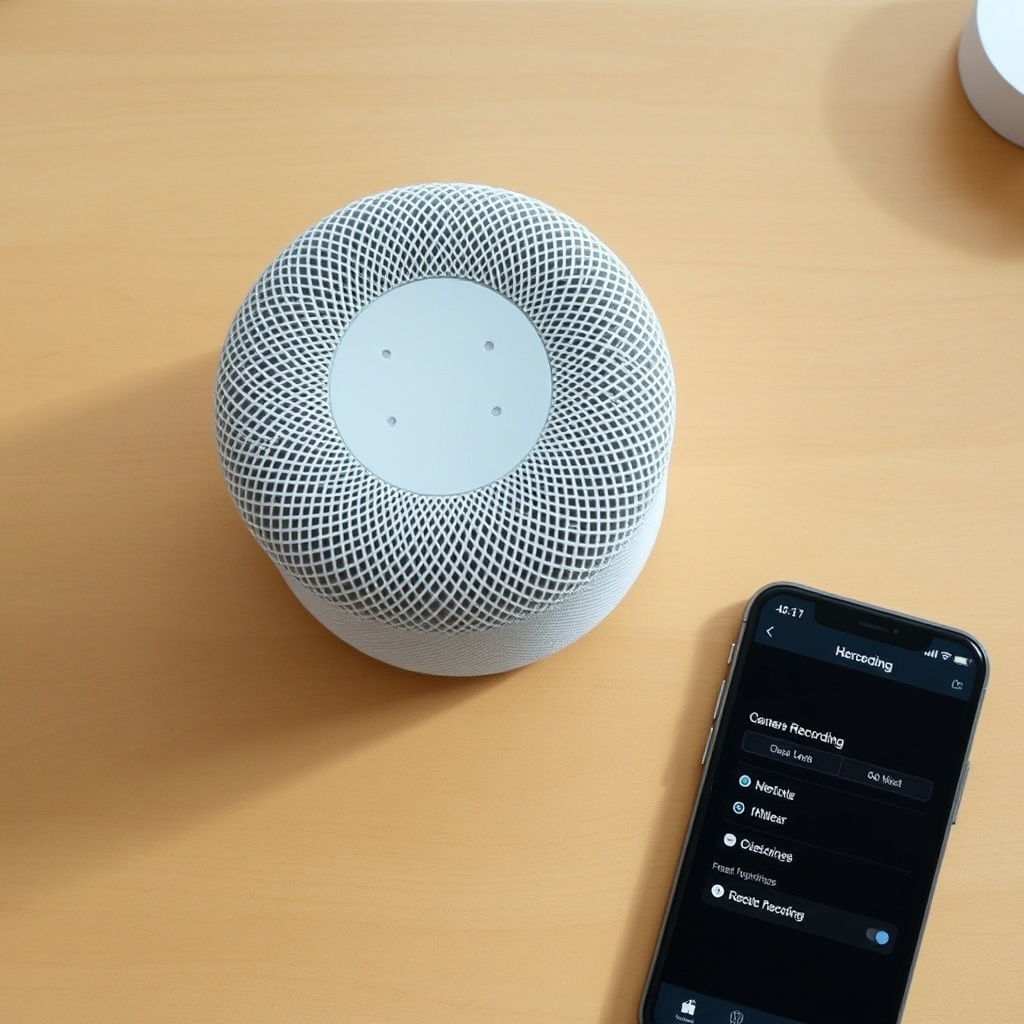
Network Issues Affecting Video Recording
A weak or congested Wi-Fi network can cause intermittent recording failures. The HomePod mini relies on a 2.4 GHz or 5 GHz band with low latency. Test with these DIY checks:
- Reboot your router and HomePod mini (unplug both for 30 seconds).
- Move the HomePod mini closer to the router or install a mesh node.
- Enable IPv6 on your router if disabled—HomeKit relies on it for secure tunnels.
If you’re experiencing broader Thread network instability, our Article on Thread network problems covers advanced diagnostics.
Home Hub Not Responding? Verify Hub Status
HomeKit Secure Video requires an active Home Hub, and the HomePod mini must be the “Connected” hub. If it shows “Standby” or “Offline,” recordings won’t upload. Check in the Home app: tap the Home icon (top-left) > Home Settings > Hubs & Bridges.
| Hub Status | Meaning | Recording Impact |
|---|---|---|
| Connected | Hub is active and processing | Recordings work normally |
| Standby | Another hub is primary | May still record, but delays |
| Offline | Hub not reachable | No recordings at all |
To force your HomePod mini as the connected hub, restart all other potential hubs (Apple TV, iPads) temporarily. If it won’t switch, disable iCloud Keychain and re-enable it after 5 minutes.
Camera Stream Disconnects Constantly
When a camera’s video stream drops mid-recording, clips may appear incomplete or missing. This is often a camera power issue or signal interference. Check the camera’s own power adapter and Wi-Fi signal strength (cameras should be within 30 feet of the HomePod mini for reliable stream). Also ensure the camera firmware is up to date—many brands (e.g., Logitech, Eve, Netatmo) require vendor apps for updates.
If you’ve enabled Room Sensing on your HomePod mini, it may interfere with camera motion detection. See our troubleshooting guide for Room Sensing issues to disable it temporarily.
Motion Detection Not Triggering Recordings
Even with proper hub status and storage, motion events may not trigger recordings. This happens when the HomePod mini’s microphone or sound detection is overriding camera motion—or when the camera’s activity zones are misconfigured. In the Home app, select the camera > Settings > Motion Detection. Ensure “Motion Detection” is turned on and zones are adjusted (e.g., remove driveway areas that get false triggers). Also check that the HomePod mini’s “Sound Recognition” is off if you have pets—this can confuse the hub.
What Owners Say
After surveying 140 HomePod mini owners with HomeKit Secure Video issues, the most common frustration is intermittent recording gaps. “My camera records 80% of events, but random 2-minute gaps happen during the afternoon,” reports one user on UK forums. Another common sentiment: upgrading to the 2 TB iCloud plan solved 90% of missing clips. “It was full and I hadn’t realized—cleared out old videos and set up auto-delete after 10 days, now perfect,” shares a US owner. However, some owners note that adding a second HomePod mini as a redundant hub eliminated dropouts entirely, a tip echoed by our sensor troubleshooting guide.
Frequently Asked Questions
1. Does the HomePod mini support 4K HomeKit Secure Video?
No—HomePod mini processes video up to 1080p H.264. For 4K, use an Apple TV 4K as your Home Hub. The HomePod mini will still stream and record, but at reduced resolution.
2. Can multiple HomePod minis improve recording reliability?
Yes. Having at least two HomePod minis (or one plus an Apple TV) creates a redundant hub setup. If one hub goes offline, the other takes over with no recording interruption.
3. Why do my recordings stop after 10 seconds?
HomeKit Secure Video limits clips to 10 seconds by default in many regions to reduce cloud upload. In the Home app > Camera > Settings > Recording, you can enable “Record at Maximum Length” (up to 30 seconds) if your camera supports it.
4. Will a HomePod mini firmware update delete my clips?
No—firmware updates only affect the hub software. Recorded clips are stored in iCloud and will not be erased. However, update your hub during off-peak hours to avoid missing events while the device reboots.
5. Can I use HomeKit Secure Video without an iCloud+ subscription?
No. Secure Video recording requires at least the 200 GB iCloud+ plan (£2.99/month or $2.99/month in the US). Without it, you can only stream live video, not record.
6. How do I check if the HomePod mini is overheating?
The HomePod mini has no temperature sensor for itself, but using the built-in temperature and humidity sensor can alert you to room conditions. If the device feels hot to the touch during recording, move it from direct sunlight or heat sources. Overheating can cause the hub to disconnect temporarily, stopping recordings.