
Why Is My Apple HomePod mini HomeKit Automation Not Triggering?
Owners of the Apple HomePod mini often rely on it as a Thread border router and HomeKit hub to run automations seamlessly. Yet, when lights fail to turn on at sunset or a thermostat ignores a scheduled scene, the frustration can be intense. This article walks you through DIY fixes for the most common triggers—from networking glitches to software hiccups—saving you a service call and restoring smart home harmony.
Before diving into advanced fixes, ensure your HomePod mini is running the latest firmware and that your iPhone or iPad is on the same iCloud account. Many automation failures stem from a simple hub handoff issue.
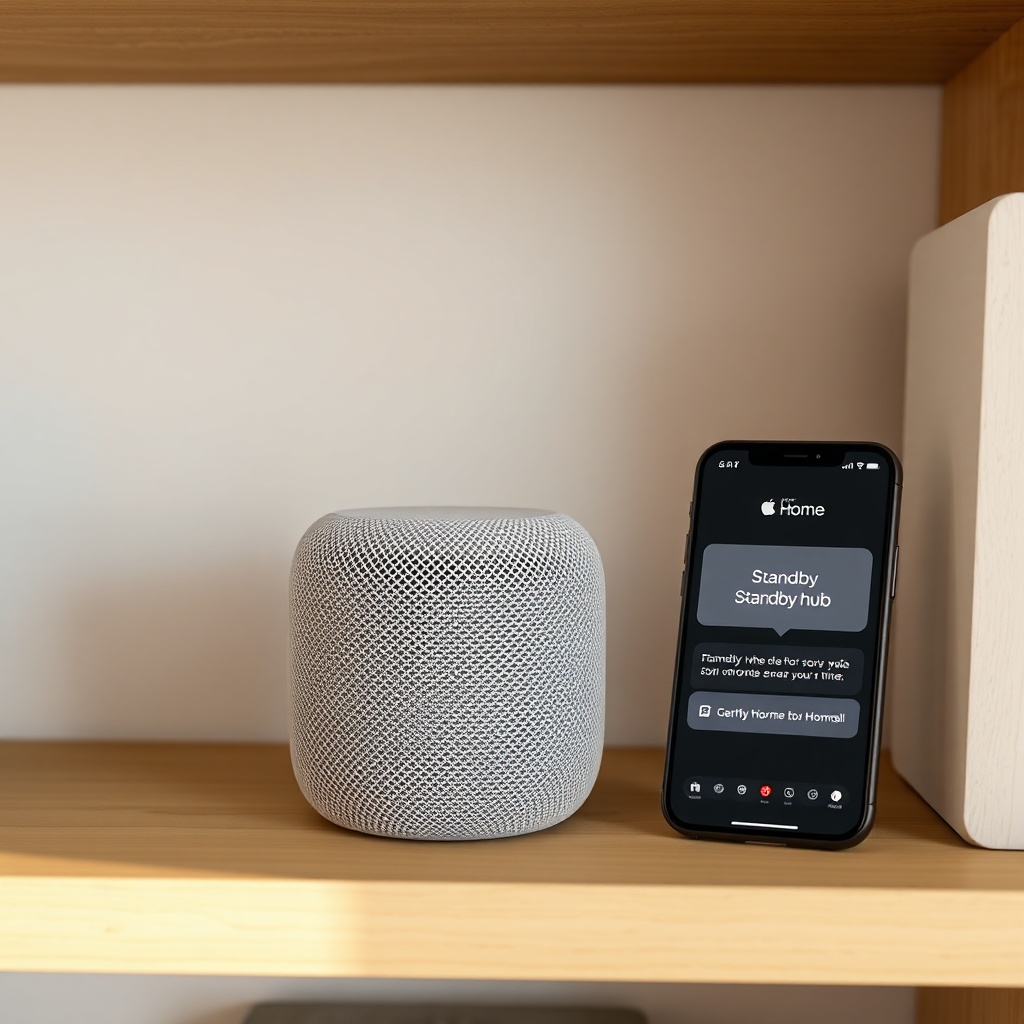
HomePod mini Stuck as “Standby” Hub – Automations Not Firing
A classic scenario: your HomePod mini shows as “Standby” in the Home app, and automations that depend on the hub’s presence (like “When I arrive home”) fail to execute. This happens when multiple Apple devices compete for hub duties.
- Open the Home app on your iPhone, tap the house icon (upper left), then “Home Settings” → “Hubs & Bridges.”
- If your HomePod mini appears as “Standby,” force a hub change by rebooting your other Apple TV or iPad that might be acting as the active hub.
- Alternatively, power-cycle the HomePod mini: unplug it for 30 seconds, then plug back in. Wait two minutes and check the Home app again.
If it remains in standby mode after a reboot, sign out of iCloud on the HomePod mini (Home app → HomePod mini → Settings → Reset → Reset HomePod), then re-add it. This often resets the hub election process.
Automation Disabled After iOS Update – What to Check
After updating iOS, iPadOS, or HomePod firmware, some users find their HomeKit automations greyed out or turned off. This is intentional by Apple to prevent unintended triggers after a system change.
| Automation Type | Symptom | Fix (Severity: Low) |
|---|---|---|
| Time-based (sunset/sunrise) | Automation shows “Not Ready” | Open the Home app, tap each automation, and re-save it without changing anything. |
| Sensor-based (motion/door) | Trigger condition “Unknown” | Remove the automation, create a new one from scratch. |
| Arrival/Departure | Location permission missing | Settings → Privacy → Location Services → Home → Always. |
| Accessory-specific | Device unreachable after update | Reboot the accessory via its power supply, then re-add to HomeKit. |
Pro tip: After any firmware update, manually run a test automation in the Home app (tap the automation and select “Test This Automation”) to force the hub to refresh its state.
Automation Turns Off by Itself – Do Not Disturb and Sleep Modes
Your HomePod mini’s built-in sensors and audio awareness can interfere with automations. If you’ve enabled “Do Not Disturb” on the HomePod mini, some “When I Speak” triggers or time-based automations may be suppressed.
- Open the Home app → HomePod mini → Settings → Do Not Disturb. Ensure it’s set to “Off” for automated triggers.
- Check your iPhone’s Focus modes as well: if you have a Sleep Focus that pauses the Home hub, automations like “Turn off lights at bedtime” may not fire. Go to Settings → Focus → Sleep → turn off “Share Across Devices” or add the Home app as an allowed app.
- If you use the Room Sensing feature for presence-based automations, note that it requires a clear line-of-sight and may fail in dark or cluttered rooms—causing false negatives that disable linked automations.
Reboot the HomePod mini after changing any Focus or DND settings to ensure the hub re-reads the configuration.
Thread Network Collapse – HomeKit Secure Video and Automation Freeze
Automations relying on HomeKit Secure Video recording triggers (e.g., “When a camera detects motion, turn on the porch light”) can fail if the Thread mesh network becomes unstable. The HomePod mini acts as a Thread border router, but certain conditions choke performance.
Common causes: too many Thread devices on one network, interference from Wi-Fi routers broadcasting on channel 11 (which overlaps with Thread’s preferred channel), or a power outage that resets the mesh. Start by checking the Home app → Camera → Settings → Recording Options. If “Stream & Allow Recording” is greyed out, the hub can’t coordinate.
- Force a Thread network rebuild: unplug all Thread-enabled devices (including the HomePod mini) for 60 seconds, then plug them back in one by one, starting with the HomePod mini.
- Ensure your Wi-Fi router is set to a non-overlapping channel (1, 6, or 11 in 2.4 GHz) to avoid interfering with Thread’s 2.4 GHz band.
- If you have multiple HomePod minis, remove one from the home and see if automations stabilize—too many border routers can cause election disputes.
For detailed troubleshooting, read Apple HomePod mini HomeKit Secure Video Not Working? DIY Fixes.
Location-Based Automations Fail – “At Home” or “Away” Conditions
When you rely on the HomePod mini as a presence sensor (via Room Sensing) or your iPhone’s location to trigger automations, the hub must have consistent network access. If automations like “When I leave, lock the door” don’t fire, check location permissions first.
- On your iPhone: Settings → Privacy → Location Services → Home → set to “Always.”
- Also confirm that “Precise Location” is enabled for the Home app.
- For the HomePod mini’s own location services: open the Home app → HomePod mini → Settings → Location → ensure it’s on. If it’s off, toggle it on and reboot the HomePod.
- If you use “When someone arrives home” triggers, verify that the person’s iPhone has an internet connection and that “Share My Location” is enabled in iCloud settings.
Keep in mind that the HomePod mini alone cannot determine geolocation—it relies on the iPhone or Apple Watch of home residents. If no one’s device is present, the automation won’t trigger.
What Owners Say
Across forums and Apple’s own Communities, HomePod mini automation issues rank as one of the top three grievances. “My HomePod mini would stop running automations after a few days,” writes user “LightSwitchLarry” on a popular smart home subreddit. “The fix that worked for me was disabling and re-enabling it as a hub in Home Settings.”
Another owner, “SmartHomeNoob,” discovered that their sunset-time automation failed because the HomePod mini was in a different time zone (set via Apple’s location database). “Manually setting the time zone under HomePod settings → Time Zone solved it instantly.”
Several users report success after resetting all home data: “I deleted my entire home in the Home app (Home Settings → Remove Home), readded everything, and automations worked perfectly. Takes an hour but worth it.”
Lastly, a thread in the Apple Developer Forums notes that using 2.4 GHz Wi-Fi exclusively for the HomePod mini (by disabling 5 GHz on the router temporarily) improves Thread stability and reduces automation timeouts. This is especially relevant if you also use HomeKit Secure Video Not Recording issues.
Frequently Asked Questions
1. Why does my automation work manually but not on a schedule?
This usually indicates a hub issue. Ensure your HomePod mini is the active hub (Home app → Home Settings → Hubs & Bridges). If it shows “Standby,” reboot the device or force a hub change by turning off Bluetooth on your iPhone.
2. Can I run automations without an internet connection?
Some local automations (like turning on a light when a motion sensor triggers) work offline if the HomePod mini is the hub. But most time-based or location-based automations require an active internet connection.
3. Does the HomePod mini stop automations when playing music?
No, music playback does not affect automations. However, if you use “When I Speak” triggers (Siri shortcuts), they may be delayed during active audio playback. Check Siri Shortcuts Not Working for fixes.
4. How do I reset HomeKit without losing all accessories?
You can reset just the HomePod mini: unplug it, hold your finger on the touch surface while plugging it back in, wait for the red spinning light, then say “Reset HomePod.” This removes only the mini from HomeKit without affecting other accessories.
5. What do I do if an automation says “No Response”?
First, check the accessory’s status. If it’s online, the issue is likely with the automation trigger. Delete and recreate the automation in the Home app. Also verify that the accessory’s firmware is up to date.
6. Why does my automation stop working after a power outage?
The HomePod mini may boot into a different hub election mode. After power is restored, wait 5 minutes. If automations remain broken, unplug the mini for 30 seconds and reboot. Also check your router’s DHCP lease—the mini may have obtained a new IP that conflicts with HomeKit’s cache.