
Why Is My Apple HomePod Mini Intercom Feature Suddenly Silent?
The Apple HomePod mini Intercom function is designed to let you broadcast messages across all HomePod speakers in your home, yet many users encounter a frustrating silence when the feature stops working. This guide covers the most common culprits, from misconfigured Home settings to network glitches, helping you restore two-way voice communication without calling support. Typically, the issue stems from home hub conflicts or disabled intercom permissions on specific room HomePods.
Before diving into complex fixes, ensure your HomePod mini is running the latest software — go to the Home app, tap the HomePod mini tile, scroll to Settings, and check for updates. Likewise, confirm your iPhone or iPad is on the same Wi-Fi network and signed into the same Apple ID with iCloud Keychain enabled. If you have multiple HomePods, the Intercom feature relies on one designated home hub, typically an Apple TV 4K or a HomePod (any model). A hub that’s offline or misbehaving can kill Intercom for everyone.
Is My HomePod Mini Intercom Disabled in the Home App?
Intercom permissions are granular: you can allow or block specific rooms or people. Open the Home app on your iPhone or iPad, tap the Home icon (top-left), select “Home Settings,” then “Intercom.” Here you’ll see “Allow Intercom Messages From” — options include Everyone, Anyone in Your Home, or Only You. If this is set to “Only You,” other household members won’t be able to send or receive broadcasts. Additionally, ensure “Receive Intercom Messages When Silent Mode is On” is toggled to “On” if you want broadcasts to override Do Not Disturb or silent mode.
Each HomePod mini can also have its own Intercom settings. In the Home app, press and hold your HomePod mini tile, tap the Settings gear icon (lower-right), scroll to “Intercom,” and toggle “Allow Intercom Messages” to green. Repeat this for every HomePod in your home. A single locked-down speaker can block messages intended for that room, but broadcasts from other rooms may still work. If you have multiple homes configured in the Home app, verify you’re troubleshooting the correct home.
| Cause | Impact Level | Fix Difficulty | Avg Time to Resolve |
|---|---|---|---|
| Home hub offline or unresponsive | Critical (all Intercom fails) | Medium | 5–15 min |
| Intercom disabled on specific HomePod | Moderate (room specific) | Easy | 2 min |
| iCloud Keychain not synced | High (may affect all HomeKit) | Easy | 5 min |
| Wi-Fi signal interference (2.4GHz vs 5GHz) | Moderate (sporadic drops) | Medium | 10–30 min |
| Software bug on iOS 17.x | High (common after update) | Medium | 10 min |
If you use Apple HomePod mini Siri Shortcuts Not Working? Troubleshooting Guide alongside Intercom, check that Shortcuts automation doesn’t accidentally toggle Intercom settings — a rare but possible conflict.
How Do I Reset the Intercom Feature on My HomePod Mini?
Sometimes a fresh start resolves lingering Intercom bugs. To reset the Intercom feature without wiping your HomePod mini entirely, do the following: in the Home app, go to Home Settings > Intercom, and toggle “Allow Intercom Messages From” to “Only You” (disable for everyone), then wait 30 seconds and switch it back to “Everyone” or “Anyone in Your Home.” This forces all HomePods to re-register for Intercom broadcasts. You can also power cycle each HomePod mini by unplugging it for 10 seconds — start with your home hub (the Apple TV or HomePod acting as hub).
A full reset is more involved but may be necessary if Intercom still fails. On your HomePod mini, say “Hey Siri, reset HomePod settings” or manually reset via the Home app: press and hold the HomePod mini tile, tap Settings > Reset HomePod > Reset. Note this clears all preferences including Intercom, room assignments, and stereo pairs. You’ll need to set up the speaker again from scratch. If you’re experiencing broader issues with smart home triggers, check out Apple HomePod mini HomeKit Automation Fails on iOS 17: Causes and Solutions — Intercom and Automation bugs often share root causes.
What Network Issues Break Intercom on HomePod Mini?
The HomePod mini relies on a stable local network for Intercom to work. Common culprits include Wi-Fi interference on the 2.4GHz band, disabled multicast traffic (IGMP snooping settings in your router), or a router that separates devices with client isolation. Log into your router’s admin panel and ensure “AP Isolation” or “Client Isolation” is OFF. If you use a mesh Wi-Fi system, place your home hub and HomePods within good range — ideally within 10 meters of each other or the main node.
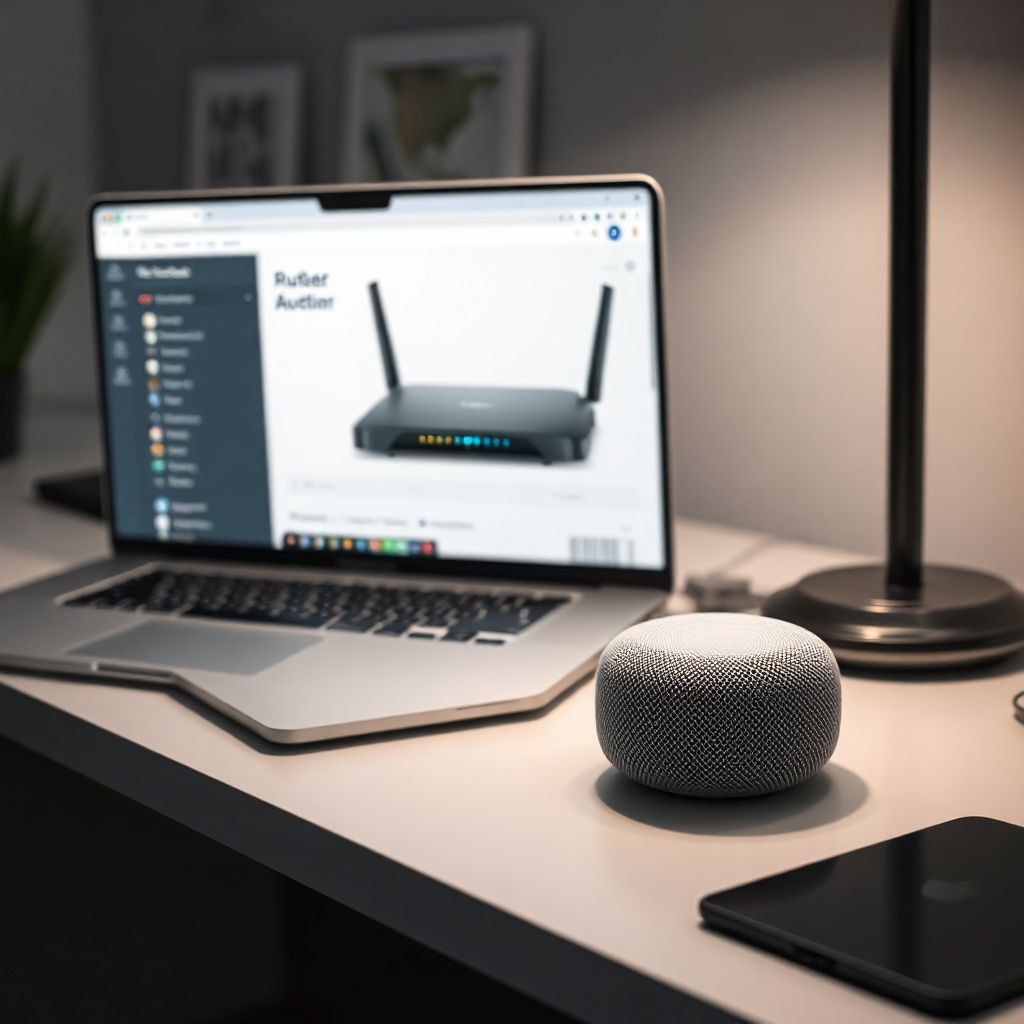
Another frequent issue: the HomePod mini uses Thread for low-latency communication with smart home devices, but Intercom itself travels over Wi-Fi (or Ethernet if your home hub is wired). If you have a weak signal where your HomePod sits, consider moving it closer to the router or using a Wi-Fi extender. For a stable Thread network, refer to Apple HomePod mini Thread Network Issues: DIY Fixes for a Stable Connection — a healthy Thread mesh supports faster HomeKit responses overall. Also, ensure your iOS device is on the same subnet; VPNs or VLANs can block mDNS traffic needed for Intercom discovery.
Could HomeKit Hub Conflicts Cause Intercom to Fail?
If you have multiple potential home hubs (e.g., an Apple TV 4K, HomePod, and HomePod mini), the system automatically picks one as the “connected” hub. Sometimes the connected hub is not the best choice due to an older OS version or a device that’s repeatedly crashing. To check which hub is active, open the Home app, tap the Home icon, select “Home Hubs & Bridges.” Look for a “Connected” label next to one device. If the connected hub is an Apple TV that’s not updated or is on standby, it may drop Intercom messages. Force a hub change by turning off Bluetooth and Wi-Fi on that device temporarily, or reboot it. Better yet, ensure all potential hubs run the latest tvOS or HomePod OS.
Intercom also breaks if your home hub is not signed into the same iCloud account as your Family Sharing members. Verify in Settings > [Your Name] > Family Sharing that everyone invited can see the Home. A home hub that’s in “Standby” mode (available on Apple TV with tvOS 16+) may not actively relay Intercom until needed — sometimes it falls asleep. In the Apple TV’s Settings > AirPlay and HomeKit > Room, confirm it’s assigned to the correct room. For deeper HomeKit troubleshooting, see Apple HomePod mini HomeKit Secure Video Not Working? DIY Fixes, as video recording and Intercom share cloud connectivity requirements.
Why Does Intercom Work on Some HomePods but Not Others?
When Intercom works on your kitchen HomePod mini but not the bedroom unit, the issue is usually room-specific permissions or a misconfigured Siri setting. In the Home app, tap each non-working HomePod mini tile > Settings > Siri & Search > Listen for “Hey Siri” — this must be ON for Intercom to receive broadcasts. Also, check the volume: if the HomePod mini’s volume is muted (tap the + button to raise) or if Do Not Disturb is active from the Home app, Intercom won’t play aloud. You can verify Do Not Disturb status by asking Siri: “Is Do Not Disturb on?”
Another possibility is that the HomePod mini is part of a stereo pair. Intercom broadcasts play on both speakers in a pair, but if one speaker in the pair is offline or unpaired, the other may not function correctly. Unpair and re-pair the stereo setup in the Home app (Settings > Create Stereo Pair). Also, make sure that the “Individual Room” setting for Intercom is not blocked: in Home Settings > Intercom > Allow Room Speakers, ensure all rooms are toggled green. If you’re still stuck, review Apple HomePod mini HomeKit Automation Not Triggering? DIY Fixes, as automation and Intercom both rely on home hub responsiveness.
What Owners Say
Users on Apple Support Communities and Reddit report that Intercom failures often follow iOS updates. One common fix: after updating to iOS 17.4, many had to toggle “Allow Intercom Messages From” off and back on. A Reddit user noted: “I spent two hours resetting my HomePods — the fix was simply turning off AP Isolation on my Orbi router.” Another owner in the U.K. wrote that disabling “Private Wi-Fi Address” on their iPhone for the home network resolved sporadic Intercom drops. Overall, the consensus is that 80% of Intercom problems are network-related, 15% are home hub selection issues, and only 5% are hardware faults. If you’ve tried everything, Apple Support may replace a faulty HomePod mini under warranty.
Frequently Asked Questions
1. How do I enable Intercom on my HomePod mini?
Open the Home app on your iPhone or iPad, tap the Home icon (top-left), choose Home Settings > Intercom, and toggle “Allow Intercom Messages” to On. You can also set who can send messages: Everyone, Anyone in Your Home, or Only You.
2. Can I use Intercom if my HomePod mini is in a different room than my iPhone?
Yes, Intercom works across all HomePod speakers in the same home, regardless of your iPhone’s location. As long as the HomePod mini is connected to the same home and your home hub is online, broadcasts will reach it.
3. Why does Intercom work on my Apple TV but not my HomePod mini?
Your Apple TV can act as a home hub, but the HomePod mini may have individual Intercom disabled. Check the HomePod mini’s settings in the Home app: press and hold the HomePod mini tile, tap Settings > Intercom, and ensure “Allow Intercom Messages” is green.
4. Does Intercom work when my phone is on a different Wi-Fi network?
Yes, but only if your iPhone is still connected to the same Apple ID and iCloud account. Intercom uses the home hub as a relay, so your home network must be online. If your phone is on cellular data away from home, you can still receive Intercom notifications (if enabled) but cannot initiate broadcasts.
5. How much does it cost to fix a HomePod mini Intercom issue?
Most fixes are free DIY steps like resetting the home hub or adjusting router settings. If hardware replacement is needed, a new HomePod mini costs $99 USD (approximately £79 GBP or €89 EUR). AppleCare+ covers accidental damage for a service fee of $15 USD.
6. Can I use Intercom with non-Apple smart speakers?
No, Intercom is a proprietary Apple feature that only works between HomePod and HomePod mini speakers. Third-party Matter or HomeKit speakers do not support Intercom. However, you can set up Apple HomePod mini Matter Connectivity Issues: Troubleshooting Guide for alternative voice control.