
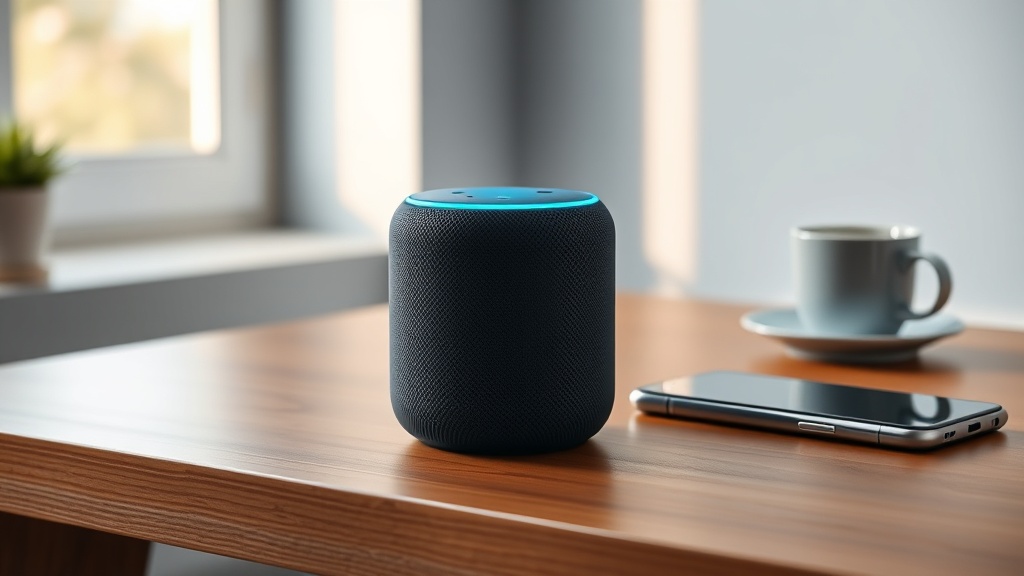
When your Amazon Echo Dot (5th Gen) goes silent or ignores commands, it can disrupt your entire smart home routine. The good news is that most response issues are software-related and rarely signal a hardware failure. This guide walks through the specific fixes that work best for this generation of Echo Dot, from quick power cycles to network adjustments.
Why Is My Amazon Echo Dot (5th Gen) Not Responding to Voice Commands?
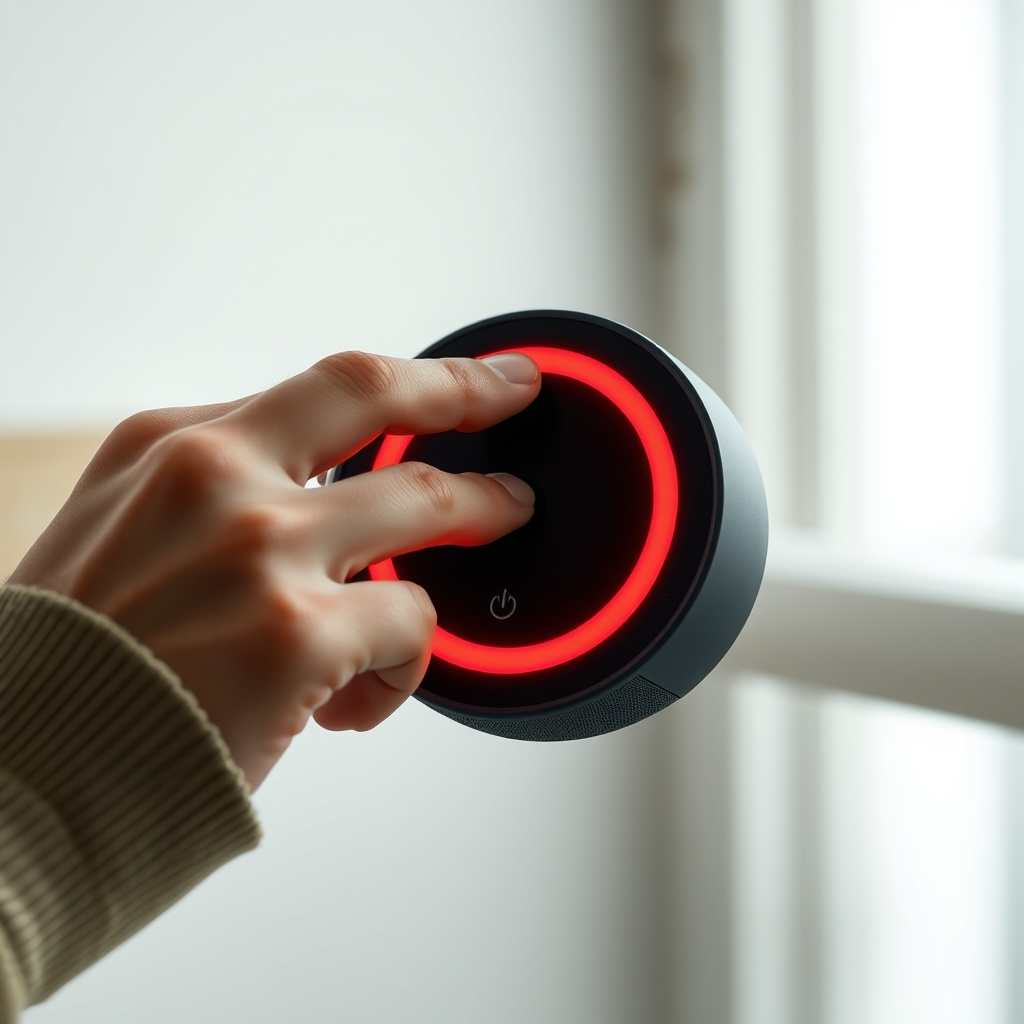
The most common reason an Echo Dot stops responding to “Alexa” is a temporary software hiccup or a microphone issue. Start with the simplest checks: ensure the mute button (the one with the red circle) is not illuminated. If it is, press it to unmute the device. Next, check that you’re within a reasonable range—about 20 feet indoors—and that no loud background noise is interfering. If these are fine, try saying “Alexa, stop,” then repeat your command. For persistent issues, a full restart often resets the voice processing module.
If the problem continues, it may be related to the wake word detection sensitivity. In the Alexa app, go to Settings > Device Settings > [Your Echo Dot] > Wake Word and try switching to “Amazon” or “Computer.” This forces the device to recalibrate its audio profile. Some users find that “Alexa” becomes less responsive after a firmware update, and switching the wake word temporarily can restore functionality.
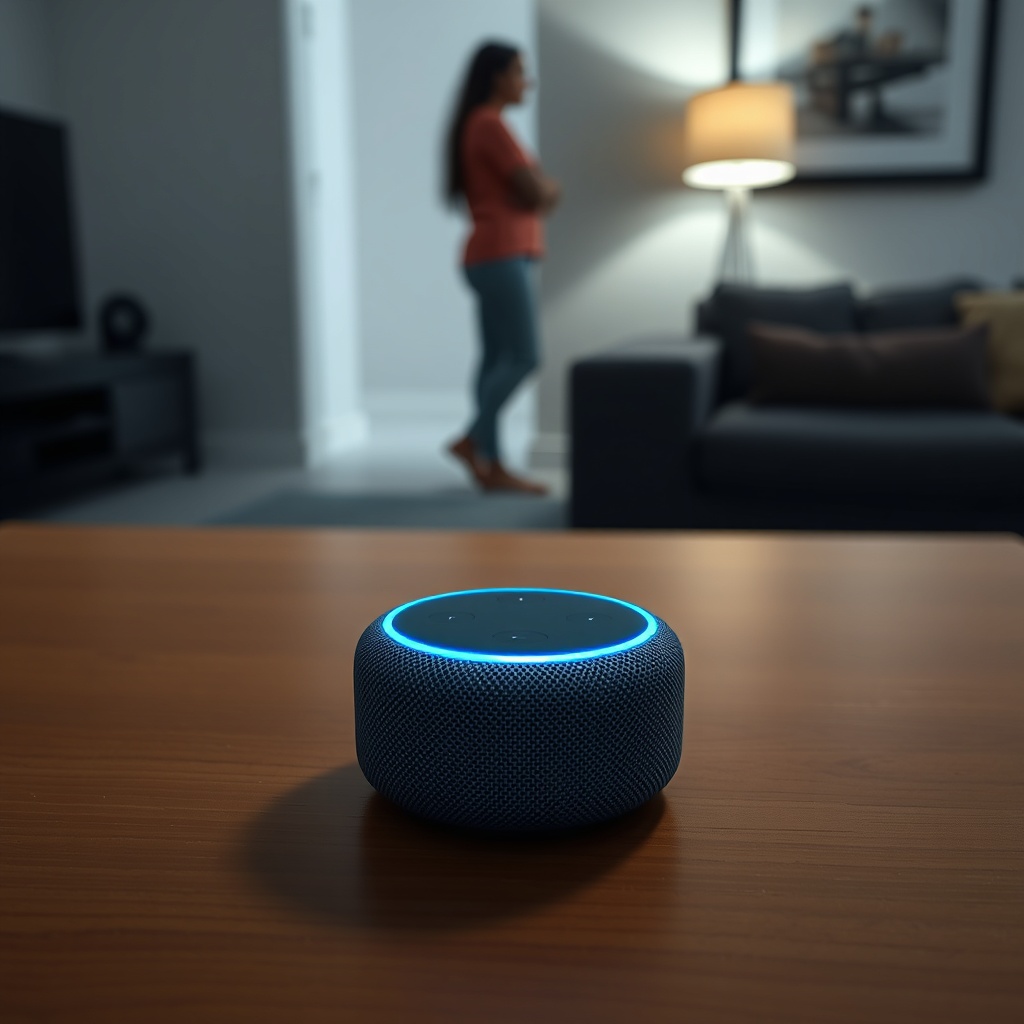
My Echo Dot (5th Gen) Shows a Blue Light but Won’t Respond—What Now?
A spinning blue light typically means the device is processing or ready, but sometimes it gets stuck in a loop. Wait 30 seconds to see if it clears. If not, manually restart by unplugging the power adapter for 10 seconds. This clears the temporary memory that may be holding the device in a “processing” state. After plugging it back in, allow up to 60 seconds for the startup sequence to complete. The light ring will cycle through blue, orange, then back to blue before settling on off or a steady blue.
If the blue light persists without responding to voice, check your Wi-Fi connection. Go to the Alexa app and check if the device shows as “Online” under Device Settings. If it shows “Offline,” you’ll need to reconnect it. Follow our Amazon Echo Dot (5th Gen) Setup Guide for step-by-step instructions on reconnecting to Wi-Fi. Sometimes the device gets confused by a recent router firmware update that changed the SSID broadcast. In that case, run a quick network diagnosis in the app: Device Settings > [Your Echo] > Manage > Test Network Connection.
Wi-Fi Issues: Why Is My Echo Dot (5th Gen) Unresponsive Online?
A common cause for a non-responsive Echo Dot is a weak or dropped Wi-Fi signal. The 5th Gen Echo Dot supports dual-band Wi-Fi (2.4 GHz and 5 GHz), but it can sometimes latch onto a weak 5 GHz signal when 2.4 GHz would be more stable. To force a band preference, you may need to temporarily disable 5 GHz on your router’s guest network or separate the SSID names. Alternatively, move the Echo Dot closer to your router for testing.
If disconnections are frequent, check for interference from other electronics. Place the Echo Dot at least three feet away from microwaves, baby monitors, and cordless phone bases. For persistent Wi-Fi dropouts, read our dedicated guide: Amazon Echo Dot (5th Gen) Keeps Disconnecting from Wi-Fi? Here’s the Fix. That article covers router channel settings and advanced troubleshooting like updating your router’s firmware.
When the Echo Dot is unresponsive online but still shows as connected in your router’s admin panel, the issue may be with Amazon’s servers. Check the status of Alexa services at status.amazon.com or try using Alexa on your phone’s app. Server outages are rare but do happen a few times per year.
| Severity Level | Symptoms & Recommended Action |
|---|---|
| Usually Not Urgent | Device ignores one command, then works fine. No error lights. Try saying the command again or wait 10 seconds. If it repeats, restart the Echo Dot and the Alexa app. Check for background noise like a TV or loud music interfering. |
| Needs Attention Soon | Device consistently unresponsive for more than 15 minutes, even after a restart. Blue light spins indefinitely. Go to the Alexa app and run “Diagnose” from Device Settings. If it finds no faults, try a factory reset (press the Action button for 20 seconds). This wipes all settings—you’ll need to set it up again. |
Echo Dot (5th Gen) Alexa App Shows as “Not Responding”
If the physical Echo Dot seems fine but the Alexa app shows it as “Not Responding,” the issue may be with the app itself or a communication breakdown. First, force-close the Alexa app and reopen it. On iOS, swipe up from the bottom and swipe the Alexa app up; on Android, go to Settings > Apps > Alexa > Force Stop. Then open it again. Next, check that your phone is on the same Wi-Fi network as the Echo Dot. They must be on the same subnet for local device discovery to work.
If the app still shows “Not Responding,” try removing the device and adding it again. In the app, go to Devices > Echo & Alexa > [Your Device] > Delete Device. Then follow the setup guide to add it fresh. This clears any corrupted cached data. For routine issues that keep coming back, check if your router has MAC address filtering enabled, which can block the Echo Dot’s connection after a power cycle.
Alexa Routines and Skills Not Triggering on Echo Dot (5th Gen)
A unique issue with the 5th Gen Echo Dot is that Alexa routines may stop triggering even when the device responds to basic commands. This is often due to a routines timing conflict or a skill authentication failure. Go to the Alexa app > Routines > [Problematic Routine] and toggle it off, wait 10 seconds, then toggle it back on. You should also check that all skills used in the routine are still linked and authenticated. If you recently changed your password for a smart home service like Philips Hue or SmartThings, you need to re-link the skill.
If routines only fail during certain times of day, it might be a bandwidth issue caused by other devices on your network. For example, if your kids start a gaming session at 4 PM, the Echo Dot may lag. Upgrading your router’s Quality of Service (QoS) settings can prioritize voice traffic. For deeper help, see our article on Amazon Echo Dot (5th Gen) Alexa Routines Not Working? How to Fix.
Bluetooth Pairing Problems Causing the Echo Dot to Not Respond
When the Echo Dot (5th Gen) is connected to a phone or speaker via Bluetooth, it may sometimes stop responding to voice commands because the audio output is redirected. If you have “Bluetooth” selected as the output in the Alexa app, the Echo Dot’s microphone may still be active, but Alexa’s responses play through the Bluetooth device—which can confuse users. Go to Alexa app > Devices > Echo & Alexa > [Your Device] > Bluetooth Devices and disconnect any paired device to test voice response.
If you’re trying to pair a new device and the Echo Dot won’t enter pairing mode, say “Alexa, pair” or physically press the Action button. If it fails repeatedly, the Bluetooth stack might be corrupted. Factory reset the Echo Dot by pressing the Action button for 20 seconds. After setup, try pairing again. For persistent issues, refer to our guide: Amazon Echo Dot (5th Gen) Bluetooth Pairing Issues: Solutions.
What Owners Say
Owner in Texas: “My 5th Gen Echo Dot stopped listening to me after a power outage. Unplugging it for ten seconds fixed it instantly. I wish I’d tried that before spending an hour in the app.”
Owner in London: “I was about to return it because it wouldn’t respond to ‘Alexa’ at all. Then I realized the mute button was stuck. A quick press sorted it out. Felt like an idiot.”
Owner in Vancouver: “The blue light spinning forever was driving me crazy. I tried everything from my phone. Then I moved it to a different outlet in the same room—no more issues. Guess my old outlet had electrical noise.”
Frequently Asked Questions
What should I do first if my Echo Dot (5th Gen) stops responding?
First, check the mute button for a red light. If it’s lit, press it. Then unplug the power adapter for 10 seconds and plug it back in. After it restarts (about 60 seconds), say “Alexa” again. This fixes about 70% of cases.
How do I perform a factory reset on the Echo Dot (5th Gen)?
Press and hold the Action button (the one with the dot) for 20 seconds until the light ring turns orange. Then release. The device will enter setup mode. Wait for Alexa to say “Now in setup mode.” All settings will be erased.
Can a weak Wi-Fi signal cause the Echo Dot to not respond?
Yes. If the Echo Dot cannot maintain a stable connection to Amazon’s servers, it may not process voice commands. The device needs a steady internet connection to interpret speech. Check the Wi-Fi signal strength in the Alexa app under Device Settings.
Why does my Echo Dot only respond sometimes?
Intermittent issues are often due to background noise or multiple Alexa devices in the same room. Try moving the Echo Dot away from TVs, fans, or other speakers. Also check if you have other Echo devices in adjacent rooms that might be closer to you.
Will a power outage damage my Echo Dot (5th Gen)?
No, the 5th Gen Echo Dot is designed to handle power fluctuations. However, a sudden power loss can corrupt temporary data, causing it to become unresponsive. Always restart the device after an outage.
How do I know if my Echo Dot has a hardware fault versus a software issue?
If the device consistently fails to respond after a factory reset, and the light ring is solid red or not lighting up at all, it may be a hardware fault. Contact Amazon support. Software issues usually show intermittent symptoms and resolve with a restart or reset.