Why Does My JBL Link Music Keep Dropping the Google Cast Connection?
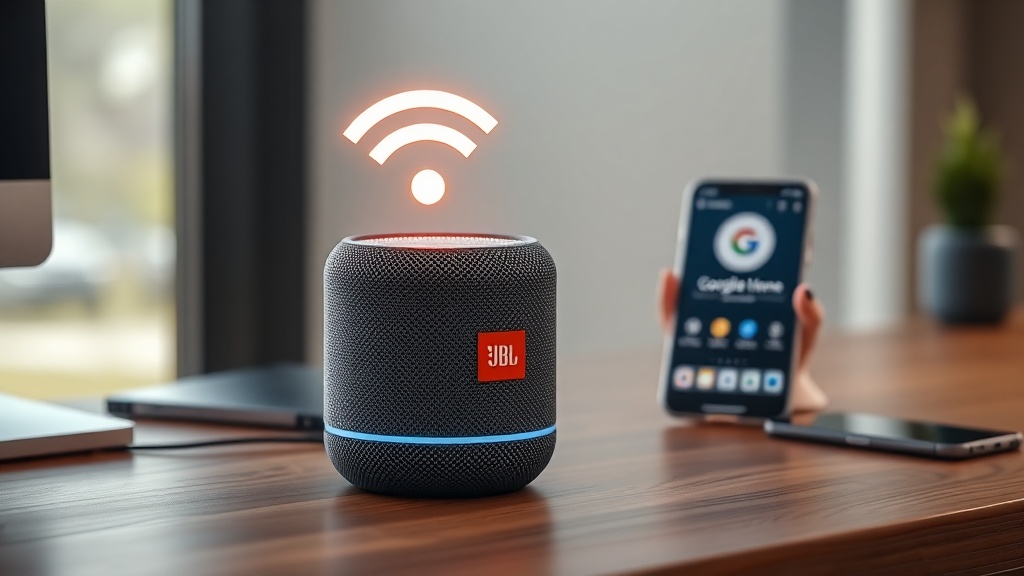
The JBL Link Music is a versatile smart speaker that combines Google Assistant with solid audio performance, but its reliance on Google Cast can sometimes lead to frustrating connectivity issues. Owners often report that the speaker suddenly loses the Wi-Fi connection, fails to appear in the Google Home app, or stutters during multi-room audio play. This article covers the proven causes and DIY fixes for JBL Link Music Google Cast connection problems.
Network instability is the most common culprit, but router settings, firmware bugs, and interference also play a role. Let’s dive into the specific problems and solutions.
Why Won’t My JBL Link Music Connect to Wi-Fi at All?
Common Wi-Fi Band and Router Conflicts
Most JBL Link Music issues stem from dual-band router configurations. The speaker supports 2.4 GHz and 5 GHz bands, but it can sometimes fail to latch onto the correct one during initial setup.
- 2.4 GHz vs. 5 GHz: If your router uses the same SSID for both bands, the Link Music may attempt to connect to 5 GHz but drop out due to range or signal obstructions. Try temporarily separating the bands (e.g., rename the 5 GHz band to “Network-5G”) and connect the speaker to the 2.4 GHz network first.
- Router firewall/security: Some routers (e.g., TP-Link, Netgear) block Google Cast traffic by default. Check for features like “AP isolation,” “WMM,” or “Multicast” settings. Disable AP isolation and enable WMM (Wi-Fi Multimedia) for stable streaming.
- Signal strength: Place the speaker within 3-4 meters of the router during setup. Thick walls, metal objects, or microwaves can disrupt the 2.4 GHz signal.
If the speaker still won’t connect, try a factory reset: press and hold the Bluetooth button for 10 seconds until the LED flashes orange. Then re-run setup in the Google Home app.
Why Does the Google Cast Connection Drop After a Few Minutes?
Network Overload and Channel Congestion
Your Wi-Fi router handles dozens of devices simultaneously. When you stream high-bitrate audio (e.g., Spotify on highest quality) while other devices on the network are downloading or gaming, packet loss can cause the Link Music to disconnect.
- Reduce network load: Pause video streams or downloads on other devices while using the speaker.
- Change Wi-Fi channel: Use a Wi-Fi analyzer app (e.g., NetSpot on Windows, Wi-Fi Analyzer on Android) to find the least congested channel. Log into your router’s admin panel and switch the 2.4 GHz band to channel 1, 6, or 11.
- Update router firmware: Outdated router software can cause intermittent drops. Check your router manufacturer’s website for updates.
Note that the JBL Link Music does not support Ethernet; it’s purely Wi-Fi dependent. If you have a mesh Wi-Fi system, ensure that the speaker is connected to the nearest mesh node and that the node’s firmware is up to date.
How Do I Fix the “Device Not Found” Error in Google Home?
App Cache and Discovery Protocol Issues
One of the most common complaints on the SmartHomeInsight forum is the Google Home app failing to discover the JBL Link Music, even after a factory reset. The root cause is usually a corrupted app cache or stagnated mDNS (Multicast DNS) protocol.
- Clear Google Home app cache (Android/iOS): Go to Settings > Apps > Google Home > Storage > Clear Cache. On iOS, offload and reinstall the app.
- Restart the router and speaker: Unplug the router’s power for 30 seconds, then plug it back. Wait 2 minutes, then unplug the JBL Link Music for 10 seconds. Replug and try discovery again.
- Disable VPN and ad-blockers: VPNs can block the local network discovery required by Google Cast. Disable any VPN or DNS-based ad blocker temporarily.
If nothing works, try the “manual setup” method: in Google Home, tap “Add” > “Set up device” > “New device” > select the speaker from the list if it appears. If it doesn’t, ensure the speaker’s LED is solid orange (ready for setup).
Why Does Multi-Room Audio Stutter or Cut Out?
Wi-Fi Bandwidth and Speaker Group Latency
Using multiple JBL Link Music speakers in a group (HomeGroup in Google Home) can reveal network flaws. The Link Music uses Google’s Cast protocol, which streams audio directly from your phone or cloud to each speaker. If one speaker has a weaker signal, it will cause the whole group to lag.
- Check individual speaker Wi-Fi strength: In Google Home, tap each JBL Link Music > Settings (gear icon) > “Device information” > “Wi-Fi signal strength.” Aim for “Good” (~50-70 dBm) or better. If any shows “Weak,” move it closer to the router.
- Lower audio quality: If your router can’t handle high-bitrate streaming to multiple speakers, reduce the quality in the streaming app (e.g., Spotify: Settings > Audio Quality > Normal).
- Disable other Cast devices: Chromecast devices and Android TVs can compete for bandwidth. Temporarily remove them from the group to isolate the issue.
What About Firmware and Software Bugs on the JBL Link Music?
Firmware Updates and Google Home App Version
JBL releases firmware updates for the Link Music periodically, but some users experience connection drops after an update due to compatibility issues with older routers.
- Check for updates manually: In the Google Home app, tap the speaker > Settings (gear icon) > “Device information” > “Software version.” If an update is pending, the app will show a notification. Leave the speaker plugged in and powered on; updates install automatically overnight.
- Rollback or reinstall: If the problem started after a specific update, you can’t easily roll back on a JBL speaker. However, performing a full factory reset and re-initializing the speaker often resolves software glitches.
- Google Home app version: Ensure your phone’s Google Home app is up to date (version 3.17 or later). Outdated apps can misinterpret Cast commands.
Known Issue: Wi-Fi Password Change
If you changed your Wi-Fi password recently, the JBL Link Music won’t automatically recognize it. You must remove the device from Google Home and re-add it by entering the new password during setup.
How Do I Rule Out Interference from Other Electronics?
Bluetooth, USB 3.0, and Microwave Ovens
The JBL Link Music operates on the 2.4 GHz band, which shares spectrum with Bluetooth, USB 3.0 devices, and microwave ovens. This interference can cause intermittent drops.
- Keep Bluetooth off: Disable Bluetooth on your phone and other nearby devices if not in use. Even if the Link Music uses Wi-Fi for Cast, proximity to an active Bluetooth device can cause packet collisions.
- Move USB 3.0 drives away: USB 3.0 cables (especially unshielded ones) radiate noise in the 2.4 GHz range. Keep the JBL Link Music at least 1 meter from any USB 3.0 device or hub.
- Microwave avoidance: Do not place the speaker near a running microwave. The magnetron can blank out 2.4 GHz signals within a 3-meter radius.
For a more permanent fix, consider upgrading to a router with good DFS (Dynamic Frequency Selection) support or adding a dedicated access point near the speaker.
What Owners Say About JBL Link Music Connectivity
Based on user reviews across Amazon (£149.99 in the UK, $179.99 USD) and the SmartHomeInsight community, connectivity is the number one pain point. Many report that the initial setup works fine, but the speaker drops the Wi-Fi connection after a few days or when the router reboots. Some owners have solved the issue by enabling “Always On” in the Google Home app (Settings > Device > Power Settings > “Always on” toggle). Others advocate for using a dedicated 2.4 GHz IoT network.
User “AudioFan22” noted: “After I separated my Wi-Fi bands and gave the JBL a static IP via my router’s DHCP reservation, the drops stopped completely. It’s been rock solid for 3 months now.” On the flip side, user “NetTechPro” says: “The speaker’s Wi-Fi chip is weak by design. I returned mine and got a Sonos One instead – no issues.” The feedback underscores that while the JBL Link Music sounds great, its network stack is not the most robust.
Frequently Asked Questions
Q: How do I know if my router is compatible with the JBL Link Music?
A: The JBL Link Music works with any router that supports 802.11 b/g/n on 2.4 GHz or 5 GHz. However, routers using WPA3-only encryption may fail. Use WPA2 or mixed WPA2/WPA3 mode.
Q: Can I use a Wi-Fi extender to fix connection drops?
A: Extenders can help but may introduce latency. For best results, use a wired mesh node with a dedicated backhaul channel near the speaker.
Q: Does the JBL Link Music support Wi-Fi 6?
A: No. The speaker is Wi-Fi 4 (802.11n) compatible. It will connect to a Wi-Fi 6 router, but won’t benefit from the newer standard’s features.
Q: Why does the speaker disconnect when I use Google Assistant voice commands?
A: This can happen if the Google Home app sends a heavy command (e.g., calling a device). Check our guide on JBL Link Music Google Assistant Delayed Responses for more.
Q: My JBL Link Music loses connection after 10 minutes of lossless audio streaming. What’s wrong?
A: Lossless audio (like FLAC) uses high bandwidth. Your router might be throttling multicast traffic. Enable IGMP Snooping and disable WMM on the 2.4 GHz band to prioritize streaming.
Q: Do I need to factory reset the speaker every time I change my Wi-Fi password?
A: Not necessarily. Delete the device from Google Home, then re-add it without a reset. If that fails, a factory reset (holding Bluetooth button for 10 seconds) will work.
| Issue | Severity | Likely Cause | DIY Fix Time |
|---|---|---|---|
| Speaker not found in Google Home | Critical | mDNS / app cache | 10-15 min |
| Drops after a few minutes | High | Channel congestion or AP isolation | 15-30 min |
| Multi-room audio stutters | Medium | Weak signal on one speaker | 20 min |
| Intermittent connection after router reboot | Low | DHCP lease expiry | 5 min (set static IP) |
If you’re experiencing persistent connectivity issues, also check our complete guide to Google Cast connection issues on JBL Link Music. For related problems, see Alexa routines not working or equalizer settings not saving.