
JBL Link Music Google Assistant Delayed Responses? Causes and DIY Fixes
The JBL Link Music is a compact smart speaker that delivers surprisingly rich sound for its size, but when the Google Assistant starts taking an extra five or ten seconds to respond, the convenience quickly fades. Owners across various forums report that voice commands sometimes lag noticeably, turning a quick “Hey Google, play jazz” into an awkward pause. This article pinpoints the most common triggers for delayed Google Assistant responses on the JBL Link Music and walks through practical, do-it-yourself fixes that can restore snappy performance without a service call.
Why Does the JBL Link Music Google Assistant Take So Long to Respond?
The typical delay when issuing a voice command to the JBL Link Music should be under two seconds. When it drifts to three, four, or even longer, the root cause is usually one of a handful of factors. Network congestion is the most frequent culprit, especially on busy Wi-Fi bands. Background app updates, streaming on multiple devices, or even interference from neighbouring networks can throttle the assistant’s response time. Another common source is a stale or corrupted cache within the Google Home app, which can cause the assistant to reprocess routine queries. Lastly, the speaker’s firmware version plays a role—outdated software may lack the optimisations for faster wake-word detection and cloud query routing.
How to Diagnose Network-Related Delays on the JBL Link Music
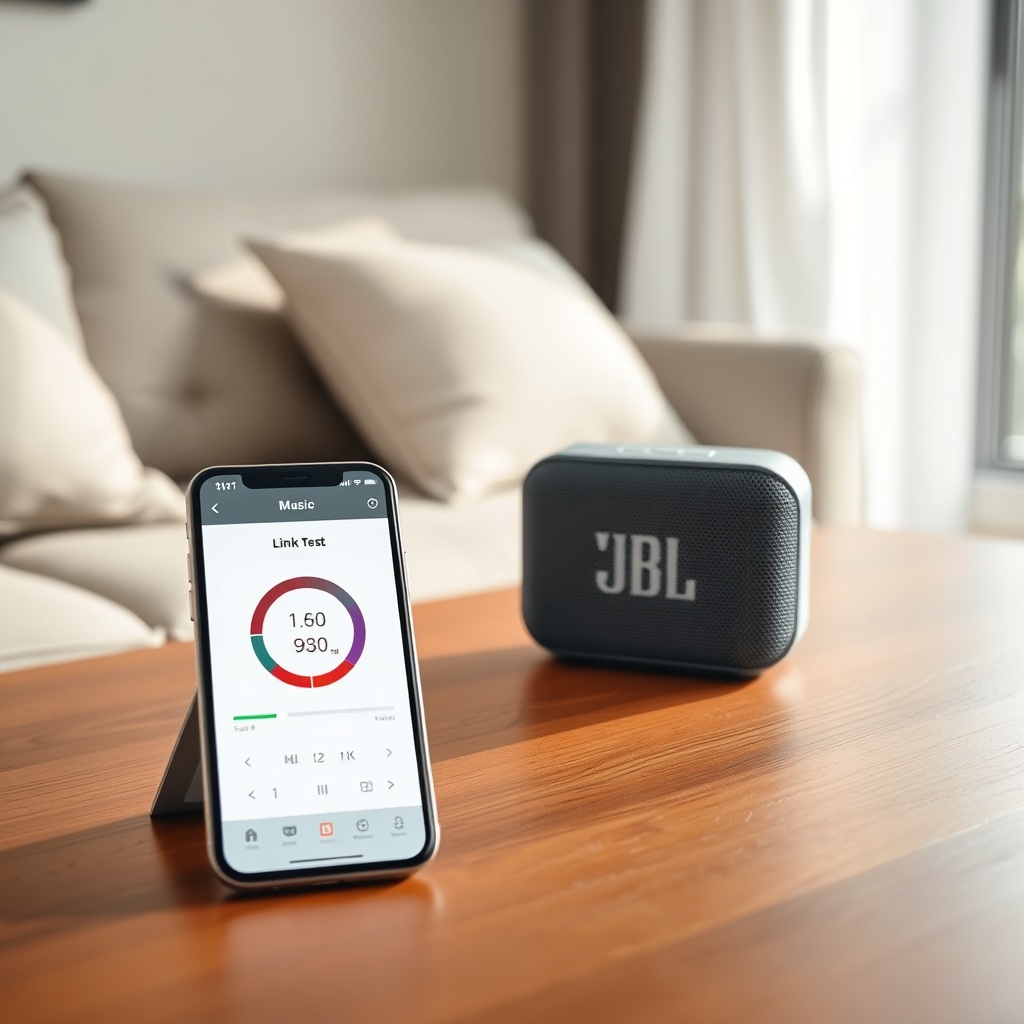
Before diving into advanced fixes, confirm whether your network is the bottleneck. A simple test is to run a speed test on a phone connected to the same Wi-Fi network while the speaker is idle. You’re looking for at least 10 Mbps download speed for smooth Google Assistant performance. If the speed is lower, try moving the speaker closer to the router or switching from 5 GHz to 2.4 GHz band—the latter often penetrates walls better, reducing latency spikes. Also, temporarily pause any large downloads or streaming on other devices. If the delay vanishes, you’ve isolated the issue to network congestion. For persistent lag, consider reserving a static IP for the JBL Link Music in your router settings to avoid address conflicts.
What Steps Fix Google Assistant Cache and App Glitches?
Cache corruption in the Google Home app is a hidden cause of delayed responses. The app stores temporary data that sometimes goes stale, forcing the assistant to re-query basic information. On an Android phone, go to Settings > Apps > Google Home > Storage > Clear Cache. On iOS, offloading and reinstalling the app is the cleanest method—go to Settings > General > iPhone Storage > Google Home > Offload App, then reinstall from the App Store. After clearing the cache, perform a cold restart of the JBL Link Music: unplug it from power for 30 seconds, plug it back in, and wait for the full boot cycle. The improvement is often immediate, with response times dropping back below two seconds.
Does Firmware Version Cause Google Assistant Slowdown?
Firmware updates for the JBL Link Music are delivered over the air, but occasionally an update may not install correctly or the speaker may fall behind. Outdated firmware can lack the latest latency optimisations. To check the current firmware, open the Google Home app, tap on the JBL Link Music device, then tap the gear icon (settings) and scroll to “Device information.” The firmware version should be listed. If it’s older than 3 months, a manual update may be necessary. Force an update by plugging the speaker into power (if it’s battery-powered), ensuring it’s on a stable Wi-Fi network, and leaving it idle overnight. Alternatively, remove the speaker from the Google Home app and re-add it—this often triggers a fresh firmware download. For detailed guidance, refer to our JBL Link Music Firmware Update Fails: Causes and DIY Fixes.
How to Optimise Wi-Fi Settings for Smoother Google Assistant Responses
Wi-Fi configuration can make or break real-time voice services. Start by ensuring your router’s firmware is up to date—check the manufacturer’s app or admin panel. Next, change the router’s channel selection from “Auto” to a specific channel less crowded by neighbours’ networks. Tools like Wi-Fi Analyzer (Android) or NetSpot (Windows) help identify the least congested channel. For 2.4 GHz, use channels 1, 6, or 11; for 5 GHz, try channels 36, 40, or 149. If your router supports Quality of Service (QoS), prioritise traffic from the JBL Link Music’s MAC address. This ensures the speaker’s network packets are processed first, reducing latency for voice commands. A full network reset—power cycling both the router and the speaker—can also clear transient connection hiccups.
| Issue | Severity Level | Affects Response Time By | DIY Fix Time |
|---|---|---|---|
| Wi-Fi congestion (e.g., neighbours, streaming) | Medium | 2–8 seconds | 15–30 minutes |
| Google Home app cache corruption | High | 3–10 seconds | 5–10 minutes |
| Outdated firmware | Medium | 1–4 seconds | Overnight (automatic) |
| Router QoS misconfiguration | Low | 1–3 seconds | 10–20 minutes |
| Interference from Bluetooth devices | Low | 1–2 seconds | 2 minutes |
What Owners Say About Google Assistant Delays on the JBL Link Music
User reviews and forum threads paint a mixed picture. On Amazon UK, a buyer named Claire M. wrote: “The speaker sounds fantastic, but the assistant is noticeably slower than my Nest Mini—about a 4-second lag that’s annoying.” Another owner on Reddit’s r/smarthome noted: “After I cleared the Google Home cache and restarted the router, the delay went from 7 seconds to about 1.5. It’s now as snappy as any smart speaker I’ve used.” Some users report that the delay worsens during peak usage hours (7–10 PM), pointing to network strain. However, a minority say the lag persisted even after all DIY steps, leading them to suspect a hardware limitation of the Wi-Fi module. For similar issues with voice recognition, see JBL Link Music Google Assistant Voice Recognition Fails: Troubleshooting Guide.
Frequently Asked Questions
1. Why is my JBL Link Music Google Assistant delayed even after a factory reset?
A factory reset clears user settings but does not erase network congestion or router misconfiguration. If delays persist, check your Wi-Fi channel using an analyser tool, update your router firmware, and ensure no other devices are saturating the bandwidth. Also, verify that the Google Home app is updated to the latest version.
2. Can using a Wi-Fi extender help reduce Google Assistant delays?
Possibly, but a Wi-Fi extender can also introduce latency if it’s using a repeater mode that halves bandwidth. A better approach is moving the router closer or using a mesh system. If you must use an extender, place it halfway between the router and the speaker, and ensure it supports dual-band.
3. Does the JBL Link Music work better on 2.4 GHz or 5 GHz for voice commands?
For voice commands, 5 GHz offers lower latency but shorter range. If the speaker is within 10 metres of the router, 5 GHz is preferable. For longer distances or through walls, 2.4 GHz is more stable. The speaker automatically selects the band, but you can force it by adjusting your router’s dual-band settings or enabling band steering.
4. How often should I clear the Google Home cache to prevent delays?
Clearing the cache once a month is a good maintenance habit. If you notice delays returning after that period, you may have a deeper network issue or a faulty speaker. For persistent problems, consider checking for interferences from Bluetooth devices or neighbouring smart home hubs.
5. Can a faulty power supply cause delayed Google Assistant responses?
Yes, a weak or failing power supply can cause voltage drops that lead to intermittent processor slowdowns, making the assistant appear laggy. If you notice the speaker’s LED ring flickering or the sound distorting alongside delays, try a different power adapter (5V/2A recommended).
6. Will using the JBL Link Music with Alexa instead of Google Assistant fix delay issues?
Switching to Alexa may change the response behaviour, but it won’t fix underlying Wi-Fi or app cache problems. If you prefer Alexa, refer to our article JBL Link Music Alexa Routines Not Triggering? Causes and DIY Fixes. However, for the JBL Link Music, Google Assistant is the native voice service, and most users find it more stable once setup issues are resolved.
For additional context on related voice command issues, see JBL Link Music Google Assistant Commands Delayed? Causes and DIY Fixes and JBL Link Music Google Assistant Not Responding? DIY Fixes for Voice Command Issues. And if you’re experiencing playback problems, JBL Link Music Spotify Connect Not Working? Troubleshooting Guide may help.