
Why Is My JBL Link Music Google Assistant Not Responding?
Smart speakers like the JBL Link Music rely heavily on voice commands, so when Google Assistant stops responding, it disrupts the entire experience. This article provides DIY fixes for voice command issues, helping you restore functionality without a technician. From network misconfigurations to microphone glitches, we cover common causes and solutions tailored for this compact speaker.
If you’re also dealing with audio sync troubles, our guide on JBL Link Music Multi-Room Audio Sync Issues: Causes and DIY Fixes offers complementary troubleshooting.
How to Check if the Microphone Is Muted or Blocked?
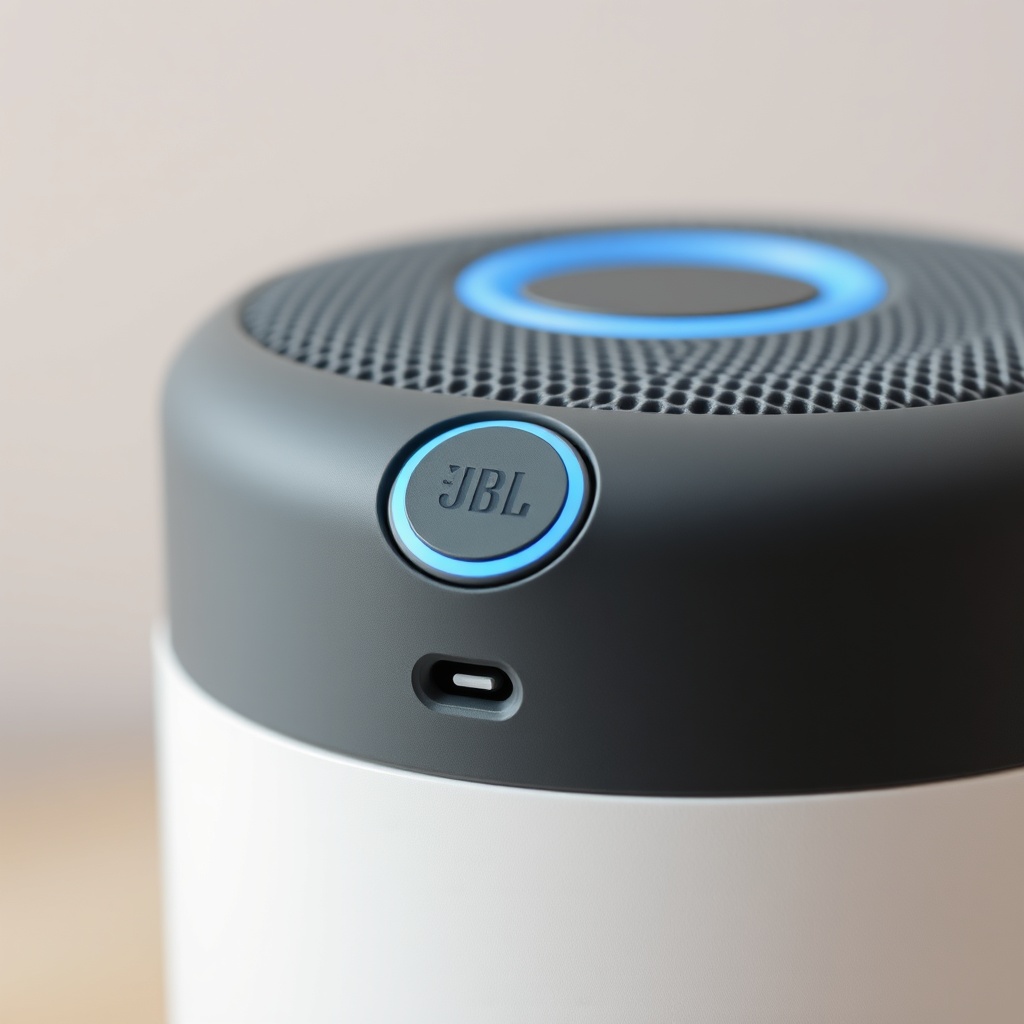
The most basic yet overlooked cause is a muted microphone. The JBL Link Music has a physical mic mute button on the top panel. If you press it accidentally, the LED ring turns red, and Assistant stops listening. Press it again to unmute; the ring should turn white or blue when active.
Physical obstructions like dust, case covers, or debris near the microphone sensors can also mute input. Use a dry microfiber cloth to gently wipe the top grille. Test by saying “Hey Google, what’s the time?” after cleaning. If the mic still picks up no sound, consider our dedicated guide: JBL Link Music Google Assistant Voice Recognition Fails: Troubleshooting Guide.
Is Your Wi-Fi Connection Stable Enough for Google Assistant?
Google Assistant requires a stable internet connection to process voice queries. A weak or intermittent Wi-Fi signal can cause commands to time out or fail entirely. Perform a speed test near the JBL Link Music—download speeds above 5 Mbps are recommended, latency under 50 ms. If speeds are low, move the router closer or reduce interference from walls and appliances.
Restart both your router and the speaker:
– Unplug the router for 30 seconds.
– Unplug the JBL Link Music for 10 seconds.
– Plug the router back in, wait for it to fully boot, then reconnect the speaker.
After reconnection, test with a simple command. If issues persist, check if other devices on the same network experience similar delays. For deeper network troubleshooting, see JBL Link Music Google Assistant Commands Delayed? Causes and DIY Fixes.
| Parameter | Ideal Value | Severity Below Ideal |
|---|---|---|
| Download Speed | ≥ 5 Mbps | Moderate (delays) |
| Upload Speed | ≥ 2 Mbps | Moderate (timeouts) |
| Latency (Ping) | < 50 ms | High (no response) |
| Wi-Fi Band | 2.4 GHz or 5 GHz stable | Medium (disconnects) |
Why Did a Recent Firmware Update Break Assistant Responsiveness?
Firmware updates sometimes introduce bugs that affect Google Assistant functionality. If you noticed the issue after a recent update, roll back or reinstall the firmware. Open the Google Home app, tap your JBL Link Music, go to Settings > Device information > Firmware version. Check if an update is pending—install it if so. If the problem persists, factory reset the speaker: hold the Bluetooth and Volume Down buttons simultaneously for 10 seconds until you hear a tone.
After reset, set up the speaker again in the Google Home app. This often resolves corrupted data that causes Assistant to stop responding. For persistent update failures, refer to JBL Link Music Firmware Update Fails: Causes and DIY Fixes.
How to Reconfigure Google Assistant Settings in the Home App?
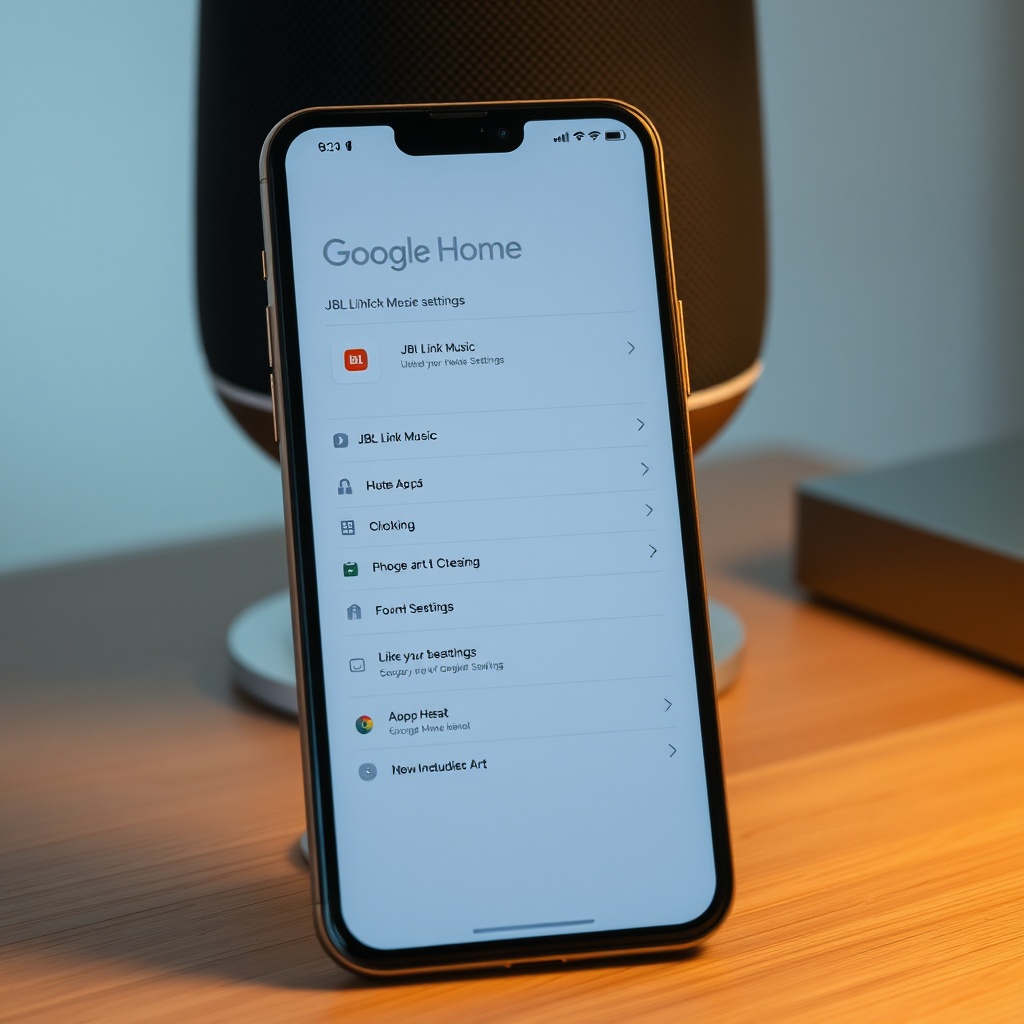
Misconfigured Assistant settings within the Google Home app can cause unresponsiveness. Open the app, tap your JBL Link Music, then tap the Settings gear. Under “Google Assistant,” ensure the “Hey Google” sensitivity is set to High, and “Voice Match” is enabled for personal results. Disable and re-enable these settings to refresh the connection.
If Assistant still doesn’t respond, check that your linked services (like Spotify or YouTube Music) are not interfering. Temporary glitches in account linking can mute Assistant. Unlink and relink your streaming accounts under the same settings menu. For related streaming issues, see JBL Link Music Spotify Connect Not Working? Troubleshooting Guide.
What to Do If the Speaker Is in a Multi-Room Group and Assistant Fails?
Multi-room audio groups can create conflicts for Google Assistant. If your JBL Link Music is grouped with other speakers, voice commands might be routed incorrectly. Unlink the group temporarily: in the Google Home app, tap the group name, then “Ungroup.” Test Assistant on the speaker alone. If it works, recreate the group but ensure all devices are on the same firmware and network.
Audio sync issues often compound Assistant problems. Our guide on JBL Link Music Audio Lag Issues: Causes and DIY Fixes can help if you experience delays even after fixing voice commands.
What Owners Say About Google Assistant Unresponsiveness
User forums and reviews highlight several common themes. Many owners report the mic mute button being the culprit, especially after moving the speaker. Others note that after firmware updates, Assistant requires a power cycle to regain responsiveness. Some users find that switching from 5 GHz to 2.4 GHz Wi-Fi resolves persistent timeouts. Overall, most issues are solvable with the DIY steps above, though a small percentage require hardware replacement under warranty.
Frequently Asked Questions
Q1: My JBL Link Music doesn’t respond to voice commands even though the LED is on. What’s wrong?
A: Check the microphone mute switch—if the LED ring is red, press it once. Also, ensure the Google Home app shows the device online.
Q2: Can a weak Wi-Fi signal cause Assistant to stop responding?
A: Yes, insufficient bandwidth or high latency can time out voice queries. Move the router closer or use a mesh system.
Q3: How do I factory reset the JBL Link Music?
A: Press and hold the Bluetooth and Volume Down buttons for 10 seconds. Release when you hear a tone. Then set up in the Google Home app.
Q4: Does the JBL Link Music support Google Assistant in multiple languages?
A: Yes, but the device language must match your Google Assistant language settings in the Home app. Change both under Settings.
Q5: Why does Assistant work only sometimes after a firmware update?
A: Partial updates can corrupt settings. Factory reset or reinstall firmware via the app. For update fails, see our firmware guide.
Q6: Can I use the JBL Link Music as a standalone speaker without a network?
A: No, it requires a Wi-Fi or mobile network to process Assistant commands. In offline mode, only Bluetooth audio playback works.