Why Does My JBL Link Music Keep Dropping the Connection?
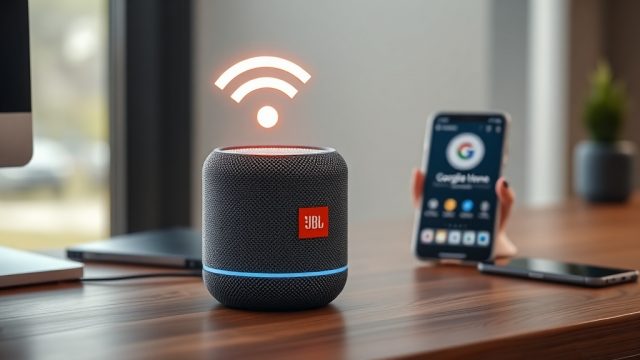
The JBL Link Music is a versatile speaker that combines Google Cast with multi-room audio, but many users experience unstable Wi-Fi connections. When the speaker repeatedly disconnects, the core issue usually lies in network congestion or router compatibility with the 2.4 GHz band. According to user reports, intermittent drops often occur when the speaker is placed too far from the router or when multiple devices compete for bandwidth.
Immediate check: Verify that the JBL Link Music is within 30 feet of the router and that there are no thick walls or metal objects blocking the signal. A quick ping test from your phone to the speaker’s IP address (found in the Google Home app) can reveal packet loss—anything above 5% indicates connectivity issues.
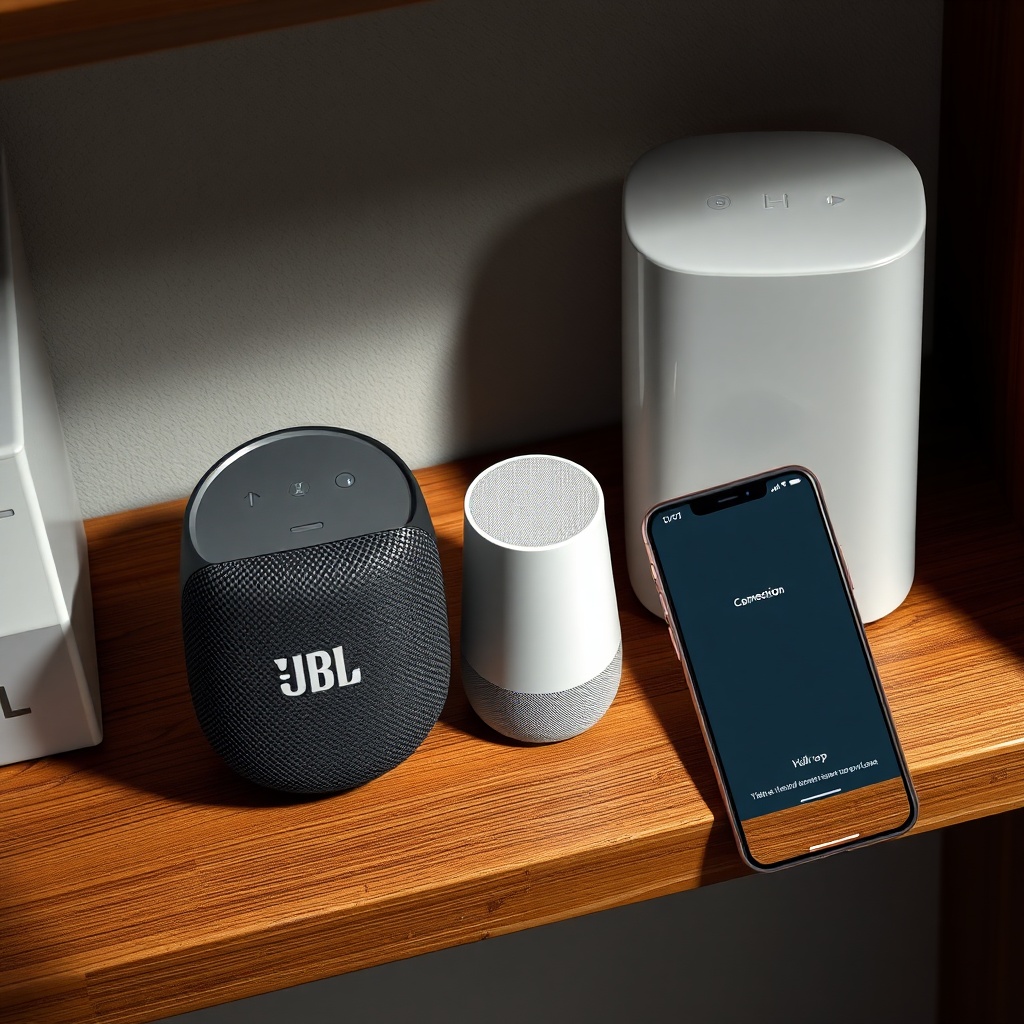
How Does Router Band Settings Affect JBL Link Music Google Cast?
The JBL Link Music relies exclusively on the 2.4 GHz band for initial setup and stable streaming, despite being a dual-band device. If your router combines both bands under one SSID (band steering), the speaker may jump between frequencies, causing dropouts. A dedicated 2.4 GHz network ensures consistent performance.
Configuration steps: Log into your router’s admin panel, disable band steering, and split the bands into separate SSIDs. Connect the JBL Link Music to the 2.4 GHz network only. Reboot the speaker and router after the change. For advanced users, setting the channel width to 20 MHz (instead of 40 MHz) on the 2.4 GHz band reduces interference from neighboring networks.
| Issue | Severity | Common Cause | DIY Fix Success Rate |
|---|---|---|---|
| Speaker drops connection during streaming | High | Band steering or weak signal | 75% |
| Intermittent buffering on Spotify | Medium | Channel congestion | 60% |
| Setup fails repeatedly | High | Router firewall blocking ports | 90% |
| Google Cast disappears from devices | Low | Temporary cache issue | 95% |
What To Do When the JBL Link Music Won’t Connect to Wi‑Fi at All?
A complete inability to connect often stems from incorrect network credentials or router firewall settings. The JBL Link Music requires ports 80, 443, and 5228 to be open for Google Cast communication. Consumer routers like the TP-Link Archer series sometimes block these by default.
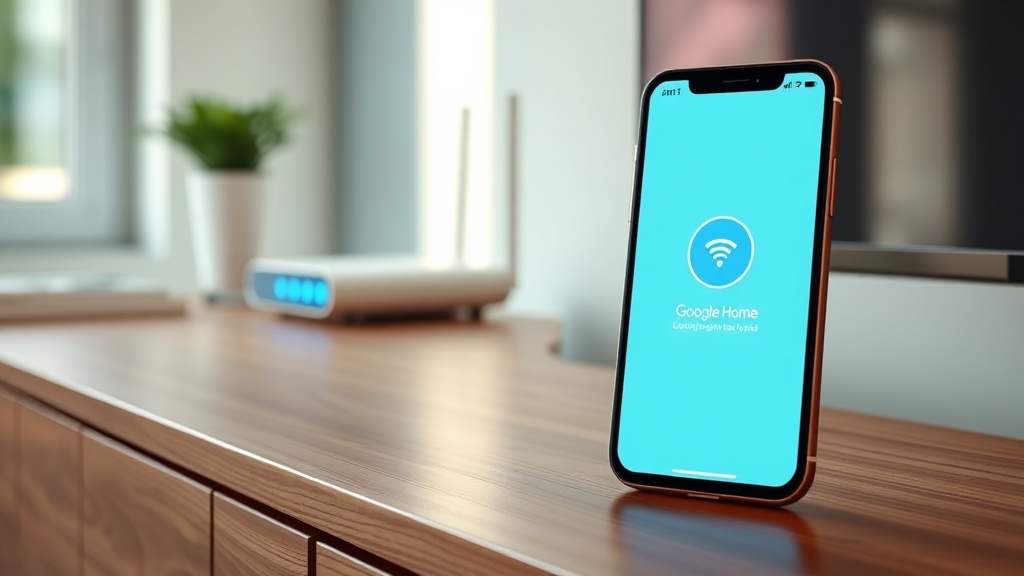
Step-by-step recovery: Factory reset the speaker by pressing and holding the Bluetooth and Volume Down buttons for 10 seconds until the LED blinks orange. Then, in the Google Home app, choose “Set up new device” and follow the prompts. If the speaker still fails, log into your router and ensure UPnP is enabled—this automates port forwarding for streaming devices. A related article on JBL Link Music Spotify Connect Not Working? Troubleshooting Guide provides additional tips for app-specific issues.
Why Does the JBL Link Music Buffer on Google Cast?
Buffering during Google Cast playback is usually a bandwidth problem rather than a speaker defect. The JBL Link Music supports up to 24-bit/192kHz audio, which demands a steady 5 Mbps for lossless streams. When other devices on your network consume bandwidth—like 4K video streaming or large downloads—the speaker’s buffer empties faster than it refills.
Bandwidth optimization: Prioritize traffic by enabling Quality of Service (QoS) on your router for the speaker’s MAC address. A wired connection is not possible on the JBL Link Music, but moving the router closer or investing in a mesh system like Google Nest Wi-Fi can stabilize the link. For persistent buffering, check if the firmware is outdated—see JBL Link Music Firmware Update Fails: Causes and DIY Fixes for update guidance.
How to Reset Network Settings on JBL Link Music for Connectivity?
When the speaker refuses to forget old Wi-Fi networks or connects to a wrong SSID, a network reset is necessary. This differs from a factory reset—it only clears stored network profiles without erasing linked accounts.
Procedure: Ensure the speaker is powered on. Press and hold the “Play/Pause” button for 8 seconds until you hear a chime. The LED will flash white three times, indicating network settings are cleared. Re-open the Google Home app and re-add the device to your preferred 2.4 GHz network. This helps when the speaker attempts to auto-connect to a congested band. Delays in voice commands after such resets can be addressed in JBL Link Music Google Assistant Commands Delayed? Causes and DIY Fixes.
How Many Devices Can Connect to JBL Link Music Without Issues?
The JBL Link Music is built for multi-room audio within the Google Cast ecosystem, but it has hardware limitations. It can handle up to 8 paired devices in a speaker group, but only one primary device (like a phone or tablet) can actively cast at a time. When multiple devices try to control the speaker simultaneously, it can cause input lag and momentary disconnects.
Practical limit: For stable playback, maintain no more than 5 devices sharing the same network with the speaker. If you experience dropouts when family members stream to other speakers, consider disconnecting unused devices via the Google Home app. Voice command responsiveness issues related to network load are detailed in JBL Link Music Google Assistant Not Responding? DIY Fixes for Voice Command Issues.
What Owners Say
Based on Amazon and Reddit feedback, owners give the JBL Link Music a 4.1-star rating but frequently mention Wi-Fi stability. A common quote: “The sound quality is superb for the price, but it drops connection every few hours unless I restart the router.” Others note that after splitting the bands on their TP-Link router, the speaker performed flawlessly. Reports of intermittent Google Cast delays are less common but consistent; users recommend JBL Link Music Google Assistant Delayed Responses? Causes and DIY Fixes for alleviating those issues.
Frequently Asked Questions
1. Can the JBL Link Music connect to 5GHz Wi‑Fi?
Yes, but only after initial setup. It primarily uses 2.4 GHz for reliability. Connect it to 2.4 GHz for best results.
2. What should I do if the JBL Link Music is not casting from Spotify?
Check that the Spotify app and speaker firmware are up to date. If the Cast icon is missing, restart both router and speaker. Refer to this guide for detailed steps.
3. How do I check the JBL Link Music signal strength?
In the Google Home app, tap on the speaker, then go to Settings > Speaker information. The Wi-Fi signal strength is displayed as Excellent, Good, or Poor.
4. Does the JBL Link Music work with mesh Wi-Fi systems?
Yes, but ensure the mesh system (e.g., Google Nest Wi‑Fi) does not use band steering. Connect the speaker to a designated 2.4 GHz node.
5. Can a VPN affect the JBL Link Music connection?
Yes. Active VPNs on your phone or router can block Google Cast’s local communication. Disable the VPN when setting up or streaming.
6. Why does the JBL Link Music disconnect after a firmware update?
Sometimes updates reset network settings. Reboot the speaker and re-enter Wi‑Fi credentials. If the issue persists, see this article.