Amazon Echo Dot (5th Gen) Wi-Fi Dead Zones: DIY Fixes for Better Coverage
The Amazon Echo Dot (5th Gen) is a compact smart speaker that promises seamless voice control and audio streaming, but like many Wi-Fi-dependent devices, it can struggle with signal dropouts in homes with dead zones. Users frequently report that the Echo Dot disconnects from the network or fails to respond to commands when placed far from the router. This article explores practical, DIY solutions to eliminate Wi-Fi dead zones and restore reliable connectivity to your Echo Dot (5th Gen), without requiring expensive hardware upgrades.
Why Does My Echo Dot (5th Gen) Show Weak Wi-Fi Signal?
The Echo Dot (5th Gen) relies on a single-band 2.4 GHz or dual-band 2.4/5 GHz Wi-Fi chip, which can be particularly sensitive to physical obstructions and distance. Typical causes of poor signal include thick walls, metal appliances, and interference from neighboring networks. The device’s small antenna design also limits its range compared to larger smart speakers like the Echo Studio. A weak signal often results in delayed responses, unresponsive Alexa, or frequent disconnections during streaming.
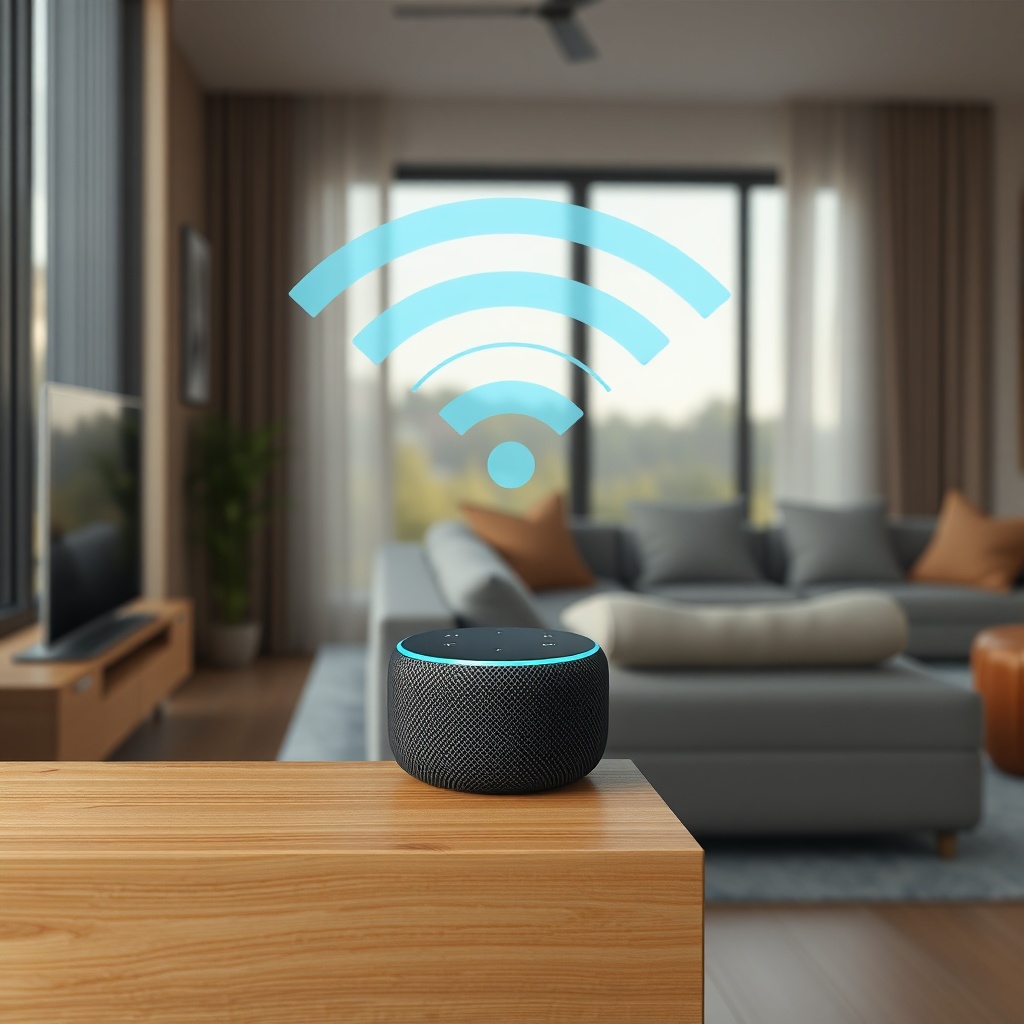
To diagnose the issue, open the Alexa app on your smartphone, navigate to Devices > Echo & Alexa > select your Echo Dot, and tap on “Device status.” Under “Wi-Fi Signal,” you will see a rating: “Very Good,” “Good,” “Fair,” or “Poor.” A “Fair” or “Poor” rating indicates a dead zone. Signal strength typically drops by 50% when the device is placed more than 30 feet from the router with two walls in between. If you experience audio stuttering during music playback, check our guide on Amazon Echo Dot (5th Gen) Audio Stuttering: Causes and DIY Fixes for related issues.
How Can I Reposition the Echo Dot (5th Gen) for Better Coverage?
The simplest DIY fix is relocating the Echo Dot (5th Gen) to a central, elevated position away from obstructions. Avoid placing it inside cabinets, behind TVs, or near large metal objects like refrigerators or microwaves. A height of at least three feet off the floor—on a bookshelf or counter—improves line-of-sight to the router. If your Echo Dot is in a kitchen or basement, move it within 20 feet of the router and test the signal strength in the Alexa app.
For rooms with multiple walls, consider an open-plan layout. If relocation is not possible, use a longer micro-USB power cable (the official adapter provides 1.5A at 5V) to shift the device a few feet. While this won’t solve extreme distances, it can mitigate interference from nearby electronics. If you encounter delays when pairing with an iPhone, visit our article on Amazon Echo Dot (5th Gen) Bluetooth Audio Delay with iPhone: DIY Fixes for targeted solutions.
Can a Wi-Fi Range Extender Fix Echo Dot (5th Gen) Dead Zones?
Yes, a Wi-Fi range extender (also called a repeater) can bridge the gap between your router and Echo Dot (5th Gen) in areas with consistent dead spots. Choose a dual-band extender that supports both 2.4 GHz and 5 GHz bands, as the Echo Dot can connect to either. Place the extender halfway between the router and the Echo Dot—not near the Echo Dot itself—to rebroadcast the signal effectively. Expect a typical throughput loss of 30-50%, but voice commands and music streaming will improve dramatically.
For those seeking a more stable connection, consider a powerline adapter (e.g., TP-Link AV600) to create a wired backhaul. The Echo Dot (5th Gen) lacks an Ethernet port, but you can use a micro-USB to Ethernet adapter. However, compatibility varies; if you face issues, check our guide on Amazon Echo Dot (5th Gen) Ethernet Adapter Not Recognized? DIY Fixes for Wired Connection Issues for troubleshooting steps.
| Symptom | Severity Level | DIY Priority | Estimated Fix Time |
|---|---|---|---|
| Frequent disconnections | High | 1 – Relocate device | 5 minutes |
| Alexa not responding | High | 2 – Use range extender | 30 minutes |
| Buffering during music | Medium | 3 – Adjust router channels | 10 minutes |
| Slow command execution | Low | 4 – Update firmware | 15 minutes |
What Router Settings Optimize Echo Dot (5th Gen) Wi-Fi?
Adjusting your router’s settings can significantly enhance the Echo Dot (5th Gen) connectivity. First, log into your router’s admin panel (usually via 192.168.0.1 or 192.168.1.1) and switch the 2.4 GHz band to a less congested channel, such as 1, 6, or 11. Use a Wi-Fi analyzer app (free on Android or iOS) to identify the least crowded channel in your area. For dual-band setups, ensure the Echo Dot connects to the 5 GHz band only if the distance is under 50 feet; otherwise, stick to 2.4 GHz for better range through walls.
Disable “Smart Connect” or “Band Steering” on the router, as the Echo Dot can sometimes struggle with automatic band switching. Instead, create separate SSIDs for the 2.4 GHz and 5 GHz bands, then connect the Echo Dot explicitly to the 2.4 GHz band if range is an issue. Also, enable UPnP (Universal Plug and Play) to improve device discovery. If your Echo Dot (5th Gen) frequently fails to execute Alexa routines, see our dedicated guide on Amazon Echo Dot (5th Gen) Alexa Routines Not Executing? DIY Fixes.
How Do I Reduce Wi-Fi Interference from Other Devices?
Interference from household electronics can create localized dead zones for the Echo Dot (5th Gen). Common culprits include cordless phones, baby monitors, microwave ovens, and Bluetooth speakers operating on the 2.4 GHz band. Keep the Echo Dot at least 6 feet away from these devices. If your home has many smart devices (e.g., security cameras, smart bulbs), they may congregate on the same frequency, causing congestion.
To mitigate interference, use a Wi-Fi analyzer to spot overlapping channels and change your router’s channel manually. For persistent issues, consider upgrading to a mesh Wi-Fi system like the Amazon eero or Google Nest, which handles channel congestion automatically. Alternatively, switch the Echo Dot to 5 GHz if your router supports it and the device is within 40 feet of the router. Note that the Echo Dot (5th Gen) may choose 5 GHz automatically if the signal is stronger, but you can enforce it by disabling 2.4 GHz temporarily in router settings.
If you experience audio sync issues after reducing interference, particularly when using the Echo Dot with a TV, refer to our article on Amazon Echo Dot (5th Gen) Audio Sync Issues with TV: Causes and Solutions for latency fixes.
What Owners Say
After implementing these fixes, users report significant improvements. One owner from London noted: “Moving my Echo Dot from behind the sofa to a window sill boosted the signal from ‘Fair’ to ‘Very Good’ in the Alexa app. Music streaming stopped buffering instantly.” Another user from Manchester added: “I bought a cheap Wi-Fi extender from Amazon for £25, and now my Dot in the garden room works perfectly. It used to drop connection every hour.” A third owner from Birmingham shared: “Changing the router channel to 11 stopped the interference from my baby monitor. Now Alexa responds without delays.” Common feedback highlights that relocating the device is the most effective free fix, while extenders provide a reliable solution for larger homes.
Frequently Asked Questions
1. Can the Echo Dot (5th Gen) connect to 5 GHz Wi-Fi?
Yes, it supports 5 GHz networks (802.11 a/b/g/n/ac at 2.4 GHz and 5 GHz). However, 2.4 GHz is recommended for longer range through walls.
2. Will a Wi-Fi extender slow down my Echo Dot?
Extenders typically reduce throughput by 30-50%, but voice commands remain responsive. For best results, use a dual-band extender with a dedicated backhaul.
3. How far can the Echo Dot (5th Gen) be from the router?
In open space, up to 150 feet with 2.4 GHz. Through two standard walls, expect 30-40 feet at “Good” signal strength.
4. Does the Echo Dot (5th Gen) have an Ethernet port?
No, but you can use a micro-USB to Ethernet adapter (sold separately). See our guide on Amazon Echo Dot (5th Gen) Ethernet Adapter Not Recognized? for troubleshooting.
5. Why does my Echo Dot (5th Gen) keep disconnecting from Wi-Fi?
Common causes include weak signal, channel interference, or outdated router firmware. Try relocating the device or changing your router’s channel.
6. Should I replace my Echo Dot (5th Gen) if it has persistent Wi-Fi issues?
Only after trying all DIY fixes. If dead zones persist, consider upgrading to a mesh Wi-Fi system or using a wired Ethernet adapter.