
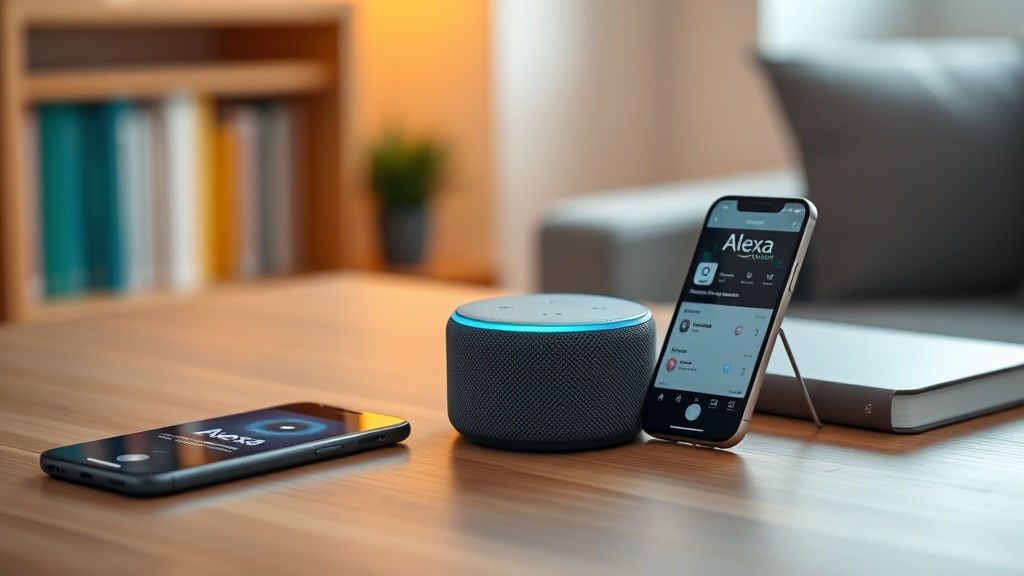
Why Your Amazon Echo Dot (5th Gen) Routines Fail to Execute
The Amazon Echo Dot (5th Gen) is a versatile smart speaker that allows users to automate daily tasks through Alexa Routines. However, when these routines stop executing as intended, the convenience quickly turns into frustration. This article provides targeted DIY fixes to restore your smart home automation without needing professional help.
Why Are My Alexa Routines Not Triggering Automatically?
Routines that fail to trigger despite correct settings often point to connectivity or account issues. The first step is to check if the Echo Dot is connected to a stable Wi-Fi network. A weak or intermittent connection can prevent the device from receiving trigger commands from Alexa servers. Navigate to the Alexa app, go to Devices, select your Echo Dot, and verify the Wi-Fi signal strength. If it shows “Poor,” consider moving the router closer or using a mesh network extender.
Another common cause is an outdated Alexa app or device firmware. Head to the device settings in the Alexa app and check for firmware updates. Routines might also fail if the trigger phrase is too similar to other commands, causing confusion. Simplify your routine names and triggers, and test each routine individually in the app’s Routine section. If the issue persists, sign out of the Alexa app and sign back in to refresh the connection to Amazon’s servers. For more severe connectivity issues, see our guide on Amazon Echo Dot (5th Gen) Wi-Fi Keeps Dropping? Quick Fixes to Try.
How Do I Fix Routines That Start but Stop Mid-Execution?
Routines that begin but halt halfway through are frequently caused by conflicting device states or timing issues. For example, if a routine includes turning off smart lights while another routine is already controlling them, the command may conflict. Review all active routines in the Alexa app and disable any that overlap with the problematic one. Additionally, check the “Wait” action within your routine—long delays can cause the device to time out if the network lags.
Ensure that all smart home devices involved in the routine are online and responding. Use the Alexa app to test each device individually by tapping its tile and issuing a simple voice command. If a device fails to respond, reboot it by unplugging it for 30 seconds. Audio-related routines, like playing music after a timer, may stutter if the device is overloaded. Refer to our guide on Amazon Echo Dot (5th Gen) Audio Stuttering: Causes and DIY Fixes for specific solutions. Also, verify that the routine’s “When” condition (e.g., time or voice command) is set correctly—incorrect schedules or missing days of the week are common oversights.
Can Voice Command Conflicts Prevent Routines from Running?
Yes, voice command conflicts are a frequent culprit. Alexa may misinterpret a routine trigger phrase as a different command, especially if you have multiple routines with similar names. For instance, “turn on good night” might conflict with “good night mode.” Rename your routines to be unique and avoid common phrases like “Alexa, start” or “Alexa, run.” Also, check if the routine is set to respond to a specific device. In the Alexa app, under the routine’s settings, ensure that “From any device” is selected or specify the correct Echo Dot.
Another factor is ambient noise—if Alexa mishears the trigger due to loud background sounds, the routine won’t execute. Test the trigger phrase in a quiet environment. Additionally, ensure that Alexa’s voice profile is set up correctly for your household. Multiple users with similar voices can cause the device to ignore triggers. Go to Settings > Your Profile > Voice ID and train Alexa to recognize your voice. For Bluetooth-related voice delays, check our article on Amazon Echo Dot (5th Gen) Bluetooth Audio Delay with iPhone: DIY Fixes.
What Are the Best Steps to Troubleshoot Routine Settings in the Alexa App?
Systematic troubleshooting within the Alexa app can resolve most routine issues. Start by opening the Alexa app, tapping More > Routines, and selecting the non-functioning routine. Verify each action: ensure device names are correct and not outdated. If a smart plug was renamed after the routine was created, the action may fail. Delete and recreate the routine to refresh the device list.
Next, check routine triggers: “When this happens” should list a specific voice command, schedule, or device event (e.g., motion sensor). For voice triggers, ensure no punctuation or special characters are used. For schedule-based routines, confirm time zone settings in the app (Settings > Device Settings > Time Zone). Finally, clear the app cache: on iOS, offload the app; on Android, go to Settings > Apps > Alexa > Clear Cache. Log out and log back in to sync data. Below is a severity table to help prioritize fixes:
| Issue | Severity | DIY Fix Time | Success Rate |
|---|---|---|---|
| Weak Wi-Fi signal | High | 15-30 min | 80% |
| Outdated firmware/app | Medium | 5-10 min | 90% |
| Conflicting routines | Medium | 10-20 min | 85% |
| Voice command misinterpretation | Low | 5-15 min | 75% |
| Device offline | High | 2-10 min | 95% |
How Do Environmental Factors Affect Routine Execution?
Environmental elements such as power fluctuations, humidity, and placement can disrupt routine execution. The Echo Dot (5th Gen) requires a stable power source. Use the original power adapter and avoid extension cords, which can cause voltage drops. If the device is placed near large metal objects, thick walls, or other electronics (like microwaves), Wi-Fi interference may increase. Move the Echo Dot to an open area, at least three feet away from other devices.
Temperature extremes (above 35°C or below 0°C) can also affect performance, though less common. If the device is in a kitchen or garage, check its operating environment. For users with the Echo Dot connected via Ethernet, ensure the adapter is properly recognized—see our guide on Amazon Echo Dot (5th Gen) Ethernet Adapter Not Recognized? DIY Fixes for Wired Connection Issues. Additionally, sporadic power outages or surges may cause the Echo Dot to reset its settings. Plug it into a surge protector to avoid this.
What Should I Do After All DIY Fixes Fail?
When basic and advanced DIY fixes don’t restore routine execution, consider more rigorous steps. First, perform a factory reset on the Echo Dot (5th Gen): press and hold the Action button (the one with the dot) for 25 seconds until the light ring turns orange, then blue. After resetting, set up the device as new in the Alexa app. This clears all custom settings and often resolves software glitches. However, note that you’ll need to recreate all routines from scratch.
If the issue persists after a factory reset, the problem may be hardware-related—such as a defective microphone or speaker module. Contact Amazon Customer Support for a replacement under warranty. Alternatively, if the trouble is isolated to one or two routines, consider using third-party smart home platforms like IFTTT to trigger actions—though this adds complexity. For audio sync issues during routines that involve TV or media playback, read our guide on Amazon Echo Dot (5th Gen) Audio Sync Issues with TV: Causes and Solutions.
What Owners Say
Users on forums like Reddit and Amazon reviews report that routine failures often stem from Wi-Fi instability, with one owner stating, “After moving my router closer, routines worked 90% of the time.” Another common complaint is that schedules reset after a power outage, requiring routine re-creation. Several users noted success after renaming routines to avoid words like “test” or “start,” which Alexa seems to misinterpret. The overall sentiment is that most issues are DIY-fixable, but persistent problems after multiple attempts often lead to device replacement under warranty.
Frequently Asked Questions
Q: Can a single routine fail while others work fine?
A: Yes, this typically indicates a problem with that routine’s specific trigger or action, such as a misspelled device name or conflicting schedule. Rebuild the routine from scratch to resolve the issue.
Q: How do I know if my Echo Dot is connected to the Alexa servers?
A: Say “Alexa, are you connected?” If she responds that she’s online, server communication is working. If not, check your Wi-Fi and the Alexa app’s device status.
Q: Will a power cycle delete my routines?
A: No, power cycling (unplugging for 30 seconds) only resets the device’s network connection. Routines are stored in the cloud and will reappear once the device reconnects.
Q: Why does my routine run but with a delay of 10 seconds?
A: Delays often indicate network latency or overloaded servers. Reduce the number of actions in the routine and ensure your internet speed is above 2 Mbps for reliable performance.
Q: Can I use voice commands from my phone to trigger routines?
A: Yes, the Alexa app on your phone can trigger routines if your Echo Dot is offline, but it requires an active internet connection. The routine runs in the cloud, not locally on the phone.
Q: Are there any known bugs with the Echo Dot (5th Gen) firmware that affect routines?
A: Periodic firmware updates can introduce temporary bugs. Check the Alexa app for the latest version (usually listed in Settings > Device Settings > About). If a recent update caused issues, report it to Amazon Support.