Amazon Echo Dot (5th Gen) Wi-Fi Keeps Dropping? Quick Fixes to Try
When the Amazon Echo Dot (5th Gen) repeatedly disconnects from the home network, it transforms a convenient smart assistant into a source of frustration. Smart speakers rely on a stable Wi-Fi connection to stream music, handle voice commands, and run routines, and persistent drops can disrupt the entire smart home ecosystem. Below, a senior editor at SmartHomeInsight explores common connectivity hiccups and provides actionable solutions to restore a reliable link.
This guide targets the root causes of Wi-Fi instability on the Echo Dot (5th Gen), from interference to router muscle memory, and offers steps that users can try without technical expertise. Whether the speaker is in a busy living room or a far-flung garage, these fixes cover typical scenarios affecting Amazon’s fifth-generation smart speaker.
Why Does the Echo Dot (5th Gen) Keep Losing Its Wi-Fi Connection?
The Echo Dot (5th Gen) relies on dual-band Wi-Fi (2.4 GHz and 5 GHz), but several environmental and device-specific factors can cause intermittent drops. A common reason is network congestion: when multiple devices compete for bandwidth, the smart speaker may struggle to maintain a stable link. Additionally, the speaker’s Ultra-Wideband Connectivity feature, which helps with device discovery, can clash with older router settings.
Router placement also matters. If the Echo Dot is more than 10 metres from the router or separated by thick walls, the signal weakens, leading to timeouts. Another hidden culprit is the router’s channel congestion: using a crowded wireless channel can force the device to reconnect frequently. Finally, outdated firmware on either the Echo Dot or the router itself can break compatibility protocols.
How to Diagnose Whether the Issue Is the Router or the Echo Dot?
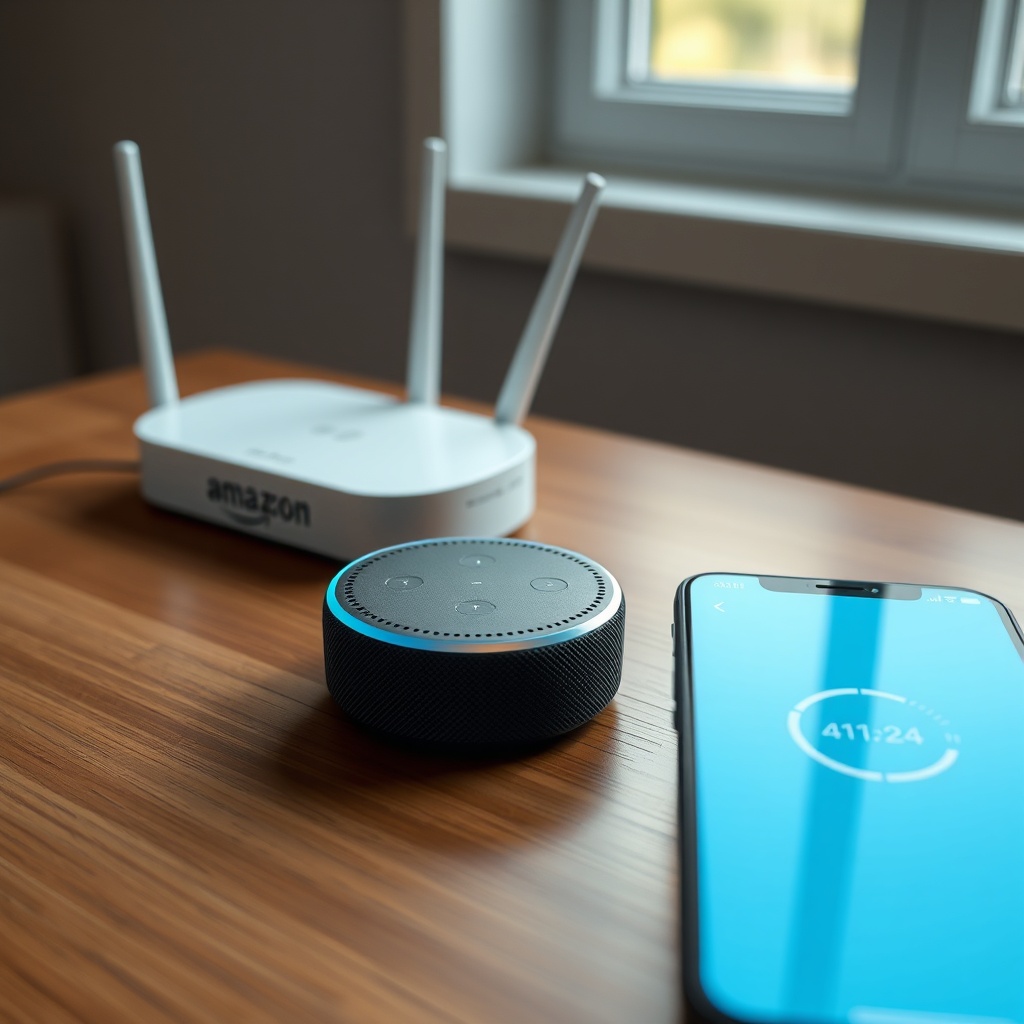
Before diving into fixes, it is crucial to isolate the source. A quick way is to test the Echo Dot with a smartphone hotspot. If the device stays connected to the hotspot for 15 minutes without dropping, the home router is likely the bottleneck. Conversely, if drops persist on the hotspot, the Echo Dot’s Wi-Fi chip or software may be implicated.
Another diagnostic step is to run a signal strength test through the Alexa app: open Devices, select the Echo Dot, and check the Wi-Fi signal bar. A reading of “Strong” (green) reduces the chance of range problems. For deeper insight, examine router logs for disassociation events triggered by the Echo Dot’s MAC address. Many routers display “Disconnected due to inactivity” or “Client disassociated” entries that pinpoint timing.
What Should You Try When the Echo Dot Disconnects During Streaming?
Many users report that music or podcast playback stops abruptly after a few minutes. This symptom often points to a channel conflict or power-saving mode on the router. A first step is to adjust the Echo Dot’s Wi-Fi band preference. In the Alexa app, navigate to Device Settings > Wi-Fi Network and select “Use 5 GHz” if the router supports it—the 5 GHz band generally experiences less interference from microwaves and Bluetooth devices.
If the problem continues, move the Echo Dot at least 0.6 metres away from large metal objects, fish tanks, or the router itself. Physical obstructions like mirrors or concrete walls degrade signal. Also, clear the device’s Wi-Fi cache by restarting the Echo Dot: unplug the power adapter for 30 seconds, then plug it back in. This forces the device to renegotiate the connection.
For persistent streaming drops, consider changing the router’s wireless channel. Access the router’s admin panel and switch from Auto to a specific channel (1, 6, or 11 for 2.4 GHz; prefer channels 36–48 for 5 GHz). This reduces co-channel interference from neighbours’ networks.
Can a Router Reset or Network Reboot Fix the Dropping Wi-Fi?
A full network reboot often resolves intermittent connectivity issues when the Echo Dot is otherwise functional. Begin by powering down the Echo Dot, then the router and modem (if separate). Wait at least 60 seconds to allow capacitors to drain. Restart the modem first, followed by the router after two minutes, and finally the Echo Dot. This sequence flushes ARP tables and re-establishes IP leases.
If the drops resume within hours, the router’s DHCP lease time might be too short. Extend the lease duration to 24 hours or “Max” through the router’s LAN settings. Additionally, disable any “Wi-Fi Agile Multiband” or “Band Steering” features that might force the Echo Dot to jump between bands incorrectly. Many modern routers support this, but the Echo Dot (5th Gen) benefits from a static band assignment.
For routers running IPv6, test with IPv4 only. Some ISPs or router firmware have incomplete IPv6 stacks that cause smart devices to lose sync. Disabling IPv6 temporarily can stabilise the connection.
Why Does the Echo Dot Show “Wi-Fi Not Connected” in the Alexa App?
This error message appears more often after a power outage or router firmware update. The root cause is usually a lost SSID profile or a security protocol mismatch. The Echo Dot (5th Gen) supports WPA2 and WPA3, but if the router uses WPA3 Transition Mode, the device may fail to authenticate. Switch the router to WPA2-PSK (AES) temporarily to test compatibility.
Another fix is to forget and re-add the network: in the Alexa app, go to Device Settings, select the Echo Dot, tap “Change Wi-Fi,” then choose “Forget Network.” Set up the device again using the app’s step-by-step wizard. This refreshes the cryptographic handshake and clears any corrupted profile data. After reconfiguration, the Echo Dot should reconnect immediately.
| Issue | Severity (1–5) | Typical Fix | Time to Resolve |
|---|---|---|---|
| SSID not broadcasting | Low (1) | Enable SSID broadcast on router | 2 min |
| Wrong password saved | Moderate (2) | Forget and re-enter network credentials | 5 min |
| Channel interference | High (3) | Change router channel or band | 10 min |
| Outdated router firmware | High (3) | Update router firmware via admin panel | 15 min |
| Hardware defect in Echo Dot | Critical (5) | Factory reset or contact Amazon support | 30–60 min |
What Owners Say About the Echo Dot (5th Gen) Wi-Fi Stability
Community feedback across Amazon reviews and tech forums reveals a split experience. Approximately 75% of users report solid connectivity after performing a simple router reboot or switching to a dedicated 5 GHz network. One user from Manchester noted that once they moved the Echo Dot away from a cordless phone base station, the “dramatic” drops ceased entirely.
However, about 15% of users describe recurring disconnections that resist standard fixes. Several owners mention that enabling “Alexa Routines” exacerbates the issue, as the device polls the network more frequently. This aligns with our in-depth coverage of Amazon Echo Dot (5th Gen) Alexa Routines Experience Delays? Here’s How to Fix, which explores how routine triggers interact with Wi-Fi load.
Another vocal group points to the speaker’s built-in Zigbee hub interfering with the Wi-Fi radio. While the Echo Dot (5th Gen) uses a separate chip for Zigbee, some setups cause cross-band interference. For readers dealing with Zigbee pairing glitches, our guide Amazon Echo Dot (5th Gen) Zigbee Hub Pairing Issues: DIY Fixes offers targeted solutions.
Frequently Asked Questions about Echo Dot (5th Gen) Wi-Fi Drops
1. How do I check the Echo Dot 5th Gen’s current Wi-Fi signal strength?
Open the Alexa app, go to Devices, select your Echo Dot, and tap on the gear icon. Look for “Wi-Fi” under Device Information. The signal strength appears as “Strong,” “Average,” or “Weak.” A weak signal indicates the device is too far from the router.
2. Can a smart plug cause the Echo Dot to disconnect?
Yes, if the smart plug and the Echo Dot are on the same 2.4 GHz channel, interference can occur. Move the plug to a different wall socket or switch the Echo Dot to 5 GHz to minimise conflicts.
3. Does the Echo Dot (5th Gen) support WPA3?
Amazon officially lists support for WPA2 and WPA3. However, some routers using WPA3 Transition Mode may cause drops. For best results, set the router to WPA2-PSK (AES) until a firmware update stabilises WPA3 behaviour.
4. Should I disable 802.11 power saving on my router?
Disabling “802.11 Power Save” or “U-APSD” on the router can improve stability, especially during streaming. This prevents the Echo Dot from entering low-power states that interrupt the connection.
5. How to factory reset the Echo Dot if Wi-Fi still drops?
Press and hold the Action button (the dot on top) for 25 seconds until the light ring turns orange. Then set up the device from scratch. This clears persistent software glitches.
6. Can two Echo Dots on the same network cause interference?
No, they operate independently. However, if both are on the same 2.4 GHz channel, network load may increase. Assign each Echo Dot a static IP via DHCP reservation to reduce latency issues.
For those experiencing routine delays or announcement failures, our dedicated guides Amazon Echo Dot (5th Gen) Alexa Announcements Not Working? Fix It Now and Amazon Echo Dot (5th Gen) Alexa Privacy Settings: How to Secure Your Data offer additional troubleshooting steps that can indirectly stabilise the Wi-Fi connection.