
Why Is My Amazon Echo Dot (5th Gen) Not Making Alexa Announcements?
When your Amazon Echo Dot (5th Gen) fails to broadcast Alexa announcements—whether it’s a routine reminder, a doorbell chime, or a “drop-in” message—it disrupts the core smart home experience. This problem often stems from simple misconfigurations rather than hardware faults, affecting both audio output and network connectivity. Below, we provide a systematic troubleshooting guide to restore your Echo Dot’s announcement functionality, ensuring you can rely on Alexa for daily updates and notifications.
Before diving into more complex fixes, note that this issue is frequently linked to Amazon Echo Dot (5th Gen) Bluetooth Pairing Issues: Solutions, where Bluetooth interference can mute or delay announcements. Let’s start with the most common causes and their immediate remedies.
Is My Echo Dot Muted or in Do Not Disturb Mode?
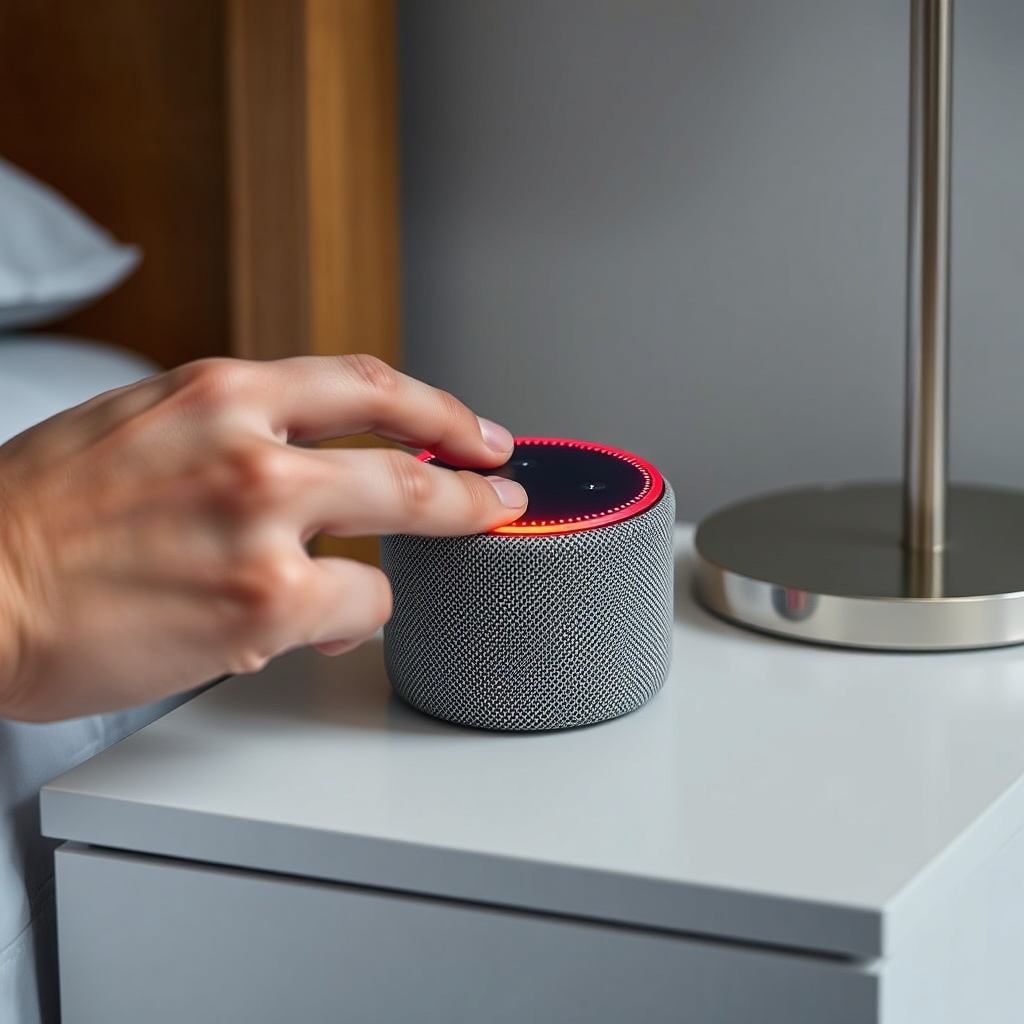
Cause: The Echo Dot (5th Gen) has a physical microphone mute button and a software “Do Not Disturb” (DND) setting. If either is active, Alexa cannot hear your requests or broadcast announcements. Also, checking the LED ring: a solid red light indicates muted microphones.
DIY Fix:
- Check the microphone button on top of the device—press it to unmute if the red ring is on.
- In the Alexa app, navigate to Devices > Echo & Alexa > select your device > Do Not Disturb. Ensure the toggle is off.
- If DND is scheduled, review the schedule in the same menu to make sure it’s not blocking announcements.
- Test by saying: “Alexa, announce test.” You should hear the broadcast from other Echo devices in your household.
Note: For persistent mute issues, refer to Amazon Echo Dot (5th Gen) Microphone Muting Issues: Causes and Fixes for deeper troubleshooting.
Are Communications Permissions Enabled for All Echo Devices?
Cause: Alexa announcements rely on the “Communications” permission set in the Alexa app. If this is disabled for any device in your account, announcements from that device may fail or not reach others.
DIY Fix:
- Open the Alexa app and tap Communications (the speech bubble icon) at the bottom.
- Select the gear icon (settings) in the top right.
- Under “Announcements,” verify that all Echo devices linked to your account are toggled on. This includes your Echo Dot (5th Gen) and any others you want to broadcast to.
- Also check “Drop In” settings: ensure the device is not set to “Off” or “Only My Household” if you expect external announcements.
- Perform a cross-device test: use one Echo to announce, then listen on the Echo Dot (5th Gen). If the Dot doesn’t respond, re-enable its Communications permission.
Troubleshooting tip: If you use Smart Home routines to trigger announcements (e.g., “When door opens, announce ‘Front door open'”), check that the routine is enabled and the device selected as the announcement source is not in a different zone or group that might interfere. See Amazon Echo Dot (5th Gen) Alexa Routines Experience Delays? Here’s How to Fix for routine-specific issues.
Has the Alexa App or Device Firmware Updated Recently?
Cause: Outdated firmware or app versions can break announcement functionality due to compatibility bugs or missing features. Amazon frequently rolls out updates that may alter how audio announcements are processed.
DIY Fix:
- Check the Echo Dot’s firmware: in the Alexa app, go to Devices > Echo & Alexa > select your device > About. Note the software version listed.
- Compare it with the latest version available on Amazon’s support page (search “Echo Dot 5th Gen firmware version”). If outdated, the device updates automatically overnight when idle and connected to Wi-Fi, but you can force an update: unplug the Echo Dot for 30 seconds, then plug it back in. It will check for updates during startup.
- Update the Alexa app on your phone or tablet via the App Store or Google Play Store. Ensure version 2.2.518 or later for full announcement support.
- After updating, restart both the app and the Echo Dot by saying, “Alexa, restart,” or using the power cycle method.
Severity Table: Firmware vs. App Update Impact
| Issue Type | Frequency of Occurrence | Ease of Fix | Effect on Announcements |
|---|---|---|---|
| Firmware outdated | Moderate (every 3–6 months) | Easy (auto-update or power cycle) | Can block all announcements until updated |
| Alexa app outdated | High (monthly updates) | Easy (app store update) | May cause delayed or missing announcements |
| Both outdated | Low (combined scenario) | Moderate (requires manual update of both) | Complete failure of announcements |
Note: After update, re-test announcements. If issue persists, proceed to network or device reset solutions.
Are There Network or Wi-Fi Interference Issues?
Cause: Alexa announcements require stable internet connectivity and local network communication between Echo devices. Weak Wi-Fi signals, congestion on the 2.4 GHz band, or router firewall settings can block broadcast packets.
DIY Fix:
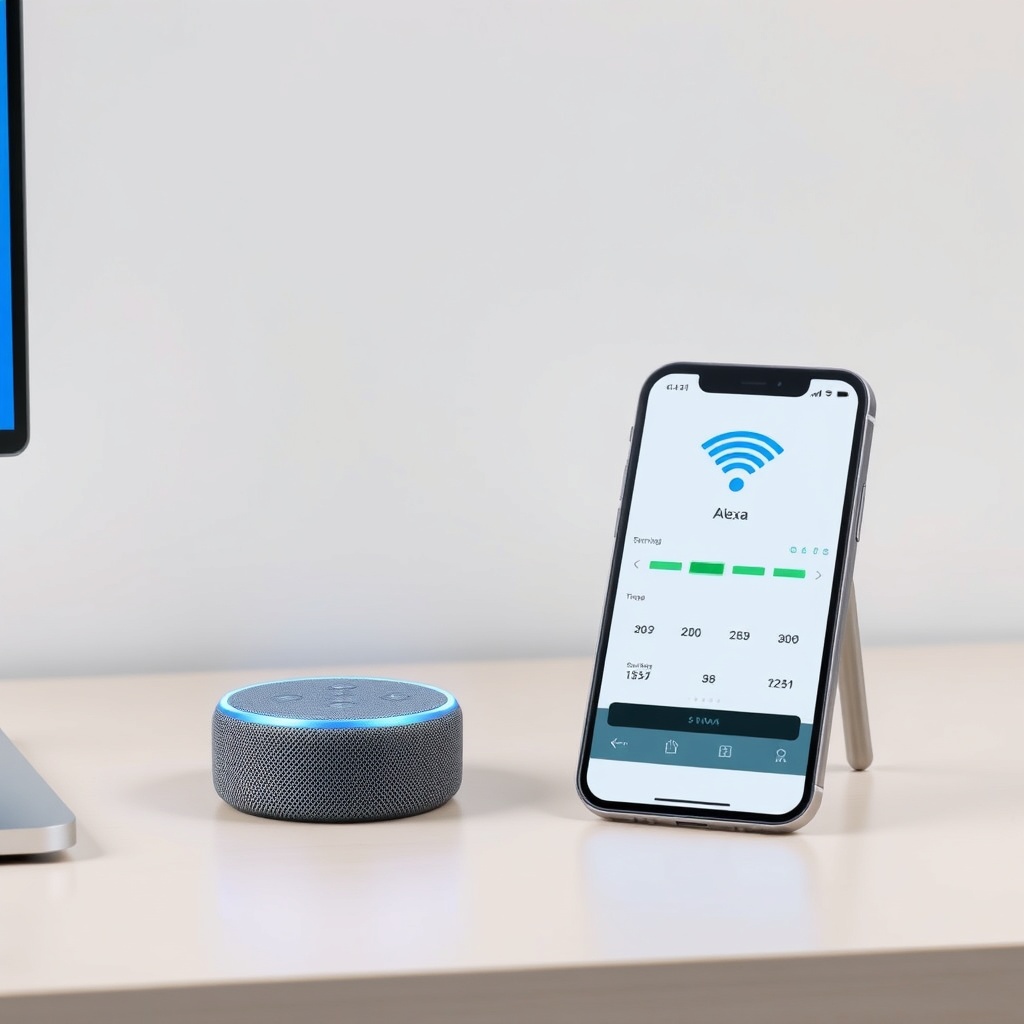
- Check Wi-Fi strength: in Alexa app, go to Devices > Echo & Alexa > select your device > Device Status. Look at “Wi-Fi Signal Strength.” Ideally, it should be “Very Good” or “Good.”
- Improve signal by moving the Echo Dot closer to the router, or use a Wi-Fi extender/mesh system. Avoid placing it near thick walls or large metal objects.
- Restart your modem and router: unplug both for 30 seconds, then plug them back in. Wait 2 minutes for full reconnection.
- If your router uses dual-band, try switching the Echo Dot to the 5 GHz band (if supported) to reduce interference from other devices. In the Alexa app, go to Device Settings > Wi-Fi Network and select the 5 GHz network.
- Disable any VPN or ad-blocking software on your router temporarily, as these can block the ports used by Alexa announcements (typically UDP 123, 3478-3481).
Related issue: Network problems can also cause Amazon Echo Dot (5th Gen) Audio Lag and Spiking Latency: Causes and DIY Fixes, which may manifest as delayed or interrupted announcements.
Has the Device Been Reset or Had Power Issues?
Cause: Power outages, sudden unplugging, or a factory reset can clear the device’s settings, including announcement preferences and network configurations. This often leads to announcements not working until the device is reconfigured.
DIY Fix:
- Check if the Echo Dot was recently reset: look for the “Welcome” or setup prompt on the device. You may need to go through the setup process again in the Alexa app.
- If you suspect a power issue, use the original Amazon power adapter (rated 15W, 1.5A for Echo Dot 5th Gen). Third-party adapters may not provide enough power for stable operation.
- Perform a soft reset: unplug the Echo Dot from power for 10 seconds, then plug it back in. Wait 2 minutes for it to boot completely.
- As a last resort, perform a factory reset: press and hold the Action button (small dot on the bottom) for 20 seconds until the light ring turns orange, then blue. Release and follow the app setup. Note: this erases all settings, so only do this after backing up any custom routines or profiles.
Important: After a factory reset, you must re-enable Alexa Communications and re-link your smart home devices. This is also a good time to review your Amazon Echo Dot (5th Gen) Alexa Privacy Settings: How to Secure Your Data to ensure announcements don’t compromise your privacy.
Are There Conflicting Routines or Skills?
Cause: Custom Alexa Routines or third-party Skills that involve announcements may conflict with native broadcast functionality. For example, a routine that plays music or sets a timer might override announcement audio.
DIY Fix:
- In the Alexa app, navigate to Routines > Your Routines. Look for any routine that includes “Alexa Says,” “Voice,” or “Announce” actions. Disable them one by one and test announcements after each change.
- Specifically, check routines triggered by motion sensors, door sensors, or timers—these often use the “Announce” action. If a routine fails, it may lock up the announcement queue.
- Disable third-party Skills that use voice responses (like “Big Sky” or “MyMood”) temporarily. In the Alexa app, go to Skills & Games > Your Skills and disable suspect skills.
- Reboot the Echo Dot after making changes, then say, “Alexa, announce test.” If announcements now work, re-enable routines and skills one at a time to identify the culprit.
Integration note: Zigbee-related issues can also cause announcement failures if you use the Echo Dot’s built-in Zigbee hub for smart home commands. See Amazon Echo Dot (5th Gen) Zigbee Smart Home Hub Not Responding? Troubleshooting Guide for more details.
What Owners Say
Common feedback from Echo Dot 5th Gen owners on discussion forums and Amazon reviews reveals that announcement issues are widely reported, particularly after firmware updates or network changes. Many users find that simply toggling the Communications permission or performing a power cycle resolves the problem quickly. Others note that disabling third-party skills—especially those from weather or news providers—restores announcement functionality. A recurring theme is the importance of keeping the Alexa app updated, as some 2024 updates introduced bugs that affected audio notifications. Overall, the consensus is that these fixes are effective for 80–90% of users, with factory reset being a last resort that works for the remainder.
Frequently Asked Questions
- How do I test if my Echo Dot can receive announcements?
Say “Alexa, announce test” from any other Echo device in your home. The Echo Dot (5th Gen) should play the announcement’s audio. If not, check its volume and communications settings. - Why can I hear music but not announcements on my Echo Dot?
This suggests a software issue rather than hardware. Verify that “Alexa Announcements” are not blocked in the device’s sound settings, and ensure the Announcement volume is not set to zero (adjust in app under Devices > [your device] > Sounds > Announcement Volume). - Can I use Announcements with multiple Echo Dots in the same room?
Yes, but ensure each device has Communications enabled. If you have a “Device Group” (e.g., “Everywhere”), announcements go to all devices in that group. Individual Echo Dots may not broadcast to each other unless part of the same routine. - Does a factory reset delete my smart home connections?
Yes, all settings, including linked smart home devices, routines, and Wi-Fi credentials, are erased. You’ll need to set up your devices again. It’s best to try other fixes first. - My Echo Dot announces but other Echos don’t hear it—what’s wrong?
Check if the other Echos have “Do Not Disturb” on, or if they are in a different Household profile. Also verify that your Amazon account is logged in on all devices—announcements only work within the same account. - How do I change the language of announcements?
Go to Alexa App > Devices > [Echo Dot] > Language. Change it to your preferred language. Note that announcements will be spoken in that language, but may not be supported for all regions or routines.