
Why Does My JBL Link Music Google Assistant Not Hear Me?
The JBL Link Music is a capable smart speaker, but when its Google Assistant stops recognizing your voice, the device becomes a pricey paperweight. A speaker that cannot hear commands disrupts your entire smart home flow, from managing lights to setting timers. Owners in the UK and US often report this issue appearing after a firmware update or a sudden change in Wi-Fi environment. This guide focuses on realistic, DIY fixes for the “JBL Link Music Google Assistant does not hear you” problem, saving you the cost of a replacement or a service visit.
Could a Simple Microphone Mute Be the Culprit?
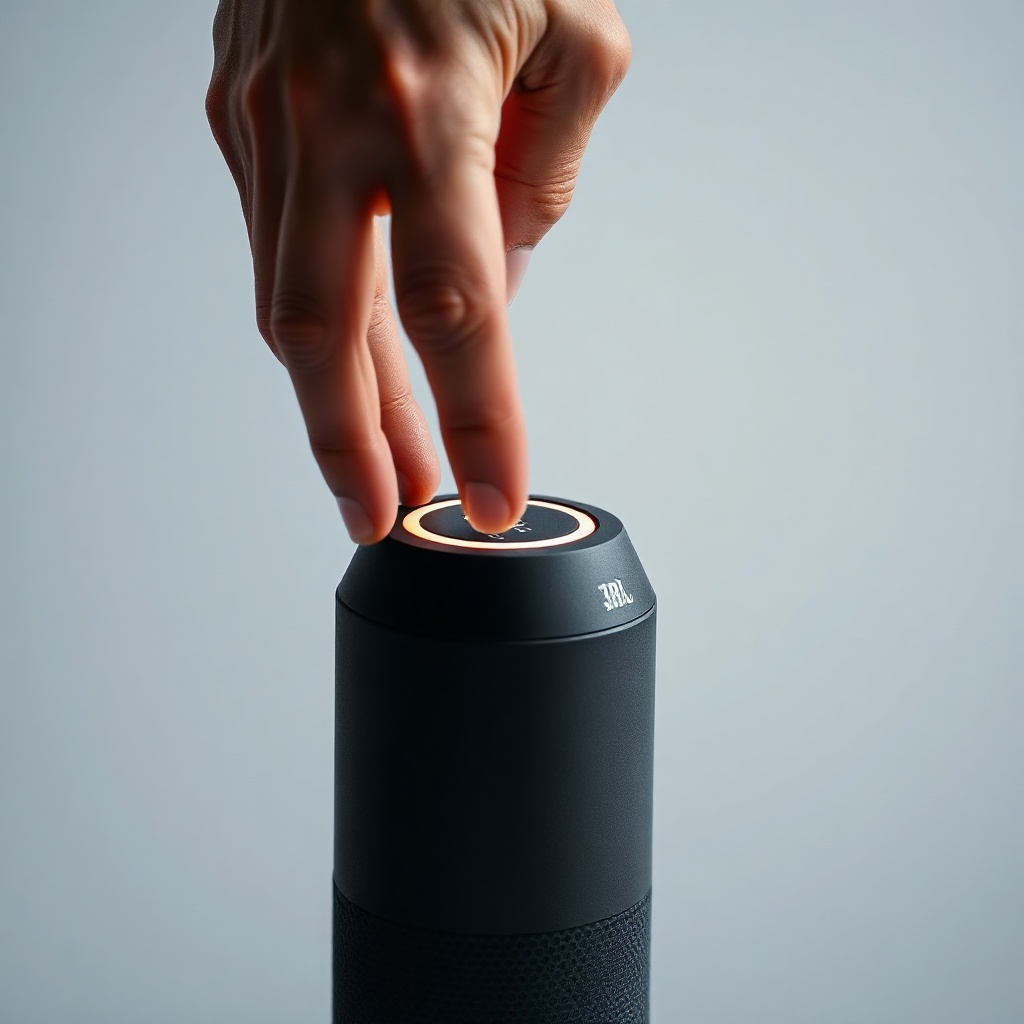
Before diving into software resets, always check the physical mute button. The JBL Link Music has a dedicated microphone mute switch on the top panel. If the light ring glows solid orange or red (depending on your firmware), the microphone array is completely disabled. This is the most common reason for the assistant not hearing you.
- Visual check: Press the mute button once. The light should change from red/orange to white or green.
- Sound test: Say “Hey Google” while the ring is white. If it responds, the mute was the issue.
- Why this happens: Often, owners accidentally press the mute button when moving the speaker or during cleaning.
If the button is not physically sticking and the ring remains white, but the assistant still does not hear, move to the next step.
Is Your Wi-Fi Network Blocking the Microphone Stream?
The JBL Link Music relies on a constant, stable internet connection to stream your voice to Google’s servers for processing. A weak or unstable Wi-Fi signal can cause the “Google Assistant does not hear you” symptom, even if music playback seems fine. The speaker uses a 2.4GHz band for better range, but interference from neighbours or household electronics can degrade the connection.
| Symptom | Likely Cause | DIY Fix Priority |
|---|---|---|
| Assistant rarely hears you | Weak Wi-Fi signal (2.4GHz) | Move speaker closer to router |
| Assistant hears but times out | Network congestion or DNS issue | Reset router and change DNS |
| Assistant hears only after 5+ seconds | High latency on Wi-Fi | Use a Wi-Fi analyzer app |
| No response at all, but music works | Microphone stream blocked by firewall | Check router settings (UPnP) |
To fix this, perform a simple power cycle: unplug the JBL Link Music and your router for 30 seconds, then reconnect. If the issue persists, try JBL Link Music Wi-Fi Keeps Dropping? Quick Fixes to Try for advanced network troubleshooting.
Can a Factory Reset Restore Voice Recognition?
A software glitch or a failed OTA update can corrupt the audio pipeline that feeds your voice to the Assistant. Performing a factory reset is a drastic but often effective DIY fix. This process wipes all customizations, including paired devices, Wi-Fi credentials, and voice match data. Follow these steps precisely:
- Step 1: Locate the reset button on the bottom of the JBL Link Music (a small pinhole).
- Step 2: Insert a paperclip and hold the button for about 10 seconds, until the light ring flashes white.
- Step 3: Release the button. The speaker will restart and enter setup mode (the ring will pulse orange or white).
- Step 4: Open the Google Home app, tap “Add” > “Set up device” > “New device”, and follow the prompts to re-connect to your Wi-Fi and re-train the voice match.
After a factory reset, test the Assistant immediately. If the problem was a corrupted configuration, the speaker should now hear commands normally. Note that you will need to re-link all smart home devices, so this is best done when you have time to re-setup everything.
What if the Issue Is a Faulty Google Home App?
The Google Home app on your phone manages the JBL Link Music’s microphone settings and Assistant configuration. An outdated or corrupted app can prevent the speaker from properly registering your voice input. Here is how to check:
- Update the app: Go to the App Store (iOS) or Google Play Store (Android) and search for “Google Home”. Install any available updates. As of 2025, version 3.16 or later is recommended for stable JBL Link Music performance.
- Clear app cache (Android): Go to Settings > Apps > Google Home > Storage > Clear Cache. This removes temporary data that may interfere.
- Re-link the account: In the Google Home app, tap your profile icon > “Assistant settings” > “Voice Match” and re-train your voice model. This is often enough to fix the “does not hear you” issue if the microphone hardware is fine.
If none of these steps help, consider that the problem might be with the Google Assistant service itself. Try using the Assistant on your phone. If it works there, the speaker hardware is likely fine. For related issues, read JBL Link Music Google Assistant Keeps Disconnecting? Causes and DIY Fixes.
Could a Nearby Device Be Interfering With the Microphone?
Electromagnetic interference (EMI) from other electronic devices can disrupt the microphone array on the JBL Link Music. While this is less common than Wi-Fi issues, it is worth considering if you have placed the speaker near a wireless charger, microwave, or another powerful transmitter.
- Check distance: Move the JBL Link Music at least 1 metre away from any router, TV, or smart hub. The microphone capsules are sensitive to RF noise.
- Eliminate metal surfaces: Placing the speaker on a metal shelf or a desk with a metallic finish can reflect signals and create “dead zones” for voice pickup.
- Test in a different room: Temporarily move the speaker to a location with fewer electronics. If the Assistant starts hearing you, interference was the cause.
Also, remember that the JBL Link Music uses a far-field microphone array that is designed to filter out background noise. But if you have a noisy furnace or a ceiling fan close by, the speaker may still struggle. Adjust the volume of ambient sound sources to improve clarity.
What Owners Say About the JBL Link Music Voice Recognition
Owner feedback on forums like the JBL Community and Google Nest Help reveals a mixed but informative picture. Many users in the US and UK report that the speaker works flawlessly for months before suddenly “going deaf”. Common themes include:
- “It worked fine for a year, then stopped hearing me after a firmware update.” This points to software regression, not hardware failure.
- “Moving it closer to the router fixed everything.” Wi-Fi signal strength is a recurring fix.
- “The mute button is too easy to press accidentally.” Multiple owners suggest marking the button with a piece of tape as a reminder.
- “Factory reset was the only solution that worked after trying everything else.” Many recommend this as a last resort.
Overall, owners appreciate the JBL Link Music’s sound quality but caution that the microphone performance is sensitive to network and physical environment. For persistent issues, see also JBL Link Music Google Assistant Slow Response? Causes and DIY Fixes and JBL Link Music Google Assistant Not Understanding Commands? DIY Fixes for Better Voice Recognition.
Frequently Asked Questions
Why does my JBL Link Music suddenly not hear any commands?
This is often due to an accidental microphone mute, a weak Wi-Fi connection, or a corrupted firmware state. Start by checking the mute button (light ring colour). Then test Wi-Fi stability. If both are fine, a factory reset usually solves the problem.
Can a dirty microphone cause the assistant not to hear me?
Yes, dust or debris on the microphone holes can muffle sound. Use a soft, dry brush to clean the top grille gently. Do not use compressed air, as it can push dirt deeper into the speaker.
Does the JBL Link Music require a specific router for voice commands?
No, it works with any standard Wi-Fi router (2.4GHz or 5GHz). However, routers with aggressive power-saving features or outdated firmware can cause issues. Ensure your router is running the latest firmware and has UPnP enabled.
How do I know if my JBL Link Music microphone is broken?
If the mute button is off, Wi-Fi is stable, and a factory reset does not fix the issue, the microphone array may be physically damaged. You can test by recording a voice note through the Google Home app’s “Device settings” > “Test microphone” feature (available in some firmware versions).
Can I use an external microphone with the JBL Link Music?
No, the JBL Link Music does not have a microphone input. It relies entirely on its built-in far-field microphone array. If the internal microphones are faulty, the speaker cannot be used for voice commands.
Will a future firmware update fix the “does not hear you” issue?
JBL and Google occasionally release updates to improve voice recognition stability. However, do not rely solely on this. Try the DIY fixes here, and if the problem persists, contact JBL support or consider replacing the unit. For related Wi-Fi issues, check JBL Link Music Google Cast Connection Issues: Causes and DIY Fixes.