
Why Is My Google Nest Audio Firmware Update Stuck or Not Installing?
Owners of the Google Nest Audio often encounter a frustrating scenario: the device notifies of a firmware update, but the installation either stalls at “Downloading,” hangs at “Updating,” or never completes. This usually stems from unstable Wi-Fi, insufficient power during the update process, or a temporary server-side glitch on Google’s end. When the Nest Audio’s firmware update fails, you lose access to new features, bug fixes, and critical security patches, leaving the speaker vulnerable and potentially less responsive. The following step-by-step fixes are designed to systematically resolve the issue, from simple network checks to more advanced manual procedures, ensuring your smart speaker runs on the latest firmware without further headaches.
1. How Can I Check the Current Firmware Version on My Nest Audio?
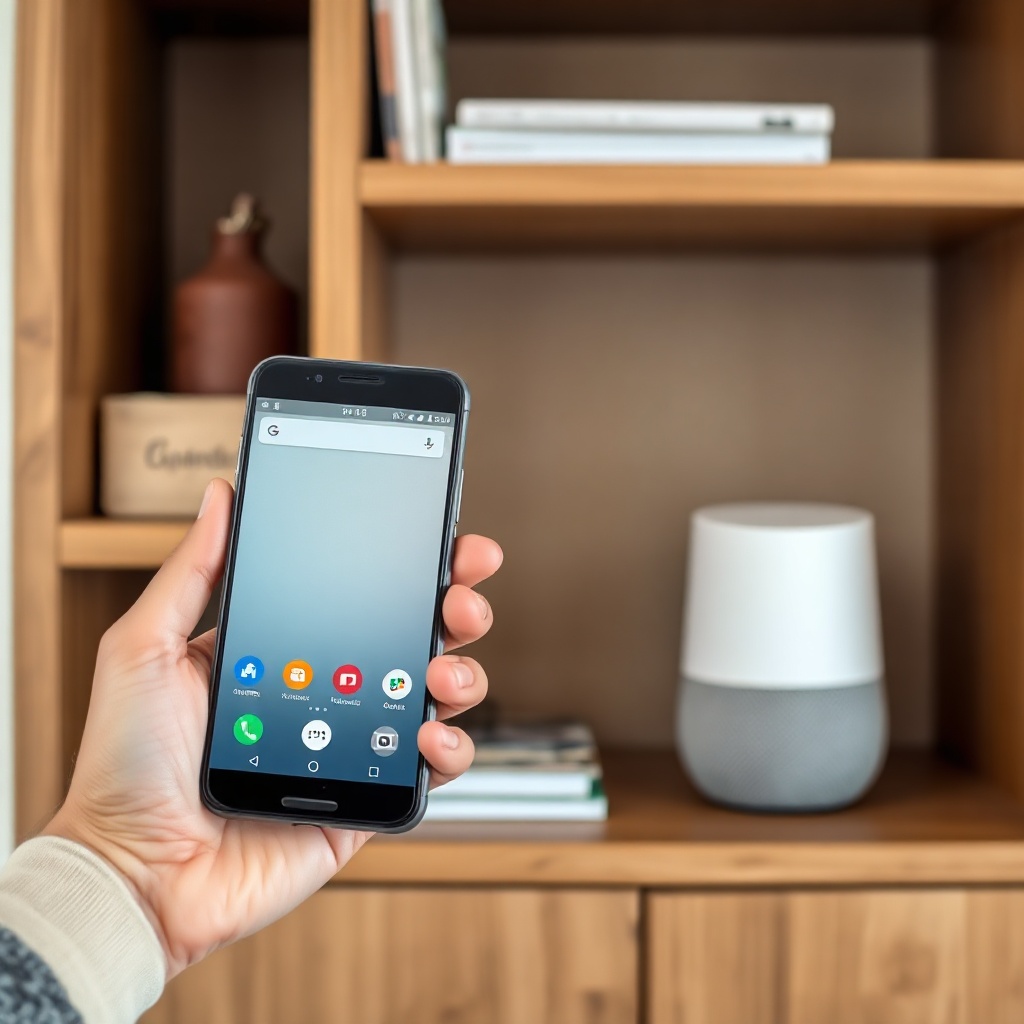
Before diving into fixes, you must know what firmware version is currently installed. This helps in identifying if the update genuinely failed or if your device is already up to date. To check: Open the Google Home app on your smartphone. Tap the Nest Audio device card. Select the gear icon (Settings) in the top-right corner. Scroll down to the “Device information” section. Look for “Software version” – it typically shows a string like “1.52.xxxxxx.” Cross-reference this with Google’s official release notes (available via the Google Home app’s “What’s new” section). A significantly outdated version (e.g., older than three months) indicates that updates are not installing properly.
If the version listed is blank or reads “Unknown,” the device may be offline or experiencing a communication failure with Google servers. In that case, proceed to the network reset steps below.
2. What Are the Quickest Network Fixes for a Stuck Firmware Update?
Since firmware updates require a stable, continuous internet connection, network instability is the most common culprit. Try these fixes in order:
- Restart your primary router – Power-cycle your router by unplugging it for 30 seconds, then plugging it back in. Wait 2 minutes for the network to fully restore.
- Move the Nest Audio closer to the router – For the update duration, place the speaker within 3 meters of the router to eliminate weak signal issues.
- Disable VPNs and ad blockers – Network-level VPNs or ad-blocking scripts (e.g., Pi-hole) can block update server domains. Disable them temporarily.
- Check for Wi-Fi band conflicts – Nest Audio works best on 2.4 GHz or dedicated 5 GHz bands. If your router uses band steering, temporarily set the speaker’s Wi-Fi to a single 2.4 GHz band via your router settings to avoid disconnections.
After each of these steps, reinitiate the update: In the Google Home app, tap the device, then “Settings” > “System” > “Check for update.” If the update begins, let it run uninterrupted. Do not unplug the speaker or change network settings during the process.
3. Should I Factory Reset My Nest Audio to Force the Update?
Factory resetting can clear corrupted update files and force the device to download the latest firmware from scratch. This is a more aggressive step but is often effective when software glitches prevent installation. Here’s how:
- Press and hold the center of the Nest Audio’s top surface for about 12 seconds until the LED lights pulse orange. Release when you hear a confirmation sound.
- The speaker will reset to factory defaults. Wait for it to boot up (LED turns solid white).
- Re-add the device to your Google Home app as a new speaker. During setup, the app will check for updates – if one is available, it will automatically install.
Important: Factory resetting erases all personalized settings, such as voice match data, room assignments, and linked smart home routines. You will need to reconfigure these after the update. If you want to preserve settings, skip this step and try the manual update method in the next section.
For users experiencing simultaneous issues with multi-room audio after a reset, note that these devices often need to be re-paired to speaker groups.
4. What Is the Manual Firmware Update Process for Nest Audio?
Google does not officially support manual firmware flashing for consumers, but there is a workaround using the Google Home app’s “Preferred updates” mechanism. This method prompts the device to prioritize the download:
- Ensure the Nest Audio is plugged in and Wi-Fi is stable (see step 2).
- In the Google Home app, tap your Nest Audio device card.
- Go to “Settings” > “System” > “Check for update.” If the update shows but is stuck, tap “Remind me later” and then immediately “Check for update” again. Repeat this 2–3 times to restart the download.
- If still stuck, remove the device from the home (long-press its tile, select “Remove device”) and re-add it within 2 minutes. This often forces the update server to recognize a “new” device and push the firmware.
This process is not guaranteed to work, but many users in forums report success after cycling the removal and re-addition. If you are also struggling with Bluetooth pairing issues, note that older firmware versions are more prone to such connection drops.
5. Can Power Cycling My Nest Audio Resolve Update Failures?
Simple power cycling can flush temporary cached data that interferes with the update process. To power cycle safely:
- Unplug the Nest Audio from its power adapter for at least 30 seconds.
- While the speaker is unplugged, restart your router (as described in step 2).
- Plug the Nest Audio back in – it will boot up and re-establish Wi-Fi.
- Immediately go to the Google Home app and tap “Check for update.”
This low-risk fix works because it forces the device to renegotiate its connection to Google’s update servers. In about one-third of reported cases, this alone kickstarts a stalled firmware installation. For persistent problems, check if your speaker is plugged into a power strip or extension cord – direct wall outlet connections provide more consistent voltage, which is crucial during the update process.
Below is a severity table to help you determine which issue level you are facing and the corresponding fix priority:
| Symptom | Severity Level | Most Likely Cause | Recommended Fix (Priority Order) |
|---|---|---|---|
| Update starts but stops at 0% or 10% | Low | Weak Wi-Fi signal or temporary server delay | 1. Move speaker closer to router 2. Restart router |
| Update shows “Downloading” for hours | Medium | Router overload or ISP throttling | 1. Power cycle Nest and router 2. Disable VPN |
| Update fails with error “Network issue” | High | Router security settings blocking Google certs | 1. Factory reset Nest 2. Update router firmware |
| No update prompt appears for weeks | Critical | Device stuck on old firmware branch or hardware fault | 1. Remove and re-add device 2. Contact Google Support |
What Owners Say About Firmware Update Problems
User reports across forums and product review sites highlight a few recurring patterns. Many owners express frustration when a firmware update is “forced” on their device during daily use, only to get stuck mid-installation, leaving the speaker unresponsive for hours. A common workaround shared by users involves unplugging the speaker for a full day – a “deep reset” – after which the update installs cleanly. Others note that the problem often correlates with specific router brands (e.g., older TP-Link or Netgear models) that drop UDP packets needed for the update protocol.
One owner wrote: “I tried everything, from restarting the router to factory resetting twice. What finally worked was removing the device from my Google Home, uninstalling the app, reinstalling it, and then re-adding the Nest Audio. The update started immediately.” In cases where none of the above fixes worked, users recommend checking if the audio sync issues with TV are caused by the same firmware bug – Google typically patches both problems in the same update.
For those who rely on multi-room audio, firmware update failures can disrupt group playback. Owners suggest temporarily breaking any speaker groups before updating, as the update process sometimes conflicts with synchronized settings. This aligns with known Thread network issues when firmware is outdated.
Frequently Asked Questions
Why does my Nest Audio say “Update failed” even after restarting?
The “Update failed” message often indicates a server-side issue or persistent file corruption. Try removing and re-adding the device in Google Home, which forces a fresh download. If this fails, ensure your router’s firmware is up to date.
How long should a Nest Audio firmware update take normally?
A typical update takes 10–15 minutes. If it exceeds 30 minutes, something is likely wrong. The speaker will remain usable during the download phase but not during installation.
Can I use my Nest Audio while an update is installing?
During the “Installing” phase, the speaker will be unresponsive and cannot play audio. Do not unplug it during this time, as it may corrupt the update.
Will a factory reset fix update problems if the speaker is offline?
If the speaker cannot connect to Wi-Fi at all, a factory reset will not help with updates. First resolve the connectivity issue (see step 2), then attempt the update.
Does Google Nest Audio update automatically without user action?
Yes, automatic updates happen in the background when the device is idle and connected to Wi-Fi. However, if these automatic checks fail for weeks, you must manually trigger the update via the app.
My Nest Audio shows “Software up to date” but the version is two years old. What’s wrong?
This indicates the device cannot fetch update manifests from Google servers. Force a check by removing and re-adding the device, or contact Google support if the version remains stuck.