
For those who have invested in a multi-room audio ecosystem with Google Nest Audio speakers, audio latency—that nagging delay between speakers in different rooms—can quickly turn a seamless listening experience into a disjointed mess. This issue often stems from network congestion, device misconfiguration, or firmware quirks. In this guide, we’ll break down the root causes of multi-room audio latency and provide practical, DIY fixes you can implement today.
What Causes Audio Latency in Google Nest Audio Multi-Room Setups?
Multi-room audio latency occurs when there’s a delay between speakers playing the same audio stream. With Google Nest Audio, this typically happens due to network instability, Wi-Fi band interference, or improper speaker grouping. The speakers rely on a stable local network to synchronise playback; any hiccup in data packets can introduce a lag of 50–300 milliseconds. Common culprits include using mixed Wi-Fi bands (2.4 GHz vs. 5 GHz), outdated firmware, or Bluetooth interference from nearby devices. For a deep dive into related connectivity woes, see our guide on Google Nest Audio Multi-Room Audio Problems: How to Solve.
How Can I Diagnose Multi-Room Latency on Google Nest Audio?
Diagnosing latency requires a methodical approach. Start by checking the Google Home app for any speaker grouping issues. Open the app, tap on your Nest Audio speaker, and ensure it’s part of the correct speaker group. Next, run a network speed test on your router; latency above 20 ms can cause sync problems. Use a third-party app like WiFi Analyzer to check for channel congestion. If you notice specific rooms lagging, note the distance from the router—concrete walls can degrade 5 GHz signals. For a more granular fix, refer to Google Nest Audio Thread Network Issues: DIY Fixes for a Stable Connection.
What Are the Best Wi-Fi Settings to Reduce Latency?
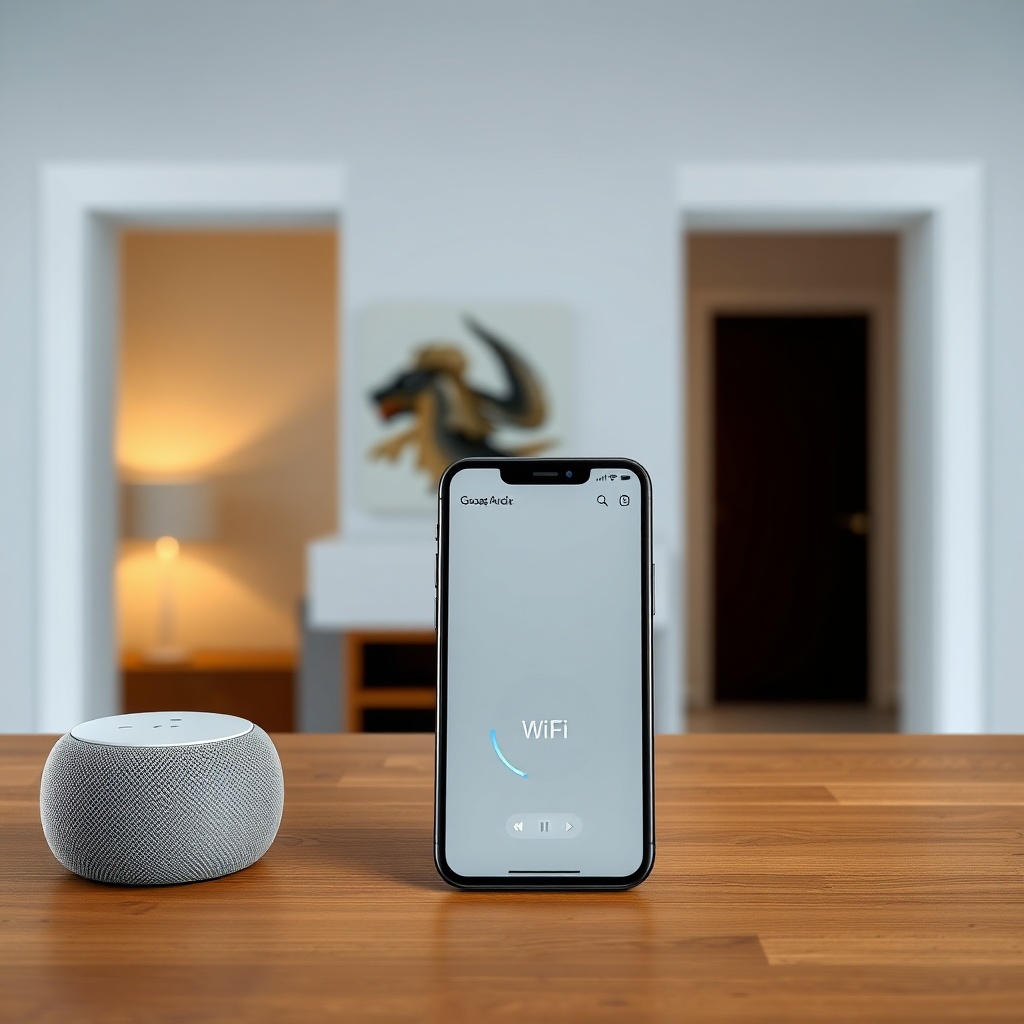
Optimising your Wi-Fi settings is crucial. Ensure both speakers and your router support 5 GHz—this band offers lower interference and higher throughput. In the Google Home app, force all Nest Audio devices to use the same band. To do this, temporarily separate your 2.4 GHz and 5 GHz SSIDs (e.g., “MyWiFi-2G” and “MyWiFi-5G”) and connect all speakers to the 5 GHz network. Also, disable QoS (Quality of Service) on your router unless you can prioritise multicast traffic—QoS can inadvertently delay audio packets. If you’re still facing issues, check for firmware updates via the app; outdated software often introduces latency bugs. For Bluetooth-specific hiccups, see Google Nest Audio Bluetooth Pairing Issues: Causes and Fixes.
How Do I Manually Sync Google Nest Audio Speakers?
While Google Nest Audio doesn’t offer manual sync sliders like some high-end systems, you can force a resync using the Google Home app. Follow these steps:
- Step 1: In the Google Home app, select the speaker group that’s out of sync.
- Step 2: Tap the gear icon (Settings) and scroll to “Group settings.”
- Step 3: Disable “Multi-room audio” and re-enable it after 10 seconds.
- Step 4: Restart all speakers in the group by unplugging them for 30 seconds.
- Step 5: Play a test track from a streaming service (e.g., Spotify) and observe sync.
If latency persists, try moving speakers closer to the router or using a wired ethernet connection for one speaker via a USB-C to ethernet adapter. This can act as a timing reference. For more advanced fixes, explore Google Nest Audio Google Assistant Not Working? Troubleshooting Guide.
Table: Severity of Common Latency Causes and DIY Fixes
| Cause | Latency Severity | DIY Fix | Time to Resolve |
|---|---|---|---|
| Wi-Fi band mismatch | Moderate (50–100 ms) | Separate SSIDs, force 5 GHz band on all speakers | 15 minutes |
| Firmware version inconsistency | High (100–200 ms) | Update all speakers to same firmware via Google Home app | 20 minutes |
| Router congestion (too many devices) | Low–Moderate (20–80 ms) | Reduce connected devices; enable multicast optimisation | 30 minutes |
| Bluetooth interference | Moderate (30–80 ms) | Turn off Bluetooth on nearby devices; use 5 GHz Wi-Fi | 10 minutes |
| Physical obstructions (walls) | Variable (50–300 ms) | Use wired backhaul or move speaker line-of-sight to router | Permanent fix |
What Owners Say About Google Nest Audio Multi-Room Latency
User feedback on forums like Reddit and Google Nest Community reveals a mixed bag. Many praise the system’s ease of setup, but latency remains a sore point. “I have three Nest Audios in a townhouse, and they’re often 1–2 seconds out of sync when grouped,” wrote one owner. Others found success after switching to a mesh Wi-Fi system: “I upgraded to a Google Nest Wifi mesh, and my latency dropped to near zero.” However, some note that firmware updates can temporarily worsen latency—a known issue from early 2024. A recurring tip is to avoid using Google Cast from a phone while streaming via Spotify Connect, as this can double the packet load. For more direct audio issues, see Google Nest Audio Not Playing Music? Troubleshooting Steps.

Frequently Asked Questions
1. Can I fix audio latency without a router upgrade?
Yes, in many cases forcing all speakers onto the same 5 GHz network and updating firmware resolves latency. If your router is older, a mesh upgrade may help, but it’s not mandatory.
2. Why does my Google Nest Audio work fine alone but lag in multi-room?
Latency only appears in multi-room setups because the speakers must synchronise via network timing. Single-speaker playback has no sync reference, so delays aren’t noticeable.
3. Does using wired ethernet with one Nest Audio fix latency for the whole group?
Yes, connecting one speaker via USB-C to ethernet can act as a timing leader, reducing jitter. However, all speakers still need a stable Wi-Fi connection.
4. How much latency is normal for Google Nest Audio multi-room audio?
Under ideal conditions, latency should be under 50 ms. Anything above 100 ms is noticeable as an echo or delay. Use the Google Home app’s diagnostic tools to measure it.
5. Will a factory reset eliminate latency issues?
A factory reset can help if the latency is caused by misconfiguration or corrupt firmware. But it’s a last resort—back up your settings first. See our guide on Google Nest Audio Firmware Update Not Installing? Step-by-Step Fixes for pre-reset steps.
6. Can third-party apps cause latency in multi-room groups?
Yes, certain streaming apps optimise for single-room playback, not multi-room sync. Apps like Spotify and YouTube Music generally work well, but some lesser-known apps may introduce delays. Stick to Google-cast enabled apps.