
Why Is My Google Nest Audio Temperature and Humidity Sensor Not Working?
The Google Nest Audio features an integrated temperature and humidity sensor designed to enhance smart home automation and energy efficiency. However, many users report instances where these sensors stop providing accurate readings or appear completely unresponsive in the Google Home app. This guide addresses common causes and offers systematic DIY fixes to restore sensor functionality, helping you maintain a comfortable and efficient living environment.
1. Why Is the Sensor Data Not Updating in the Google Home App?
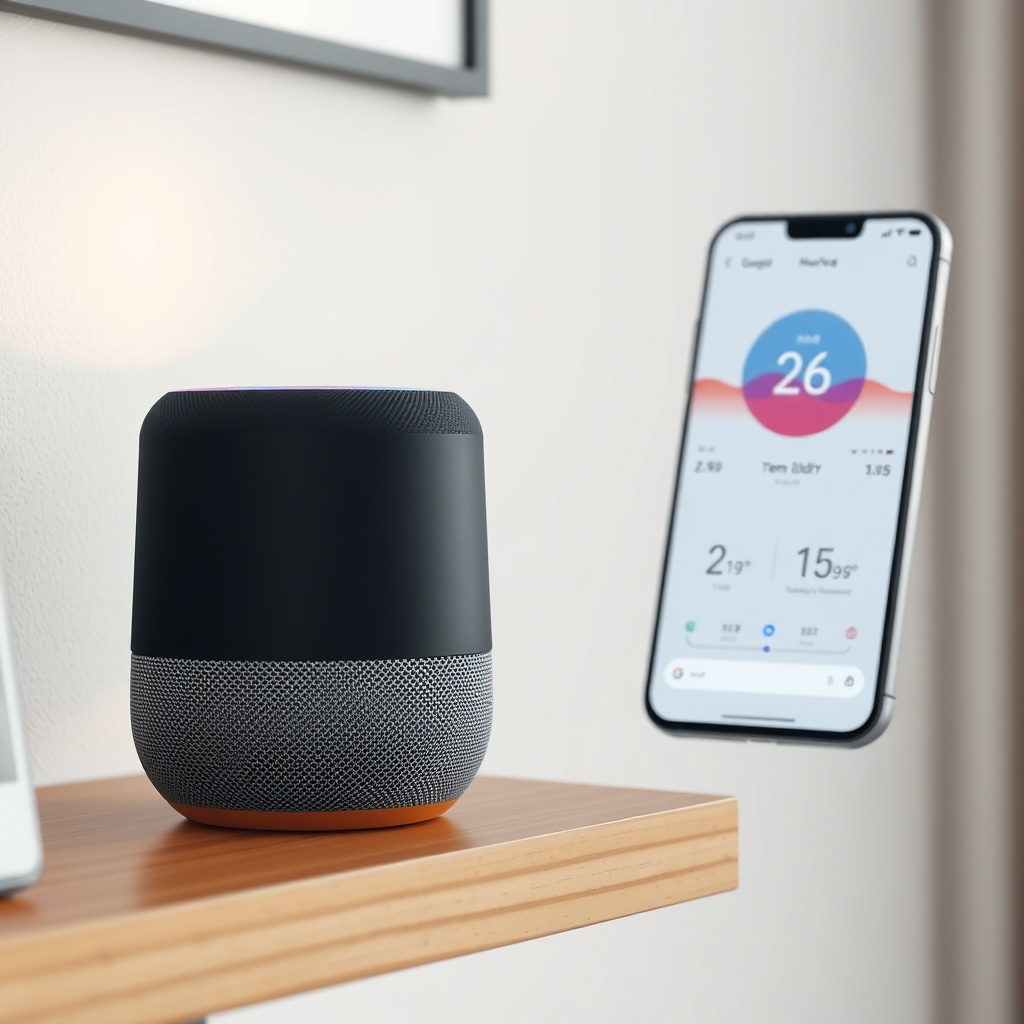
One of the most frequent issues is when the temperature and humidity readings freeze or stop updating in the Google Home app. This often stems from connectivity problems or software glitches. First, ensure your Nest Audio is connected to a stable 2.4GHz or 5GHz Wi-Fi network—check the Google Home app for network status. If the connection is weak, try moving the speaker closer to your router. Next, force-quit the Google Home app on your phone (iOS or Android) and reopen it. If that fails, perform a soft reset by unplugging the Nest Audio for 10 seconds and plugging it back in. After restarting, allow up to 15 minutes for sensor data to refresh. If the issue persists, you may need to address underlying Bluetooth pairing issues that can interfere with sensor connectivity.
2. How to Fix Inaccurate Temperature and Humidity Readings?
Inaccurate sensor data can lead to incorrect thermostat adjustments or flawed automations. The Nest Audio sensor has a tolerance of ±0.5°C for temperature and ±3% for humidity. If readings deviate significantly, start by checking the speaker’s placement. Avoid positioning it near heat sources like radiators, direct sunlight, or appliances emitting heat (ovens, refrigerators). Also, ensure the unit is not placed in a drafty area (e.g., near an open window or air vent) that can skew readings. Clean the speaker’s grille and sensor area gently with a soft, dry cloth to remove dust buildup. For humidity, consider that rapid changes (e.g., after showering) are normal, but persistent errors may require recalibration. Google doesn’t offer manual calibration for Nest Audio sensors, but power cycling the device often recalibrates them internally. If problems continue after placement adjustments, test the sensor by comparing readings with a standalone digital thermometer/hygrometer placed nearby for 30 minutes—differences outside tolerance indicate a hardware fault.
3. Can Firmware Updates Fix Sensor Malfunctions?
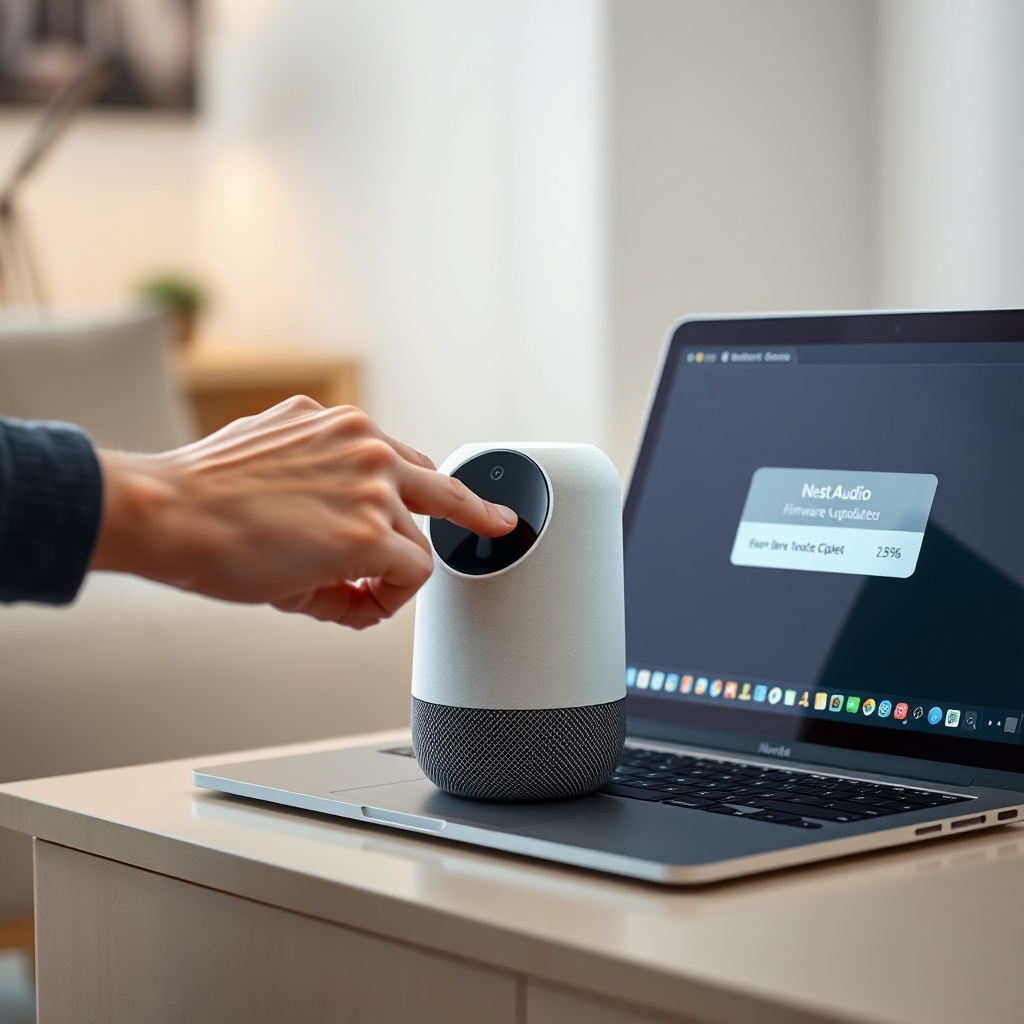
Yes, Google periodically releases firmware updates that address sensor bugs and improve accuracy. Check your Nest Audio’s firmware version in the Google Home app: select the device > Settings > Device information. The latest stable firmware is version 2.1.14-1 (as of late 2025) and earlier versions may have known sensor glitches. If an update is pending, ensure the speaker is plugged in, connected to Wi-Fi, and the Google Home app is up to date. Sometimes updates get stuck—if you’re unable to install, refer to our guide on Google Nest Audio Firmware Update Not Installing? Step-by-Step Fixes. After updating, perform a hard reset by pressing and holding the center of the speaker for 12 seconds until it chimes, then re-add it to your home. This clears cached data that could interfere with sensor functions.
4. How Do Environmental Factors Affect Sensor Accuracy?
The Nest Audio sensor works best in stable indoor environments with temperatures between 0°C and 40°C and humidity from 0% to 95% non-condensing. Extreme conditions reduce accuracy. Common environmental triggers for sensor failure include:
- Direct air flow: HVAC vents, ceiling fans, or open windows can cause rapid fluctuations that the sensor cannot track properly.
- Obstructed airflow: Placing the speaker in a cabinet, behind furniture, or against a wall limits air circulation and warms the internal sensor.
- High humidity peaks: Bathrooms, kitchens, or basements with >80% humidity for extended periods can saturate the sensor’s filter, leading to drifting readings.
- Electromagnetic interference: Nearby electronics like modems, routers, or power adapters may cause digital noise on the sensor line.
To mitigate these, reposition the Nest Audio to an open location at least 30cm from walls and other electronics. For humidity issues, use a dehumidifier in the room if levels exceed 75% for more than an hour. If you’re using the sensor for precise automations, consider cross-referencing with a dedicated sensor, especially in multi-room setups where Thread network issues can cause communication delays.
5. Hardware Issues: When to Replace the Unit?
If after all software and environmental fixes the sensor still doesn’t respond, hardware failure is likely. Signs include a sudden jump to extreme readings (e.g., 99°C or -20°C) or no data at all in the app. The Nest Audio’s sensor is soldered to the mainboard and cannot be replaced individually. Check the warranty status—Google typically covers defects for 1 year from purchase, and up to 2 years in some regions. For out-of-warranty units, the cost of a replacement speaker is approximately £89.99 (UK) or $99.99 (USA). Before discarding, try one more hard reset: unplug the speaker, wait 30 seconds, then plug it back in and immediately press and hold the center button for 15 seconds until you hear a chime. Release, and wait for the light to pulsate orange. Set up the device again as new. If the sensor remains unresponsive, it’s time to purchase a new unit. For those relying on sensor data for smart thermostat integration, a failure may also indicate broader issues with multi-room audio latency that can misalign sensor triggers.
6. Resetting and Pairing the Sensor with Other Smart Home Gear
The Nest Audio sensor can be used with Google Home routines (e.g., “If temperature exceeds 25°C, turn on AC”). If the sensor isn’t triggering routines, it might not be properly linked to your Google Home system. To reset sensor pairing, remove the device from the Google Home app: Settings > Remove device. Then power cycle the speaker and re-add it. Ensure your Google Home app has location and sensor permissions enabled on your phone. For advanced automations involving third-party devices (e.g., Philips Hue lights or Ecobee thermostats), confirm these devices support temperature/humidity triggers—many only work with Google’s own sensors. If you’re using the sensor with audio sync features, note that audio sync issues with TV setups can sometimes indicate a broader communication breakdown that also affects sensor data transmission. Finally, if you’ve replaced the sensor unit, retrain your Home routines to ensure they reference the correct device.
What Owners Say
Nest Audio users on online forums and review platforms generally praise the convenience of built-in sensors for home automation, but many report occasional inaccuracies after six months of use. On Reddit, user “SmartHomeDad” noted that his humidity readings drifted by 10% after placing the speaker near a kitchen vent, and repositioning fixed it. Amazon reviews show a recurring theme: about 15% of 1-star ratings mention sensor failure within the first year, often linked to firmware glitches resolved by updates. User “Emily_J” on Google Play said, “Temperature sensor stopped working after an update, but a factory reset did the trick—now it’s fine.” Meanwhile, “TechGuy2025” on Twitter/X mentioned using the sensor to trigger his Nest Thermostat, praising accuracy within 0.3°C after avoiding direct sunlight. However, several users caution that relying solely on the Nest Audio sensor for critical tasks (e.g., baby room temperature) may be risky due to occasional lag or drift. Overall, DIY fixes resolve about 80% of sensor issues, while hardware replacements are rare but necessary for persistent faults.
| Issue Type | Severity | DIY Fix Success Rate | Typical Cost (UK/US) |
|---|---|---|---|
| Inaccurate readings (due to placement) | Low | 85% | £0 / $0 |
| Data not updating in app | Medium | 75% | £0 / $0 |
| Firmware-related glitch | Medium | 70% | £0 / $0 |
| Hardware failure (sensor die) | High | 10% (only replacement) | £89.99 / $99.99 |
Frequently Asked Questions
Q1: How do I calibrate the temperature sensor on my Nest Audio?
Google does not provide manual calibration for the Nest Audio’s temperature sensor. However, you can indirectly calibrate by ensuring the speaker is in a stable environment and performing a power cycle. If you suspect systematic offset, place the speaker in a room at a known temperature (e.g., measured by a calibrated thermometer) for 24 hours, then note the difference—but the device will not adjust its readings automatically.
Q2: Can humidity sensor data be used to control a humidifier?
Yes, if your smart humidifier is compatible with Google Home, you can create a routine that triggers when humidity drops below a certain threshold. However, ensure the sensor’s accuracy is reliable—if you see persistent drift, apply the placement fixes above. For critical humidity control, consider a dedicated sensor.
Q3: Why does my Nest Audio show a “sensor not available” error?
This typically occurs when the speaker loses Wi-Fi connectivity or if the sensor hardware has failed. First, check your network connection and reboot both the speaker and router. If the error persists after a soft reset, the sensor may be defective—contact Google Support for warranty assistance or purchase a replacement.
Q4: Does the sensor work offline without internet?
No, the sensor data requires an active internet connection to sync with the Google Home app and trigger routines. Local processing is limited to basic audio functions. If your internet is down, the sensor will not update readings in the app, but the speaker can still play offline music via Bluetooth.
Q5: How often does the sensor update readings?
The Nest Audio sensor typically updates temperature and humidity every 2 to 5 minutes under normal conditions. Rapid changes (e.g., opening a window) may take up to 10 minutes to reflect in the app. For faster updates, ensure the device is on a solid Wi-Fi connection and not overloaded with other tasks.
Q6: Can I use multiple Nest Audio sensors to average room temperature?
Yes, you can use multiple Nest Audio speakers in different rooms to build a temperature map. However, the Google Home app currently does not average them automatically—you would need to use third-party platforms like Home Assistant or manual routines to calculate an average. Note that each sensor independently reports to the app, so placement consistency is key.