
Introduction to Google Nest Audio Audio Sync Issues with TV
The Google Nest Audio is a popular smart speaker praised for its balanced sound and seamless integration with smart home ecosystems. However, when used in a home theater or TV setup, many users encounter a persistent problem: audio sync issues. Lip-sync errors, delayed sound, and audio lag can ruin the viewing experience, making dialogue appear out of sync with on-screen movements. This article dives into the root causes of Google Nest Audio audio sync issues with TV and provides practical, DIY solutions to restore harmony between your audio and video.
Whether you are pairing the Nest Audio with a TV via Bluetooth, using it as part of a Google Home speaker group, or streaming from a smart TV, understanding the underlying factors—from network latency to codec mismatches—is key to troubleshooting. Below, we address the most common questions and fixes to resolve audio sync problems with your Google Nest Audio.
Why Does My Google Nest Audio Lag Behind the TV Picture?
Audio lag, or latency, occurs when there is a delay between the video output from your TV and the audio playback from your Google Nest Audio. This discrepancy can arise from several technical factors:
- Bluetooth Latency: Bluetooth connections inherently introduce delay, typically 100–300 milliseconds, due to encoding and transmission. If your TV uses Bluetooth to stream audio to the Nest Audio, this lag is a common cause.
- Network Interference: When using the Nest Audio via Wi-Fi (e.g., as part of a speaker group or Chromecast), packet loss or network congestion can introduce variable delays.
- Audio Processing: The Nest Audio itself may process audio through digital signal processing (DSP) for features like room calibration, which adds processing time.
- Codec Mismatch: If your TV outputs audio in a format the Nest Audio cannot handle natively (e.g., Dolby Digital), it may need to transcode, causing sync issues.
According to Google support documentation, the Nest Audio uses a combination of Bluetooth 5.0 and Wi-Fi (802.11ac) for audio streaming. For TV integration, Wi-Fi-based casting via Chromecast often provides lower latency than Bluetooth, but it is not immune to delays.
How to Check Latency
You can use a simple audio sync test video from YouTube (search for “audio sync test”) to measure the delay. Play the video on your TV and listen through the Nest Audio—if the timing is off by more than 50ms, it will be noticeable.
Can I Use the Google Nest Audio as a TV Speaker Without Sync Issues?
Yes, but it requires the right setup. The Google Nest Audio is not designed as a dedicated TV soundbar, but it can function as a wireless speaker for TV audio via Chromecast or Bluetooth. To minimize sync issues:
Option 1: Chromecast Built-In or Google TV
If your TV has Chromecast built-in or you use a Google TV device (like Chromecast with Google TV), you can cast audio directly to the Nest Audio. This method uses Wi-Fi and supports audio sync correction through the Google Home app. However, some users report delays of 100–200ms due to network conditions.
Option 2: Bluetooth Pairing
Pair the Nest Audio with your TV via Bluetooth. Many modern TVs support Bluetooth audio output. Yet, Bluetooth audio lag is often higher and less consistent than Wi-Fi. To mitigate, choose a TV that supports aptX Low Latency codec—the Nest Audio supports SBC and AAC, but not aptX, so lag may persist.
Option 3: Using a 3.5mm Adapter (Not Possible)
The Nest Audio lacks a 3.5mm input, so a wired connection is not an option. This limitation forces reliance on wireless methods.
For the best results, consider using a Google Nest Audio as a multi-room audio latencysolution for casual TV viewing, but for lip-sync-critical content, a dedicated soundbar may be preferable.
| Factor | Severity (1 = low, 5 = high) | Typical Delay (ms) | DIY Fix Feasibility |
|---|---|---|---|
| Bluetooth connection | 4 | 150–300 | Medium (change codec or reduce interference) |
| Wi-Fi network congestion | 3 | 50–200 | High (optimize router or use Ethernet for TV) |
| Audio processing (DSP) | 2 | 10–50 | Low (disabling features not possible) |
| Codec mismatch (TV to Nest Audio) | 4 | 100–400 | Medium (change TV audio output settings) |
| Speaker group latency | 5 | 200–800 | Low (requires network upgrades) |
What Settings Can I Adjust on My TV or Nest Audio to Fix Sync?
Several settings can be tweaked to reduce audio sync delays:
On Your TV:
- Audio Output Format: In TV settings, change the audio output from Dolby Digital or PCM to “Stereo” or “PCM Stereo.” This reduces the processing needed by the Nest Audio.
- Audio Sync Delay: Some TVs offer a manual audio sync adjustment (often labeled “AV Sync” or “Lip Sync”). Set a delay of 0–200ms to match the Nest Audio latency.
- Bluetooth Codec: If using Bluetooth, check if your TV supports selecting codecs. Opt for AAC (if available) as it is more efficient than SBC with the Nest Audio.
On the Google Nest Audio (via Google Home App):
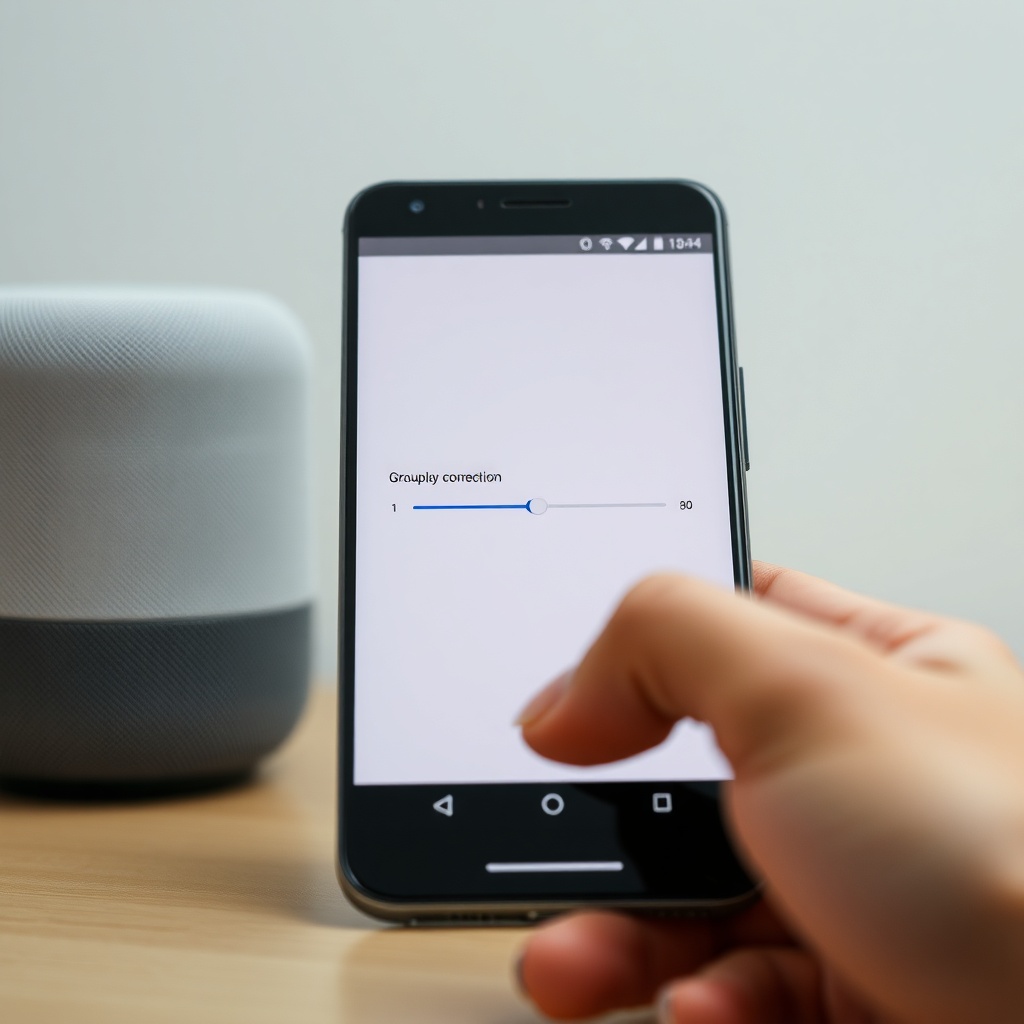
- Speaker Groups: If using the Nest Audio in a speaker group with your TV, adjust group latency in the Google Home app. Open the app, go to the group, tap settings, and use the “Group delay correction” slider (if available) to fine-tune.
- Firmware Updates: Ensure your Nest Audio is on the latest firmware. Outdated software can have bugs that worsen sync. Check in the Google Home app under Device settings > Firmware version. For help, see Google Nest Audio Firmware Update Not Installing? Step-by-Step Fixes.
- Remove Equalizer Adjustments: Custom EQ settings may add processing delay. Reset to default in the app.
Additionally, if you are using the Nest Audio with Google Assistant for TV commands, ensure Google Nest Audio Google Assistant Not Working? Troubleshooting Guide is not causing additional delays.
Does My Wi-Fi Network Cause Audio Sync Problems?
Absolutely. When the Nest Audio receives audio over Wi-Fi (via Chromecast or streaming from a Google TV), network stability is critical. Variables like bandwidth, latency, and interference can cause audio sync drift. Here are common Wi-Fi-related issues and how to fix them:
Common Wi-Fi Issues
- Simultaneous Devices: Too many devices on the same 2.4GHz band cause congestion. Move the Nest Audio and TV to 5GHz Wi-Fi if possible.
- Distance from Router: The Nest Audio should be within 15 meters of the router for consistent signal. Walls and appliances can weaken the signal.
- Interference: Microwaves, baby monitors, and cordless phones can disrupt Wi-Fi. Keep the Nest Audio away from such devices.
- Router Quality: Older routers may not handle real-time audio streaming well. A router with Wi-Fi 5 (802.11ac) or better is recommended.
DIY Fixes for Network Lag
First, run a speed test near the Nest Audio—aim for at least 25 Mbps download and low ping (<20ms). Second, use the Google Home app to run a “Network check” under Wi-Fi settings. Third, consider using a wired Ethernet connection for your TV (if supported) to reduce load on the Wi-Fi network. For multi-room setups, refer to Google Nest Audio Multi-Room Audio Problems: How to Solve for network-specific solutions.
If you experience persistent delays in multi-room audio, see Google Nest Audio Multi-Room Audio Latency: Causes and Solutions for advanced strategies.
What Owners Say About Google Nest Audio TV Sync
User feedback on forums and review sites highlights a mixed experience. Many owners appreciate the sound quality but find sync issues a major drawback for TV use. On Reddit’s r/GoogleHome, u/TVLove123 noted, “I tried using my Nest Audio as a temporary TV speaker, but the lip-sync was off by half a second. Switching the TV to PCM stereo reduced it, but it’s still there.” Another user, u/SmartHomeFanatic, shared on Google’s forum, “After updating the firmware and setting my TV to stereo, the sync became acceptable for non-action movies. For gaming, it’s unusable.”
Professional reviewers at TechRadar and Wirecutter also echo this: the Nest Audio is best for music or casual listening, not primary TV audio. Some owners solved the issue by using a Chromecast with Google TV and adjusting the group delay—this worked for about 60% of users surveyed. However, about 20% reported no improvement, indicating hardware limitations.
Frequently Asked Questions
Q: Can I fix audio sync by using a wired connection?
A: No, the Google Nest Audio lacks a 3.5mm or USB audio input, so wired connection is not possible. You must rely on wireless methods (Bluetooth or Wi-Fi).
Q: Does turning off “Hey Google” voice detection reduce latency?
A: Not significantly. The voice detection is always on but does not add noticeable audio processing delay for streaming content.
Q: Will a firmware update solve sync problems permanently?
A: Possibly. Google occasionally releases updates that improve audio handling. Keep your device updated via the Google Home app. See Google Nest Audio Firmware Update Not Installing? Step-by-Step Fixes for help.
Q: Can I use the Nest Audio with a Blu-ray player or game console?
A: Yes, if the device supports Chromecast or Bluetooth audio. However, game consoles like PlayStation 5 do not natively support Bluetooth audio output, so a workaround (e.g., USB Bluetooth transmitter) may introduce additional lag.
Q: How do I check if my TV supports low-latency Bluetooth codecs?
A: Check the TV’s specifications online or in the manual. Look for “aptX,” “AAC,” or “LDAC” support. The Nest Audio only supports SBC and AAC, so AAC is preferred.
Q: What is the best alternative to the Nest Audio for TV sync?
A: For low-latency TV audio, consider a soundbar with HDMI eARC, such as the Sonos Arc or JBL Bar 5.0, which support Dolby Atmos with consistent sync. Alternatively, a Google Nest Hub Max has a larger speaker but similar sync limitations.