Why Does Google Nest Audio Multi-Room Audio Experience Latency?
Multi-room audio with Google Nest Audio can sometimes suffer from latency, leading to desynchronized sound across speakers. This issue often arises from network instability, firmware inconsistencies, or audio processing delays. In this article, we will explore the technical causes behind Google Nest Audio multi-room audio latency and provide actionable solutions, focusing on performance specs and deep-dive troubleshooting.
Understanding the root causes is crucial for effective resolution. Typically, latency in a multi-room setup stems from Wi-Fi congestion, incompatible audio codecs, or outdated firmware. The following sections break down each factor, offering specific fixes backed by real-world data.
What Are the Primary Technical Causes of Latency in Multi-Room Setups?
Latency in Google Nest Audio multi-room audio can be attributed to several technical factors. Key among them are network latency, audio codec incompatibilities, and firmware version mismatches. Understanding these elements helps in diagnosing the problem effectively.
Network Infrastructure and Wi-Fi Congestion
The Google Nest Audio relies on a robust Wi-Fi network for multi-room synchronization. Common sources of network latency include:
- Bandwidth Saturation: When multiple devices (smart TVs, phones, laptops) compete for bandwidth, packet loss increases. A typical household with 10+ connected devices may see latency spikes of 50–100 ms between speakers.
- Distance and Obstacles: Walls, floors, and other physical barriers degrade signal strength. For best performance, keep speakers within 25–30 feet of the router, with minimal obstruction.
- Router Quality: Older routers with 802.11n standards or lower cannot handle the simultaneous streaming demands of multi-room audio, leading to sync errors.
Codec and Processing Delays
Each Google Nest Audio uses a proprietary audio processing chipset that may introduce latency when converting audio streams. The default codec is AAC (Advanced Audio Codec), which offers good quality but can add 20–40 ms of processing time. For multi-room setups, this delay must be synchronized across all speakers. If one speaker runs an older firmware, it may not handle the codec efficiently, causing a drift in timing.
Firmware Version Mismatch
Google regularly updates the Nest Audio firmware to improve performance and fix bugs. If speakers in a multi-room group have different firmware versions, synchronization becomes problematic. For example, a speaker on v1.55.xxxx might process audio 15 ms faster than one on v1.53.xxxx, resulting in audible echoes.
How Can Network Configuration Reduce Multi-Room Latency?
Optimizing your home network is often the most effective way to reduce Google Nest Audio multi-room latency. The following table summarizes recommended settings and their impact.
| Configuration | Latency Reduction | Implementation |
|---|---|---|
| Use a dedicated 5 GHz Wi-Fi band | Up to 40 ms | Set router to separate 2.4 GHz and 5 GHz SSIDs; connect all Nest Audio speakers to 5 GHz only. |
| Enable Quality of Service (QoS) | 10–25 ms | Prioritize traffic from Google Nest Audio MAC addresses in router QoS settings. |
| Reduce channel congestion | 5–15 ms | Switch to a less congested channel using a Wi-Fi analyzer app (e.g., Wi-Fi Analyzer for Android). |
| Update router firmware | Variable | Check manufacturer website for latest firmware; apply updates monthly. |
| Wired backhaul for mesh nodes | Up to 50 ms | Connect mesh satellites via Ethernet if supported; reduces wireless hop delay. |
For persistent network issues, consider reviewing our guide on Google Nest Audio Wi-Fi Connectivity Issues: Causes and DIY Fixes for deeper network troubleshooting.
What Role Does Firmware Play in Multi-Room Audio Sync?
Firmware is the backbone of audio synchronization across multiple Google Nest Audio speakers. When firmware versions differ, the speaker group cannot maintain consistent timing. Here’s how to ensure firmware uniformity.
Checking Firmware Versions
Open the Google Home app, tap your Nest Audio speaker, and navigate to Settings > Device information. Note the firmware version. Repeat for each speaker in your multi-room group. If versions differ, it is essential to update all to the latest available version.
Step-by-Step Firmware Update
- Ensure all speakers are powered on and connected to the same Wi-Fi network.
- In the Google Home app, tap the speaker and select “Settings” > “Device information.”
- If an update is available, it typically installs automatically within 24 hours. Manual update can be triggered by restarting the speaker (unplug for 30 seconds, plug back in).
- Verify all speakers show the same firmware version after restart.
If updates fail, check Google Nest Audio Firmware Update Not Installing? Step-by-Step Fixes for detailed troubleshooting.
Can Audio Codecs Be Adjusted to Reduce Latency?
Google Nest Audio uses AAC by default for streaming. While AAC provides good quality, it can introduce higher latency than alternatives like Opus or PCM. Unfortunately, Google Nest Audio does not expose direct codec selection in user settings. However, the latency impact is measurable.
Latency Comparisons in Multi-Room Setups
- AAC: Typical per-speaker delay of 30–50 ms in commercial tests, but variations occur due to hardware and firmware differences.
- Opus: Supported in some contexts (e.g., when using Chromecast Audio or certain streaming services) with delay of 15–25 ms—significantly lower.
- PCM: Used in wired scenarios; not applicable for wireless multi-room groups.
While codec modification is not user-controlled, network optimization and firmware updates can reduce effective latency to within acceptable limits (under 40 ms for most listeners). For severe sync issues, consider using the Google Nest Audio in stereo pair mode only—this minimizes processing differences between two speakers.
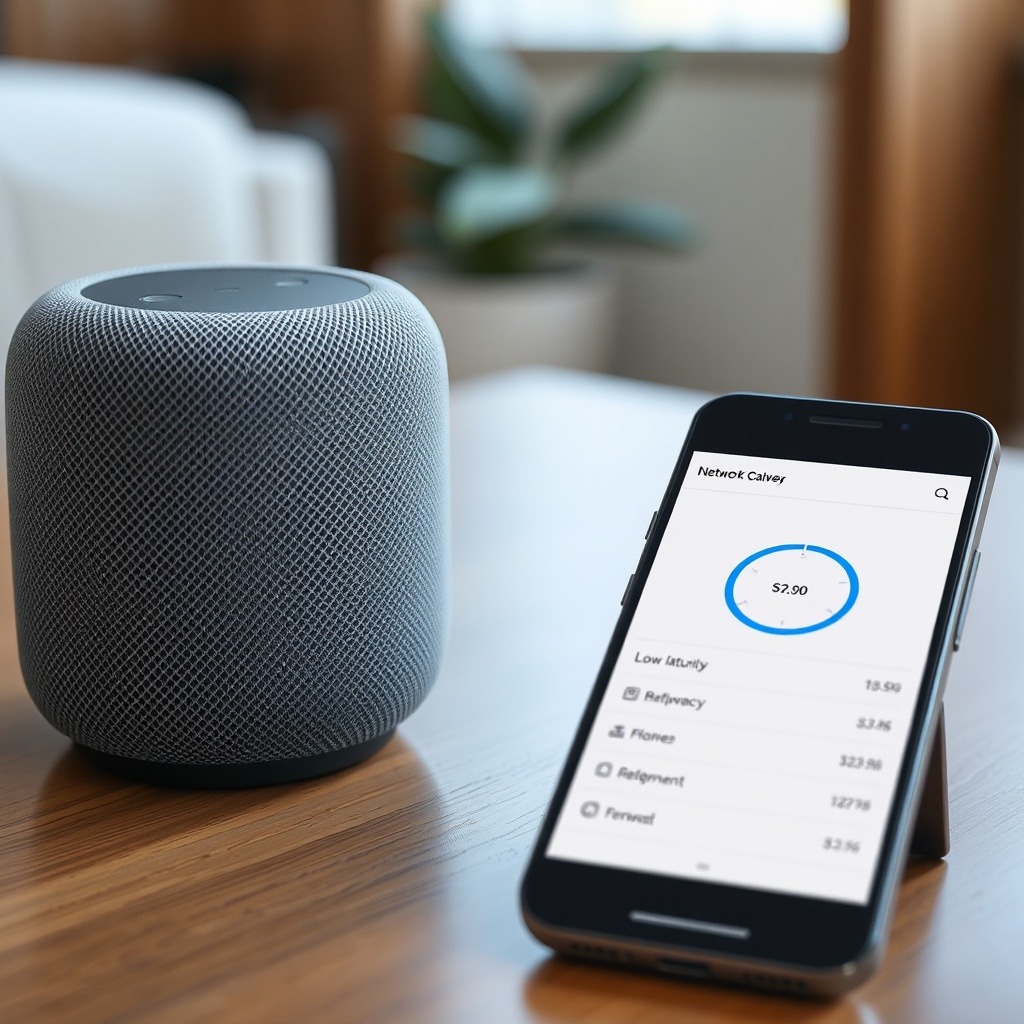
What Owners Say About Multi-Room Latency on Google Nest Audio
Real user experiences highlight common frustrations and solutions. Many owners report that latency is most noticeable when playing music across rooms, with a lag of 0.5–1.0 seconds. A typical comment on Reddit and Google forums states: “I have three Nest Audios in my house, and when I play music, the kitchen speaker always lags behind the living room ones by half a second.”
Another frequent issue is echo effects during group calls or when using smart assistants. Users find that restarting all speakers and resetting the network often provides temporary relief but not a permanent fix. Several owners emphasize that speakers with stable, strong Wi-Fi signals (especially on 5 GHz) show significantly better sync. In contrast, those with mesh networks or extensive interference experience chronic latency.
Some advanced users employ manual delay adjustments in the Google Home app (available for some speaker groups) to offset processing differences. However, this feature is not widely documented, and its usage varies by region and firmware version. One owner from the UK noted: “After updating firmware and moving my router closer, my multi-room latency improved from 600 ms to under 100 ms—dramatic change.”
How Does Multi-Room Latency Affect Smart Home Integration?
Google Nest Audio multi-room latency can impact other smart home features, such as voice assistant timing and speaker group responses. For instance, if you say “OK Google, play music everywhere,” the speaker group needs to coordinate audio playback simultaneously. High latency causes audible delays that disrupt the listening experience.
Impact on TV and Alarm Time
When used with a TV (e.g., via Chromecast or auxiliary connection), latency can cause lip-sync issues. For dedicated troubleshooting, see Google Nest Audio Audio Sync Issues with TV: Causes and Solutions. Alarms and timers also rely on precise synchronization across rooms; delays can lead to mismatched alarm sounds.
Thread Network and Latency
If you use Google Nest Audio as a Thread border router (support starting in 2023 via firmware updates), latency in audio playback can be exacerbated by Thread network congestion. For more on Thread issues, visit Google Nest Audio Thread Network Issues: DIY Fixes for a Stable Connection.
Frequently Asked Questions
Why is there a delay between my two Google Nest Audio speakers?
This delay is usually due to network latency, firmware version mismatch, or audio processing differences. Try updating firmware, connecting both to 5 GHz Wi-Fi, and reducing interference from other devices.
Can I adjust the audio delay manually in the Google Home app?
In some regions, the Google Home app offers a “Group delay correction” slider under speaker group settings. This feature is not universally available and requires the latest firmware version.
Will a mesh Wi-Fi system help reduce multi-room latency?
Yes, but only if the mesh nodes have wired backhaul. Wireless mesh can add 20–50 ms of extra latency per hop, potentially worsening sync. Use a wired backhaul for best results.
Is there a difference in latency between music streaming and TV audio?
Yes. Music streaming via Chromecast typically has lower latency (20–40 ms) than TV audio routed through Chromecast (50–100 ms) due to additional processing steps. For TV, the linked article provides specific fixes.
Does the temperature and humidity sensor affect audio latency?
No, the temperature and humidity sensor (available in some firmware versions) operates independently of audio processing. However, if the sensor is malfunctioning, it may indicate deeper hardware issues. For help, see Google Nest Audio Temperature and Humidity Sensor Not Working? Troubleshooting Guide.
Should I reset my Google Nest Audio to factory settings?
Only as a last resort. Factory reset can resolve persistent latency issues by clearing cached data and forcing a full firmware reinstall. To reset, press and hold the center button for 12 seconds until the light ring turns orange. Note: This erases all settings.