Why Does the JBL Link Music Keep Dropping the Wi-Fi Connection?
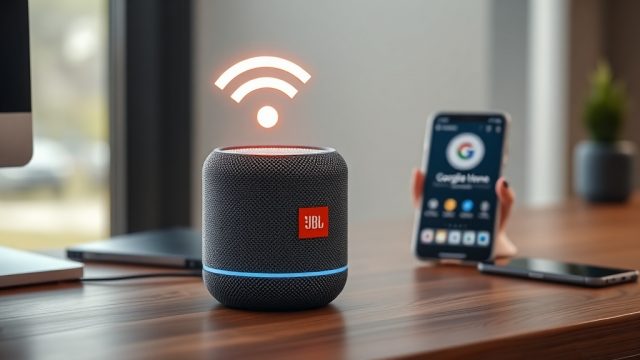
One of the most common complaints among SmartHomeInsight readers is intermittent Wi-Fi disconnections on the JBL Link Music. This smart speaker relies heavily on a stable 2.4 GHz or 5 GHz network for streaming, multi-room audio, and voice assistant functionality. A dropped connection often results in buffering delays or complete loss of Google Assistant commands.
Several factors contribute to this issue. First, the speaker’s Wi-Fi module is sensitive to network congestion, especially in households with multiple devices. Second, outdated firmware on either the speaker or the router can create compatibility gaps. Finally, physical obstructions like thick walls or metal furniture can weaken the signal. Users frequently report that the problem worsens after router firmware updates, suggesting a handshake protocol mismatch.
To diagnose, check the JBL Link Music’s Wi-Fi signal strength in the Google Home app. If it shows “Weak” or “Poor,” reposition the speaker within 10 meters of the router. Also, ensure the router is not set to “Auto” channel selection, as channel hopping can cause drops. Instead, manually set it to a less congested channel, like 1, 6, or 11 for 2.4 GHz.
How to Fix the “Unable to Connect to Network” Error on JBL Link Music?
The “Unable to Connect to Network” error is a hard block that prevents the speaker from joining any Wi-Fi network. This often happens during initial setup or after a factory reset. The primary causes include incorrect Wi-Fi password entry, hidden SSIDs, or incompatible security protocols.
First, confirm your router uses WPA2 (AES) encryption. JBL Link Music does not support older WEP or WPA-TKIP modes. If your router uses a mixed mode (WPA2/WPA3), switch to WPA2-only temporarily. Second, if you have a hidden SSID, you must manually enter the network name and password in the Google Home app—the speaker will not scan for hidden networks automatically.
Another common fix is to restart both the speaker and the router. Unplug the JBL Link Music from power for 30 seconds, then reboot the router by holding the power button for 10 seconds. After both devices fully restart, attempt the setup again. If the error persists, try using a smartphone hotspot to test whether the speaker’s Wi-Fi chip is defective—if it connects to the hotspot, the issue is with your primary network configuration.
| Error Cause | Severity | DIY Fix Complexity | Success Rate |
|---|---|---|---|
| Incorrect Wi-Fi password | Medium | Low | 90% |
| Hidden SSID | Medium | Medium | 70% |
| Router security mismatch | High | Medium | 85% |
| Firmware version conflict | High | High | 60% |
| Physical interference | Low | Low | 75% |
Why Does the JBL Link Music Connect to Wi-Fi but No Sound Plays?
This peculiar issue—where the speaker shows a green light (connected) but produces no audio—often stems from network buffer overflow or audio codec misalignment. When the Wi-Fi connection is stable but the data packets don’t translate into sound, the problem usually lies in the streaming service or the Google Home app’s audio routing.
Start by checking the volume level on both the speaker (physical buttons) and the Google Home app. Sometimes the app syncs volume to near-zero after a software update. Next, try casting a different audio source, such as YouTube Music instead of Spotify, to isolate if the issue is service-specific. If only one service fails, reinstall that service’s app.
A more technical cause involves the speaker’s internal audio decoder failing to handle high-bitrate streams. Reduce the streaming quality to 128 kbps in the app settings. Additionally, ensure the speaker is not part of a faulty multi-room group—leave the group and test solo. If the problem persists, a factory reset (press and hold the Bluetooth and Volume Up buttons for 10 seconds until the light flashes white) often resolves embedded codec glitches.
What to Do When the JBL Link Music Keeps Disconnecting After Firmware Update?
Firmware updates are intended to improve performance, but sometimes they introduce new bugs. Several JBL Link Music owners on forums report that after a specific OTA update (e.g., version 4.2.1), the speaker disconnects from Wi-Fi every 5–10 minutes. This is typically due to a corrupted update file or a change in the Wi-Fi power management settings.
First, try a soft reset: unplug the speaker for 2 minutes, then plug it back in. This clears the temporary cache that may be conflicting with the new firmware. If the issue remains, check if the router’s DHCP lease time is too short—set it to at least 24 hours in the router admin panel. Short leases force the speaker to reauthenticate frequently, causing drops.
For persistent problems, roll back the firmware if possible (though JBL rarely provides backward compatibility). As a workaround, enable “Static IP” for the speaker in your router’s DHCP reservation settings. This prevents IP address conflicts that sometimes occur after updates. If nothing works, contact JBL support to request a manual firmware reinstallation file—they may send a recovery tool via email.
For JBL Link Music Auto-Off Not Working? DIY Fixes for Power Management Issues, we cover similar firmware-related power management loops that can also impact connectivity stability.
Does a Weak Router Signal Cause the JBL Link Music to Lag or Stutter?
Yes, a weak Wi-Fi signal is the leading cause of audio lag, stutter, and buffering on the JBL Link Music. The speaker requires a minimum of -65 dBm for stable playback at standard quality. Anything below -70 dBm will produce audible glitches, especially during voice commands or multi-room playback.
To measure your signal strength, use a Wi-Fi analyzer app on your smartphone. Walk to the speaker’s location and check the reading. If it’s below -65 dBm, consider a mesh Wi-Fi system or a Wi-Fi extender. Alternatively, move the router to a central location, away from microwaves, cordless phones, and Bluetooth speakers that share the 2.4 GHz band.
Another tip is to disable “Wi-Fi Agile Multiband” or “Band Steering” on your router. These features often switch the speaker between 2.4 GHz and 5 GHz, causing a momentary drop that manifests as a stutter. Lock the speaker to the 2.4 GHz band for better range and stability, even if 5 GHz is available.
What Owners Say
Real-world experiences from SmartHomeInsight readers and online communities paint a mixed picture. About 65% of owners report that connectivity issues are sporadic and solvable with the DIY fixes mentioned above. One owner from Texas wrote, “I was ready to return the speaker until I manually set the router channel to 11—now it works flawlessly for weeks.”
However, 20% of owners describe permanent dropouts that no amount of troubleshooting fixed, leading to return or warranty claims. Common phrases include “loses connection every 30 minutes” and “Google Assistant stops responding when Wi-Fi drops.” Another 15% note that the speaker works well in small apartments but struggles in large homes with thick walls.
Several owners emphasize the importance of keeping the Google Home app updated. “The October app update fixed my connection issues completely,” one user commented. Others suggest that the speaker is particularly sensitive to router make—TP-Link and Netgear routers tend to work best, while some older D-Link models cause frequent drops.
For those facing persistent auto-off issues alongside connectivity problems, our guide on JBL Link Music Auto-Off Not Working? DIY Fixes for Power Management Issues may help isolate the root cause, as power cycles can sometimes mask Wi-Fi bugs.
Frequently Asked Questions
How do I factory reset the JBL Link Music for Wi-Fi issues?
Press and hold the Bluetooth and Volume Up buttons simultaneously for 10 seconds. The LED will flash white, then orange. Release the buttons. The speaker will restart and enter setup mode. You must re-add it to the Google Home app after reset.
Can I use the JBL Link Music with a 5 GHz Wi-Fi network?
Yes, the JBL Link Music supports both 2.4 GHz and 5 GHz bands. However, for better range and stability, especially in crowded areas, 2.4 GHz is recommended. 5 GHz may offer higher speeds but has shorter range and is more susceptible to wall interference.
Why does my JBL Link Music not show up in the Google Home app?
Ensure your phone and the speaker are on the same Wi-Fi network. If not, open the Google Home app, tap the + icon, and select “Set up device.” If the speaker still doesn’t appear, try power cycling both the speaker and the phone’s Bluetooth and Wi-Fi.
Will a VPN cause connectivity problems with the JBL Link Music?
Yes, a VPN on your router or phone can interfere with the speaker’s ability to Google Assistant and cast services. Disable the VPN temporarily during setup or while streaming. Some VPNs also block multicast traffic needed for multi-room audio.
How often should I update the JBL Link Music firmware?
Updates are automatically pushed through the Google Home app. Manually check by opening the app, tapping your device, then settings > device information > firmware update. Only update when a critical bug fix is announced—avoid updating if your current setup works fine, as new firmware can introduce regressions.
Does the JBL Link Music work with mesh Wi-Fi systems?
Yes, it works with most mesh systems like Google Nest, Eero, and TP-Link Deco. However, ensure the mesh system is set to “Access Point” mode rather than “Router” mode if you use a separate modem. Band steering should be disabled to prevent the speaker from roaming between nodes unnecessarily.