
JBL Link Music Auto-Off Not Working? DIY Fixes for Power Management Issues
Smart speakers like the JBL Link Music are designed for convenience, but when the auto-off feature fails, it can lead to unnecessary power drain and potential wear on internal components. Many users have reported that their Link Music stays on indefinitely, defeating the purpose of a power-saving smart home device. This article provides practical, step-by-step DIY fixes for power management issues, helping you restore proper auto-off functionality without needing professional help.
Why Does the JBL Link Music Stay on After Inactivity?
The JBL Link Music uses a built-in timer and sensor system to detect when audio has stopped and no voice commands are being processed. When this system malfunctions, the speaker may remain in an active state. Common causes include firmware bugs, network interference, or incorrect settings within the Google Home app. Before jumping into advanced fixes, it’s essential to understand the root causes—often related to third-party casting sessions or a stuck power management driver.
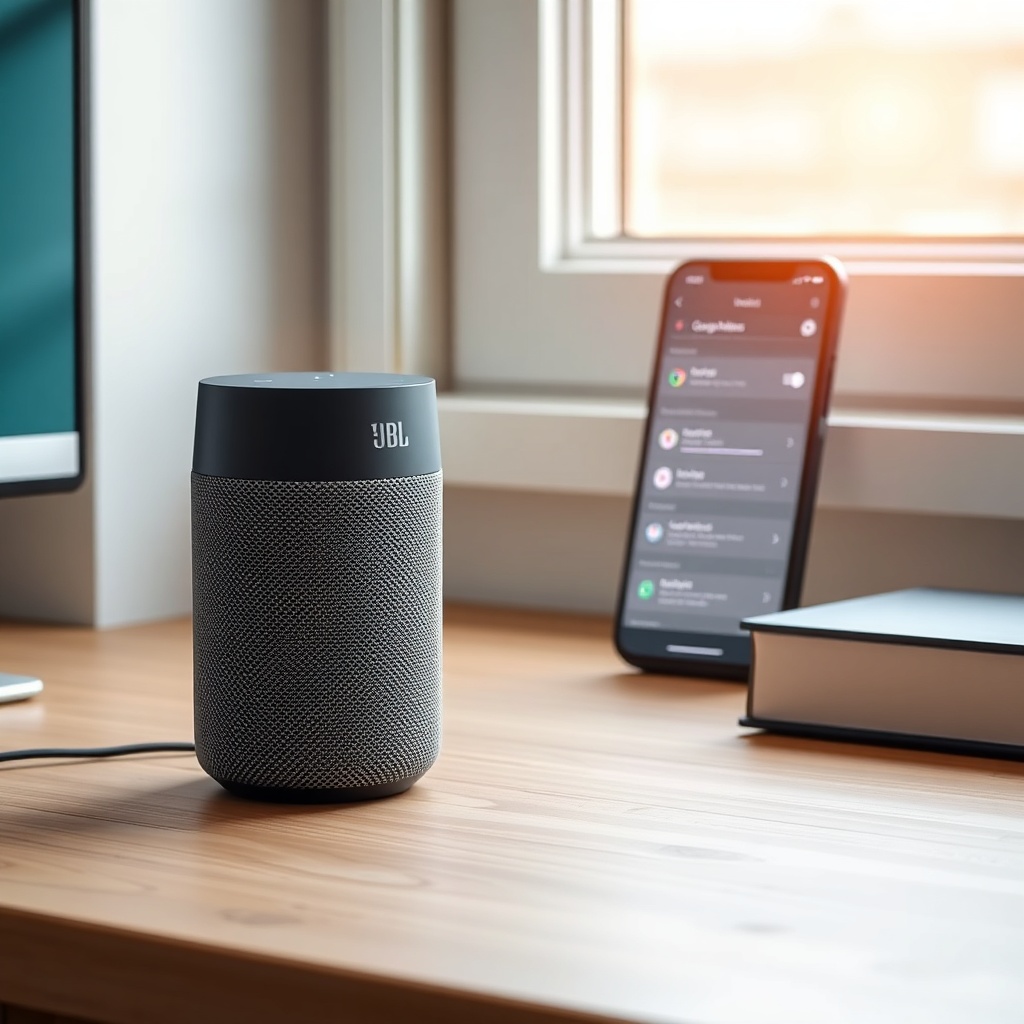
If you recently updated the device’s firmware or changed your Wi-Fi router, the auto-off timer might need a reset. Check if any connected apps, like Spotify or YouTube Music, are holding an active streaming session, as this overrides the standby timer. A simple solution is to manually stop casting from all devices and then wait 15 minutes to see if the speaker enters sleep mode.
| Issue Severity | Symptom | DIY Fix Difficulty | Estimated Fix Time |
|---|---|---|---|
| Minor | Speaker stays on for 30+ minutes after use | Easy | 5–10 minutes |
| Moderate | Auto-off never activates; constant power LED | Medium | 15–20 minutes |
| Severe | Speaker ignores all power timeout commands | Hard | 30–45 minutes (may require factory reset) |
How to Check and Adjust Auto-Off Timer Settings in the Google Home App?
One of the first steps is verifying that the auto-off timer is correctly configured. Open the Google Home app (version 2.66 or later) on your smartphone, tap the JBL Link Music device icon, and navigate to the gear-shaped settings menu. Look for a section labeled “Power Management” or “Sleep Timer.” If you don’t see this option, your app may be outdated, or the speaker’s firmware needs an update. Generally, the timer can be set to 15, 30, or 60 minutes of inactivity.
If the setting is correctly configured but still fails, try toggling the option off and on again. This refreshes the internal timer module. Sometimes, a simple re-sync between the app and the speaker resolves the glitch. Additionally, ensure that no group speakers are linked—sometimes a multi-room setup can force the Link Music to stay awake as part of a synchronized audio group.
How to Force Restart or Factory Reset the JBL Link Music for Power Issues?
When settings adjustments don’t work, a forced restart can clear temporary software bugs that disrupt power management. To perform a restart, unplug the speaker from power for at least 30 seconds, then plug it back in. This often resets the internal power controller without losing your network settings. If the problem persists, a factory reset may be necessary. Locate the microphone mute button and the volume up button on the top of the speaker. Press and hold both simultaneously for about 10 seconds until the LED ring turns orange. Release the buttons—the speaker will reboot and re-enter setup mode.
After a factory reset, you’ll need to reconfigure the device in the Google Home app. Test the auto-off feature by playing audio for 10 seconds, then stopping it. If the speaker enters standby within the set timeframe, the issue is resolved. Note that a factory reset erases all saved Wi-Fi passwords and preferences, so keep your network credentials handy. This fix has a high success rate for persistent power management bugs.
How to Diagnose Network Interference Causing the Speaker to Stay On?
Network issues can trick the JBL Link Music into thinking audio is still streaming. If your router is sending continuous multicast packets or if there’s a faulty cast session from another device, the speaker may never enter sleep mode. Use a Wi-Fi analyzer app on your smartphone to check for channel congestion. If your router is on the same channel as neighboring networks, interference can cause the speaker to remain active. Try switching to a less crowded channel, such as channel 1, 6, or 11 for 2.4 GHz bands.
Also, ensure that the JBL Link Music is not set as the default speaker for any other smart device on your network, such as a Google Nest Hub. When it’s set as a default output, it may receive constant network heartbeats. Disassociate it from other devices in the Google Home app’s “Audio” settings. Finally, reboot your router and modem—power cycling your entire network can flush out lingering session states that keep the speaker awake.
How to Update Firmware Manually if Automatic Updates Fail?
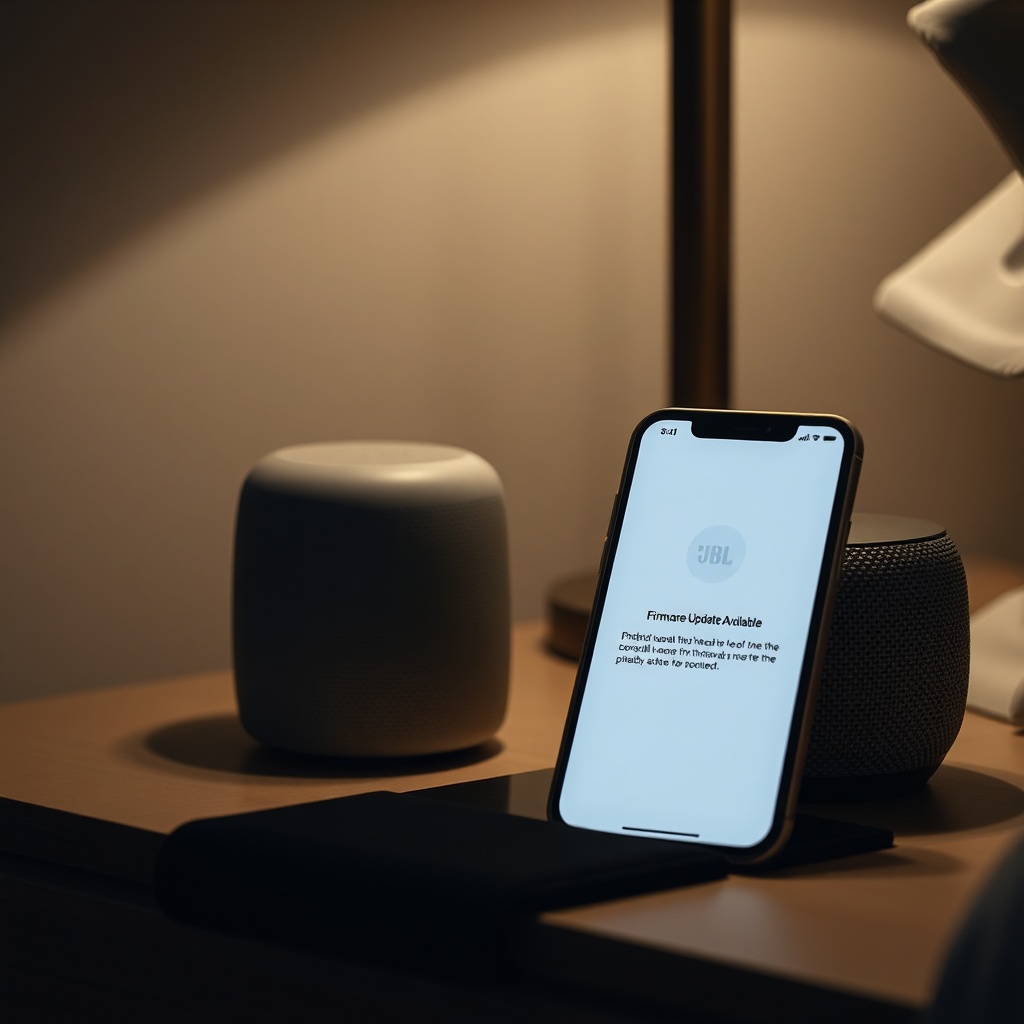
Stale firmware is a known culprit for auto-off malfunctions. The JBL Link Music updates automatically via the Google Home app, but sometimes updates get stuck or fail to install. To manually check for updates, open the Google Home app, select your speaker, tap the settings icon, and scroll to “Device information.” If a firmware version older than 2.4.0 is shown, an update is likely pending. Ensure your phone is connected to the same Wi-Fi network, then press “Check for update.”
If the app says the device is up to date but problems persist, consider sideloading the update using the Google Home app’s “Preview” program. Enroll your device in the preview channel—this often delivers beta firmware that fixes specific bugs. Note that preview firmware may have other minor issues, but for power management fixes, it’s often worth the trade-off. After updating, test auto-off by leaving the speaker silent for two full timeout periods.
What Owners Say About the JBL Link Music Auto-Off Problem
Community forums and user reviews on Amazon reveal a mixed experience. Many owners appreciate the speaker’s sound quality but express frustration when the auto-off feature fails. One user on Reddit noted, “My JBL Link Music stays on all night every few days, and I have to unplug it to reset. It’s annoying because it dims my smart lights when it’s off.” Another owner on a tech support site commented that after a factory reset, the timer worked for about a month before failing again, suggesting a recurring software bug.
Positive reports indicate that the issue is often temporary and resolves after a firmware update or after changing Wi-Fi settings. Several users recommend placing the speaker away from metal objects or other electronics that may cause RF interference. The general consensus is that while the problem is not universal, it affects a notable minority of units, and the fixes outlined here have helped many restore normal operation.
Frequently Asked Questions
1. How long does the JBL Link Music take to auto-off by default?
The default auto-off timer is set to 15 minutes of inactivity, but this can be changed in the Google Home app to 30 or 60 minutes. If the speaker remains on longer, check for active casting sessions or firmware bugs.
2. Can I disable auto-off completely on the JBL Link Music?
No, there is no built-in option to disable auto-off entirely. The closest workaround is setting the timer to 60 minutes. If you need continuous playback, consider using a wired audio source or a third-party smart plug with a timer.
3. Will a factory reset erase my music streaming accounts?
Yes, a factory reset removes all linked accounts, including Spotify, YouTube Music, and your Wi-Fi network credentials. You will need to set up the speaker again in the Google Home app and re-link any services.
4. Why does my JBL Link Music turn off randomly even when playing music?
This can occur if the auto-off timer is misconfigured or if the speaker detects low network activity. Ensure your streaming app is set to high-quality streaming and that the speaker’s firmware is updated. It may also be a sign of a faulty power adapter.
5. Does the JBL Link Music have a physical power switch to force off?
No, the speaker lacks a physical power switch. To force it off, you must unplug the power cable or use a smart plug that can be toggled remotely. Some users install a smart plug with a timer to automate off times.
6. Is it safe to leave the JBL Link Music on 24/7 when auto-off fails?
While it’s generally safe, leaving it on constantly can slightly increase electricity costs (around 5–10 watts per hour) and may reduce the lifespan of internal components like the power supply. For best longevity, resolve the auto-off issue using the steps above.