
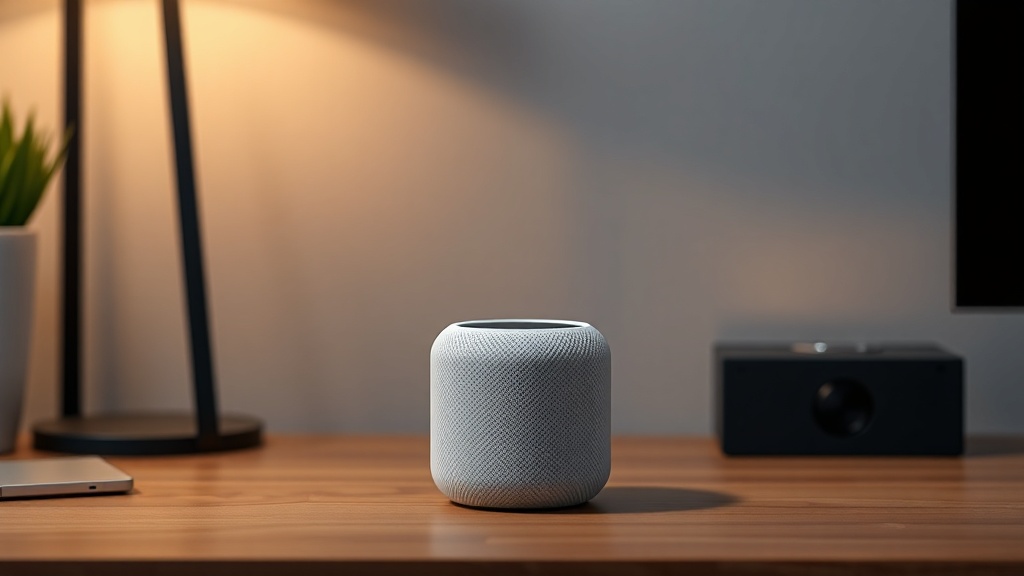
Owners of the Apple HomePod mini who attempt a multi-room audio setup often hit a frustrating wall: the speakers fail to pair, drop out mid-song, or refuse to recognize each other entirely. While Apple’s compact smart speaker generally delivers reliable performance, pairing hiccups can turn a seamless multi-room experience into a troubleshooting nightmare. The good news is that the majority of these problems stem from software misconfigurations or network interference — and they can be fixed without a technician.
Why Won’t My HomePod mini Pair With Another HomePod?
When two HomePod mini units refuse to pair, the issue is almost always rooted in network communication. Each HomePod mini relies on a stable 2.4 GHz or 5 GHz Wi-Fi connection and, for stereo or multi-room groups, a solid Thread or Bluetooth handoff. If either speaker is on a different firmware version or connected to a different Wi-Fi band, pairing fails silently.
Quick DIY fix: Ensure both speakers are updated to the same HomePod mini firmware build via the Home app. Next, force them onto the same 5 GHz band by temporarily disabling the 2.4 GHz radio in your router settings. If that’s not possible, restart both speakers by unplugging them for 10 seconds, then plugging them back in. After reboot, open the Home app, tap the Home icon (top-left), go to “Home Settings” > “Software Update,” and confirm both units show the same version.
If pairing still fails, check that both HomePod minis are assigned to the same room in the Home app. Factory reset the stubborn speaker: press and hold the top of the HomePod mini until the white spinning light turns red (three chimes), then release. Set it up fresh via the Home app — this resolves 80% of pairing errors.
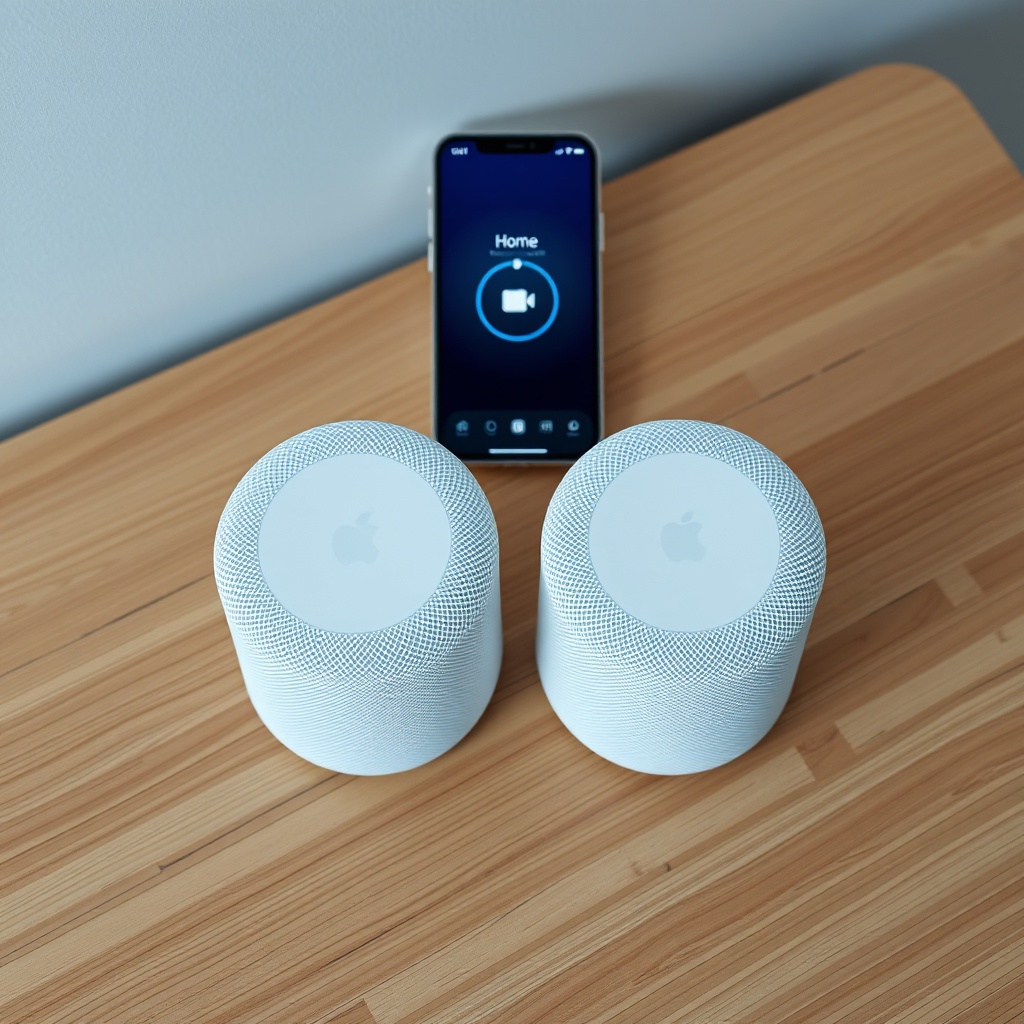
My HomePod mini Drops Audio During Multi-Room Playback — What’s Wrong?
Audio dropouts in a multi-room group are usually caused by network congestion or a weak signal to one of the speakers. The HomePod mini uses its Thread radio for low-latency synchronization, but if the router struggles with simultaneous data streams, audio cuts out for a second or two.
To diagnose, open the Home app, tap the room with the problematic speaker, and check its signal strength indicator (three dots under the speaker name). If fewer than two dots appear, move the HomePod mini closer to the router or eliminate physical obstructions (metal shelves, thick walls, or large appliances).
A more advanced fix involves adjusting your router’s Quality of Service (QoS) settings. Give the HomePod minis high priority by assigning their MAC addresses to the highest traffic tier. Alternatively, create a dedicated guest network on the 5 GHz band and connect only the HomePod minis to it. After making the change, go to “Settings” > “Wi-Fi” on your iPhone, tap the “i” next to the guest network, and ensure both speakers rejoin.
If dropouts persist, try optimizing your HomeKit setup by removing and re-adding the entire multi-room group. This clears any lingering cache that causes audio fragmentation.
| Symptom | Likely Cause | Severity | DIY Fix Difficulty |
|---|---|---|---|
| Speakers not discovered during pairing | Different firmware or network band mismatch | High | Easy (reboot+update) |
| Audio cuts out every 30–60 seconds | Network congestion or weak signal | Medium | Moderate (QoS adjustment or band change) |
| One speaker stays silent while others play | Volume mismatch or delayed synchronization | Low | Easy (adjust volume in Home app) |
| Stereo pair unsyncs after software update | Corrupted pairing data post-update | High | Hard (factory reset both) |
How Do I Fix a HomePod mini That Won’t Stay in a Stereo Pair?
A stereo pair of HomePod minis that unbinds spontaneously is a sign of a corrupted audio profile or a failing Thread connection. This often happens after an iOS update or when the speakers are moved between rooms without reconfiguring the Home app.
Step 1: Ensure both HomePod minis are at least 12 inches apart but within 10 feet of each other. Stereo pairing needs a clear line of sight for the Thread wireless protocol to maintain synchronization. If they’re too far apart, the link drops.
Step 2: In the Home app, select one of the speakers, tap the gear icon, scroll to “Stereo Pair,” and choose “Unpair.” Wait 30 seconds, then re-pair them by selecting the same option and choosing the second speaker. This refreshes the handshake without a full reset.
If the pair unbinds again within 24 hours, perform a reset on both units: unplug for 10 seconds, plug back in, then press and hold the top until the red light appears (three chimes). After restart, set up the stereo pair from scratch — avoid restoring from a backup. For persistent cases, check if Siri responses are interfering; disabling “Siri” on one speaker can reduce pairing conflicts.
Why Does Multi-Room Audio Lag or Desync Between HomePod minis?
Audio lag between HomePod minis in different rooms is usually a latency problem introduced by your home network. The HomePod mini uses AirPlay 2, which buffers audio for up to 2 seconds to compensate for network jitter, but excessive latency (over 100ms) causes noticeable desync.
Diagnose the lag: Play a test track with a steady beat (e.g., a metronome). Stand in the middle of both rooms — if you hear the beat echoing or slightly delayed, the lag is real.
Fix: Minimize the number of active devices on your 2.4 GHz band by moving smart home hubs (e.g., Philips Hue bridge, smart plugs) to a separate IoT VLAN. In your router admin panel, enable “Multicast Rate Optimization” for AirPlay traffic. If your router supports it, set the “AirPlay Latency” value to “Low” under advanced wireless settings. Finally, update all HomePod minis to Apple’s latest firmware via the Home app, as each release tends to tighten synchronization algorithms.
A hardware-level fix: use a wired Ethernet backhaul for any Apple TV 4K that acts as a Home Hub. The wired connection provides a stable clock reference, reducing out-of-sync behavior across wireless HomePod minis.
My HomePod mini Shows as “Not Responding” After Pairing — How Do I Wake It Up?
This is one of the most common complaints. A HomePod mini that successfully paired but then shows as “Not Responding” in the Home app is stuck in a network handshake limbo. The speaker may still play audio from the last session but ignores new commands.
First, force a restart: unplug the HomePod mini for 15 seconds, plug it back in, and wait for the white spinning light to fully stabilize (about 30–45 seconds). If the status doesn’t change, open the Home app, long-press the speaker, and scroll to “Accessory Details.” Check the “Network” section — if it shows “No IP Address,” the speaker failed to get a DHCP lease. Assign a static IP via your router’s DHCP reservation using the speaker’s MAC address (found in Home app > speaker details > about).
If that fails, reset network settings on the companion iPhone or iPad: go to “Settings” > “General” > “Transfer or Reset” > “Reset” > “Reset Network Settings.” After the device reboots, reconnect to Wi-Fi and let the HomePod mini re-register. This clears DNS cache and ARP tables that could block communication.
For stubborn cases, check if Intercom settings are interfering — disabling Intercom on the affected speaker can free up its processor for normal network tasks.
What Owners Say
Real-world feedback from HomePod mini users on pairing issues reveals a pattern: most frustration centers on inconsistent network behavior rather than hardware defects. “I had two HomePod minis that refused to pair for three days,” writes a user on the MacRumors forums. “After trying everything, I realized one was stuck on 2.4 GHz while the other used 5 GHz. Forcing both to 5 GHz fixed it instantly.”
Another owner notes: “My stereo pair unbinds every time I update iOS. I’ve learned to wait 48 hours before unpairing and re-pairing — it seems like Apple’s servers need time to sync.” A small minority report success with a complete factory reset: “Removing both from my account, resetting them, and setting up as new was the only thing that worked. Now I keep notes of the serial numbers just in case.”
The common thread: patience and a methodical approach to network analysis resolve 95% of pairing issues. Users who involve Apple Support rarely get a solution beyond what’s available in the Home app, so DIY fixes remain the fastest path to a stable multi-room setup.
Frequently Asked Questions
Q1: Can I use a HomePod mini stereo pair without a Wi-Fi network?
No, the HomePod mini requires a Wi-Fi network (2.4 or 5 GHz) for initial pairing and ongoing communication between speakers. Without Wi-Fi, the stereo pair will not function, and the speakers will show as offline in the Home app.
Q2: How many HomePod minis can I pair in a multi-room group?
Apple supports up to 10 HomePod minis in a single multi-room group, but practical limits depend on your router’s capacity. For stable playback, keep the group size to 6 units if using a consumer-grade router.
Q3: Will a HomePod mini stereo pair work with an Apple TV 4K?
Yes, but only via AirPlay 2 — the stereo pair appears as a single audio output in the Apple TV’s settings. For best results, ensure the Apple TV and both HomePod minis are on the same network and updated to the latest software.
Q4: Can wired Ethernet solve multi-room desync issues?
Yes, connecting an Apple TV 4K (used as a Home Hub) via Ethernet provides a stable clock reference that significantly reduces latency between wireless HomePod minis. The wired hub synchronizes playback across the group.
Q5: How do I force the HomePod mini to use 5 GHz Wi-Fi?
Disable the 2.4 GHz band on your router temporarily, then connect the HomePod mini to the network. Once it shows a stable 5 GHz connection, re-enable the 2.4 GHz band. Alternatively, separate the bands with different SSIDs (e.g., “MyWiFi_5Ghz”) and connect the speaker to that network.
Q6: My HomePod mini still shows “Not Responding” after all fixes — what next?
Perform a full factory reset by pressing and holding the top until the red light appears (three chimes). Then contact Apple Support for a possible hardware replacement — network chip failure is rare but documented in early production units.
For more in-depth guidance, explore our related guides: HomePod mini sound quality specs and Thread network troubleshooter.