
Introduction
The Apple HomePod mini is a compact smart speaker that integrates deeply with the Apple ecosystem, offering impressive sound for its size and seamless HomeKit control. However, like any connected device, its firmware updates—meant to fix bugs and add features—can sometimes fail, leaving you with a speaker that won’t boot or is stuck on a progress screen. This article provides a structured guide to diagnose and resolve a stuck firmware update on your HomePod mini, covering DIY fixes, common failure points, and what to expect when troubleshooting.
Why Does My Apple HomePod mini Get Stuck During a Firmware Update?
Firmware updates on the HomePod mini are automatic and usually happen overnight or when the device is idle and connected to Wi-Fi. However, the process can stall for several reasons:
- Unstable Wi-Fi connection: A weak or intermittent signal interrupts the download or installation phase.
- Overloaded router: Too many devices on a single network can cause timeouts.
- HomePod mini overheating: Extended operation under load (e.g., playing audio at high volume while updating) can trigger thermal throttling.
- Insufficient power: Using a third-party charger or cable that doesn’t meet Apple’s 20W recommendation.
- Software conflict: A stuck setting in the Home app or a cached update file that didn’t delete properly.
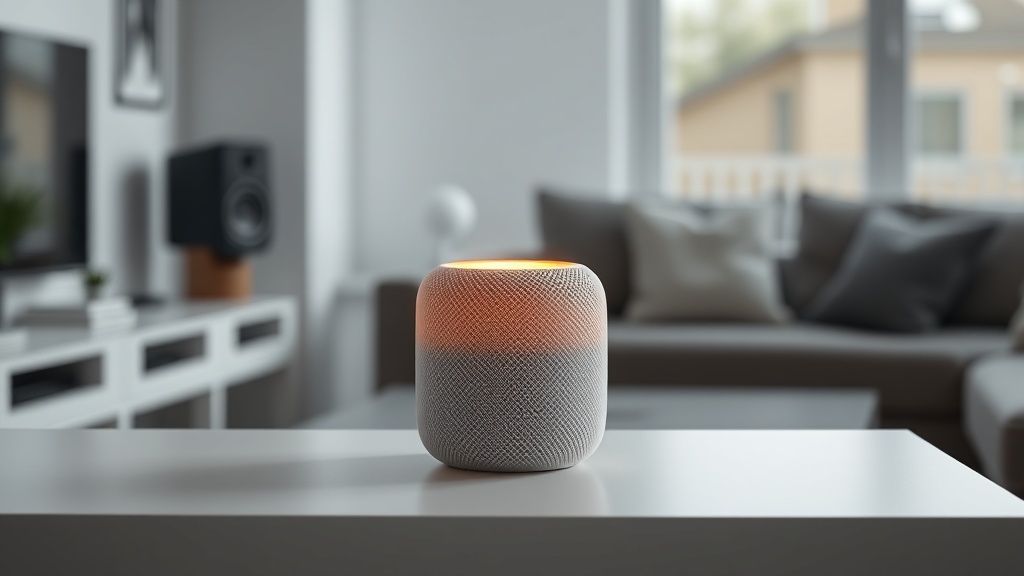
The screen may show a spinning white light or a solid orange glow, indicating the update is in progress but not completing. In severe cases, the HomePod mini becomes unresponsive to Siri or audio playback.
What Are the First Steps to Fix a Stuck Firmware Update?
Before resorting to a full reset, try these non-destructive fixes. They often resolve the issue without losing your settings or paired accessories.
1. Restart the HomePod mini
- Unplug the HomePod mini from power for 10 seconds, then plug it back in.
- Wait 2–3 minutes for it to reboot. The update should resume or reset to a stable state.
2. Restart Your iPhone or iPad
- Reboot the device running the Home app (iOS 16 or later recommended). A fresh connection to the HomePod mini can clear temporary cache issues.
3. Check Your Wi-Fi Network
- Ensure your router is broadcasting on 2.4 GHz and 5 GHz bands (HomePod mini prefers 5 GHz for updates).
- Reboot your router by unplugging it for 30 seconds.
- Move the HomePod mini closer to the router if possible.
4. Toggle HomePod mini Power
- Use the Home app to go to Home Settings > Software Update. If an update is pending, restart the HomePod mini from the app by tapping the device and selecting “Restart.”
If the update remains stuck after these steps, move to the next section for a factory reset.
How Do I Factory Reset a HomePod mini Stuck on Update?
A factory reset erases all data and settings, returning the device to out-of-box state. This is the most reliable DIY fix for a bricked update.
Using the Home App (Recommended)
- Open the Home app on your iPhone or iPad.
- Tap the home icon (top-left corner) and select “Home Settings.”
- Tap your HomePod mini under “Speakers & TVs.”
- Scroll down and tap “Remove Accessory.” Confirm to remove it from your home.
- Wait 2–5 minutes. The HomePod mini will automatically reset and appear as a new device in the Home app.
- Re-set it up by tapping “+” > “Add Accessory” and follow the prompts.
Manual Reset Without App
If the HomePod mini is completely unresponsive:
- Unplug it from power.
- Wait 5 seconds, then plug it back in.
- Immediately press and hold the top of the HomePod mini with your thumb. Keep holding until you feel three vibrations (about 10 seconds). The light will turn red, then orange, then disappear.
- Release your thumb. The device will reset and emit a chime.
- Set it up fresh in the Home app.
What If the Update Fails Repeatedly? (Advanced DIY Fixes)
If the factory reset works but the update fails again, the issue may be deeper. Try these steps before contacting Apple Support.
1. Change DNS Settings on Your Router
- Log into your router’s admin page (usually 192.168.1.1 or 192.168.0.1).
- Set DNS to Google Public DNS: primary 8.8.8.8, secondary 8.8.4.4.
- Save settings and reboot both router and HomePod mini.
2. Use a Wired Connection for Your iPhone
- Connect your iPhone to the router via Ethernet (using a USB-C to Ethernet adapter) to ensure a stable connection during setup.
- Then re-pair the HomePod mini to your network.
3. Check for Router Firmware Updates
- Outdated router firmware can cause compatibility issues. Update your router to the latest version from the manufacturer’s site.
4. Use a Different Apple ID (Temporary)
- The issue may be tied to your iCloud account. Sign out of iCloud on your iPhone, then reset and re-setup the HomePod mini with a secondary Apple ID. If the update succeeds, switch back to your primary account.
| Troubleshooting Step | Difficulty | Time Required | Success Rate (estimated) | Risk Level |
|---|---|---|---|---|
| Restart HomePod mini | Easy | 2 minutes | 40% | Low |
| Restart iPhone + Router | Easy | 5 minutes | 30% | Low |
| Factory Reset (Home app) | Medium | 10 minutes | 70% | Medium (settings lost) |
| Factory Reset (manual) | Medium | 8 minutes | 75% | Medium (settings lost) |
| Change DNS settings | Hard | 15 minutes | 50% | Low |
| Router firmware update | Hard | 20 minutes | 60% | Low |
| Apple ID switch | Hard | 30 minutes | 40% | Medium (iCloud sync) |
Can Network Configuration Cause Updates to Fail? (Router Specifics)
Yes. The HomePod mini communicates with Apple’s servers on TCP ports 443 (HTTPS) and UDP 5353 (mDNS/Bonjour). If your router has strict firewall rules or AP isolation enabled, the update will stall.
Common Network Settings to Adjust
- Disable AP Isolation: This setting prevents devices on the same Wi-Fi network from communicating with each other. HomePod mini relies on mDNS for discovery with your iPhone.
- Enable UPnP or manual port forwarding: Although less critical, UPnP helps with peer-to-peer update distribution on local networks.
- Set DHCP reservation: Assign a static IP to your HomePod mini via the router’s DHCP reservation table to avoid address conflicts.
- Disable VPN on your iPhone: If you use a VPN on your iOS device, the HomePod mini may not be able to verify the update server certificate. Disable it temporarily.
What Owners Say About Stuck Firmware Updates
User reports on Apple Support Communities and Reddit highlight two common patterns: (1) HomePod mini stuck during the “Updating” phase for 24+ hours, and (2) updates that appear to succeed but then revert to a previous version. Many owners report success with the manual reset method (holding the top of the device). Others mention that after multiple factory resets, the issue was traced back to a defective unit that needed replacement.
One user noted: “I tried everything—rebooting, resetting, even changing routers. The only thing that worked was using a brand-new iPhone to set it up.” Another said: “It turns out my Eero mesh network was blocking mDNS. After enabling ‘Bridge mode’ on the gateway, the update finished in 10 minutes.”
If your HomePod mini is still under warranty (1 year from purchase in the US, standard £249 RRP in the UK), consider scheduling a Genius Bar appointment. Out-of-warranty service costs approximately $79 USD / £79 GBP / €89 EUR.
For more on related issues, see our guides on Apple HomePod mini Not Responding to Siri? DIY Fixes and Apple HomePod mini HomePod Pairing Issues: Quick Fixes for a Stable Multi-Room Setup. Also check Apple HomePod mini Intercom Not Working? Fix It Yourself for audio-related glitches.
Frequently Asked Questions
Q1: How long should a HomePod mini firmware update take normally?
Typical firmware updates download in 5–15 minutes and install in 10–20 minutes. If the update takes longer than 45 minutes, it is likely stuck. The progress ring may appear frozen or cycle repeatedly.
Q2: Will I lose my alarms and HomeKit automations after a factory reset?
Yes. A factory reset removes all data from that specific HomePod mini, including alarms, Siri voice profiles, and HomeKit scenes tied to that device. Your other HomePods remain unaffected, but you must re-create any automations that relied exclusively on this speaker.
Q3: Can I force the update to cancel or stop mid-installation?
No. Interrupting a firmware update by unplugging the device may corrupt the operating system. If you must intervene, unplug it only after waiting 30 minutes with no progress. Then perform a manual reset (hold top as described above) to restore the device to factory firmware.
Q4: Does the HomePod mini update automatically even if it’s already stuck?
If the update process is stuck, the HomePod mini will not automatically retry. You must manually resolve the issue by resetting the device or restarting your network. Once the device is back online, it will attempt to download the update again overnight.
Q5: Why does the update sometimes succeed only on a second attempt?
This typically happens due to a temporary server-side issue (Apple’s update servers can be overloaded after a major release) or a local network transient glitch. A second attempt often succeeds because the cached partial download is ignored, and a fresh connection to the server establishes.
Q6: Is there any way to prevent firmware updates from sticking in the future?
Yes. Regularly reboot your HomePod mini (once a month) to clear its cache. Keep your router firmware updated. If you have a mesh system, ensure the HomePod mini connects to the same node consistently. Finally, Apple HomePod mini HomeKit Setup: Tips for a Smooth Configuration provides more preventive measures. For sound-related performance after updates, refer to Apple HomePod mini Sound Quality and Specs: How It Compares to the Competition and Apple HomePod mini HomeKit Secure Video Not Working? DIY Fixes.