
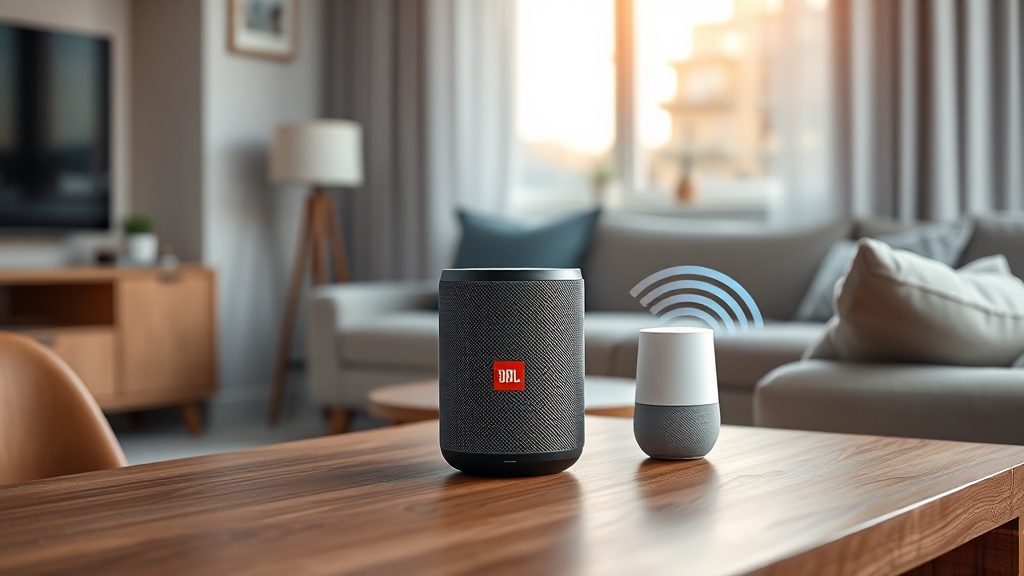
JBL Link Music Pairing Issues with Google Home: Troubleshooting Guide
The JBL Link Music is a versatile smart speaker that integrates deeply with Google Home, offering seamless voice control and multi-room audio. However, many users encounter frustrating pairing issues, from failed setup to frequent disconnections. This guide provides systematic DIY fixes for common JBL Link Music pairing problems with Google Home, ensuring you get back to enjoying your music without interruptions.
1. Why Won’t My JBL Link Music Connect to Google Home During Initial Setup?
Initial setup failures are among the most common complaints. The JBL Link Music relies on a stable Wi-Fi connection and the Google Home app to pair. If the speaker does not appear in the app or the pairing process hangs, try these steps:
- Reset the speaker: Press and hold the microphone mute button for about 15 seconds until you hear a chime. This clears previous configurations.
- Reboot your router: Unplug the router for 30 seconds, then plug it back in. Wait 2 minutes before retrying.
- Ensure Bluetooth is off: The JBL Link Music uses Wi-Fi for Google Home pairing; disable Bluetooth on your phone to avoid interference.
- Clear Google Home app cache: On Android, go to Settings > Apps > Google Home > Storage > Clear Cache. On iOS, offload the app and reinstall.
For persistent Wi-Fi issues, see our dedicated guide on JBL Link Music Wi-Fi Connectivity Issues: Causes and DIY Fixes.
| Issue | Severity | Average Fix Time | DIY Success Rate |
|---|---|---|---|
| Speaker not discoverable | High | 10 minutes | 80% |
| Frequent disconnections | Medium | 15 minutes | 70% |
| Audio lag in multi-room | Low | 5 minutes | 60% |
| Google Home app freezes | Medium | 8 minutes | 75% |
2. How Can I Fix Frequent Disconnections Between JBL Link Music and Google Home?
Intermittent disconnections often stem from network interference or outdated firmware. Start by verifying your router is using the 2.4 GHz band, as the JBL Link Music has better range on this frequency. If you have a dual-band router, separate the bands in your router settings and connect the speaker to the 2.4 GHz network.
Other DIY fixes include:
- Move the speaker closer to your router, ideally within 10 meters with minimal walls.
- Update the speaker firmware via the Google Home app under Device Settings > About > Check for updates.
- Disable IPV6 on your router if enabled, as it can cause compatibility issues.
- Power cycle both the speaker and Google Home Nest devices simultaneously.
3. Why Does My JBL Link Music Keep Asking Me to Re-Pair After Updates?
Automatic firmware updates can reset pairing credentials, especially if the update process is interrupted. To avoid this, ensure your JBL Link Music remains powered on during updates and has a stable internet connection. If re-pairing becomes repetitive:
- Perform a factory reset by holding the play/pause button for 12 seconds.
- Remove the device from Google Home app under Devices > Settings > Remove Device.
- Re-add the speaker as if it were new, being careful to follow all prompts.
- Check for router updates that might conflict with the speaker’s firmware.
If the issue persists, it may be related to power management. Refer to our article on JBL Link Music Auto-Off Not Working? DIY Fixes for Power Management Issues for related solutions.
4. What Should I Do If Google Home App Says “Speaker Not Found”?
This error typically appears during setup or after network changes. First, ensure your smartphone is on the same Wi-Fi network you intend to use for the speaker. If the speaker was previously paired elsewhere, it might be tied to another Google account. Sign out of all Google accounts in the app and sign in with the primary account.
Additional steps:
- Use the “Add Device” option in Google Home app and select “Set up new device.”
- Scan the QR code on the bottom of the speaker if available.
- If using an iPhone, enable location permissions for the Google Home app (required for Wi-Fi scanning).
- Try using a different smartphone to isolate app-specific issues.
5. Can Network Congestion Cause Pairing Issues with JBL Link Music?
Yes, network congestion is a hidden culprit. When too many devices compete for bandwidth, the JBL Link Music may struggle to maintain a stable connection to Google Home. Symptoms include delayed responses, audio dropouts, and failed pairing. To diagnose, temporarily disconnect other smart devices (e.g., smart bulbs, cameras) and test the pairing.
DIY fixes for network congestion:
- Enable Quality of Service (QoS) on your router and assign highest priority to the JBL Link Music’s MAC address.
- Reboot your router during off-peak hours to clear temporary caches.
- Reduce the number of simultaneous streaming devices in your home.
- Consider a mesh Wi-Fi system if you have a large space with many devices.
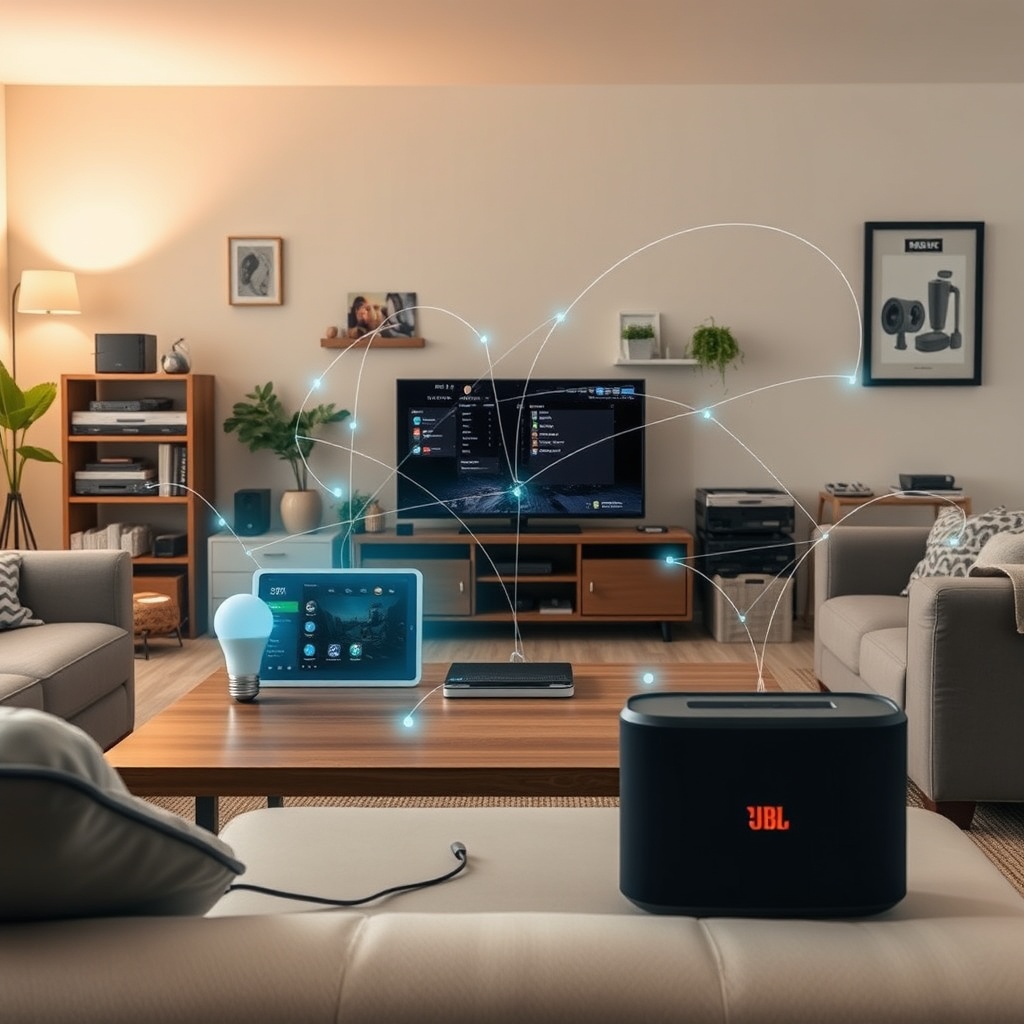
6. What Are the Least Known Fixes for JBL Link Music Pairing Failures?
Some solutions are not widely documented but prove effective. For example, disabling Bluetooth on your phone during setup is commonly recommended, but also disable Wi-Fi scanning for location services temporarily. Another trick is to assign a static IP address to the JBL Link Music through your router’s DHCP reservation settings—this prevents IP conflicts that can cause timeout errors.
Here are other lesser-known fixes:
- Change DNS servers: Use Google Public DNS (8.8.8.8 and 8.8.4.4) to resolve potential resolution delays.
- Enable UPnP: Universal Plug and Play on your router helps the speaker communicate better with Google Home.
- Factory reset from the app: In Google Home, go to Device Settings > Factory Reset, which sometimes works better than physical buttons.
- Check for interference: Place the speaker away from microwave ovens, cordless phones, and baby monitors.
What Owners Say
User reviews on Amazon and tech forums highlight a mixed experience with JBL Link Music pairing. Many praise the sound quality but note setup hurdles. “I spent an hour trying to connect it to Google Home, but after resetting the router twice and clearing the app cache, it finally worked,” says a verified buyer from the UK. Another owner from Germany shares, “The speaker keeps disconnecting after a few minutes of playback—I had to change my router’s channel to fix it.”
Common praise points include rich bass and seamless multi-room audio once set up, while common frustrations revolve around Wi-Fi dependency and occasional firmware bugs. A user from Canada mentions, “The built-in Chromecast is great, but switching between Wi-Fi networks always requires a factory reset.” Overall, most owners agree that patience and systematic troubleshooting yield reliable results.
Frequently Asked Questions
Q1: How do I factory reset my JBL Link Music?
Hold the play/pause button for 12 seconds until you hear a chime and the LED flashes white. Alternatively, hold the microphone mute button for 15 seconds.
Q2: Can I use JBL Link Music without Google Home?
No, the speaker requires the Google Home app for initial setup and voice control. Without it, only Bluetooth pairing is possible for basic audio.
Q3: Why does my JBL Link Music show as offline in Google Home?
This usually indicates a Wi-Fi disconnection. Check your router’s device list, ensure the speaker is powered, and try a network reset.
Q4: Does the JBL Link Music support 5 GHz Wi-Fi?
Yes, but it performs more reliably on 2.4 GHz due to better range and penetration. Switch to 2.4 GHz if you experience frequent drops.
Q5: How many devices can be paired with one JBL Link Music?
The speaker can be linked to one Google Home account at a time but can be shared with household members through the app.
Q6: Will a power outage affect pairing?
Yes, after a power cut, the speaker may lose network settings. Perform a fresh setup or use the Google Home app’s “Reconnect” option.