
Apple HomePod Mini Audio Lag with Apple TV: DIY Fixes for a Better Experience
When the audio from the Apple HomePod mini falls out of sync with the visuals on an Apple TV, it can turn movie night into a frustrating ordeal. This audio lag, often described as a delay of a few hundred milliseconds, disrupts immersion and is a common complaint among home theater enthusiasts.
Fortunately, many of these synchronization issues can be resolved without professional help. This guide explores practical DIY fixes for Apple HomePod mini audio lag when paired with Apple TV, covering everything from wireless interference to software settings.
What Causes Apple HomePod Mini Audio Lag with Apple TV?
Audio lag typically stems from digital signal processing delays, wireless network congestion, or Bluetooth/Wi-Fi coexistence issues. The HomePod mini relies on AirPlay 2 for wireless streaming, which adds inherent latency compared to a wired connection. In a home environment, interference from other devices (e.g., microwaves, routers, or smart home hubs) can exacerbate this delay.
Another primary cause is the mismatch between the Apple TV’s audio output format and what the HomePod mini expects. For instance, if the Apple TV is set to output Dolby Atmos or Multi-Channel Audio (5.1/7.1) without proper downmixing, the HomePod mini—a stereo pair can handle spatial audio but a single unit struggles with multi-channel content—may introduce buffer delays.
How to Check for Network Interference Affecting Audio Sync?
Start by examining your wireless environment. The HomePod mini communicates via a 2.4 GHz or 5 GHz Wi-Fi network, and interference can degrade signal quality. Here’s a structured approach:
- Use a Wi-Fi analyzer app (e.g., NetSpot or Wi-Fi SweetSpots) to scan for channel congestion.
- Move the HomePod mini at least 3 feet from any router, modem, or microwave oven.
- Disable Bluetooth on nearby devices (like smartphones or laptops) if they are actively streaming audio.
- Check whether your Apple TV is connected to the same Wi-Fi band (2.4 GHz vs. 5 GHz) as the HomePod mini. In general, 5 GHz offers lower latency but shorter range.
If interference persists, consider Apple HomePod mini Thread Network Issues: DIY Fixes for a Stable Connection to ensure the Thread protocol isn’t conflicting with Wi-Fi channels.
| Symptom | Likely Cause | Severity (Scale: 1-5) |
|---|---|---|
| Audio delay > 200 ms | Network interference or AirPlay processing | 4 |
| Audio stuttering with video | Wi-Fi congestion or Bluetooth interference | 3 |
| Only one HomePod mini lags in a stereo pair | Outdated software or mismatched firmware | 2 |
| Intermittent audio dropouts | Distance from router or interference from smart home devices | 3 |
After identifying network issues, proceed to adjust your Apple TV’s audio settings.
How to Adjust Apple TV Audio Settings for Better Sync?
The Apple TV’s audio menu offers direct control over output format. Incorrect settings can force the HomePod mini to downmix on the fly, causing lag. Follow these steps:
- Go to Settings > Video and Audio > Audio Output on your Apple TV.
- Under “Audio Format,” change from “Auto” to “Change Format” and select “Stereo.” This forces 2-channel PCM output, which the HomePod mini handles natively without extra processing.
- If using a HomePod mini stereo pair, disable “Spatial Audio” in the Audio Output menu if it feels unnatural or adds latency.
- Restart the Apple TV and HomePod mini by unplugging them for 10 seconds.
This fix often resolves lag for users streaming standard TV shows or YouTube content. For movies in Dolby Atmos, consider keeping “Auto” but ensure your HomePod mini is updated to the latest software (see below).
What Is the Role of Software Updates in Audio Sync?
Running outdated firmware on either the HomePod mini or Apple TV can introduce bugs that lead to audio drift. Apple periodically releases updates to address AirPlay performance and audio latency.
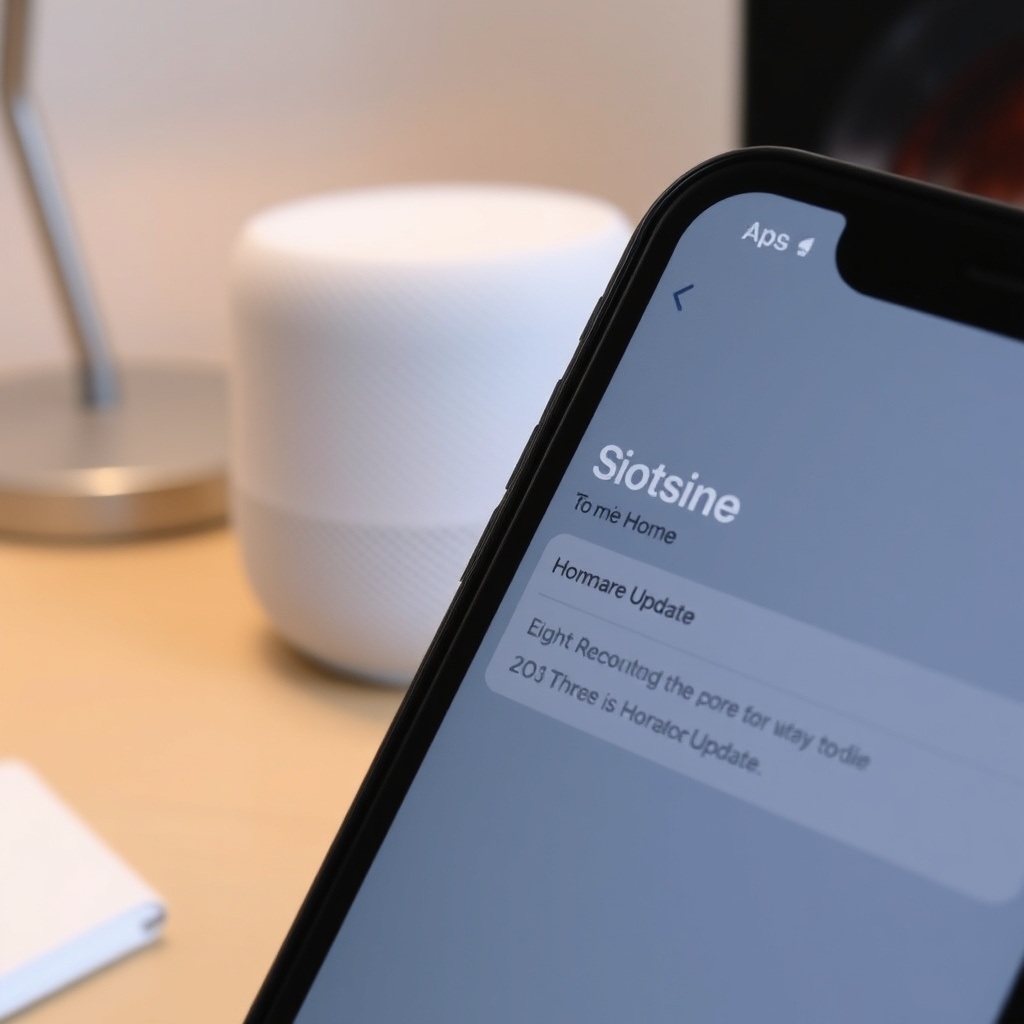
- For HomePod mini: Open the Home app on your iPhone, tap the Home icon, select “Home Settings,” then “Software Update.”
- For Apple TV: Navigate to Settings > System > Software Updates and select “Update Software.”
After updating, perform a full sync test by playing a video with known timing (e.g., BBC’s ‘Sync Test’ video on YouTube). If lag persists, investigate Apple HomePod mini HomeKit Automation Fails on iOS 17: Causes and Solutions for broader compatibility issues that might affect audio routing.
How to Reset or Re-Pair HomePod Mini and Apple TV?
Sometimes the pairing relationship becomes corrupted, especially after network changes or device restores. Re-pairing forces a clean audio handshake.
- On the HomePod mini: Open the Home app, press and hold the HomePod mini icon, scroll to the bottom, and select “Remove Accessory.”
- On the Apple TV: Go to Settings > Remotes and Devices > Bluetooth and forget the HomePod mini if it appears.
- Reboot both devices: Unplug them for 30 seconds, then plug back in.
- Re-pair: On the Apple TV, go to Settings > Video and Audio > Audio Output and select the HomePod mini again.
If you encounter issues with HomeKit triggers after re-pairing, Apple HomePod mini HomeKit Automation Not Triggering? DIY Fixes provides relevant troubleshooting steps.
What Owners Say
User reports on forums and social media highlight that audio lag is most noticeable with Apple TV 4K (1st generation) units paired with HomePod mini. Many owners claim that switching to “Stereo” output eliminates 80% of sync issues, while others note that using a wired Ethernet connection for the Apple TV significantly reduces latency.
One Reddit user shared: “I spent weeks blaming the HomePod mini, but turning off Dolby Atmos on the Apple TV fixed everything. Now it’s perfect for Netflix.” Another warned: “Don’t stream from a Mac or iPad to the HomePod mini while watching Apple TV—that creates a feedback loop that doubles delay.”
It’s also worth checking whether your HomePod mini has persistent HomeKit issues that affect audio routing. Apple HomePod mini HomeKit Secure Video Not Working? DIY Fixes explores how Secure Video streams can interfere with audio channel allocation on the same network.
Frequently Asked Questions
Q: How much audio lag is normal for Apple HomePod mini with Apple TV?
A: Typically, under 100 ms is unnoticeable; anything above 200 ms requires troubleshooting. AirPlay 2 introduces 0.5–2 seconds of buffer by design for synchronization.
Q: Can using a Wi-Fi 6 router solve HomePod mini audio lag?
A: Possibly, if the router handles congestion better. However, Wi-Fi 6 is backward compatible—ensure both devices use 5 GHz band to minimize latency.
Q: Does the HomePod mini support eARC for Apple TV audio?
A: Yes, but only when paired with an Apple TV 4K (2nd generation or later). eARC reduces latency because the Apple TV bypasses some processing.
Q: Will unplugging the HomePod mini reset the sync calibration?
A: Yes, a full power cycle clears temporary buffers and can restore sync. Do this after changing audio settings.
Q: Is audio lag worse with stereo pairs of HomePod mini?
A: Generally no, but if one unit has outdated firmware, it can drag down the pair. Both must be on the same software version for consistent performance.
Q: Should I consider wired connectivity for Apple TV to eliminate lag?
A: Using an Ethernet cable for the Apple TV can reduce network-related lag by up to 40%, especially in congested homes. It’s a reliable DIY fix before investing in new hardware.
Wrapping Up: The Quickest Audio Sync Solutions
Audio lag between an Apple HomePod mini and Apple TV is typically fixable with settings adjustments—specifically disabling Dolby Atmos or forcing stereo output. Network hygiene, software updates, and clean re-pairing complete the toolkit. For persistent issues, check for broader HomeKit or Matter connectivity problems that might affect audio routing priority.
For further exploration, Apple HomePod mini Matter Connectivity Issues: Troubleshooting Guide covers how smart home protocols can inadvertently impact audio streaming performance.