
Amazon Echo Dot (5th Gen) Alexa Routines Not Triggering? DIY Fixes
The Amazon Echo Dot (5th Gen) is a capable smart speaker, but even the best devices hit snags. One of the most frustrating issues owners face is Alexa routines failing to trigger on schedule or in response to commands. Fortunately, many of these problems can be resolved without a support ticket. This guide covers the most common DIY fixes for routine failures, from Wi-Fi instability to misconfigured triggers.
Why Won’t My Echo Dot 5th Gen Trigger Alexa Routines on Time?
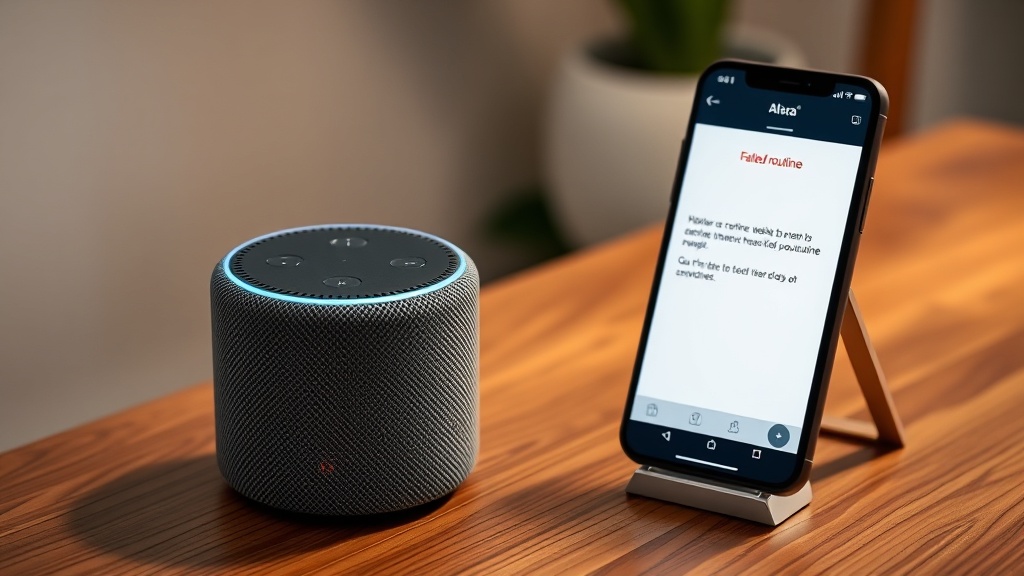
When routines fail to fire, the culprit is often a connectivity hiccup or a device state conflict. The Echo Dot relies on a stable internet connection to communicate with Amazon’s servers. If your Wi-Fi is spotty, routines can miss their scheduled windows. Check if the Dot’s light ring stays solid blue or pulses—if it’s blue, it’s processing; if it’s red, the microphone is muted. Ensure the device is connected to your 2.4 GHz band if you’re experiencing dropouts, as 5 GHz can be less stable in congested areas. For persistent Wi-Fi troubles, our guide on Amazon Echo Dot (5th Gen) Wi-Fi Keeps Dropping? Quick Fixes to Try offers targeted steps.
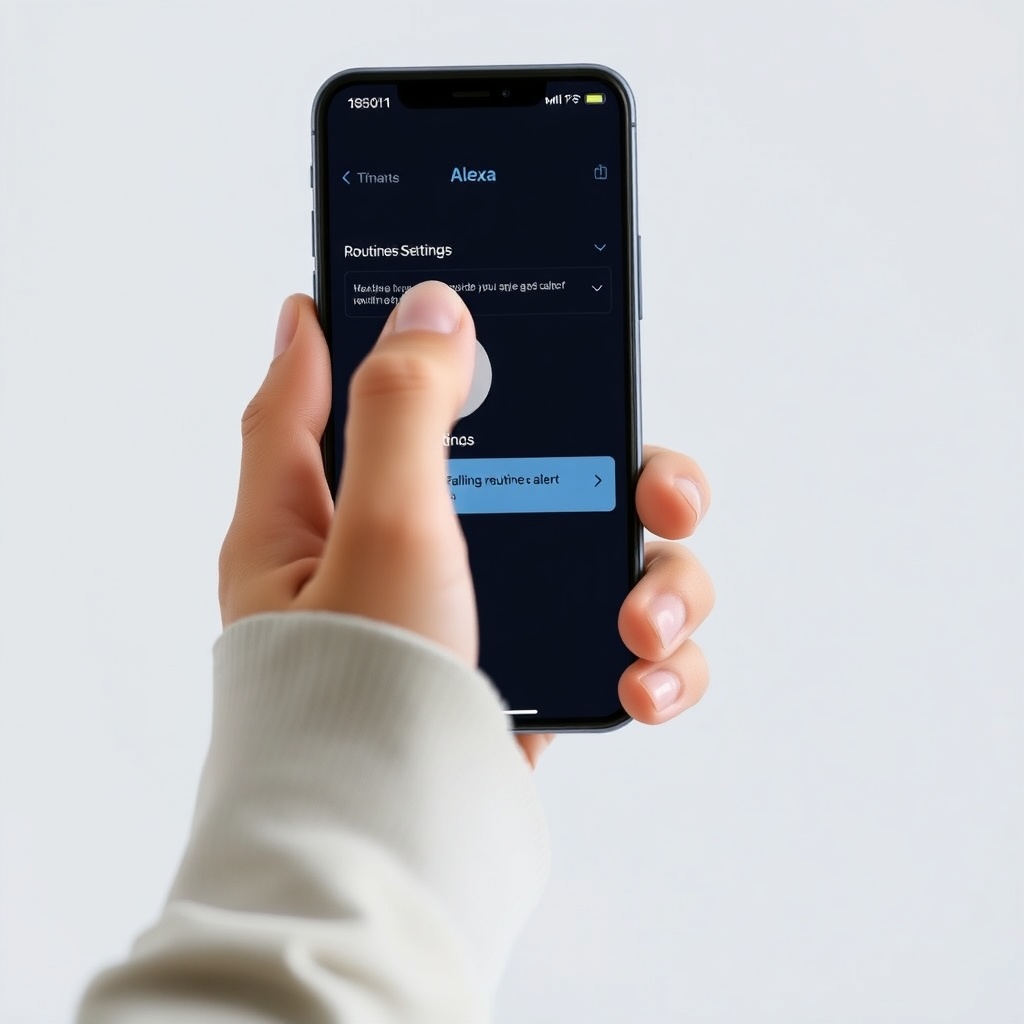
Another common cause is a routine that references a smart device that’s offline. When a trigger fires but the target light or plug isn’t reachable, the routine may appear to fail. Enable the “Routine Failure Notification” in the Alexa app (More > Routines > tap the three dots > Settings) to get alerts. If you see “device unreachable,” you’ll need to re-pair or power-cycle that smart home gadget.
How to Check if the Routine Trigger Itself Is Broken
Even if everything else works, a malformed trigger can sabotage a routine. Open the Alexa app and tap on More > Routines. Select the problematic routine and scroll to “When this happens.” Verify that the trigger type—time, voice, sensor, or device—is still valid. For time-based triggers, double-check the schedule: a routine set for 7:00 AM might not fire if your device’s time zone is wrong. Go to Device Settings > Echo Dot > Time Zone and confirm it matches your location. Voice triggers also cause issues: if you changed the wake word or a room name, a routine that says “Alexa, good morning” might not match. Delete and re-add the voice trigger to refresh it.
Routines that depend on device states (like a motion sensor or contact sensor) can stop working if that device lost its connection or its battery died. Replace batteries if needed, then re-sync the sensor in the Alexa app. For Zigbee-based sensors, the Echo Dot 5th Gen doubles as a Zigbee hub, but pairing issues can break routines. See Amazon Echo Dot (5th Gen) Zigbee Hub Pairing Issues: DIY Fixes for troubleshooting steps.
Which Routines Are Most Likely to Fail? A Severity Table
Not all routines are equally fragile. Below is a table ranking common routine types by failure frequency and typical causes based on user reports.
| Routine Type | Failure Rate (estimated) | Common Cause | DIY Fix Priority |
|---|---|---|---|
| Time-based (scheduled) | Medium (15-20%) | Wi-Fi dropout, time zone mismatch | Check network stability |
| Voice-triggered (wake word) | Low (5-10%) | Changed wake word, room name mismatch | Verify trigger in app |
| Device-based (sensor) | High (25-30%) | Dead battery, Zigbee disconnection | Replace battery, re-pair sensor |
| Location-based (arrival) | Low (8-12%) | Phone GPS drift, permission revoked | Allow always-on location |
| Smart home hub actions | Medium (18-22%) | Hub offline, device no longer compatible | Reset hub, update firmware |
If your routine falls into the “device-based” category, the fix is often straightforward. For example, a motion-triggered routine might fail if the sensor is out of range. Move the sensor closer to the Echo Dot, or pair it again via the Zigbee hub. The Echo Dot 5th Gen’s built-in hub is generally reliable, but if you experience pairing failures, check the dedicated article: Amazon Echo Dot (5th Gen) Zigbee Hub Pairing Issues: DIY Fixes.
What to Do When Alexa Routines Stop After a Firmware Update
Amazon frequently pushes firmware updates to Echo devices, and sometimes a routine that worked flawlessly before stops functioning afterward. The update might have changed how the device handles certain triggers or added new permissions requirements. To check your firmware version, open the Alexa app, go to Devices > Echo & Alexa > select your Dot, then scroll to “Device Software Version.” Compare it to the latest version listed on Amazon’s support page (usually available via a web search). If an update is pending, manually trigger it: go to your Echo Dot’s settings and tap “Check for Updates.” Let it complete without interruption.
After a firmware update, a routine that uses a custom skill might break if that skill hasn’t been updated. Disable and re-enable the skill in the Alexa app (More > Skills & Games > Your Skills). If the problem persists, delete the routine entirely and recreate it from scratch. This often resolves hidden data corruption. Also, check if the update altered any default settings: go to Device Settings > Echo Dot > Sounds and ensure “Volume” isn’t muted or too low for the device to respond audibly.
Can a Clogged Cache Trigger Routine Failures?
Yes—a corrupted cache on the Echo Dot can cause routines to misbehave. The device stores temporary data to speed up responses, but over time, this cache can lead to stale triggers. The simplest fix is a device restart: unplug the Echo Dot from power for 30 seconds, then plug it back in. Wait 2–3 minutes for it to boot fully, then test the routine. If that doesn’t help, perform a soft reset by holding the “Action” button (the small one) for 20 seconds until the light ring turns orange, then release. The Dot will reboot, clearing temporary memory without erasing settings.
For a more thorough clean, factory reset the Echo Dot: press and hold the “Action” button for 25 seconds until the light ring cycles through orange, blue, and then off. You’ll need to set it up again in the Alexa app. This is a last resort, but it often resolves mysterious routine failures. After the reset, avoid restoring from a backup—set up routines fresh to ensure they align with current software.
How to Test If the Routine Works in the Alexa App Debug Mode
The Alexa app has a built-in debugging tool that can pinpoint why a routine fails. Open the routine in the Alexa app and tap the “Test Routine” button at the bottom (available in the latest app version). The app will simulate the trigger and show a progress log. Look for errors like “Device not responding” or “Skill timeout.” If you see “Wi-Fi error,” the Dot may have dropped off the network. Reconnect it by going to Device Settings > Echo Dot > Wi-Fi Network and re-entering your credentials.
If the test passes but the routine still fails live, the issue is likely a sensor or device timing conflict. For example, a routine that turns on a light when a door opens might fail because the sensor sends the open signal too quickly for the Dot to process. Add a 1-second delay in the routine’s actions (using the “Wait” action) to give the system time to stabilize. For audio sync issues that affect routine feedback, check our guide on Amazon Echo Dot (5th Gen) Audio Sync Issues with TV: Causes and Solutions.
What Owners Say About Routine Failures on Echo Dot 5th Gen
Many Echo Dot 5th Gen owners report that routines fail most often after a power outage or when new devices are added to the home network. On community forums, users highlight that time-based routines are the most reliable, but motion and contact sensor routines are prone to lapses. One owner shared that their “Goodnight” routine stopped working after a firmware update; they fixed it by disabling and re-enabling the “Guard” mode in the Alexa app. Another user noted that their Zigbee-connected light strip wouldn’t respond to routines, but re-pairing the device via the built-in hub (as covered in Amazon Echo Dot (5th Gen) Zigbee Hub Pairing Issues: DIY Fixes) solved it. Common advice includes keeping the Alexa app updated and avoiding routines with more than 10 actions, as complex sequences can overload the processor.
Frequently Asked Questions
Q: How do I fix an Echo Dot 5th Gen routine that doesn’t trigger at the set time?
Check the time zone setting in the Alexa app under Device Settings > Echo Dot > Time Zone. Also, ensure your Wi-Fi connection is stable—if the Dot loses internet briefly, the routine might miss its window. Reboot the device if needed.
Q: My Echo Dot’s voice-triggered routine sometimes runs twice—why?
This happens when the same routine has two overlapping triggers (e.g., a time trigger and a voice trigger). Delete one trigger in the routine’s settings, or add a condition like “Only if {device} is off” to prevent duplicate execution.
Q: Can a faulty Ethernet adapter cause routine failures?
Yes, if you’re using a wired connection via the Echo Dot’s USB-C port with an Ethernet adapter, a loose connection can cause intermittent dropouts. For troubleshooting, see Amazon Echo Dot (5th Gen) Ethernet Adapter Not Recognized? DIY Fixes for Wired Connection Issues.
Q: Why does my routine work right after a restart but fail later?
This points to a device timeout or memory leak. Try reducing the routine’s complexity: split a long routine into two or three smaller ones. Also, check if any smart device in the routine goes to sleep—some smart plugs enter a low-power mode that blocks commands.
Q: Will a routine fail if my iPhone is connected via Bluetooth?
Bluetooth audio streaming can interfere with Alexa’s responsiveness, especially if the routine involves audio feedback. If you experience delays, turn off Bluetooth on your iPhone temporarily. Persistent Bluetooth audio delays are discussed in Amazon Echo Dot (5th Gen) Bluetooth Audio Delay with iPhone: DIY Fixes.
Q: Can audio stuttering cause routines to stop mid-execution?
Audio stuttering is usually a separate issue, but it can disrupt routines that include audio responses or media playback. If your Dot stutters during a routine, address the audio problem first. Our guide Amazon Echo Dot (5th Gen) Audio Stuttering: Causes and DIY Fixes provides solutions.